Dashboard
The Dashboard is the first page after you sign in (Alt+1). It answers one question quickly: what should I work on now?
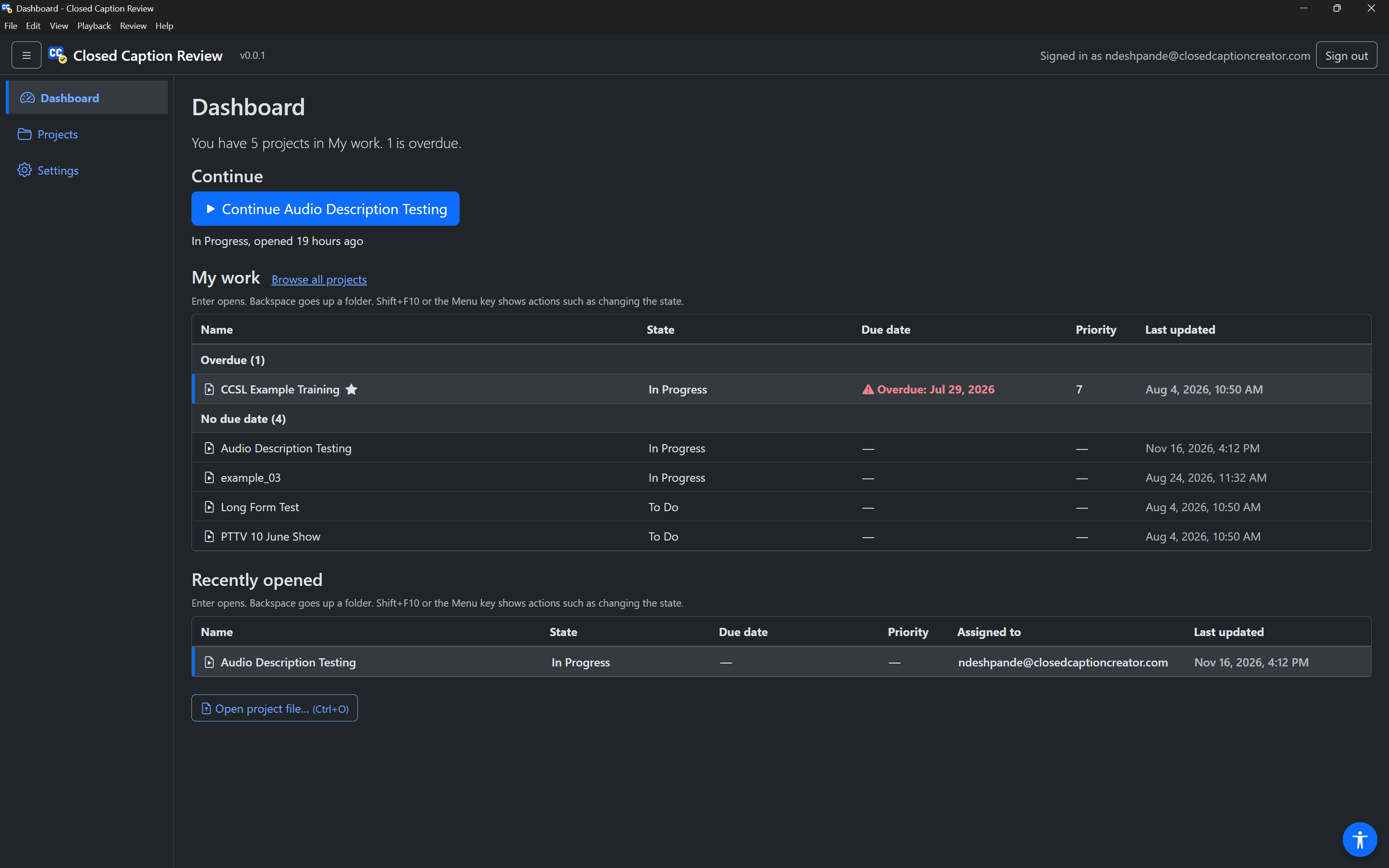
Briefing
The sentence under the page heading sums up your work, for example: "You have 5 projects in My work. 1 is overdue." It also says how many projects are due today, waiting for review or blocked, or "Nothing is overdue or due today." The briefing is announced when the Dashboard opens.
If nothing is assigned to you, it says so and suggests the Projects page.
Continue
Continue has one large button for the project you opened most recently, for example Continue Audio Description Testing. Under it is a short description: the project's state, its due date if it has one, and when you last opened it ("In Progress, opened 19 hours ago"). For a project file from your computer, it shows the file name instead of a state.
Press the button to open the project in the Editor.
My work
My work lists every project assigned to you, except archived ones. It is grouped by due date, with the most urgent first:
- Overdue
- Due today
- Due in the next 7 days
- Due later
- Past due date (finished projects whose due date has passed)
- No due date
Each group heading shows how many projects it holds. The columns are Name, State, Due date, Priority and Last updated. A star after a name means you starred it. Overdue dates are marked with a warning icon and the word "Overdue".
The list is one Tab stop:
| Keys | Action |
|---|---|
Up / Down, Home / End, Page Up / Page Down | Move between projects |
| Letters | Jump to the next project whose name starts with the letters you type |
Enter | Open the project in the Editor |
Shift+F10 or Menu | Show actions: set state, assign, priority, due date, star, lock, details |
The actions are the same as on the Projects page. See Project actions. If you assign a project to someone else or archive it, it leaves My work and the app tells you so.
Browse all projects, next to the heading, goes to the Projects page.
Recently opened
Recently opened lists the last projects you opened on this computer, newest first, including project files from your computer. It has an Assigned to column as well. Each row is read with when you opened it, for example "…, opened 2 days ago".
It uses the same keys as My work. If a project file has been moved or deleted since you opened it, the app tells you and removes it from the list.
Open project file
Open project file… (Ctrl+O, Cmd+O on a Mac) at the bottom of the page opens your computer's file dialog so you can choose a .ccprj file. See Opening project files.
If the Dashboard cannot load
If your work cannot be loaded, the page shows "Your work could not be loaded. Check your internet connection and try again." with a Try again button.