Editor Overview
The Editor is where you watch, review and correct a project. It opens when you open a project from the Dashboard, the Projects page or a project file. When it opens, the app announces the project name and "Press F1 for keyboard help."
The pages in this section cover each part in depth:
- Review workflow: Begin review, the Review toolbar, pass and fail, notes and replies.
- Video player and playback: the video, its control bar, the Event Text panel, Player Controls, Video lock and Caption lock.
- Event list: tracks, filters, search, the rows and their keys.
- Editing events: the Event panel, timing, text, formatting, inserting and deleting, speakers.
- Event metrics: duration and reading speed.
- Audio description: AD tracks, voices and rendering audio.
Modes
The Editor has three modes. The mode decides what you can change and which panels are shown. Switch modes with the buttons in the middle of the project bar at the bottom of the window, with the keys below, or with View › Mode. The new mode is announced with a short description.
| Mode | Keys | What you can change |
|---|---|---|
| Edit | Ctrl+Shift+1 | Timing, text, notes, replies, approval, forced, speakers. "Change timing, text, notes, replies and approval." |
| Review | Ctrl+Shift+2 | Notes, replies, their "done" checks, and approval. "Add notes and replies, approve or fail events." |
| Preview | Ctrl+Shift+3 | Nothing. "Watch only. Nothing changes." |
Projects open in Review mode, unless someone else has locked them (see Locked projects).
Layout
On a wide window the Editor has two columns, with the project bar along the bottom. On a narrow window (or when zoomed in), everything is in one column and the page scrolls.
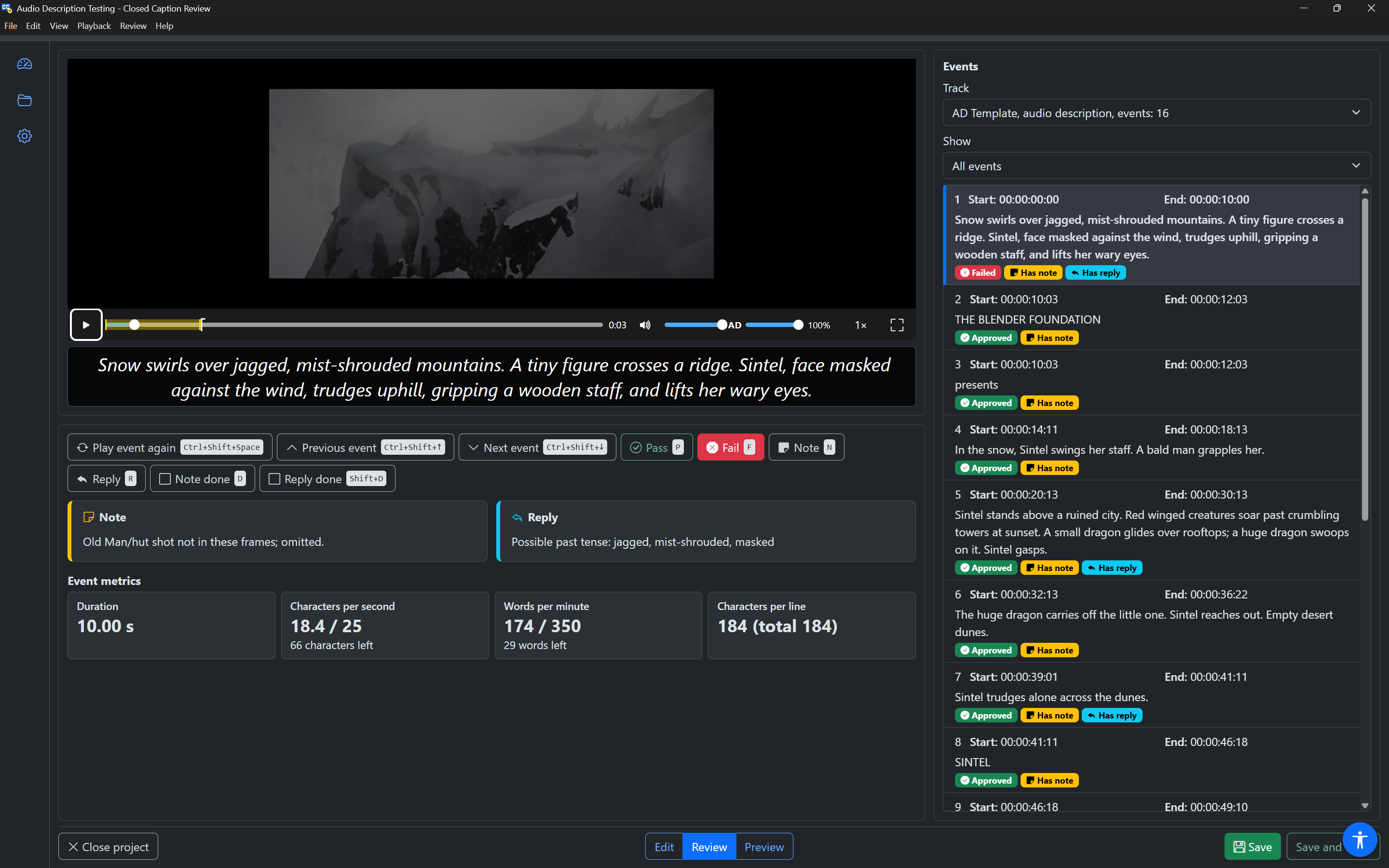
Review mode
Review mode shows only what reviewing needs:
- Begin review button, above the video, until you start reviewing.
- Video player, with its control bar.
- Event Text panel, under the video.
- Review toolbar, under the Event Text panel.
- Note and Reply cards for the selected event.
- Event metrics for the selected event.
- Events, on the right: the track, the Show filter and the event list.
- Project bar, at the bottom.
The Player Controls row is hidden in Review mode to keep the page short. Its Go to timecode field appears when you press Ctrl+Shift+G, and the playback keys all still work.
Edit mode
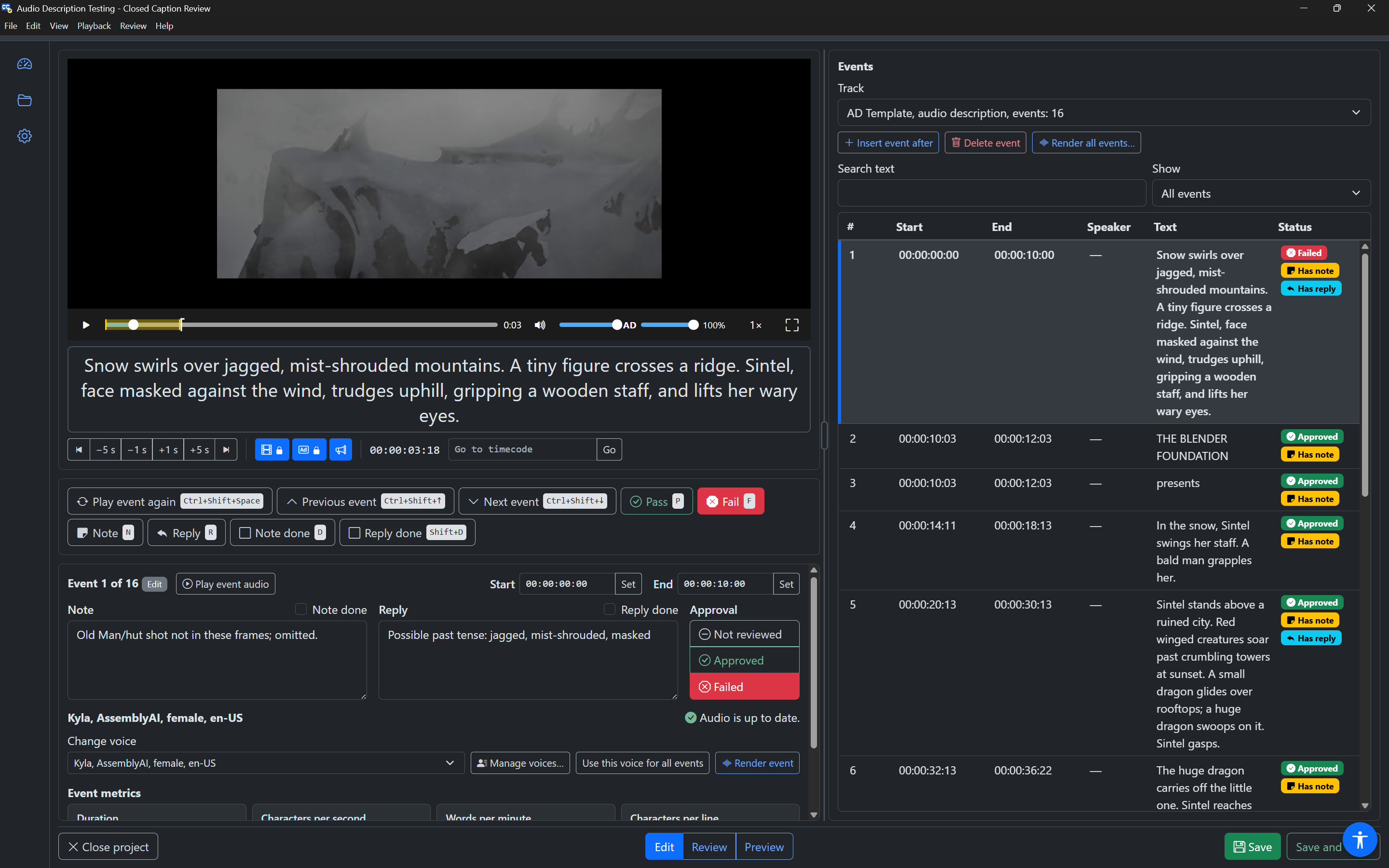
Edit mode adds:
- Player Controls under the Event Text panel: previous and next event, skip buttons, Video lock, Caption lock, Announce event text, the current time and Go to timecode. See Player Controls.
- The Event panel under the Review toolbar, with timing, note and reply, approval, metrics and more. See Editing events.
- Insert event after and Delete event buttons and a Search text box above the event list.
- A divider between the two columns, to make the event list wider or narrower. See Resizing the event list.
The Event Text panel becomes editable while the video is paused.
Preview mode
Preview mode is for watching. The video takes the full height of the window, and the event list becomes a drawer docked along the bottom:
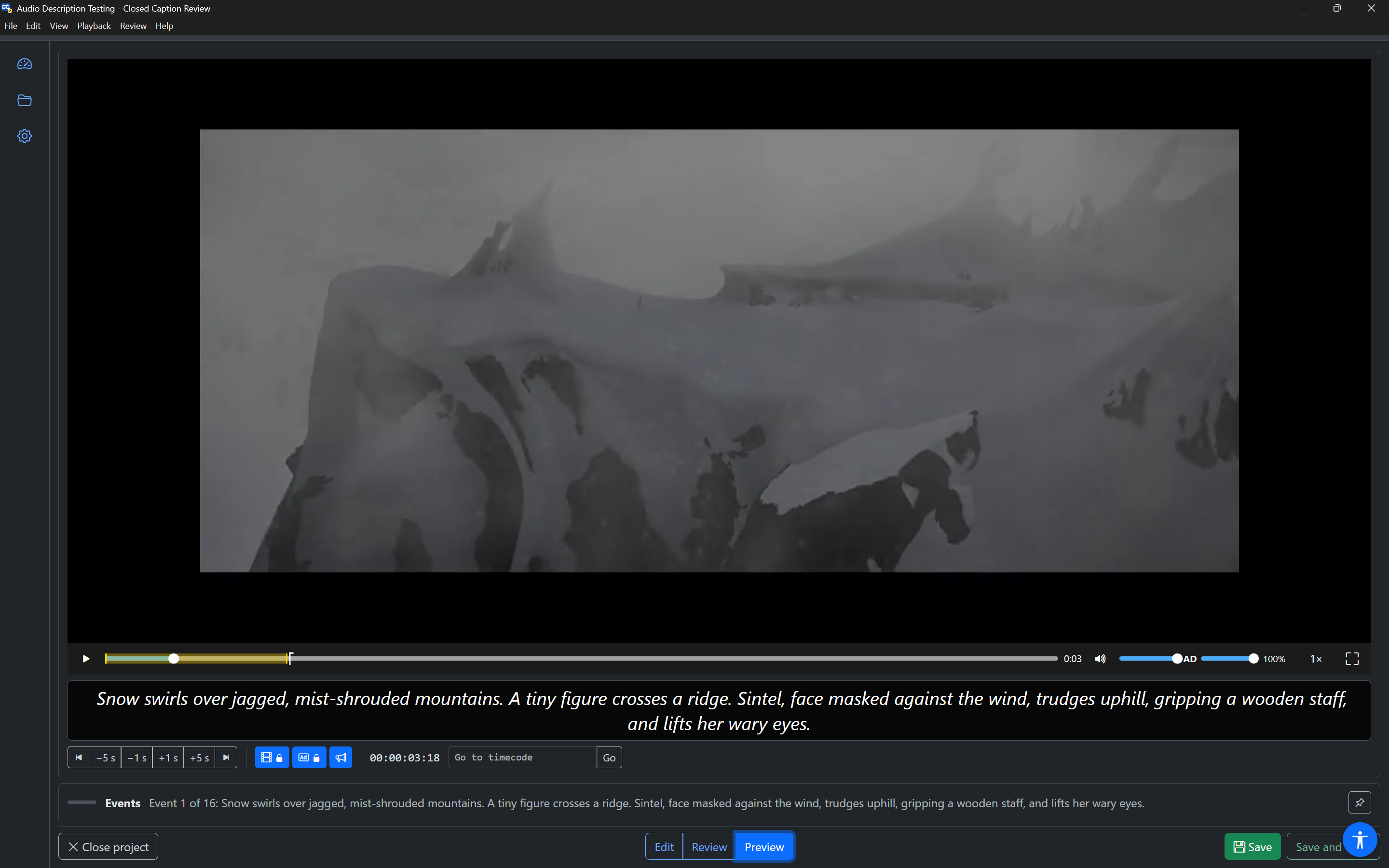
- When closed, the drawer shows only its heading (Events) and the selected event's number and text.
- It opens when you point at it, or when focus moves into it (with
TaborF6). Escapein the drawer returns focus to the player, which closes it.- The pin button in the drawer heading (Keep the event list open) keeps it open. Press it again to let it close.
The Review toolbar and the Event panel are not shown in Preview mode. Player Controls are shown.
Moving between panels
Press F6 to move to the next panel and Shift+F6 to go back. The order is:
- Video player (focus lands on the play button)
- Review toolbar (not in Preview mode)
- Event panel (Edit mode only; focus lands on the "Event 12 of 240" heading)
- Events (focus lands on the selected event in the list)
- Project bar (focus lands on the current mode)
Each panel is also a region with a heading, so you can jump to it in browse mode.
The project bar
The project bar runs along the bottom of the Editor:
- Close project, on the left.
- The Edit, Review and Preview mode buttons, in the middle. Under them, a line describes the current mode and where the project came from ("From cloud storage: Team" or "From file: Episode 4.ccprj"). It is shown on screen when Show help text under fields is on.
- Save and Save and close, on the right. A dot on Save (read as "unsaved changes") means you have changes that are not saved yet.
Saving
Press Save, Ctrl+S (Cmd+S on a Mac), or choose File › Save. The app says "Saving in progress", then "Save successful".
- A cloud project is saved back to cloud storage, in the same place.
- A project opened from a file is saved back to that file.
- The whole project is saved, including anything Closed Caption Review does not show (for example, tracks hidden because your subscription does not include audio description). Nothing is lost.
You can save in Edit and Review modes. In Preview mode, the app says there is nothing to save.
If a save fails, the message says why, and your changes are kept in the Editor so you can try again:
| Message | Meaning |
|---|---|
| The project could not be saved. Check your connection and try again. | A network or storage problem. |
| Not saved: … has locked this project. | Someone else locked the project while you had it open. The Editor switches to Preview mode. |
| Not saved: this project no longer exists in cloud storage. | The project was deleted or moved. |
Undo and redo
Every change you make in the Editor can be undone:
| Keys | Action |
|---|---|
Ctrl+Z (Cmd+Z) | Undo |
Ctrl+Y or Ctrl+Shift+Z (Cmd+Shift+Z) | Redo |
The app says what it undid or redid, for example "Undid: Approval" or "Undid: Start". Typing in an event's text is undone as one step, not one letter at a time. When focus is in a plain text box (such as the note in the Event panel, or a timecode field), Ctrl+Z undoes typing in that box instead.
Undo and redo are also in the Edit menu. They are not available in Preview mode.
Closing a project
There are two ways to leave the Editor:
- Save and close saves the project (if it has changes) and closes it.
- Close project (also File › Close project) closes it. If you have unsaved changes, a dialog asks "This project has changes that are not saved." with Save and close, Close without saving and Cancel.
Going to another page (for example with Alt+2) while you have unsaved changes asks the same question. If you close the window, the app warns you before closing over unsaved changes.
After closing, you return to the Projects page.
Handing a project on
When you Save and close a cloud project, a dialog asks: "Project saved. Update state or assignee?" It says the project's current state and assignee, and has:
- State: choose the next workflow state, for example In Review or Completed.
- Assigned to: choose who works on it next. When you choose someone new, Email … about this assignment appears, so they get an email that the project is theirs.
- Update and close: saves the state and assignee, then closes. The app says, for example, "Episode 4 set to Completed and assigned to sam@example.com. Closing project".
- Close without changes: closes without changing the state or assignee.
- Back to editor (or
Escape): stays in the Editor. The project is already saved.
You can turn this question off in Settings › Editor (Ask to update state and assignee on Save and close). It is never shown for project files, or for projects locked by someone else.
Locked projects and tracks
A project locked by someone else opens in Preview mode, with a warning: "… has locked this project. It is open in Preview mode and changes cannot be saved." Edit and Review are not available. You can still watch and listen.
A locked track (an event group locked in Closed Caption Creator) shows a note in Edit mode: "This track is locked in Closed Caption Creator. Timing and text are read-only; review notes and approval can still change." You can still review it.
Audio description tracks without the plugin
If your subscription does not include the Audio Description plugin, audio description and dubbing tracks are hidden, and a note says how many are hidden. The other tracks open normally, and the hidden tracks are saved back unchanged. If a project has only audio description tracks, it cannot be reviewed without the plugin.
Resizing the event list
In Edit mode, a divider sits between the left column and the event list:
- Drag it with the mouse, or double-click it to reset it.
- Or press
Tabto reach it and useLeftandRight(2% at a time, or 10% withShift),Page UpandPage Down(10%),HomeandEnd(widest and narrowest), andEnterto reset it.
The event list can be from 20% to 50% of the width. You can also choose Narrow, Medium or Wide in Settings › Editor. The width is remembered.
Keyboard help
Press F1 (or Help › Keyboard shortcuts) for a dialog listing every Editor key. It also has the Show help text under fields switch. The same lists are on Settings › Keyboard shortcuts and in the keyboard shortcut reference.