Review Workflow
Reviewing in Closed Caption Review follows one loop for every event:
- Play the event, with a little video before and after it.
- Decide: pass it, fail it, or write a note.
- Move to the next event.
Everything in that loop is on the Review toolbar and on single keys, so you can review a whole project without leaving the keyboard or looking for buttons.
Begin review
When a project opens, the first event is selected and focus is on the Begin review button, above the video. It is the first Tab stop on the page. Its description says what it will do, for example "Plays event 1 of 240, then takes you to the Review buttons."
Press Begin review (or Ctrl+Shift+Space). The event plays, the button disappears, and focus moves to the Review toolbar, past the video controls, so the review keys work straight away.
To start from a different event, choose it in the event list first, then press Ctrl+Shift+Space.
How an event plays
When you play an event for review, the video plays from a little before the event starts (the pre-roll) to a little after it ends (the post-roll), then stops. Both are 2 seconds by default; set them from 0 to 10 seconds in Settings › Editor. An event with no end time plays for 5 seconds.
When it stops, the app announces, for example: "Event 12 finished. P pass, F fail, N note."
While an event plays for review, the selection stays on that event, even though the pre-roll and post-roll show its neighbours. If Announce event text is on, only that event's text is read, not its neighbours'.
The Review toolbar
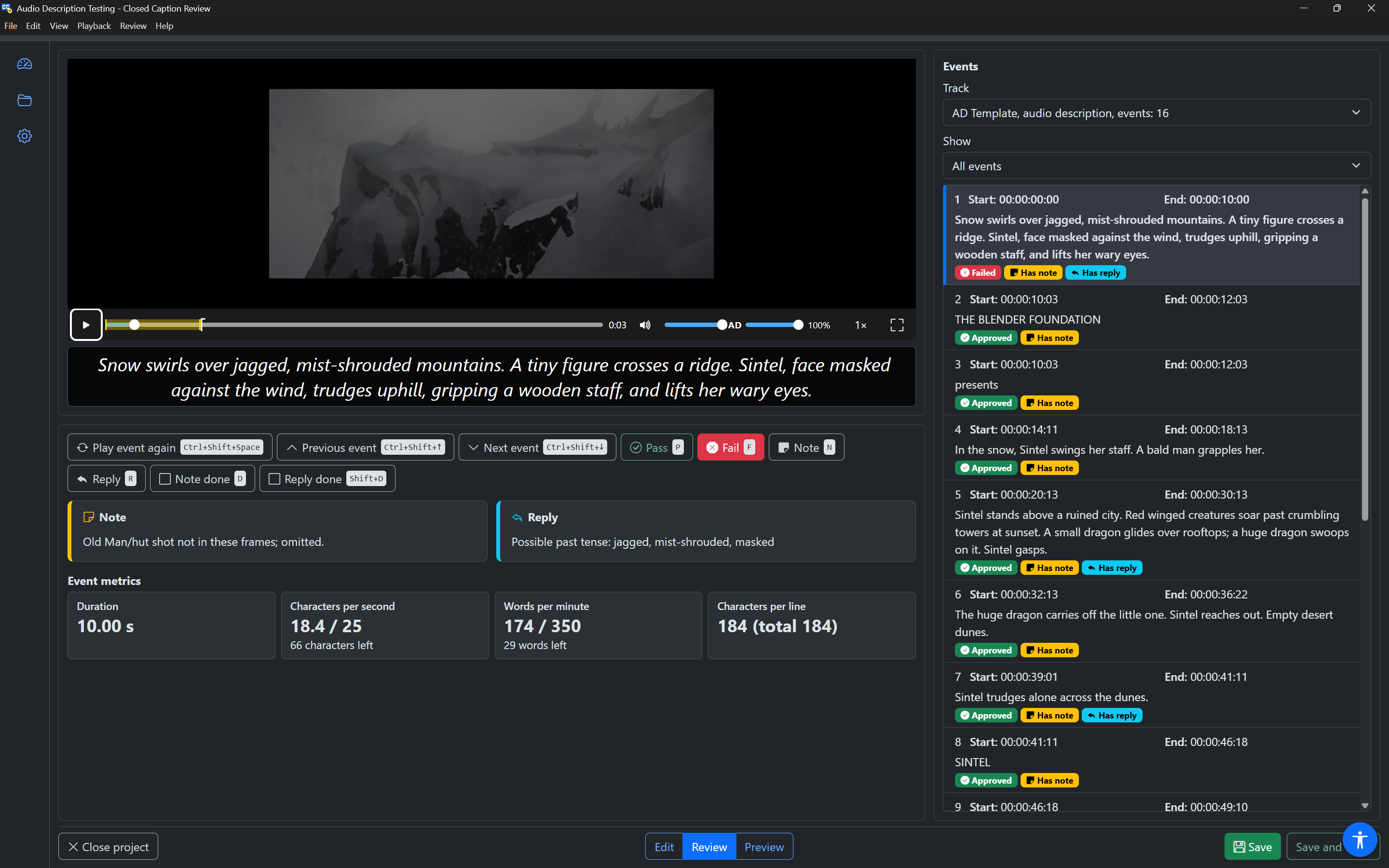
The Review toolbar is one Tab stop. Use Left and Right (or Up and Down) to move between its buttons, Home and End for the first and last. Each button shows its key on screen and tells your screen reader its key.
| Button | Keys in the toolbar and event list | Keys anywhere in the Editor | What it does |
|---|---|---|---|
| Play event / Play event again | — | Ctrl+Shift+Space | Plays the selected event with pre-roll and post-roll. After an event has played, it is named Play event again. |
| Previous event | — | Ctrl+Shift+Up | Selects the event before this one in the list. |
| Next event | — | Ctrl+Shift+Down | Selects the event after this one in the list. |
| Pass | P | Ctrl+Shift+P | Marks the event Approved. Press again to clear it back to Not reviewed. |
| Fail | F | Ctrl+Shift+F | Marks the event Failed. Press again to clear it back to Not reviewed. |
| Note | N | Ctrl+Shift+N | Opens the note dialog to write or change the note. |
| Reply | R | Ctrl+Shift+R | Opens the reply dialog to write or change the reply. |
| Note done | D | Ctrl+Shift+D | Marks the note done, or not done. |
| Reply done | Shift+D | Ctrl+Shift+K | Marks the reply done, or not done. |
Pass, Fail, Note done and Reply done are toggle buttons: they show (and say) whether they are pressed. Pass is green and Fail is red when pressed, and each also changes its icon, so colour is never the only sign.
The single-letter keys work when focus is in the Review toolbar or in the event list. The Ctrl+Shift keys work anywhere in the Editor, including while you type in a field, and are also in the Review menu.
In Preview mode, the Review toolbar is not shown. If you use a review key in Preview mode, the app says "Review changes are not available in Preview mode."
Pass and Fail
Press P to pass an event or F to fail it. The app says "Approved" or "Failed". The event list shows an Approved or Failed badge on the event, and its row is read with the result.
Pressing the same key again clears the result, back to Not reviewed. Pressing the other key changes it.
What happens after Pass or Fail
Choose in Settings › Editor (After Pass or Fail):
| Setting | After you pass or fail |
|---|---|
| Stay on the event (default) | Nothing moves. Add a note if you need to, then press Next event. |
| Go to the next event | The next event in the list is selected. |
| Go to the next event and play it | The next event is selected and played, so you can review continuously: listen, press P, listen, press P… |
Clearing a result always stays on the event.
Notes and replies
Every event can have a note and a reply. In a typical team workflow, the reviewer writes the note ("Speaker is wrong; this is Anna"), and the person who fixes it writes the reply ("Fixed"), or the other way round. Each one has a done check, so you can track which notes have been dealt with.
Writing a note or reply
Press N (note) or R (reply). The video pauses and a dialog opens, titled "Note, event 12" or "Reply, event 12", with:
- a text box with the current text, with the cursor at the end;
- a Note done (or Reply done) checkbox;
- Save (
Ctrl+Enter) and Cancel (Escape).
The app says "Note saved" or "Reply saved". The text and the done check are saved together, so one undo brings both back.
The text size in this dialog follows Note and Reply text size in Settings › Editor.
The Note and Reply cards
In Review mode, the selected event's note and reply are shown below the Review toolbar as two cards, Note and Reply. A card says "This event has no note." when there is none. A done note or reply shows a Done tick.
Each card's text is a button: press it to edit the text in the dialog. A screen reader reads the text first, for example "Note: Old man shot not in these frames; omitted." In browse mode, the cards have level 3 headings, so you can jump to them.
Marking notes and replies done
Press D to mark the note done (or not done), or Shift+D for the reply. The app says "Note done" or "Note not done". You can only mark a note or reply done when it has some text; otherwise the app says "This event has no note."
In the event list, an event with a note shows Has note, or Note done once it is marked done. An event with a reply shows Has reply.
Moving through events
Previous event and Next event follow the event list as it is shown, after its filter. So if the list shows only Not reviewed events, Next event goes to the next one that still needs reviewing.
Each move announces the new event, for example "Event 13 of 240 selected", followed by the event's text when Announce event text is on. At either end, the app says "This is the first event." or "This is the last event."
With Video lock on (the default), the video moves to the start of the event you select. See Video lock and Caption lock.
You can also work from the event list itself: the same single-letter keys (P, F, N, R, D, Shift+D) work there, Space plays the event with pre-roll and post-roll, and Enter takes you to the Review toolbar. See Event list.
Focusing on what needs work
The Show filter above the event list narrows the list, and Previous and Next follow it:
| Show | Events listed |
|---|---|
| All events | Every event in the track. |
| Needs attention (open note or failed) | Events that failed, or have a note that is not done. |
| With a note | Events that have a note. |
| Not reviewed | Events that are neither approved nor failed. |
| Approved | Approved events. |
| Failed | Failed events. |
The app says how many events are shown after you change the filter. In the event list, Alt+Down and Alt+Up jump to the next or previous event that needs attention, whatever the filter.
Suggested workflows
First pass on a new project
- In Settings › Editor, set After Pass or Fail to Go to the next event and play it.
- Open the project and press Begin review.
- After each event, press
Pto pass it and hear the next one. For an event with a problem, pressNfirst and write a note about why, then pressFto fail it and move on. (Failing moves on straight away with this setting, so write the note before you fail the event.) - When you reach the end, set Show to Needs attention to check the failed events and open notes.
- Press Save and close, and hand the project on to the next person (for example, In Progress, assigned to the editor).
Checking fixes
- Open the project and set Show to With a note or Needs attention.
- For each event, press
Ctrl+Shift+Spaceto hear it, read the note and reply in the cards, then pressPandDif the fix is good. - Save and hand the project on (for example, Completed).
Correcting as you go
Switch to Edit mode (Ctrl+Shift+1) to correct the text or timing yourself. The Review toolbar and its keys work the same in Edit mode. See Editing events.