Settings
Settings (Alt+3) are your own preferences on this computer. They change how Closed Caption Review looks and behaves for you, never the projects you review.
Settings has five sections, listed on the left as plain links: General, Display, Captions, Editor and Keyboard shortcuts. The current section is marked as the current page. Each section is its own page, so a screen reader's links list finds them all. Changes apply straight away; there is no Save button.
General
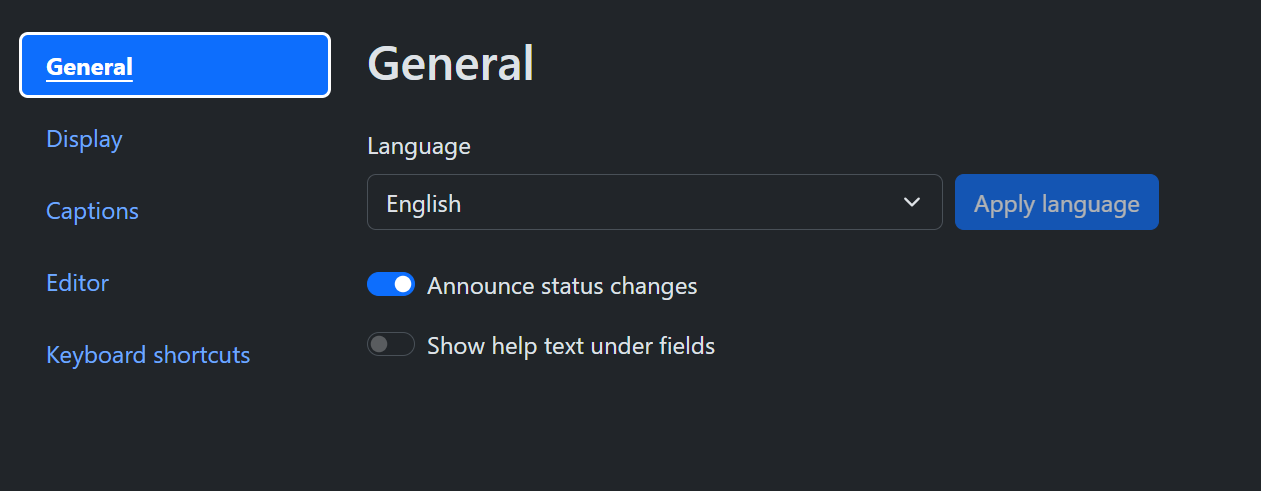
| Setting | What it does |
|---|---|
| Language | The language of the app. English, German, Spanish, French, Hindi, Italian, Japanese, Portuguese (Portugal), Russian or Chinese (Simplified). Each language is listed by its own name, so you can always find yours. Choose one and press Apply language; the app reloads in that language. |
| Announce status changes | Your screen reader is told about saves, mode changes, errors and other changes that happen without moving focus. On by default. Turn it off if you do not use a screen reader and do not want the extra messages. |
| Show help text under fields | Shows each field's short help sentence on screen. Screen readers always get the help text as the field's description, whether this is on or off. Off by default. |
Display
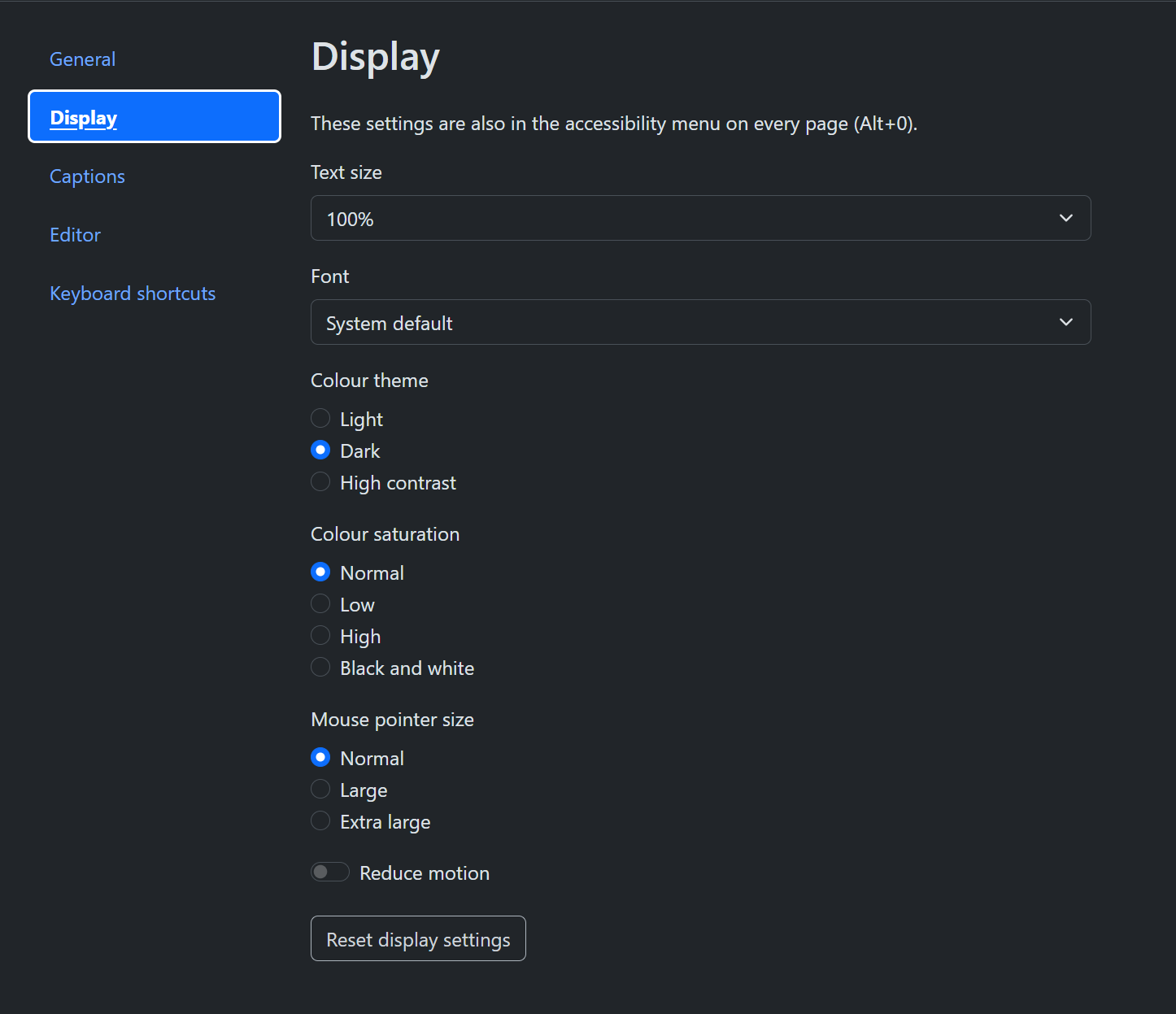
These settings are also in the Accessibility menu, on every page.
| Setting | Options |
|---|---|
| Text size | 100%, 125%, 150%, 175% or 200%. Everything in the app grows with it. |
| Font | System default, Atkinson Hyperlegible, OpenDyslexic (dyslexia friendly), Serif, or Monospace. |
| Colour theme | Light, Dark or High contrast. |
| Colour saturation | Normal, Low, High, or Black and white. |
| Mouse pointer size | Normal, Large or Extra large. |
| Reduce motion | Turns off sliding and fading effects. They are also off when your computer is set to reduce motion. |
Reset display settings puts all of these back to their defaults.
Colour themes
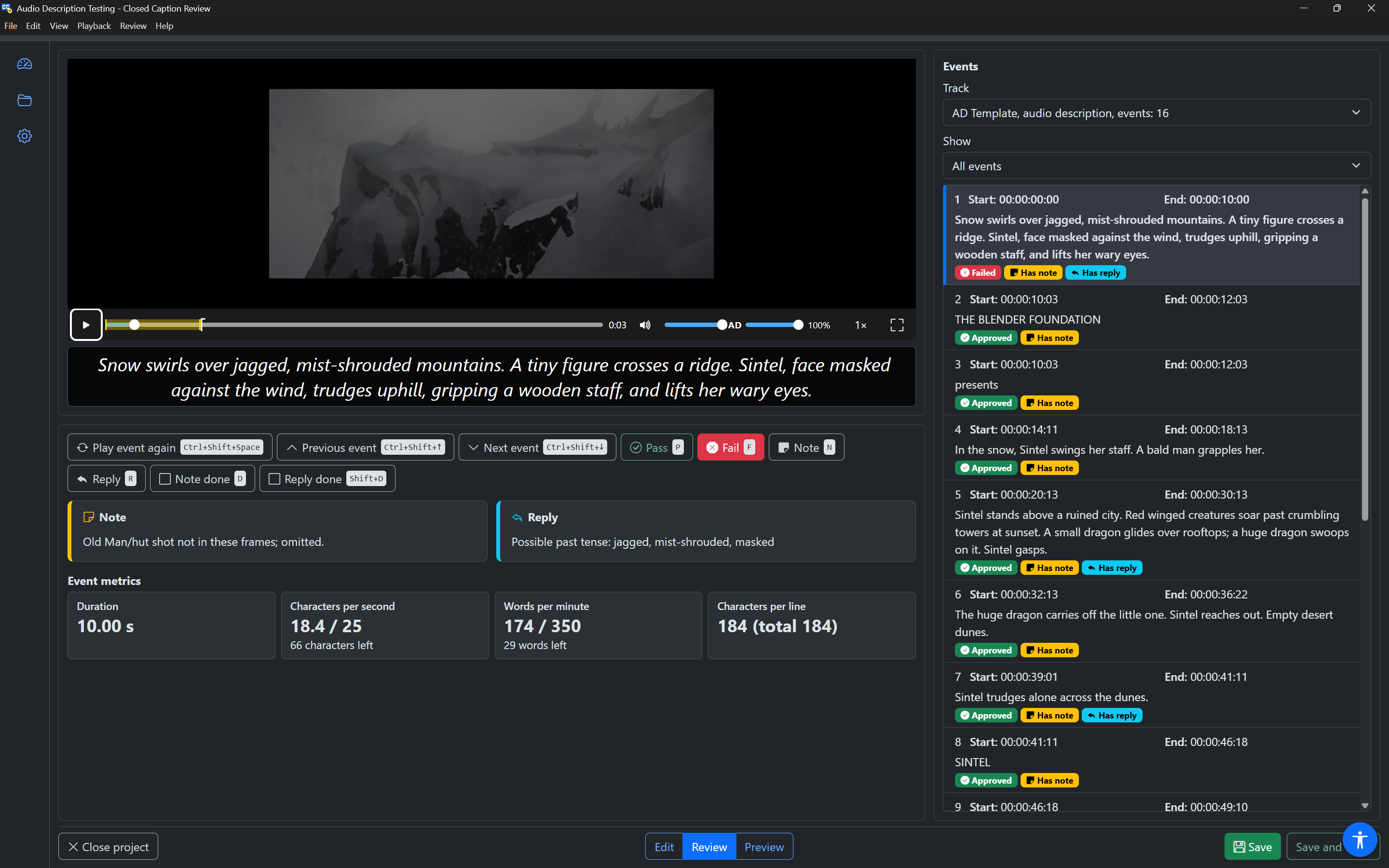
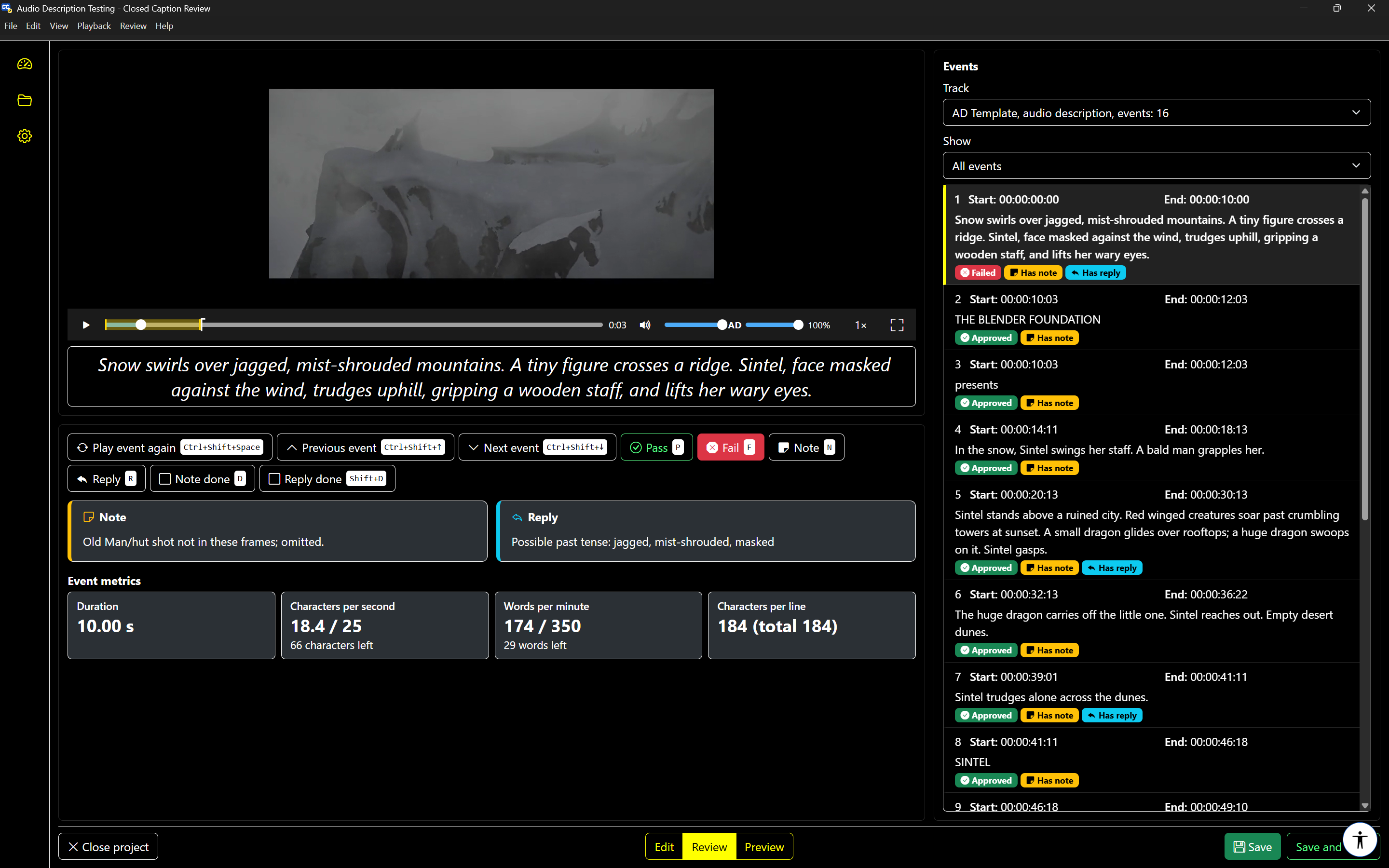
The colour theme applies to the whole app, including the Editor. Status badges and toggle buttons also use icons and words, so they are clear in every theme.
Light
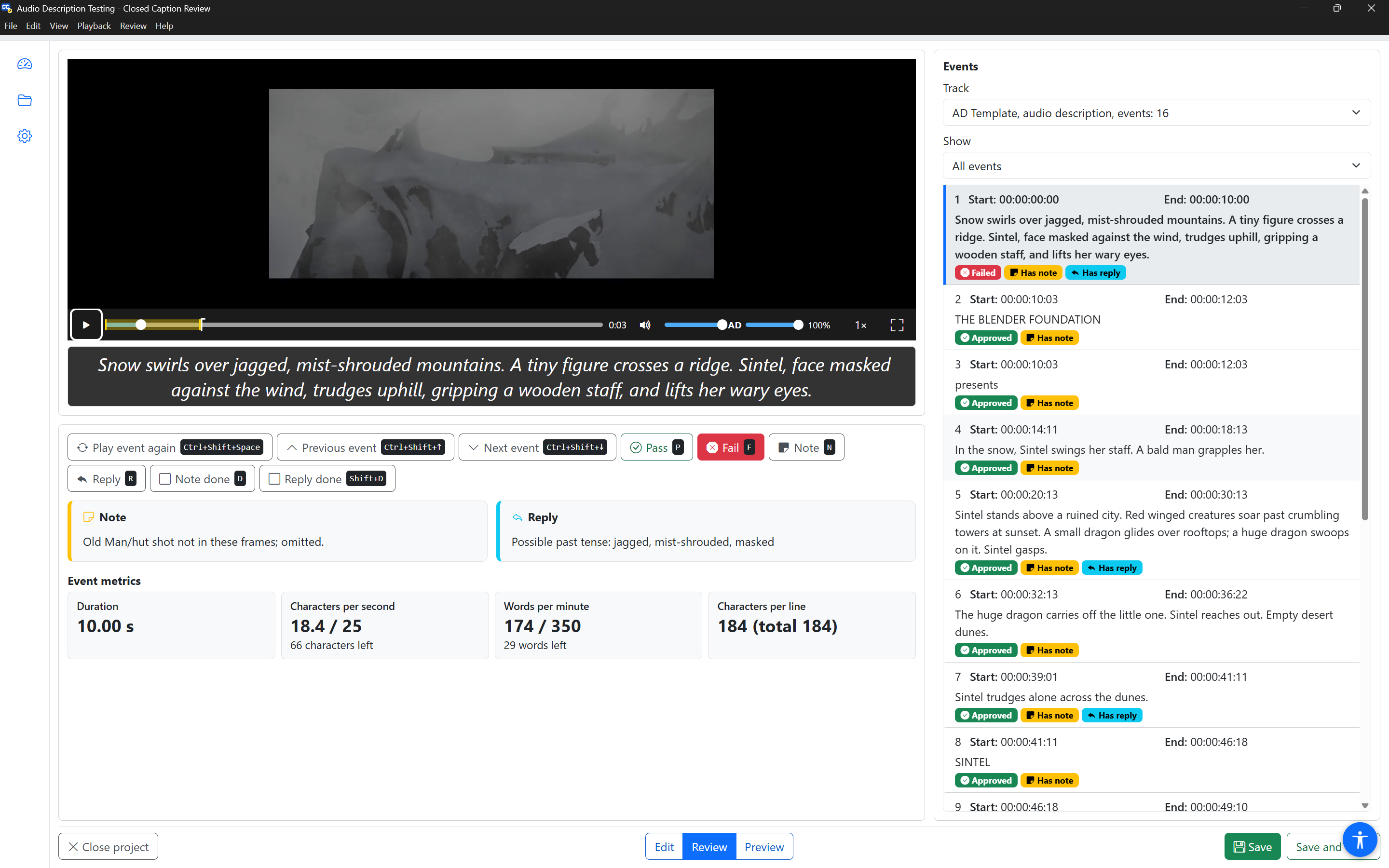
Dark
High contrast uses a black background, white text, and yellow for focus, the selected event and the current mode.
Captions
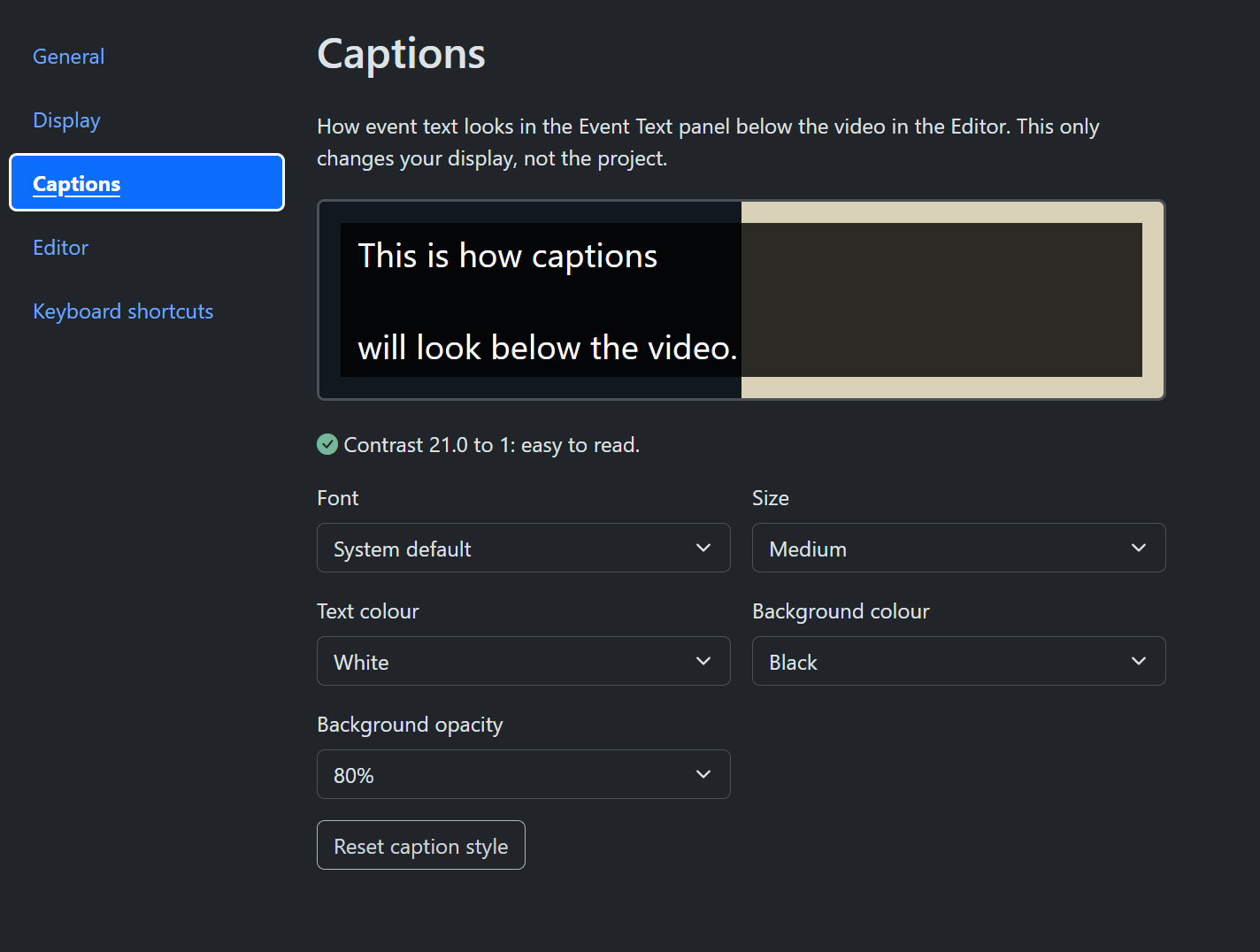
Captions sets how event text looks in the Event Text panel below the video in the Editor. It only changes your display, not the project or how the captions look to viewers.
A preview at the top shows sample text in the chosen style, over a light and a dark area. Under it, a contrast check gives the contrast between the text and background colours, for example "Contrast 21.0 to 1: easy to read." If the contrast is low, it says "hard to read" and suggests a different colour. With a see-through background, it also reminds you that bright video can lower the contrast.
| Setting | Options |
|---|---|
| Font | System default, Atkinson Hyperlegible, OpenDyslexic (dyslexia friendly), Arial, Verdana, Serif, or Monospace. |
| Size | Small, Medium, Large or Extra large. |
| Text colour | White, Yellow, Cyan, Green, Magenta, Red, Blue, Black, or Custom…, which opens a colour picker. |
| Background colour | The same colours, or Custom…. |
| Background opacity | None (no background), 25%, 50%, 75%, 80% or 100%. |
The default is white text in the system font, medium size, on a black background at 80% opacity. Reset caption style puts it back.
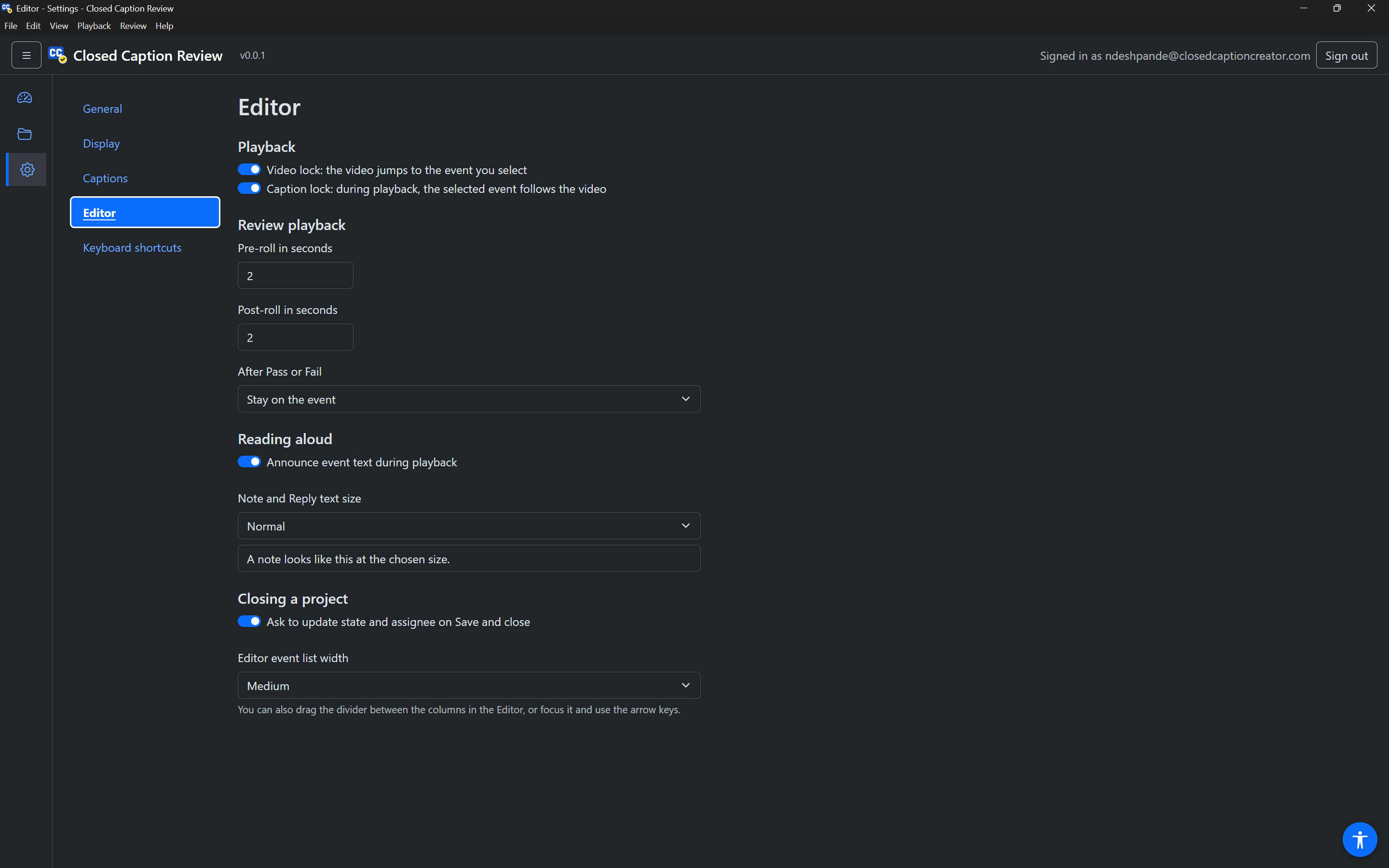
Editor
Playback
| Setting | Default | What it does |
|---|---|---|
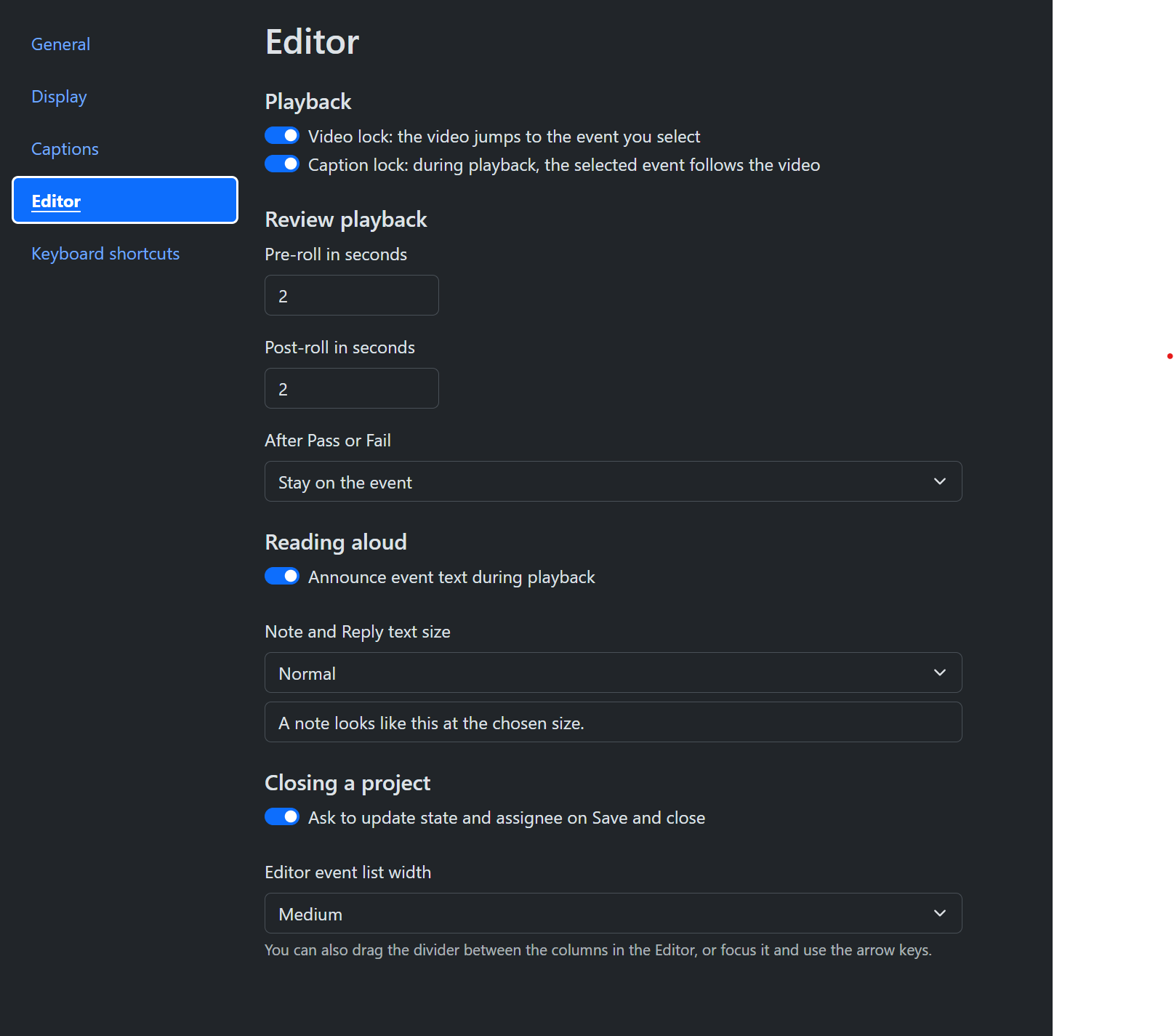
| Video lock: the video jumps to the event you select | On | See Video lock and Caption lock. |
| Caption lock: during playback, the selected event follows the video | On | See Video lock and Caption lock. |
The same two settings are the Video lock and Caption lock buttons in the Editor's Player Controls.
Review playback
| Setting | Default | What it does |
|---|---|---|
| Pre-roll in seconds | 2 | How much video plays before an event when you review it (0 to 10). |
| Post-roll in seconds | 2 | How much video plays after an event when you review it (0 to 10). |
| After Pass or Fail | Stay on the event | Stay on the event (to add a note), Go to the next event, or Go to the next event and play it. See What happens after Pass or Fail. |
Reading aloud
| Setting | Default | What it does |
|---|---|---|
| Announce event text during playback | On | Your screen reader reads each event as it appears while the video plays. Audio description that has its own audio is not read. Also the Announce event text button in the Editor. |
| Note and Reply text size | Normal | Normal, Large, Extra large or Largest. The size of note and reply text in the Editor, with a sample below the field. |
Closing a project
| Setting | Default | What it does |
|---|---|---|
| Ask to update state and assignee on Save and close | On | After Save and close on a cloud project, offer to change its state and assignee. See Handing a project on. |
| Editor event list width | Medium | Narrow, Medium or Wide. If you have dragged the divider in the Editor, this shows Custom with the width. See Resizing the event list. |
Keyboard shortcuts
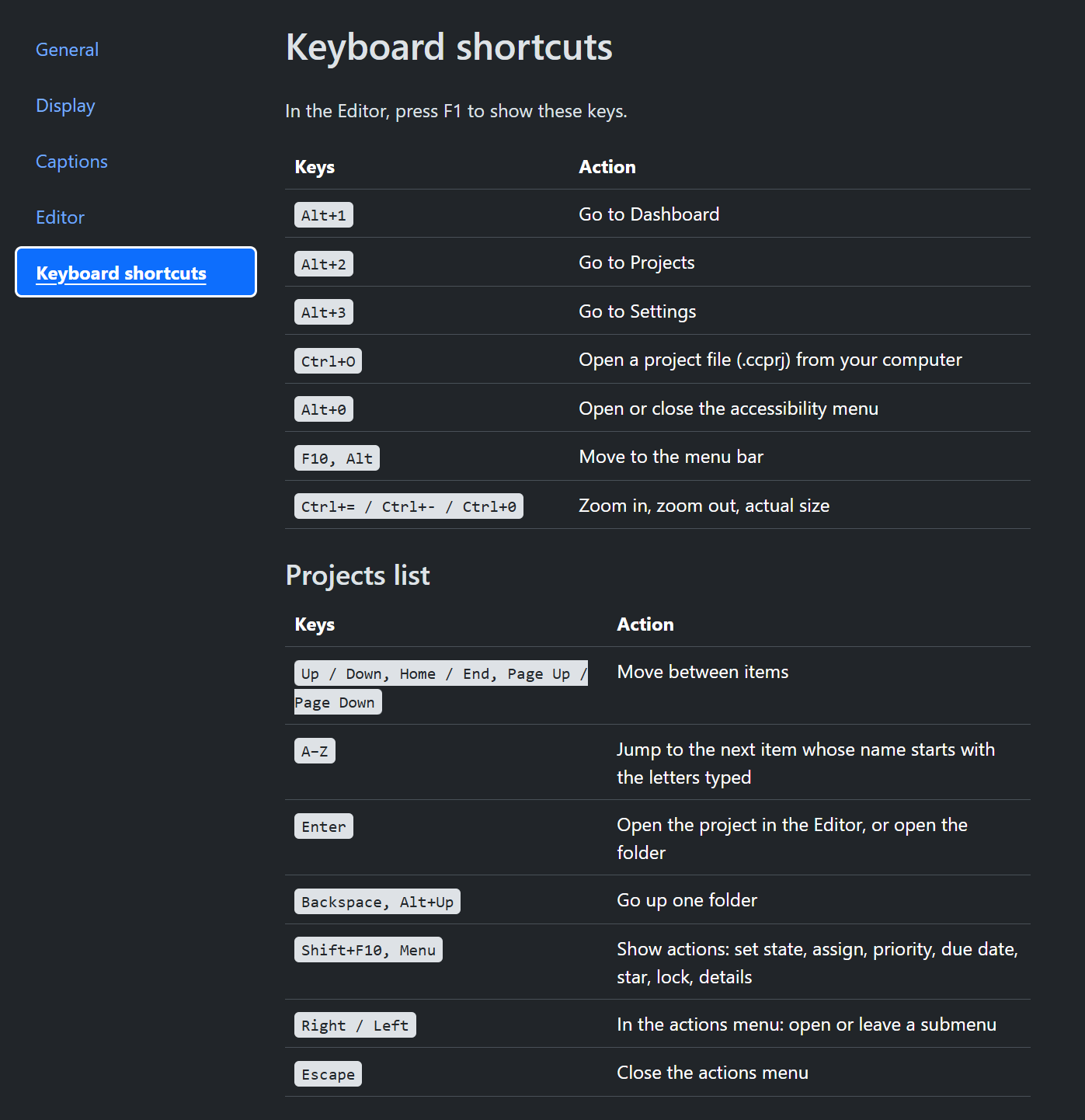
This section lists every key in the app, in tables of Keys and Action: the keys that work everywhere, the projects list, the Editor, review, the event list and the event text. In the Editor, F1 shows the same lists. See the keyboard shortcut reference.
Accessibility menu
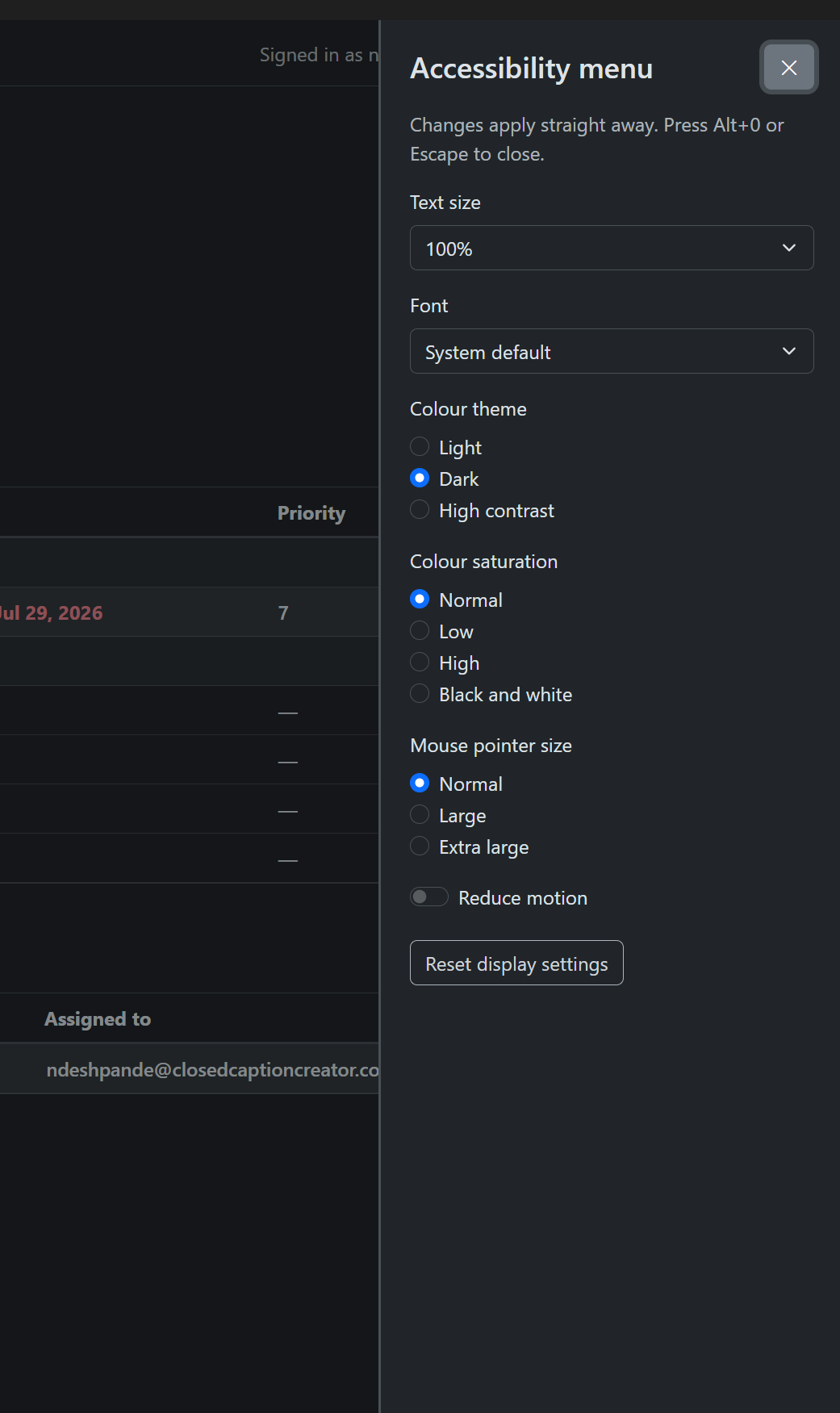
The Accessibility menu has the Display settings, so you can change them from any page without leaving it, including on the sign-in page and in the Editor. Open it with:
- the round button with the accessibility figure at the bottom right of the window;
Alt+0; or- View › Accessibility menu.
It opens as a panel on the right. Changes apply straight away. Press Alt+0, Escape or the close button to close it; focus returns to where you were.