Getting Started
Install
Closed Caption Review is available for:
| Platform | Installer |
|---|---|
| Windows (64-bit) | Setup program (.exe) |
| macOS | Disk image (.dmg) |
| Linux | AppImage |
Download the installer for your computer from the Closed Caption Creator website and run it. On Linux, make the AppImage executable, then run it.
The installer also lets your computer open Closed Caption Creator project files (.ccprj) with Closed Caption Review, so you can open a project file from your file manager with a double-click or Open with.
Sign in
Closed Caption Review uses your Closed Caption Creator account. There is no separate sign-up.
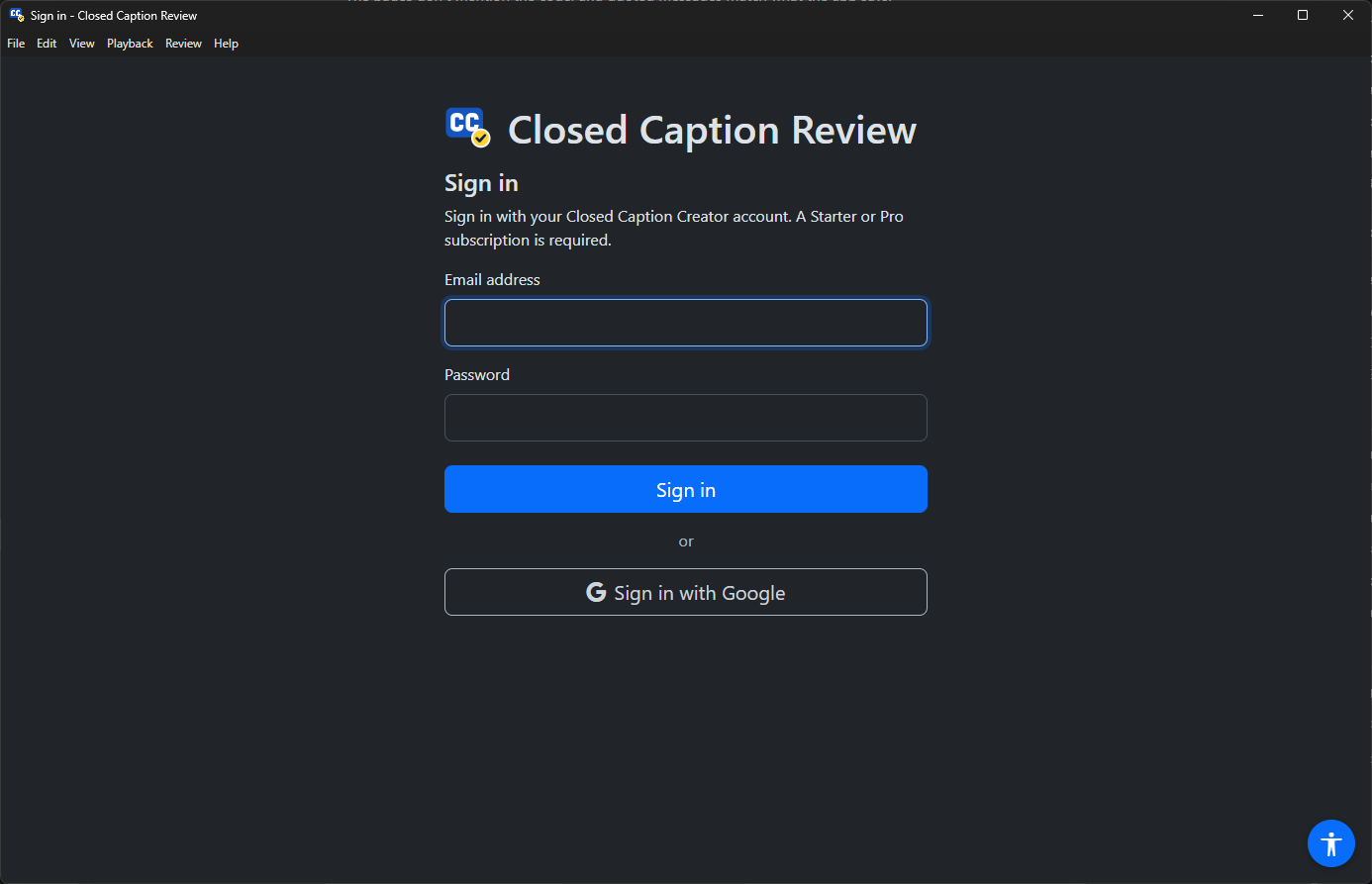
When the app opens, focus is in the Email address field. The Accessibility menu button is already at the bottom right, so you can set the text size and colours before you sign in.
Sign in in one of two ways:
- Email address and password. Type them and press Sign in.
- Sign in with Google. Your web browser opens so you can choose your Google account. Finish signing in there, then return to the Closed Caption Review window. To stop, press Cancel Google sign-in.
After you sign in, the app checks your subscription ("Signed in. Checking your subscription…") and opens the Dashboard.
If sign-in does not work, the page says why. The most common messages are:
| Message | What to do |
|---|---|
| The email address or password is incorrect. | Check both and try again. |
| This account does not have a Starter or Pro subscription. | Closed Caption Review needs an active paid subscription. Check your plan in Closed Caption Creator. |
| There is no Closed Caption Creator account for this Google account. | Sign in with the Google account you use in Closed Caption Creator. |
| This email address uses a different sign-in method. | Sign in with your email address and password instead of Google. |
| Too many sign-in attempts. | Wait a few minutes and try again. |
| Could not reach the sign-in service. | Check your internet connection. |
To sign out, press Sign out at the top right of the window, or choose File › Sign out.
The app window
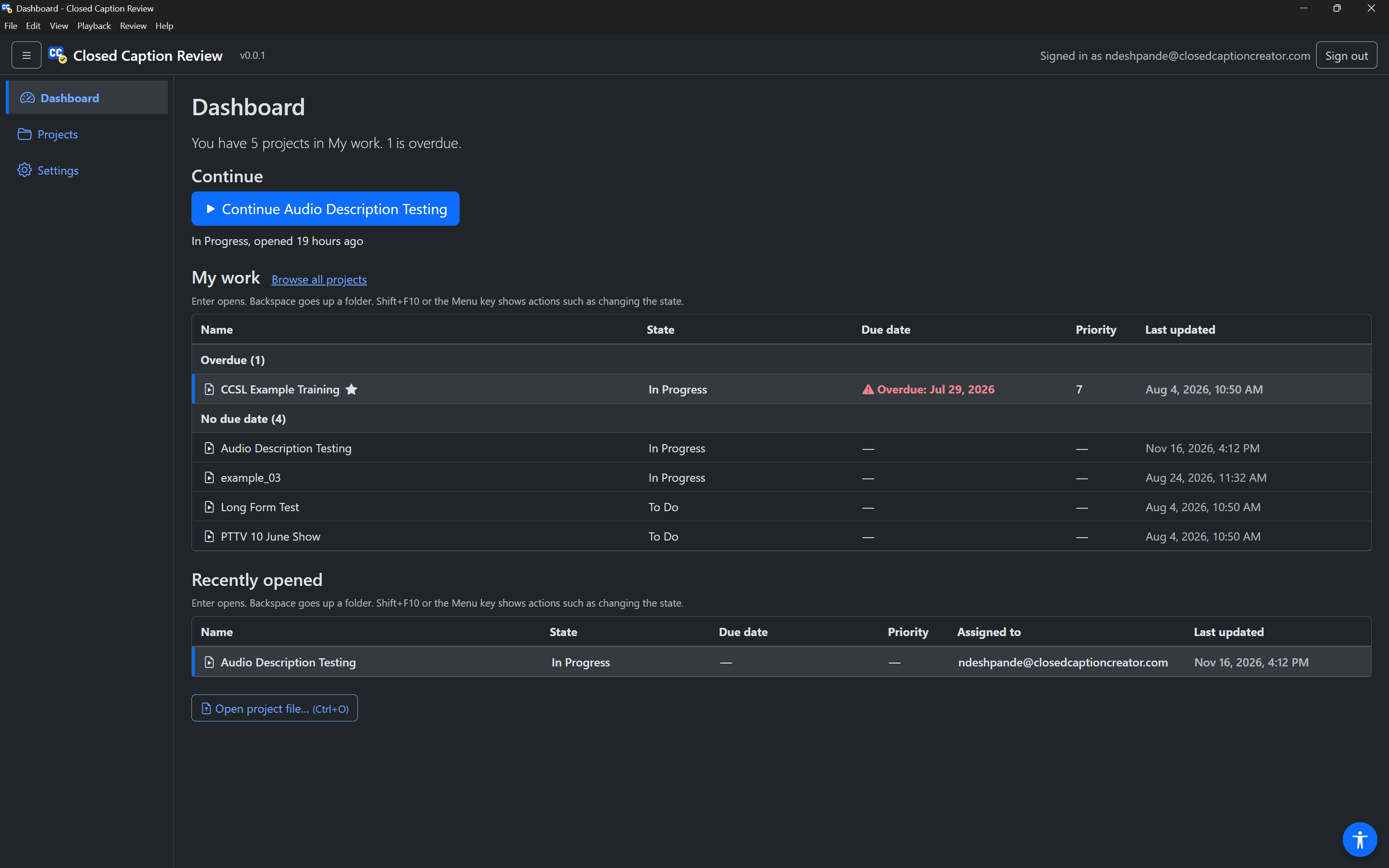
Every page has the same parts:
- Menu bar (File, Edit, View, Playback, Review, Help). Press
AltorF10to move into it (on a Mac, the menus are in the system menu bar). See Application menu. - Top bar. The navigation toggle button, the app name and version, the account you are signed in with, and Sign out. In the Editor the top bar folds away to give the video more room, and comes back when you point at it or move focus into it.
- Navigation, on the left: Dashboard, Projects and Settings. The toggle button in the top bar collapses it to icons or expands it again. The navigation collapses on its own after you choose a page.
- Main area, where the page you chose is shown.
- Accessibility menu button, the round button at the bottom right of every page, including the sign-in page. It opens text size, font, colour theme and other display settings. See Accessibility menu.
A Skip to main content link is the first thing on every page. Press Tab once after a page loads to find it.
The Editor is not in the navigation. It opens when you open a project.
Moving between pages
| Keys | Page |
|---|---|
Alt+1 | Dashboard |
Alt+2 | Projects |
Alt+3 | Settings |
Ctrl+O (Cmd+O on a Mac) | Open a project file from your computer |
Alt+0 | Open or close the Accessibility menu |
When a page opens, focus moves to the start of it and the page name is announced, so a screen reader always tells you where you are.
Open your first project
- On the Dashboard, look under My work for projects assigned to you. Use the arrow keys to choose one and press
Enter. - Or go to Projects (
Alt+2) to browse folders and search. See Projects. - Or press Open project file… (
Ctrl+O) to open a.ccprjfile from your computer.
The project opens in the Editor in Review mode, with focus on the Begin review button. Press Enter to play the first event, then follow the review workflow.
Make the app comfortable to use
Before you start, you may want to:
- set the text size, font and colour theme in the Accessibility menu (
Alt+0); - choose how event text looks under the video in Settings › Captions;
- set how much video plays before and after each event, and what happens after Pass or Fail, in Settings › Editor;
- choose the language of the app in Settings › General.