Closed Caption Review
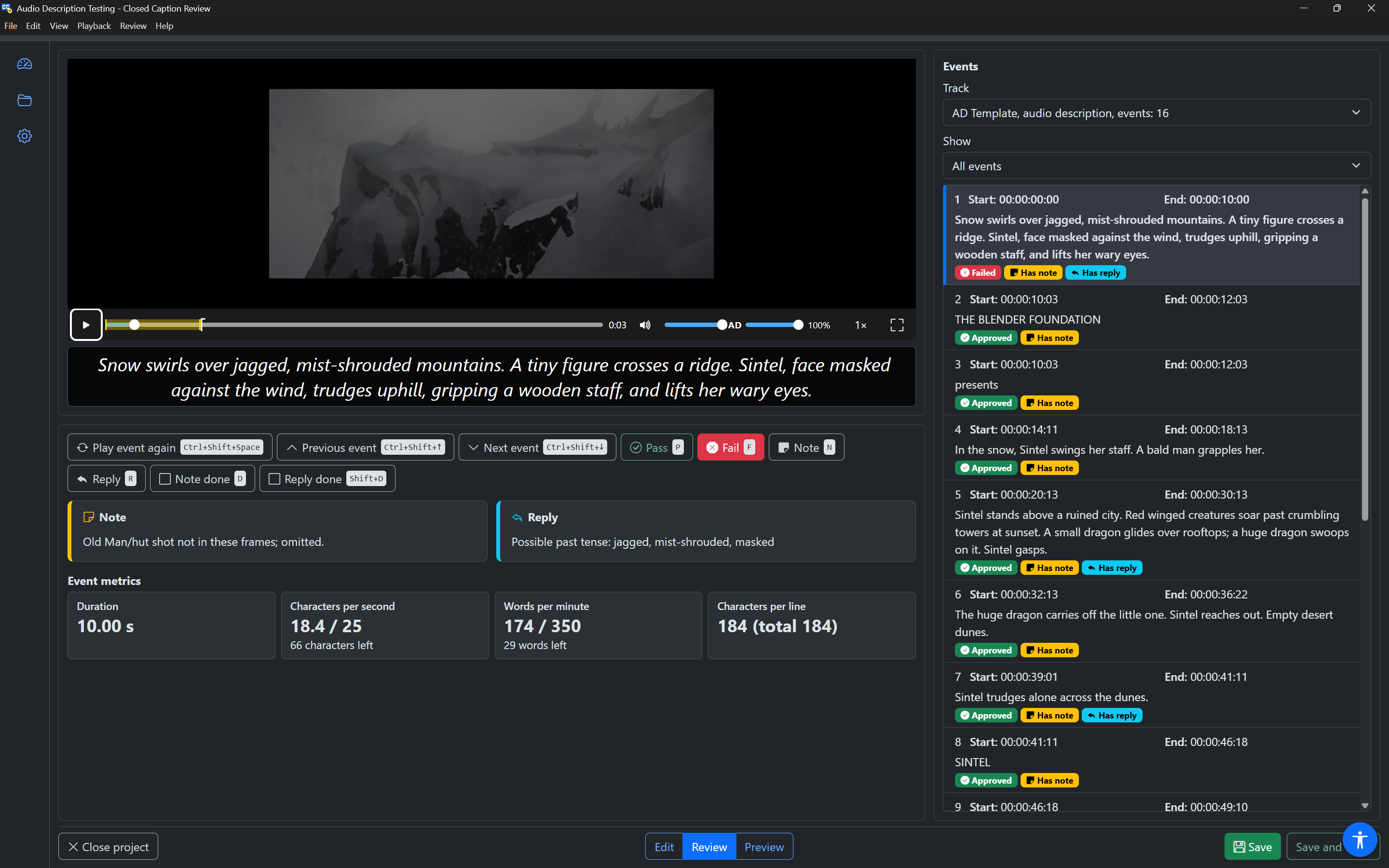
Closed Caption Review is a desktop app for reviewing Closed Caption Creator projects. It was built for blind and partially sighted quality control (QC) staff first. Every part of it works with a keyboard and a screen reader (NVDA, JAWS, VoiceOver and Orca), and it works just as well with a mouse.
Use Closed Caption Review to:
- watch a project's video with its subtitles, captions or audio description;
- play each event with a little video before and after it, then pass or fail it with one key;
- write notes and replies, and mark them done;
- correct timing and text, insert and delete events, and set speakers and forced flags;
- check reading speed (characters per second and words per minute) for each event;
- hear audio description, change its voice and render new audio;
- change a project's workflow state and assignee when you finish, and email the next person.
How it fits with Closed Caption Creator
Closed Caption Review is a companion to Closed Caption Creator, not a replacement for it. It opens the same projects, from the same cloud storage, with the same account.
| Closed Caption Creator | Closed Caption Review | |
|---|---|---|
| Create projects, import files, transcribe | Yes | No |
| Review, pass and fail events, notes and replies | Yes | Yes |
| Correct timing and text | Yes | Yes |
| Change workflow state, assignee, priority and due date | Yes | Yes |
| Export subtitle, caption, audio or video files | Yes | No |
When a project needs work that Closed Caption Review does not do (for example, an export for delivery), open the project in Closed Caption Creator. Changes you save in Closed Caption Review are saved into the project itself, so Closed Caption Creator sees them straight away.
What you need
- A Closed Caption Creator account with a Starter or Pro subscription (team members use their team's subscription). Closed Caption Review has no sign-up and no free plan.
- To review audio description tracks, the Audio Description plugin on that subscription. Without it, audio description tracks are hidden and the rest of the project still opens.
- Windows, macOS or Linux.
Where to start
- Install and sign in.
- Read Using a screen reader if you use one. It explains how the app is organised and which keys move you around.
- Open a project from the Dashboard or Projects page.
- Learn the Editor, starting with the review workflow.
Press F1 in the Editor at any time for a list of keys, or see the keyboard shortcut reference.