Projects
The Projects page (Alt+2) is where you find projects in cloud storage, open them, and change their workflow details: state, assignee, priority, due date, star and lock. It uses the same cloud storage as Closed Caption Creator's Storage Explorer, so you see the same folders and projects.
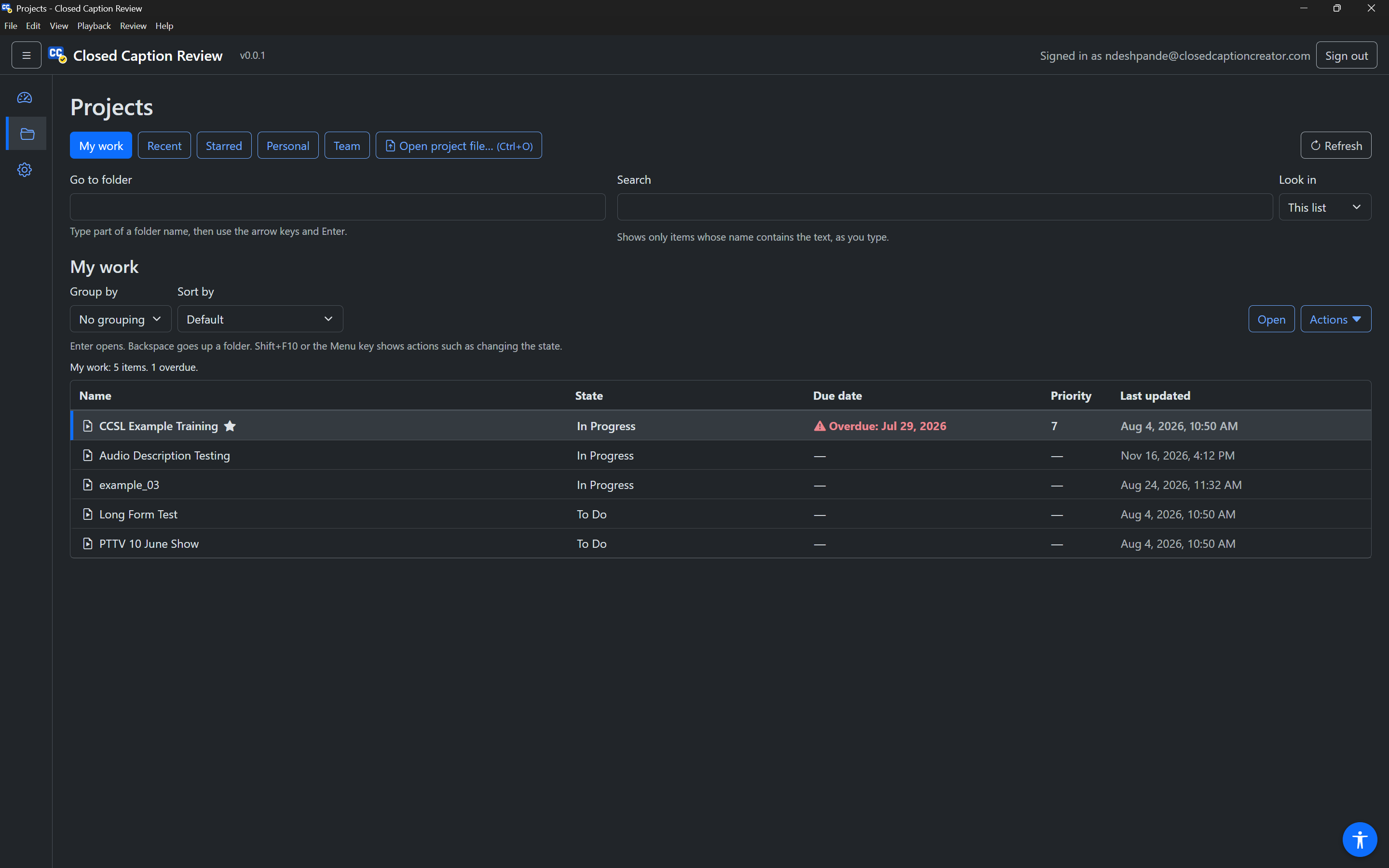
The page has four parts, from top to bottom:
- Locations: the buttons that choose what the list shows, plus Open project file… and Refresh.
- Go to folder and Search.
- The list heading (the name of the location), Group by, Sort by, and the Open and Actions buttons.
- The list itself.
When you come back to the Projects page, it opens where you last were.
Locations
| Location | Shows |
|---|---|
| My work | Projects assigned to you, except archived ones. Sorted by due date, soonest first. |
| Recent | The most recently updated projects and folders in your personal and team storage. |
| Starred | Projects and folders you have starred. |
| Personal | The top folder of your personal storage. |
| Team | The top folder of your team's storage. Only shown if you belong to a team. |
The current location's button is marked as the current page. Press Refresh to load the list again, for example after someone else changes a project.
Folders
In Personal and Team, folders are rows in the list, shown before projects. Press Enter on a folder to open it. To go back up:
- press
BackspaceorAlt+Upin the list; - press the Up one folder button; or
- choose a folder in the folder path above the list heading. The path starts with Personal or Team and ends with the folder you are in.
Go to folder
Go to folder jumps straight to any folder by name, without opening each folder on the way:
- Type part of the folder's name.
- The app says how many folders match. Use
UpandDownto choose one. Each match shows where it is (for example "in Team › Season 2"). - Press
Enterto go to it.
Search
The Search box works in one of two ways, chosen in Look in:
- This list: shows only the items in the current list whose name contains the text, as you type. The app says how many items match. Press
Enterto move to the list. - All projects: searches project and folder names across your personal and team storage. Type the text and press
Enter(or the Search button). The results become the list, under the heading "Search results for …". If there are more results, press Show more results at the end of the list.
Group by and Sort by
Group by splits the list into groups with headings that show how many items each holds:
| Group by | Groups |
|---|---|
| No grouping | One list. |
| State | One group per workflow state, in workflow order. This is the reading-order version of a Kanban board. |
| Due date | Overdue, Due today, Due in the next 7 days, Due later, Past due date, No due date. |
| Assigned to | One group per person, and Unassigned. |
| Folder | One group per folder. |
Sort by orders the items inside each group: Default (the location's own order; due date for My work), Due date, soonest first, Priority, highest first, Name, Last updated, newest first, or State. Folders are always listed first.
Your choices are remembered.
The list
The line above the list says how many items it holds and how many are overdue, for example "My work: 5 items. 1 overdue."
The columns include Name, State, Due date, Priority and Last updated, and Assigned to outside My work. Overdue dates show a warning icon and the word "Overdue". A star after a name means it is starred.
A screen reader reads each row as one phrase, for example: "Episode 4, In Progress, due tomorrow, priority 2, assigned to sam@example.com, Starred". Work orders and team projects say their type, locked projects say who locked them, and rows outside a folder view say where they are.
Keys in the list
| Keys | Action |
|---|---|
Up / Down, Home / End, Page Up / Page Down | Move between items |
| Letters | Jump to the next item whose name starts with the letters you type |
Enter | Open the project in the Editor, or open the folder |
Backspace, Alt+Up | Go up one folder |
Shift+F10, Menu | Show the actions menu |
With the mouse, click a row to choose it, double-click to open it, and right-click for the actions menu. The Open (or Open folder) and Actions buttons above the list act on the chosen row.
Opening a project
Press Enter on a project, or choose Open in Editor from its actions. The app says "Opening …" and shows a progress bar while it downloads the project. Large projects can take a moment; the app reminds you it is still opening.
If someone else has locked the project, the app tells you that it opens read-only. It opens in Preview mode and cannot be saved. See Locked projects.
Project actions
Press Shift+F10 or the Menu key on a project (or the Actions button) to open its actions menu. Use Up and Down to move, Enter to choose, Right to open a submenu, Left to leave it, and Escape to close the menu. Typing a letter jumps to an item. Every change is saved straight away and announced, for example "Episode 4 set to In Review".
| Action | What it does |
|---|---|
| Open in Editor | Opens the project. |
| Set state ▸ | Moves the project to a workflow state: No state, To Do, In Progress, Blocked, Review Required, In Review, Supervisor Review Required, Supervisor Review, Completed or Archived. The current state is checked. |
| Assign to ▸ | Assigns the project to a member of your team, or to Unassigned. You are marked "(me)". |
| Set priority ▸ | None, or 1 to 10 (1 is the highest). |
| Set due date… | Opens the details dialog at the due date field. |
| Star / Remove star | Adds or removes the project from Starred. |
| Lock project / Unlock project | Locks the project so others cannot save it, or unlocks it. |
| Details… | Opens the details dialog. |
For a folder, the menu has Open folder and Star / Remove star. For a project file from your computer, it has Open in Editor only.
When someone else has locked a project, Set priority and Set due date say "(locked)" and cannot be used, and the lock item shows who locked it. You can still change its state and assignee.
Project details
Details… opens a dialog with everything about the project.
Information lists the type, location (Personal or Team), owner, when it was created and last updated, the number of event groups and events, the lock (who locked it and when), whether it is starred, and its description.
Workflow is a form for:
- State. Choosing Archived reminds you that archived projects are hidden from My work.
- Assigned to. When you choose a new person, a checkbox appears: Email … about this assignment. Whether it starts checked depends on your team's email setting.
- Due date. Clear the date to remove the due date.
- Priority. 1 is the highest priority.
Press Save changes to save the form, or Cancel.
Actions has the Starred toggle and Lock project / Unlock project. These apply straight away.
Opening project files from your computer
Open project file… (Ctrl+O, Cmd+O on a Mac) is on the Projects page next to the locations, on the Dashboard, and in the File menu. It opens your computer's file dialog straight away. Choose a .ccprj file to open it in the Editor; the app says how many event groups and events it has.
You can also:
- double-click a
.ccprjfile in your file manager, or use Open with › Closed Caption Review; - choose a file from File › Open recent;
- open it from Recently opened on the Dashboard.
When you save a project you opened from a file, it is saved back to the same file.
If a file cannot be opened, the message says why and stays on screen until you try again or press Dismiss:
| Message | Meaning |
|---|---|
| … is not a Closed Caption Creator project file. | The file is not a .ccprj, or it is damaged. Ask the sender for the project file again. |
| … could not be found. | The file was moved, renamed or deleted. Use Open project file… to find it. |
| … is too large to open. | Project files can be up to 500 MB. |
| … could not be read. | Check that you can open the file, then try again. |