Audio Description
Closed Caption Review can review audio description (AD) and audio dubbing tracks made in Closed Caption Creator. You hear the description's audio with the video, check its text and timing, and, in Edit mode, change its voice and render new audio.
Audio description needs the Audio Description plugin on your subscription. Without it, AD and dubbing tracks are hidden in the Editor and saved back unchanged. See Audio description tracks without the plugin.
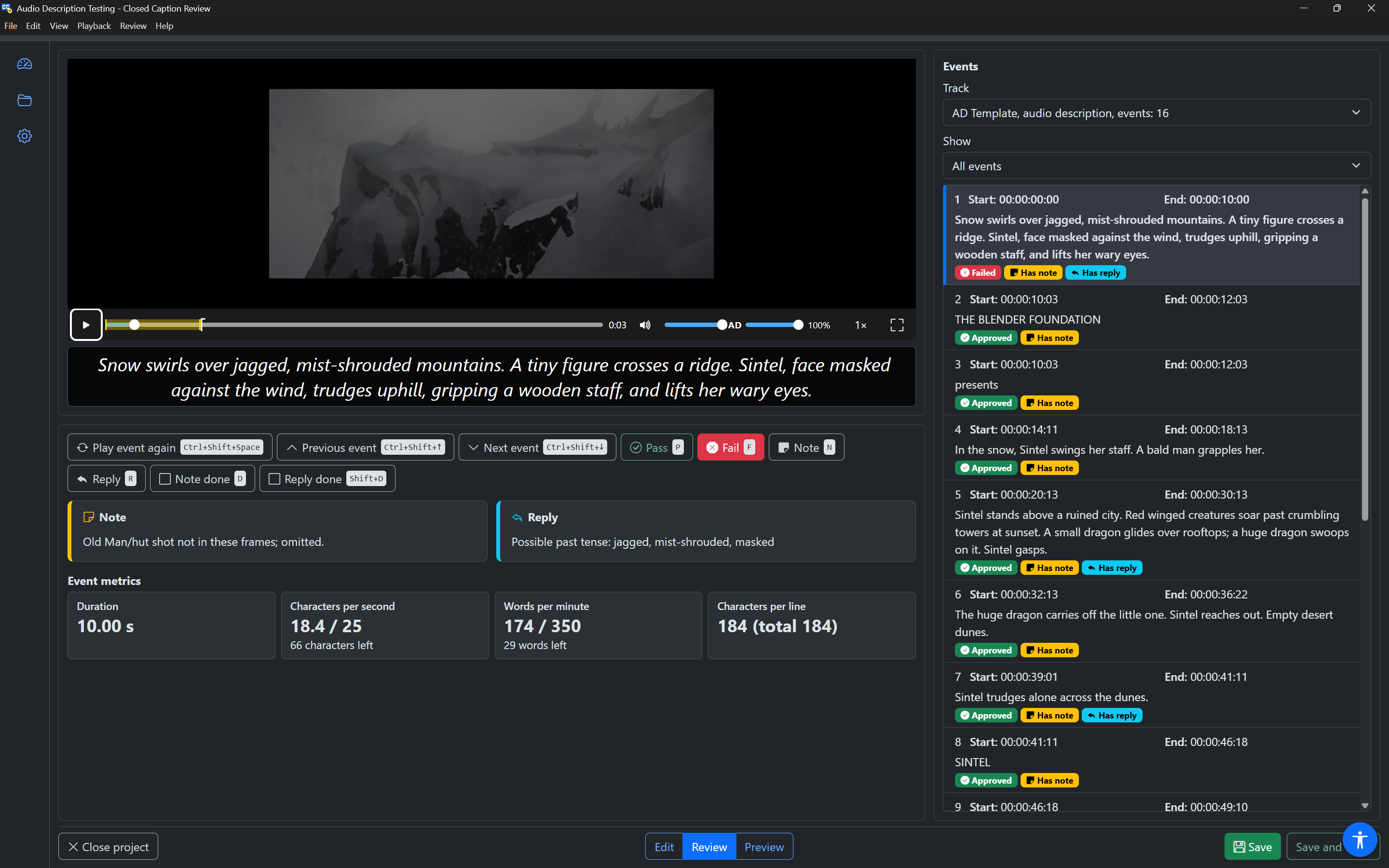
Listening to audio description
Choose the AD track in the Track field above the event list. While the video plays, each event's audio plays at its start:
- Rendered audio (made by a text-to-speech service, or recorded) plays from the project.
- System voice events are spoken by a voice on your computer.
Each event plays at its own speed, multiplied by the video's playback rate.
Set the AD volume with the AD slider in the control bar, next to the video volume (0% to 100%, in steps of 5%). The video volume and the AD volume are separate, so you can, for example, turn the video down to hear the description more clearly. The AD volume is remembered.
The Event Text panel shows the speaker and text of the description, for example "Narrator: Snow swirls over jagged mountains." Events that have their own audio are not read by Announce event text, so you never hear the description twice.
You review AD events exactly like subtitles: play, pass or fail, note, reply. See Review workflow.
The Voice panel
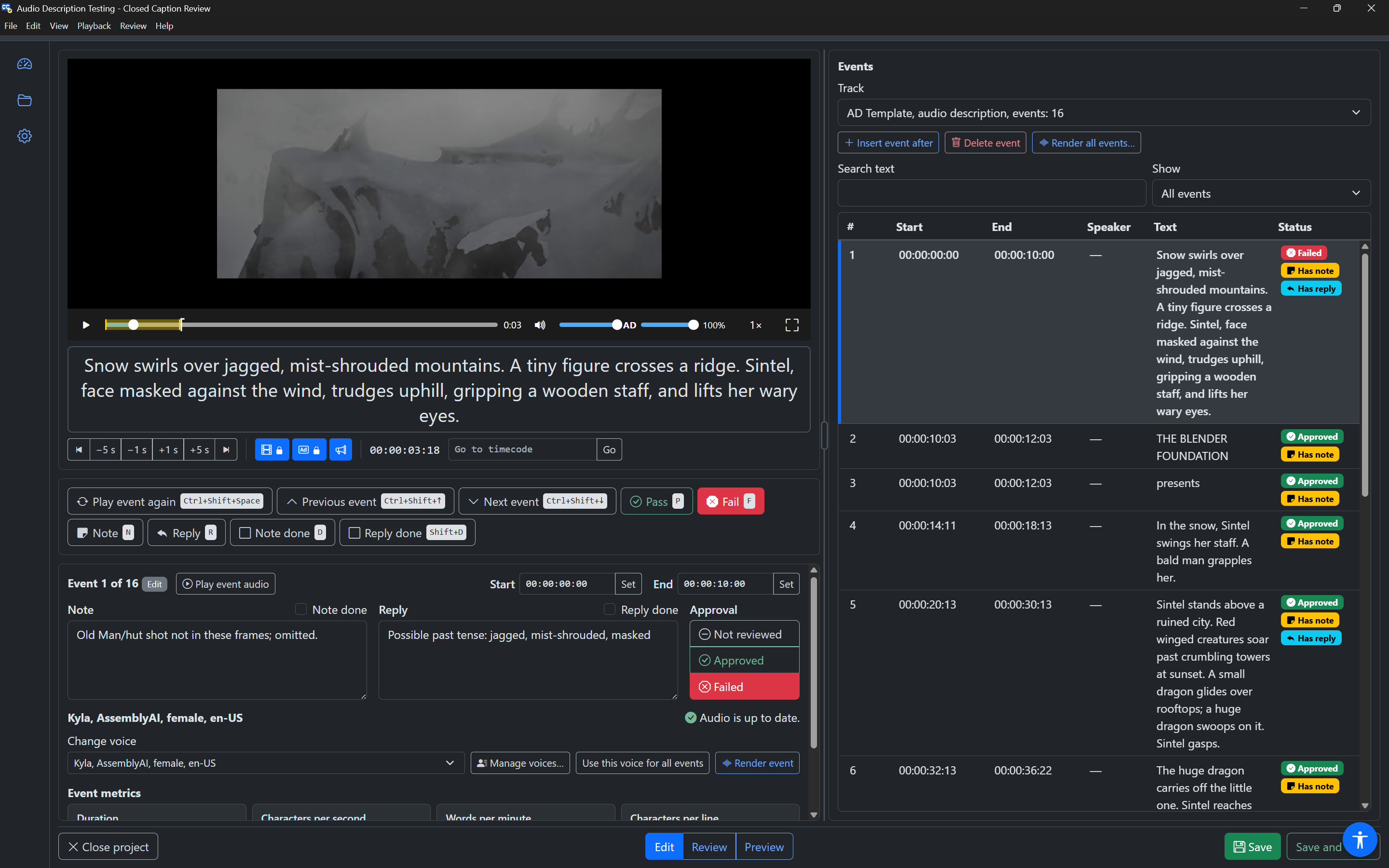
On AD tracks, the Event panel (Edit mode) has a Voice section. It shows the event's voice and whether its audio is up to date:
| State | Meaning |
|---|---|
| Audio is up to date. | The audio matches the text and voice. |
| Needs rendering: the text or voice changed since the audio was made. | Render the event to hear the new text or voice. |
| Needs rendering: this event has no audio yet. | Render the event to make its audio. |
| Spoken by a system voice during playback. Nothing to render. | The event uses a voice on your computer. |
| No text and no audio. | The event is empty. |
Play event audio, next to the Event heading, plays the event with the video (with pre-roll and post-roll), so you hear its audio in place. Its description includes the voice and state, so a screen reader hears them too.
In Edit mode, the Voice section also has:
- Change voice: choose one of your pinned voices. Changing the voice removes the event's audio until it is rendered again. The app says "Voice changed to …. Render the event to hear it."
- Manage voices…: opens the Voice manager.
- Use this voice for all events: gives every event in the track this event's voice, and makes it the track's voice for new events. The app says how many events changed.
- Render event (
Ctrl+Shift+E): makes the event's audio. The button is highlighted when the event needs rendering.
Rendering one event
Press Render event in the Voice section, press Ctrl+Shift+E anywhere in the Editor, or choose Playback › Render audio description. Rendering needs Edit mode.
- When the event needs rendering, its text is spoken by its voice and the new audio is saved into the event. The app says "Rendering audio", then "Audio rendered".
- When the audio is already up to date, only its link is renewed. The app says "Audio is up to date. Renewing its link", then "Audio link renewed". Renewing a link is not billed.
- A manual recording cannot be rendered here. Record it again in Closed Caption Creator.
Rendering uses your text-to-speech allowance, as in Closed Caption Creator. You can undo a render with Ctrl+Z.
Rendering all events
Render all events…, above the event list in Edit mode, brings every event in the track up to date. Before anything happens, a dialog says what it will do:
- "Events to render (text or voice changed, or no audio): …"
- "Events whose audio is up to date (link renewed only, not billed): …"
- "Manual recordings that changed (cannot be rendered here): …", when there are any.
It also reminds you that rendering uses your text-to-speech allowance, and that you can undo the changes afterwards. If every event is up to date, it says there is nothing to render.
Press Start to begin, or Cancel. While it runs, a progress bar shows "Processed 12 of 40 events", and the app announces progress. Press Stop after this batch (or Escape) to stop; what has finished is kept.
When it finishes, the dialog is titled Rendering finished and says how many events were rendered, how many links were renewed, and how many failed. Failed events are listed with the reason; choose one to close the dialog and go to that event. The whole run is one undo step.
The Voice manager
Manage voices… opens the Voices dialog, where you find voices, listen to them, and pin the ones you want to offer in Change voice. Your pinned voices are kept on this computer.
Pinned voices
The first part lists your pinned voices in order. Each has:
- Preview: speaks the preview sentence with the voice;
- Move up and Move down: change the order (the app says the new position, for example "… moved to position 2 of 5");
- Unpin: removes it from the list.
If you have none yet, it says "No pinned voices yet. Open Manage voices to find and pin some."
Find voices
The second part finds voices:
- Source: All cloud voices, AssemblyAI, Google, Gemini, Amazon Polly, Microsoft Azure, ElevenLabs, or System voices (this computer).
- Language and Gender: narrow the list.
- Search voices: matches names, languages and descriptions.
- Preview sentence: the sentence Preview speaks. Previews are not billed.
The app says how many voices match after each change ("Voices found: 120"). The results are shown 50 at a time; press Show more voices for more. Each voice is read as one phrase and has Preview and Pin buttons. Pin is a toggle: it says whether the voice is pinned.
ElevenLabs voices use the ElevenLabs API key saved in Closed Caption Creator. If there is none, or it is refused, the dialog says to add or update it in Closed Caption Creator (Options, Integrations).
Press Close or Escape to close the Voice manager.