Event List
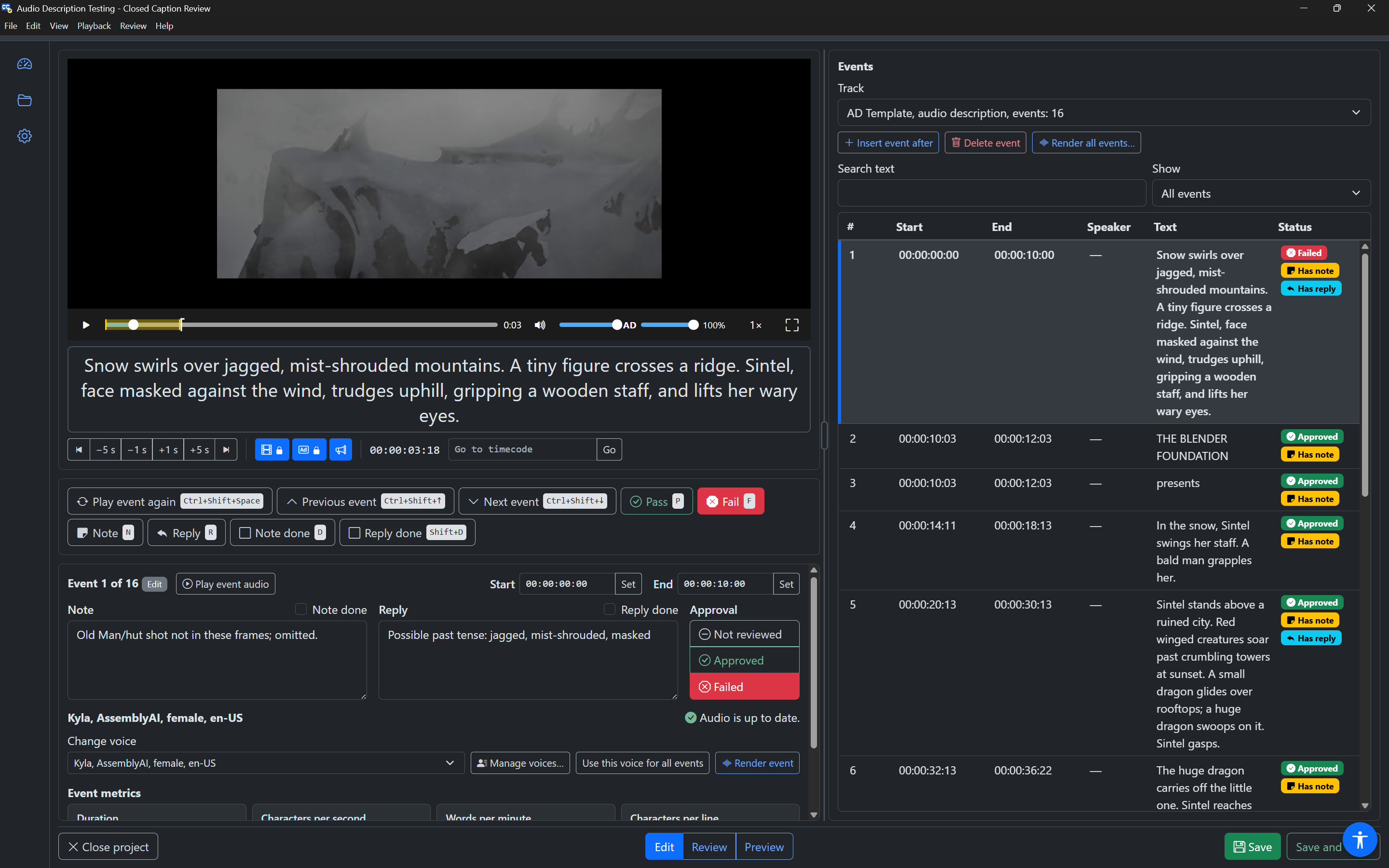
The Events panel is on the right of the Editor (at the bottom in Preview mode, and below the other panels in a narrow window). It lists the events of one track, and is where you choose which event to work on.
Track
If the project has more than one track (event group), the Track field chooses which one to show. Each option gives the track's name, its type and how many events it has, for example "AD Template, audio description, events: 16". Changing the track pauses the video and selects the track's first event.
Audio description and dubbing tracks are only listed if your subscription includes the Audio Description plugin.
Edit mode buttons
In Edit mode, above the search box:
- Insert event after (
Ctrl+Enterin the list): adds an empty event after the selected one. See Inserting events. - Delete event (
Deletein the list): deletes the selected event. - Render all events…: on audio description tracks only. See Rendering audio.
Search text and Show
- Search text (Edit and Preview modes) shows only events whose text contains what you type.
- Show filters the list by review status: All events, Needs attention (open note or failed), With a note, Not reviewed, Approved or Failed. See Focusing on what needs work.
After you change either one, the app says how many events are shown, for example "Events shown: 12". If none match, the list says "No events match."
Previous event and Next event follow the list as it is filtered.
The rows
Each row shows:
| Column | Content |
|---|---|
| # | The event number in the track. A play icon marks the event playing now. |
| Start / End | The event's timecodes. |
| Speaker | The event's speakers, or a dash. |
| Text | The event text. Lines are separated by " / ". |
| Status | Badges: Approved (green, tick) or Failed (red, cross); Has note or Note done (yellow, note icon); Has reply (blue, reply icon); Forced. |
The selected event is highlighted with a bar on its left edge.
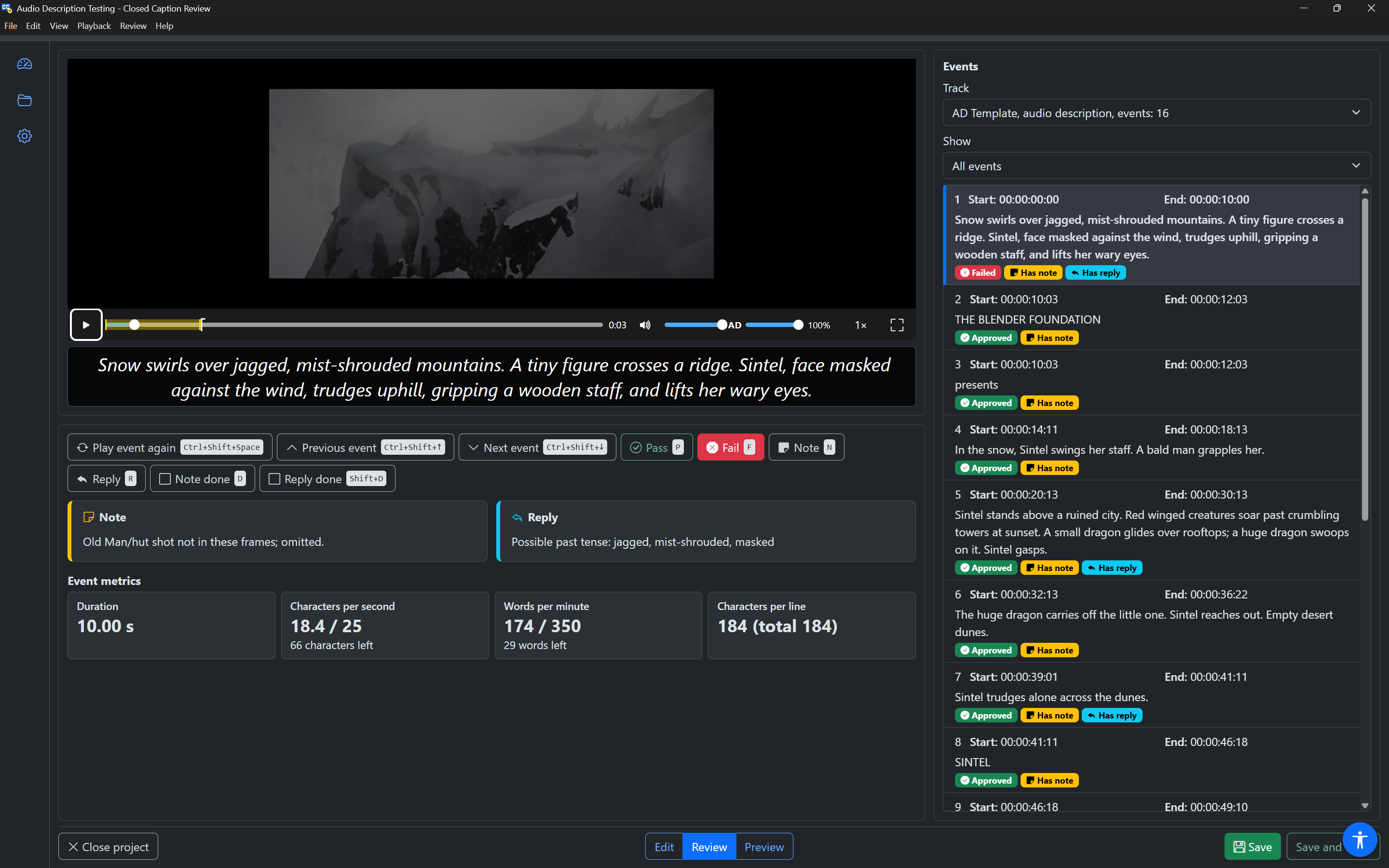
When the event list is narrow (as in Review mode, or after you make it narrower), each row is stacked instead of shown as columns: the number, "Start:" and "End:" on the first line, the text below, and the status badges under the text.
A screen reader reads each row as one phrase, in this order: event number, start time, speakers and text, then "Italic" if the text is in italics, then the status. For example: "Event 12, 00:01:04:12, Narrator: Where are you going?, Approved, Has note, Has reply."
The list keeps only the rows near the scroll position on the page, so long projects stay quick. Your screen reader is still told each row's position and the total ("12 of 240").
Keys in the event list
The event list is one Tab stop. The selection follows focus: moving to a row selects that event (and, with Video lock on, moves the video to it).
| Keys | Action |
|---|---|
Up / Down | Previous / next event |
Home / End | First / last event |
Page Up / Page Down | Up / down 10 events |
Enter | Review mode: go to the Review toolbar. Edit mode: go to the Event panel. |
Space | Play the event with pre-roll and post-roll |
P / F | Pass / fail the event (press again to clear) |
N / R | Write or change the note / reply |
D / Shift+D | Mark the note / reply done or not done |
[ / ] | Set the event's start / end to the playhead (Edit mode) |
Ctrl+Enter | Insert an event after this one (Edit mode) |
Delete | Delete this event (Edit mode; Ctrl+Z undoes) |
Alt+Down / Alt+Up | Next / previous event that needs attention (failed, or with a note that is not done) |
Shift+F10, Menu | Show the event's actions menu |
With the mouse, click a row to select it, double-click it to go to the Review toolbar (Review mode) or the Event panel (Edit mode), and right-click it for the actions menu.
The event actions menu
Press Shift+F10 or the Menu key on an event (or right-click it). The menu is titled "Actions for event 12". Use Up and Down to move, Enter to choose, Right to open a submenu, Left to leave it, and Escape to close the menu and return to the row.
| Action | Modes | What it does |
|---|---|---|
| Play event | All | Plays the event with pre-roll and post-roll. |
| Move playhead to event start | All | Moves the video to the event's start without playing. |
| Go to details | Edit | Moves focus to the Event panel. |
| Approval ▸ | Edit, Review | Not reviewed, Approved or Failed. The current one is checked. |
| Set start to playhead | Edit | Sets the event's start to the current video time. |
| Set end to playhead | Edit | Sets the event's end to the current video time. |
| Insert event after | Edit | Adds an empty event after this one. |
| Insert event before | Edit | Adds an empty event before this one. |
| Delete event | Edit | Deletes the event. |
In Preview mode
In Preview mode, the Events panel is a drawer along the bottom of the window. It opens when you point at it or move focus into it, and Escape returns you to the player. The pin button keeps it open. See Preview mode.