Editing Events
Closed Caption Review is mainly for reviewing, but you can also make corrections yourself in Edit mode, without going back to Closed Caption Creator. Switch to Edit mode with the Edit button in the project bar, Ctrl+Shift+1, or View › Mode › Edit.
In Edit mode you can change everything you can in Review mode (approval, notes and replies), plus:
- event start and end times;
- event text, its formatting and alignment;
- inserting and deleting events;
- the Forced flag and the event's speakers.
If the track is locked in Closed Caption Creator, timing and text stay read-only, and a note at the top of the Editor says so. Review fields can still change.
Every change can be undone with Ctrl+Z. See Undo and redo.
The Event panel
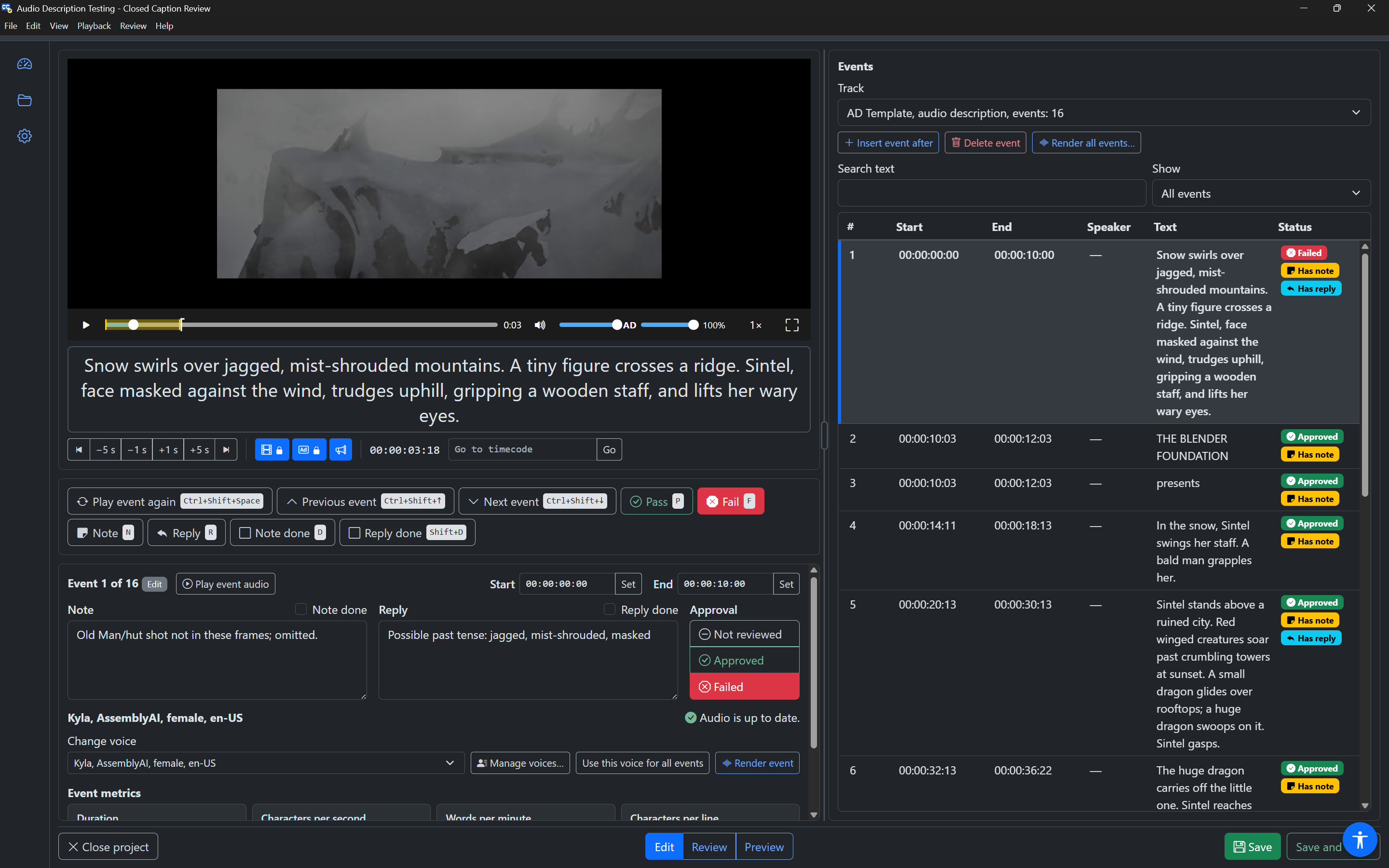
In Edit mode, the Event panel is under the Review toolbar. It shows the selected event:
- Heading: "Event 12 of 240", with an Edit badge.
Enterin the event list,F6and Go to details all move focus here. - Play event audio: on audio description tracks, next to the heading. Plays the event with its audio.
- Start and End timecodes, with Set buttons, at the top right.
- Note and Reply text boxes, each with a Note done or Reply done checkbox.
- Approval: Not reviewed, Approved or Failed.
- Voice: on audio description tracks. See Audio description.
- Event metrics. See Event metrics.
- More details: a section you open to see Forced, Speakers and Tags.
The event text itself is not in this panel. It is edited in the Event Text panel under the video, so you see it as the viewer will.
When no event is selected, the panel says "No event is selected."
Changing the timing
Typing a timecode
- Move to the Start or End field (
F6to the Event panel, thenTab). - Type the new timecode. You can use the same forms as Go to timecode:
00:01:04:12,00010412, or short forms such as5S. See Go to timecode. - Press
Enter(or move out of the field) to apply it. PressEscapeto undo your typing and show the saved time again.
If the time cannot be used, the field is marked invalid, the reason is shown under it and announced:
- "Not a valid timecode."
- "Start must be before the end."
- "End must be after the start."
Setting a time from the playhead
Play or move the video to the right moment, then:
- press Set next to Start or End (named Set start to playhead and Set end to playhead for screen readers);
- or press
[(start) or](end) in the event list; - or choose Set start to playhead or Set end to playhead from the event's actions menu.
The app says, for example, "Start set to 00:01:04:12".
While the video is paused, the Seek slider in the control bar highlights the selected event and marks where its neighbours end and start, to help you place the times. See The control bar.
Editing the text
In Edit mode, while the video is paused, the Event Text panel under the video is an editor for the selected event's text. To move into it, press Tab from the control bar, or click the text. Tab and Shift+Tab move out of it again (they do not type a tab).
- Press
Enterfor a new line. - Spell check is on.
- On tracks written right to left, the text runs right to left.
If the video starts playing, the panel shows the text at the playhead and cannot be edited; it says "Pause the video to edit the text." When you pause, it becomes the editor again. Focus stays in the panel.
All the typing you do in one event is one undo step.
Formatting
| Keys | Format |
|---|---|
Ctrl+B (Cmd+B) | Bold |
Ctrl+I (Cmd+I) | Italic |
Ctrl+U (Cmd+U) | Underline |
With text selected, the key formats the selection. Without a selection, it formats what you type next. The app says what changed, for example "Italic on" or "Italic off".
You can also use the formatting buttons: select some text (for example with Shift and the arrow keys), and a small formatting bar appears next to it. Press Tab to move into it. It has Bold, Italic and Underline toggle buttons, and Align left, Align centre and Align right.
When the event text uses formatting, a screen reader hears it as the text box's description, for example "Formatting used: Italic."
Alignment
Alignment applies to the whole event:
| Keys | Alignment |
|---|---|
Alt+Shift+L (Option+Shift+L) | Align left |
Alt+Shift+C (Option+Shift+C) | Align centre |
Alt+Shift+R (Option+Shift+R) | Align right |
The app says the new alignment. The alignment is stored the same way as Closed Caption Creator's alignment buttons.
Inserting and deleting events
Inserting
- Insert event after: the button above the event list,
Ctrl+Enterin the event list, or the event's actions menu. The new event starts where the selected event ends and is 2 seconds long. If no event is selected, it starts at the playhead. - Insert event before: the event's actions menu. The new event ends where the selected event starts and lasts up to 2 seconds, without overlapping the event before it.
The video pauses, the new event is selected, and the cursor goes into its text so you can type straight away. The app says, for example, "Event 13 inserted at 00:01:06:00. Type its text." If a search or filter was hiding events, it is cleared so you can see the new event.
On audio description tracks, the new event gets the track's voice.
Deleting
Press Delete event above the list, Delete in the event list, or Delete event in the actions menu. The next event is selected (or the previous one, at the end of the list). The app says "Event deleted. Undo with Ctrl+Z."
More details: forced and speakers
Open More details at the bottom of the Event panel (press Enter or Space on it) to see:
- Forced: a checkbox that marks the event as forced (a forced narrative subtitle, shown even when subtitles are off). Forced events show a Forced badge in the event list.
- Speakers: a checkbox for each speaker in the project. Check the speakers of this event. The event list's Speaker column and the row phrase show them, and Announce event text reads them before the text.
- Tags: the event's tags, for information.
Speakers are added to a project in Closed Caption Creator. If the project has none, this section just shows the event's speakers, or "none".
Notes, replies and approval in the Event panel
The Event panel's Note and Reply text boxes change the same note and reply as the Review toolbar's Note and Reply dialogs. Type straight into them, and use the Note done and Reply done checkboxes. The Approval buttons do the same as Pass and Fail.
The text size of the Note and Reply boxes follows Note and Reply text size in Settings › Editor.