Video Player and Playback
The Video player panel is at the top left of the Editor. From top to bottom it holds:
- the video;
- the control bar, directly under the picture;
- the Event Text panel, which shows the event text below the video;
- Player Controls (Edit and Preview modes).
Nothing is ever drawn over the picture: the event text is always shown below it, where it is easy to read and never hides the video.
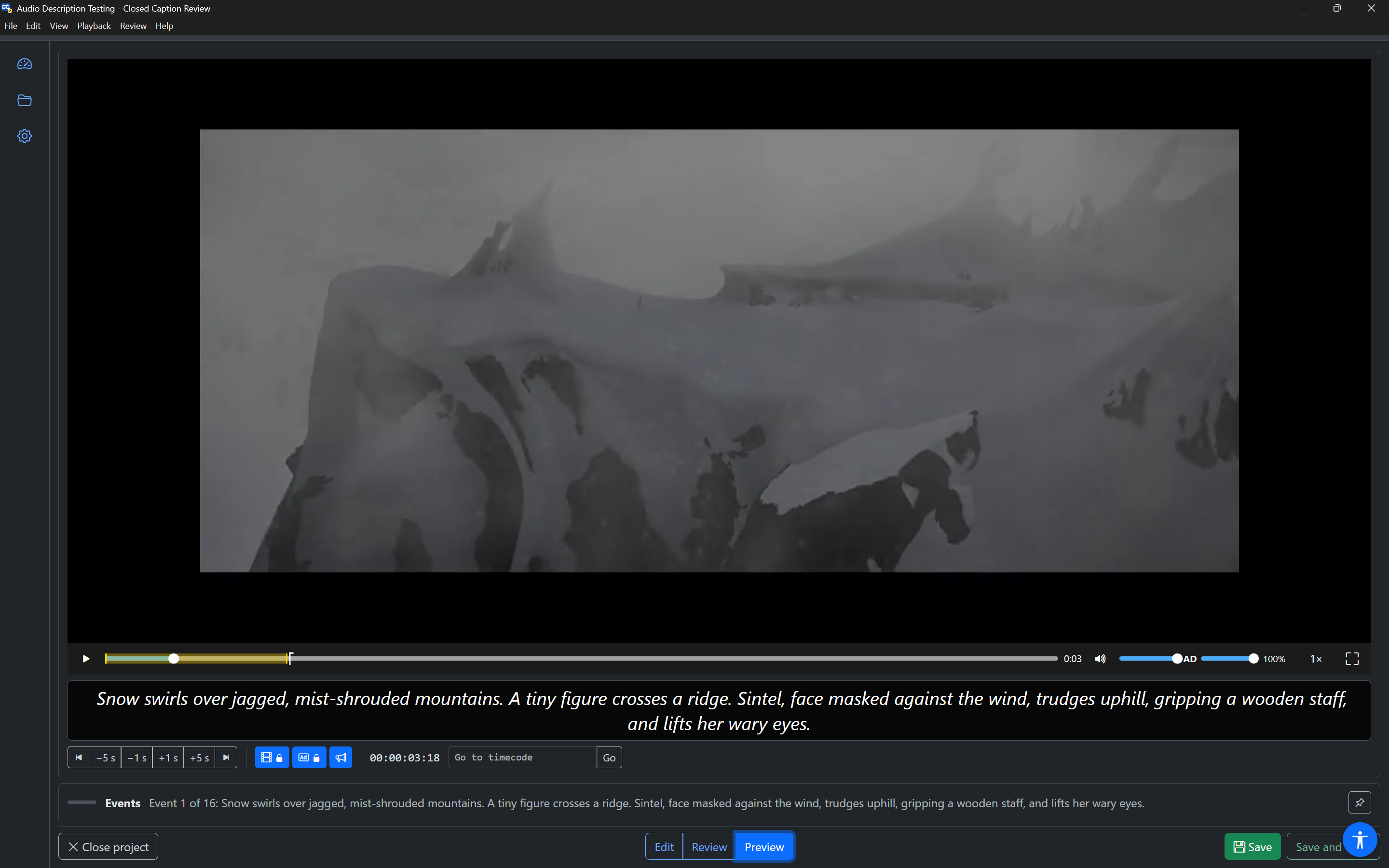
The control bar
The control bar is always visible under the video:
| Control | What it does |
|---|---|
| Play / Pause | Plays or pauses the video. Ctrl+Space does the same anywhere in the Editor. |
| Seek slider | Shows and changes the playhead position. Use the arrow keys or drag it. |
| Current time | The time of the playhead. |
| Mute | Mutes or unmutes the video. |
| Video volume slider | The video's volume. |
| AD slider | Audio description volume, from 0% to 100%. Only shown on audio description tracks. See Audio description. |
| Playback rate | Changes the speed: 0.5×, 0.75×, 1×, 1.25×, 1.5× or 2×. |
| Full screen | Shows the player full screen, or returns from full screen. |
While the video is paused, the Seek slider also highlights where the selected event starts and ends. Two thin lines with a notch show where the event before it ends and the event after it starts, to help you judge gaps and overlaps by eye.
Media
The player plays the project's media from where Closed Caption Creator saved it:
- Cloud media plays straight from cloud storage.
- Media on your computer plays from its file. If the file is not where the project expects it (for example, the project was made on another computer), the player says "The media file was not found: … Locate it to play the project." Press Locate media file… and choose the file. The app remembers it on this computer for that project.
Other messages you may see:
| Message | Meaning |
|---|---|
| This project has no media. | The project has no video or audio linked. You can still review the events. |
| This project's media (…) cannot be played here yet. Events can still be reviewed. | The media is from a source Closed Caption Review does not play yet, such as YouTube, Vimeo or a streaming link. Review it in Closed Caption Creator, or review the text only. |
| The media could not be played. | The file could not be read or decoded. |
| No media is loaded. | You pressed Play, or played an event, before any media loaded. |
The Event Text panel
The Event Text panel, under the control bar, shows event text in large type:
- While paused, it shows the selected event.
- While playing, it shows the event at the playhead, as it would appear on screen. Roll-up captions stack their lines as on air. Between events the panel is blank, like the screen.
For subtitle and caption tracks, the text keeps its formatting (italic, bold, underline, colour and alignment). For audio description tracks, it shows the speaker and the text, for example "Narrator: Snow swirls over jagged mountains."
If the event has original text (for example, the source text of a translation), it is shown below the panel while paused, after the word Original.
A screen reader reads the panel as a read-only, multi-line text box named Event text. If the text uses formatting, its description says so, for example "Formatting used: Italic."
How the text looks (font, size, colour and background) is your own viewing preference, set in Settings › Captions. It does not change the project.
In Edit mode, while the video is paused, the panel becomes the text editor. See Editing the text.
Player Controls
In Edit and Preview modes, the Player Controls row sits under the Event Text panel. It has three groups, then Go to timecode.
Playback controls
| Button | Keys | What it does |
|---|---|---|
| Previous event | Ctrl+Shift+Up | Selects the event before this one in the event list. |
| −5 s (Back 5 s) | Ctrl+Shift+, | Moves the playhead back 5 seconds. |
| −1 s (Back 1 s) | Ctrl+, | Moves the playhead back 1 second. |
| +1 s (Forward 1 s) | Ctrl+. | Moves the playhead forward 1 second. |
| +5 s (Forward 5 s) | Ctrl+Shift+. | Moves the playhead forward 5 seconds. |
| Next event | Ctrl+Shift+Down | Selects the event after this one in the event list. |
Playback options
Three toggle buttons. Each one shows (and says) whether it is on: it is filled when on, and Video lock and Caption lock show a closed or open padlock. When you press one, the app says "Video lock on", "Caption lock off" and so on.
- Video lock (film icon)
- Caption lock (CC icon, or AD icon on audio description tracks)
- Announce event text (megaphone icon)
They are explained below. All three are on by default, and are also in Settings › Editor.
Current time
The current playhead time, as a project timecode (hours:minutes:seconds:frames). It is not read out as it changes. Press Ctrl+Shift+T at any time to hear it, for example "Time 00:01:04:12".
Go to timecode
Type a timecode in the Go to timecode field and press Enter (or Go). The playhead moves there and the app says "Moved to …". Ctrl+Shift+G puts the cursor in the field from anywhere in the Editor.
You can type:
- a full timecode, such as
00:01:04:12or00:01:04;12; - eight digits, such as
00010412; - a short form: a number followed by
H,M,SorF, such as5S(00:00:05:00) or2M(00:02:00:00).
Timecodes use the project's frame rate and start timecode, as in Closed Caption Creator. If the text is not a timecode, the field says "Not a valid timecode."
In Review mode the Player Controls row is hidden. Ctrl+Shift+G shows just the Go to timecode field; it closes again after you go to a time, or when you press Escape or leave it, and focus returns to where you were.
Video lock and Caption lock
The two locks connect the video and the event list:
- Video lock: when you select an event (in the event list, or with Previous and Next), the video jumps to the start of that event.
- Caption lock: during playback, the selected event follows the video. As each event starts, it becomes the selected event, and the event list scrolls to it. If focus is in the event list, focus moves with it.
With both on, you can play the video and stop at any point, and the event on screen is the one selected; or choose an event in the list and the video is ready at its start.
Turn Caption lock off when you want to keep working on one event while the video plays on. Turn Video lock off when you want to look through the events without moving the video.
Caption lock only follows events that the event list is showing. With a filter on, events hidden by the filter are not selected.
While an event plays for review (with pre-roll and post-roll), Caption lock does not move the selection. See How an event plays.
Hearing events during playback
With Announce event text on, your screen reader reads each event's text as it appears during playback, with its speakers first, for example "Narrator: Snow swirls over jagged mountains." This lets you hear the timing of the events against the video's own audio.
- If focus is in the event list and Caption lock moves focus to each event, the screen reader reads the event row instead, so the text is not read twice.
- Audio description events that have their own audio (rendered audio, or a system voice) are not announced, because you hear their audio.
- When you move to another event with Previous and Next, its text is read after "Event 13 of 240 selected".
Turn it off if you prefer to hear only the video's own audio.
Playback keys
These keys work anywhere in the Editor:
| Keys | Action |
|---|---|
Ctrl+Space | Play or pause |
Ctrl+Shift+Space | Play the selected event with pre-roll and post-roll |
Ctrl+, / Ctrl+. | Back / forward 1 second |
Ctrl+Shift+, / Ctrl+Shift+. | Back / forward 5 seconds |
Ctrl+Shift+Up / Ctrl+Shift+Down | Previous / next event (not while typing in a multi-line text box, where these keys select text) |
Ctrl+Shift+T | Say the current time |
Ctrl+Shift+G | Go to timecode |
The same commands are in the Playback menu.