How to Add Italics, Bold, and Color to YouTube Captions
The short answer
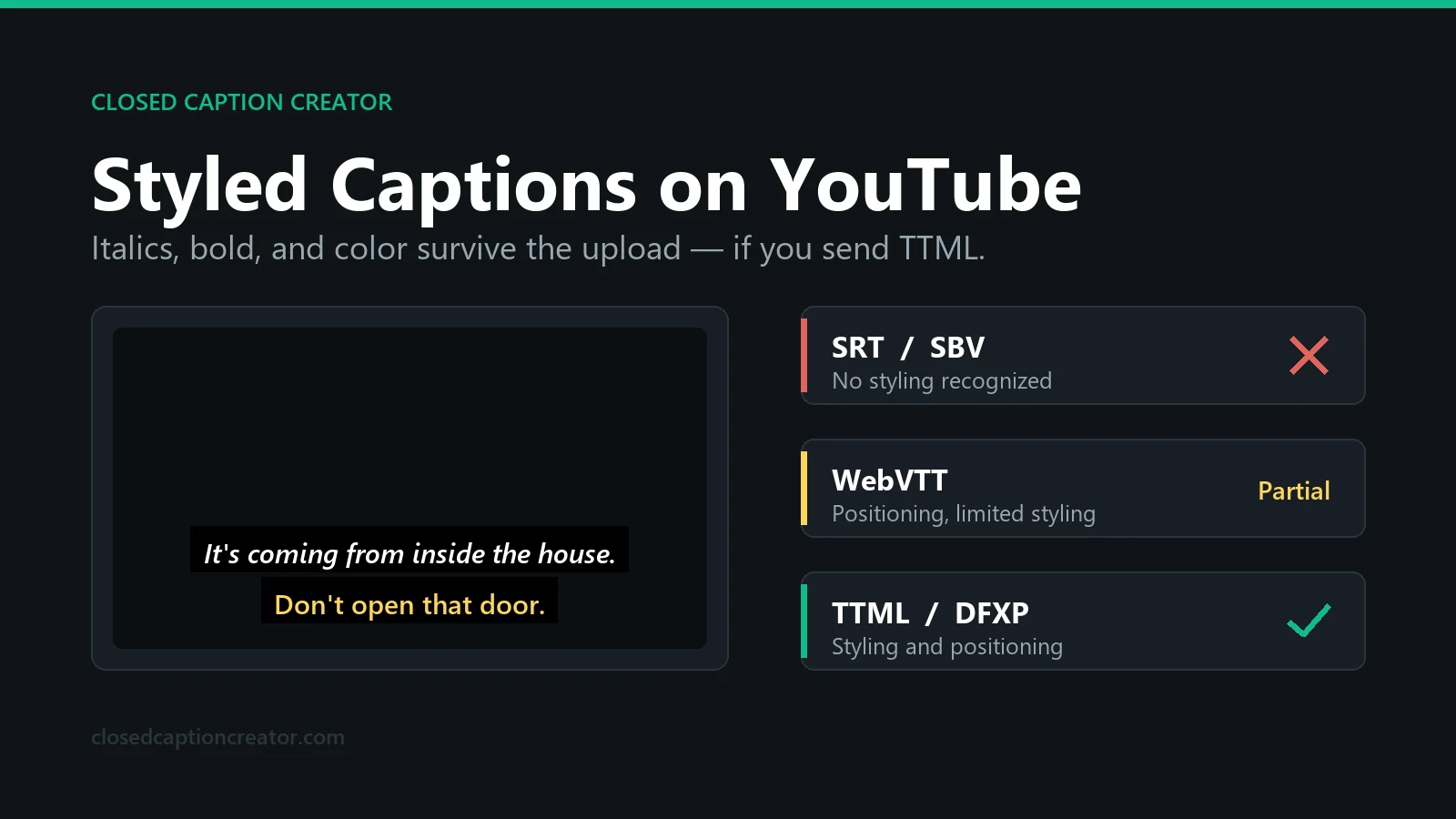
YouTube supports italics, bold, and colored captions, but only when you upload a TTML or DFXP file. SRT and SBV are basic formats that carry timing only, so styling written into them is ignored. Apply the styling, then export TTML using the YouTube TTML profile in Closed Caption Creator or Closed Caption Converter — a variant built around the subset of TTML that YouTube actually implements — and upload it in YouTube Studio using the with timing option. The formatting appears in the player, though never in YouTube's own subtitle editor.
This question comes up constantly, and the usual answer — "YouTube doesn't do italics" — is wrong. It does. The confusion is that almost everyone is uploading the one format that cannot express styling, then concluding the platform is at fault.
The fix is a format change, not a workaround. Here is what actually carries, what does not, and how to get a styled file out the door.
Which YouTube Caption Formats Support Styling?
YouTube sorts the formats it accepts into three groups, and the group decides what your file is allowed to express.
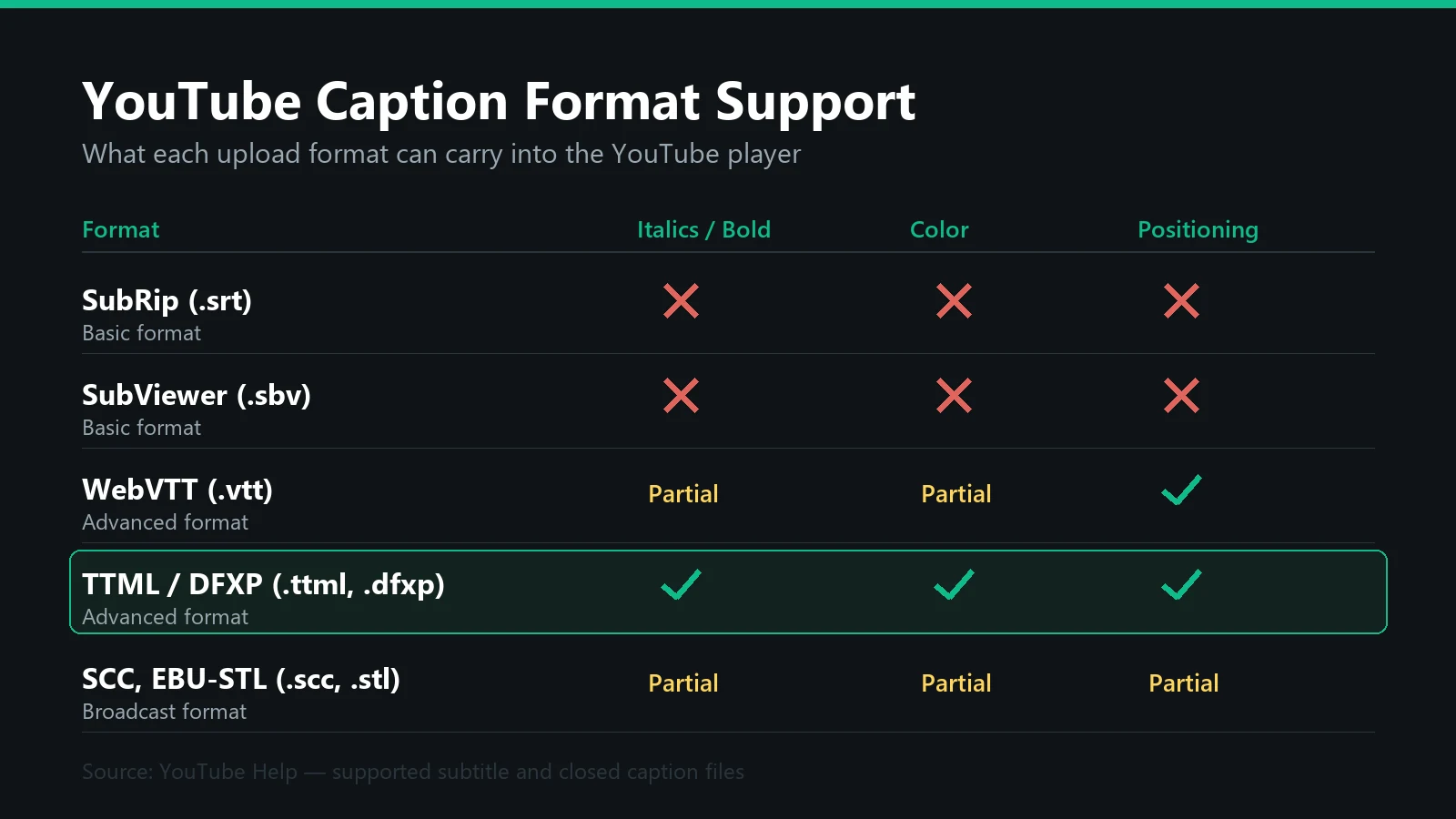
| Format | Group | Italics / bold | Color | Positioning |
|---|---|---|---|---|
| SubRip (.srt) | Basic | No | No | No |
| SubViewer (.sbv, .sub) | Basic | No | No | No |
| WebVTT (.vtt) | Advanced | Limited | Limited | Yes |
| SAMI (.smi, .sami) | Advanced | Yes | Yes | No |
| TTML / DFXP (.ttml, .xml, .dfxp) | Advanced | Yes | Yes | Yes |
| Scenarist (.scc) | Broadcast | Yes | Yes | Yes |
| EBU-STL (.stl) | Broadcast | Inconsistent | Inconsistent | Limited |
YouTube's own documentation describes the basic formats as carrying "only basic timing info", and it is explicit that TTML supports styling and positioning — the only format on the list where both are fully available. That is the whole answer in one line: if you want styled captions on YouTube, upload TTML.
Deliver to YouTube with the YouTube TTML profile
Generic TTML exports validate cleanly and still render wrong. We built a YouTube-specific TTML profile around the features YouTube actually supports, so italics, bold, color, and positioning arrive in the player intact. Available in Closed Caption Creator and Closed Caption Converter.
Why Don't Italics Work in an SRT File?
Because SubRip has no styling model. The <i> tags you see in SRT files are a convention that some players adopted, not part of any specification, and YouTube treats SubRip as a basic format that carries timing only.
So this file:
1
00:00:04,000 --> 00:00:07,000
<i>Who's there?</i>
gives you one of two outcomes on YouTube, neither of which you want: the tags are stripped and the line renders plain, or they survive as literal text and your viewer reads the angle brackets. Neither is a bug. The format was never carrying that information in the first place.
The same reasoning applies to SBV, which is YouTube's own legacy format and is also classed as basic. If you are still exporting SBV out of habit, that is a second reason to stop.
Why Does EBU-STL Work Once and Then Never Again?
This one deserves its own section because it produces the single most confusing failure mode, and people usually blame themselves for it.
EBU-STL is on YouTube's broadcast format list, and broadcast formats are meant to reproduce the styling, color, and positioning the file was authored with. So an STL file can come through with italics. The problem is what "authored with" means in practice.
Italics in EBU-STL are carried by teletext control codes inside each text field, and different authoring tools write those codes differently — or not at all, depending on the display standard and code page the file was saved with. Two STL files that look identical in your editor can carry completely different byte-level markup. That is why the same export workflow styles one file correctly and silently drops the styling on the next one.
If STL worked for you once and you cannot reproduce it, nothing is wrong with your process. You are relying on a format whose styling behavior depends on implementation details you cannot see from the editor. Switch to TTML, where the styling is declared in plain XML you can open and read.
How Do You Add Italics to YouTube Captions? (Step by Step)
- Apply the styling in your subtitle editor. Italicize, bold, or color the events that need it. You can style an entire event or individual words inside it.
- Keep lines to about 32 characters, two lines maximum per event. This is the constraint people skip, and it is the one that bites — see the limits section below.
- Export as TTML. In Closed Caption Creator: File → Export → Subtitle File, choose the
.ttmlextension, then select YouTube TTML from the Profile dropdown. - Upload it in YouTube Studio. Open Subtitles, pick the video and the language, choose Upload file, and select the With timing option. This matters: the "without timing" path treats your file as a plain transcript and re-syncs it, discarding the markup along with your timecodes.
- Publish, then watch it back on the site with captions enabled and confirm the styled events render as expected. Do not check this in YouTube's subtitle editor — it does not display formatting or positioning, so a correct file looks wrong there.
Test on an unlisted video first. It costs two minutes and it beats discovering a rewrap problem on a video that already has an audience.
What Does Styled TTML Actually Look Like?
Worth seeing once, even if you never hand-author it, because it makes the troubleshooting section obvious later. Styles are declared once in the <head> and referenced by id from the caption events.
<?xml version="1.0" encoding="UTF-8"?>
<tt xmlns="http://www.w3.org/ns/ttml"
    xmlns:tts="http://www.w3.org/ns/ttml#styling"
    xml:lang="en">
  <head>
    <styling>
      <style xml:id="base"   tts:fontFamily="sansSerif" tts:color="white"/>
      <style xml:id="italic" tts:fontStyle="italic"/>
      <style xml:id="bold"   tts:fontWeight="bold"/>
      <style xml:id="yellow" tts:color="#FFFF00"/>
    </styling>
    <layout>
      <region xml:id="bottom" tts:origin="10% 80%" tts:extent="80% 20%"
              tts:displayAlign="after" tts:textAlign="center"/>
    </layout>
  </head>
  <body>
    <div>
      <p begin="00:00:04.000" end="00:00:07.000" region="bottom" style="base">
        <span style="italic">Who's there?</span>
      </p>
      <p begin="00:00:07.500" end="00:00:10.000" region="bottom" style="base">
        <span style="yellow">It's me.</span>
      </p>
    </div>
  </body>
</tt>
Three attributes do nearly all the work in practice:
tts:fontStyle="italic"— italicstts:fontWeight="bold"— boldtts:color="#FFFF00"— text color, as a hex value or a named color
Positioning comes from the <region> definition, which is how you move a caption to the top of the frame when it would otherwise cover a lower third or burned-in text.
The YouTube TTML Export Profile
TTML is a large specification, and "valid TTML" and "TTML that YouTube renders the way you intended" are not the same file. Namespaces, profile declarations, region geometry, and how styles are inherited all vary between implementations, which is why a generic TTML export can validate cleanly and still come out looking wrong.
We built a dedicated YouTube TTML delivery profile in both Closed Caption Creator and Closed Caption Converter for exactly this reason. Select it at export and you get a file shaped for YouTube's parser rather than a generic one you have to fix by hand.
To be direct about what that took: a generic TTML export was not enough. We had to develop our own flavor of TTML built specifically around the subset of features YouTube supports, because the platform does not implement the full specification and the parts it does implement it implements its own way. That is also why a general-purpose TTML export from another tool — Subtitle Edit included — may not produce the result you expect, even when the file is perfectly valid TTML.
Where to find it: File → Export → Subtitle File, choose the .ttml extension, then pick YouTube TTML from the Profile dropdown. Save it as an export preset if you deliver to YouTube regularly, and it is available in batch export too.
What the profile handles for you:
- Styling that survives the upload. Italics, bold, and color are written as TTML style attributes rather than inline tags borrowed from another format.
- Positioning. Regions are emitted with geometry YouTube honors, so top-of-frame captions stay at the top.
- Line handling. Events are written so the player renders your line breaks instead of rewrapping the text and undoing your segmentation.
- Namespace and profile declarations set to what YouTube expects, which is the part that most often breaks a hand-rolled export.
Converting an existing library rather than authoring from scratch? The same profile is available in Closed Caption Converter and through the converter API and CLI, so a batch of SRT or STL files can be re-delivered as YouTube-ready TTML without opening each one. Note that converting from SRT cannot invent styling that was never in the source — you will need to add it, or convert from a format that carried it.
See it working on YouTube
Rather than ask you to take our word for it, here is a test video on our own channel. The captions were authored in Closed Caption Creator with italics and positioning applied, exported with the YouTube TTML profile, and uploaded with no manual editing afterwards.
Turn captions on and you will see both positioning and italic formatting rendered by the player. Color works through the same profile.
YouTube's subtitle editor will not show you the styling
This is the single most confusing part of the workflow. YouTube's built-in subtitle editor does not render formatting or positioning. Open your uploaded track there and it looks like plain, bottom-centered text — even when the styling is present in the file and working correctly. The only way to verify a styled track is to save it and watch the video on the site with captions enabled.
Plan your QA around that. It makes review genuinely awkward: you cannot proof a styled track inside YouTube, so the review pass has to happen in your subtitle editor before export, with the published video used only as a final confirmation. Use an unlisted video for that check rather than the live one.
It also means "I can't see my italics in the editor" is not evidence that anything went wrong. Watch it back on the site before you start changing the file.
What YouTube Will and Won't Render
TTML gets you the styling that matters for accessibility and readability. It does not get you the full range of the player's internal capabilities, and being clear about the boundary saves a lot of wasted effort.
| Feature | Via TTML upload |
|---|---|
| Italics | Yes |
| Bold | Yes |
| Underline | Yes |
| Text color | Yes |
| Positioning by region | Yes |
| Custom fonts and font sizes | No — viewers control this in the player's caption settings |
| Outlines, glows, drop shadows | No |
| Karaoke timing, animated transitions | No |
Two practical constraints on top of that list:
- Line length. Hold lines to roughly 32 characters and two lines per event. Longer lines get rewrapped by the player, and a rewrap is what usually makes a partially-styled line look broken.
- Viewer overrides. YouTube lets viewers set their own caption font, size, background, and opacity. Your styling is a starting point, not a guarantee, which is a good argument for using italics and color to carry meaning rather than decoration.
If you need effects beyond that list — outlines, glows, per-word animation — they are outside what any documented upload format reaches, and the usual answer is burning the subtitles into the picture. Our note on captioning for 9:16 video covers open captions for short-form, where that trade-off comes up most.
When Should Captions Be Italic?
Italics are a signal, not decoration, and the conventions are consistent across the major broadcast and streaming style guides. Use them for:
- Speech from a source not visible on screen — the case that sends most people looking for this feature in the first place.
- Voiceover and narration.
- Audio through a device — phone, radio, television, PA system.
- Song lyrics, usually paired with a music note character.
- Foreign words deliberately left untranslated.
- Titles of works — books, films, albums.
- Emphasis, sparingly, where the delivery genuinely carries it.
What italics are not for is distinguishing one on-screen speaker from another. Use a speaker label or a hyphen convention for that, since a viewer who joins mid-scene has no way to learn which speaker your italics were assigned to. Our guide on closed captioning versus subtitles covers where speaker identification is required rather than optional.
Choosing Caption Colors
Color is the feature people reach for first and regret fastest. Two rules keep it useful.
Stay with the broadcast-safe eight. Caption color conventions come from EIA-608, which defines white, green, blue, cyan, red, yellow, and magenta on black. These were chosen for contrast on a caption background, and they remain the safest choices even on a modern web player. Brand hex values usually are not — a mid-tone corporate blue against a semi-transparent black box is a legibility problem, not a design decision.
Assign color to meaning, and keep the assignment stable. In UK teletext practice, a small palette identifies recurring speakers: white, yellow, cyan, and green, in that order of preference. If you adopt something similar, hold it constant for the entire program. Color that shifts meaning between scenes is worse than no color at all.
Accessibility note. Never let color be the only carrier of information. A viewer with a color vision deficiency, or one who has overridden caption colors in their player settings, must still be able to follow who is speaking. Color supplements a speaker label; it does not replace one.
Coming From Aegisub, Subtitle Edit, or an ASS File
ASS and SSA are richer than anything YouTube accepts as an upload, and YouTube does not accept them at all. The path is conversion, and something is always lost.
| In your ASS file | After conversion to TTML |
|---|---|
| Italic, bold, underline | Preserved |
| Primary text color | Preserved |
| Alignment and margins | Approximated as TTML regions |
| Named styles per speaker | Flattened into styling attributes |
| Outline and shadow settings | Lost |
| Karaoke tags, transforms, animations | Lost |
If the typesetting is the point — signs, effects, animated positioning — then no upload format will carry it and you are burning it into the video. If what you actually need is italics for an off-screen speaker and a color for a recurring character, conversion to TTML gets you there intact. Closed Caption Creator imports ASS and SSA directly, so the round trip is one import and one export; the full list is in our supported file types appendix.
Keep authoring in Subtitle Edit and just convert at the end
You do not have to change tools to fix this. If Subtitle Edit is where you are comfortable authoring, stay there: write and time your subtitles as usual, apply your italics, export, and run the file through Closed Caption Converter to produce the YouTube TTML on the way out.
That route is also the cheaper one. Closed Caption Converter is a conversion tool rather than a full authoring suite, and it is priced accordingly — $10 per month against $30 per month for a Closed Caption Creator Starter plan. If the only thing you need is a YouTube-ready TTML file at the end of an existing workflow, the converter is the right size of tool for the job. If you want the authoring, timing, QC, and audio description in one place, the editor is worth the difference. Current numbers are on our pricing page.
Troubleshooting: The Styling Didn't Show Up
In rough order of how often each one is the actual cause.
- You are looking at YouTube's subtitle editor rather than the player. The editor does not render formatting or positioning at all, so a correctly styled track looks plain there. Save the track and watch the video with captions enabled before concluding anything is broken. This is the most common false alarm by a wide margin.
- The file was uploaded "without timing." That path treats the upload as a transcript to be auto-synced against the audio, which regenerates the track and discards your markup. Re-upload with the with timing option.
- The track was opened and saved in YouTube's built-in caption editor. Editing there rewrites the track, and styling you uploaded does not survive the rewrite. Make corrections in your subtitle editor and re-upload instead.
- The file is still SRT. Obvious once stated, and still the most common single cause — check the extension on the file you actually selected, not the one you meant to export.
- Lines are too long and the player rewrapped them. Bring lines back to about 32 characters and re-upload.
- You are looking at the wrong caption track. Automatic captions and auto-translated tracks are generated fresh and carry no styling. Confirm the player is showing your uploaded language track.
- Styles are declared but never referenced. A
<style>in the head does nothing unless an event points at it by id. Open the file in a text editor and confirm thestyleattributes on your<p>and<span>elements match the ids you declared. - Caching. A newly published track can take a few minutes to appear. Reload the watch page before re-uploading a third time.
Frequently Asked Questions
Can you add italics to YouTube captions?
Yes, by uploading a TTML or DFXP subtitle file. YouTube classes TTML and DFXP as advanced formats that support styling and positioning. You cannot apply italics in YouTube's own caption editor, and you cannot get them from an SRT file.
Why doesn't my SRT file show italics on YouTube?
Because SubRip is one of YouTube's basic formats, which carry timing information only. Italic tags written into an SRT are not recognized, so they are either ignored or displayed as literal text. Convert the file to TTML instead.
Why can't I see the formatting in YouTube's subtitle editor?
Because YouTube's subtitle editor does not render formatting or positioning. A correctly styled track appears there as plain, bottom-centered text. Save the track and watch the video on the site with captions enabled to see the styling. This makes reviewing a styled file awkward, but it is not a sign that anything failed.
Does YouTube support colored captions?
Yes, through TTML and DFXP uploads using the tts:color attribute. Stay with the eight broadcast-safe caption colors — white, yellow, cyan, green, magenta, red, blue, and black — rather than arbitrary brand hex values, and always keep enough contrast against the caption background.
What file format should I upload for styled YouTube captions?
TTML, saved as .ttml, .xml, or .dfxp. It is the only widely supported upload format that carries italics, bold, color, and positioning together. WebVTT handles positioning with limited styling, and SRT and SBV carry no styling at all.
Does EBU-STL work for italics on YouTube?
Sometimes, which is why people report inconsistent results. EBU-STL is on YouTube's broadcast format list, but italics in STL depend on teletext control codes that vary between authoring tools, so the same workflow can style one file and not the next. TTML is the predictable choice.
Will YouTube's automatic captions keep my formatting?
No. Automatic captions are generated by speech recognition and carry no styling. Auto-translated tracks are also generated fresh from your text, so styling does not carry across into translated languages either.
How long should each caption line be for YouTube?
Keep lines to about 32 characters, with a maximum of two lines per event. Longer lines can be rewrapped by the player, and a rewrap is the most common reason styling appears to break after an otherwise successful upload.
Can I use Aegisub ASS styling on YouTube?
Not directly. YouTube does not accept ASS or SSA as an upload format, so the styling has to be converted to TTML first. Effects that have no TTML equivalent, such as karaoke timing and animated transitions, are lost in that conversion.
Can I use Subtitle Edit to make styled YouTube captions?
You can author in Subtitle Edit, but a general-purpose TTML export may not render the way you expect on YouTube, because the platform implements only a subset of the TTML specification. Export from Subtitle Edit and convert the file with Closed Caption Converter using the YouTube TTML profile, which is built around the features YouTube actually supports.
Platform behavior changes without notice, so verify a styled track on an unlisted video before you rely on it for a delivery. Want styled, YouTube-ready TTML straight out of the export dialog? Talk to our team or start a free trial.