Closed Caption Creator
Getting Started
Welcome to Closed Caption Creator! In this guide we will walk you through getting started by installing, and logging into the application.
How do I get started with Closed Caption Creator?
Sign up for the free 7-day trial, install the desktop build for your operating system or open the web app in Chrome, then create a project and import your media. Automatic transcription generates a first pass, which you time, format and check against a style guide before exporting.
Closed Caption Creator is available as a web, and desktop application. This means you can run Closed Caption Creator in a web browser (Chrome), or install it as a desktop application on your Mac, or PC.
Desktop vs. Web
Do you need help deciding between using the desktop or web version?
- Are you using Closed Caption Creator to create Audio Description? Yes | No
- Do you need to export a video with burnt-in subtitles (open captions)? Yes | No
- Do you use shot changes or scene detection in any of your workflows? Yes | No
If you answered yes to any of the above questions we recommend installing the desktop version of Closed Caption Creator. If you answered No to all of the above, either version will suit your needs.
Installation
Web
If you are using the web version of Closed Caption Creator there is nothing to install. Simply visit https://app.closedcaptioncreator.com in your Chrome web browser to run Closed Caption Creator.
Desktop
To install the desktop version of Closed Caption Creator please visit https://www.closedcaptioncreator.com/downloads.html. Here you will need to download the installer for your operating system (ie. Windows, Mac, or Linux).
If you need help installing Closed Caption Creator please contact our support team by emailing support@closedcaptioncreator.com.
Once you have installed Closed Caption Creator on your PC, or Mac you can open it from either the Start menu on Windows or the Applications folder on Mac.
Logging In
When you first launch Closed Caption Creator it will ask you to login using the same email address you used when registering your subscription. The first time you login you will also need to create a password. It is important that you follow best practices when creating a password and not to share your password with anyone else.
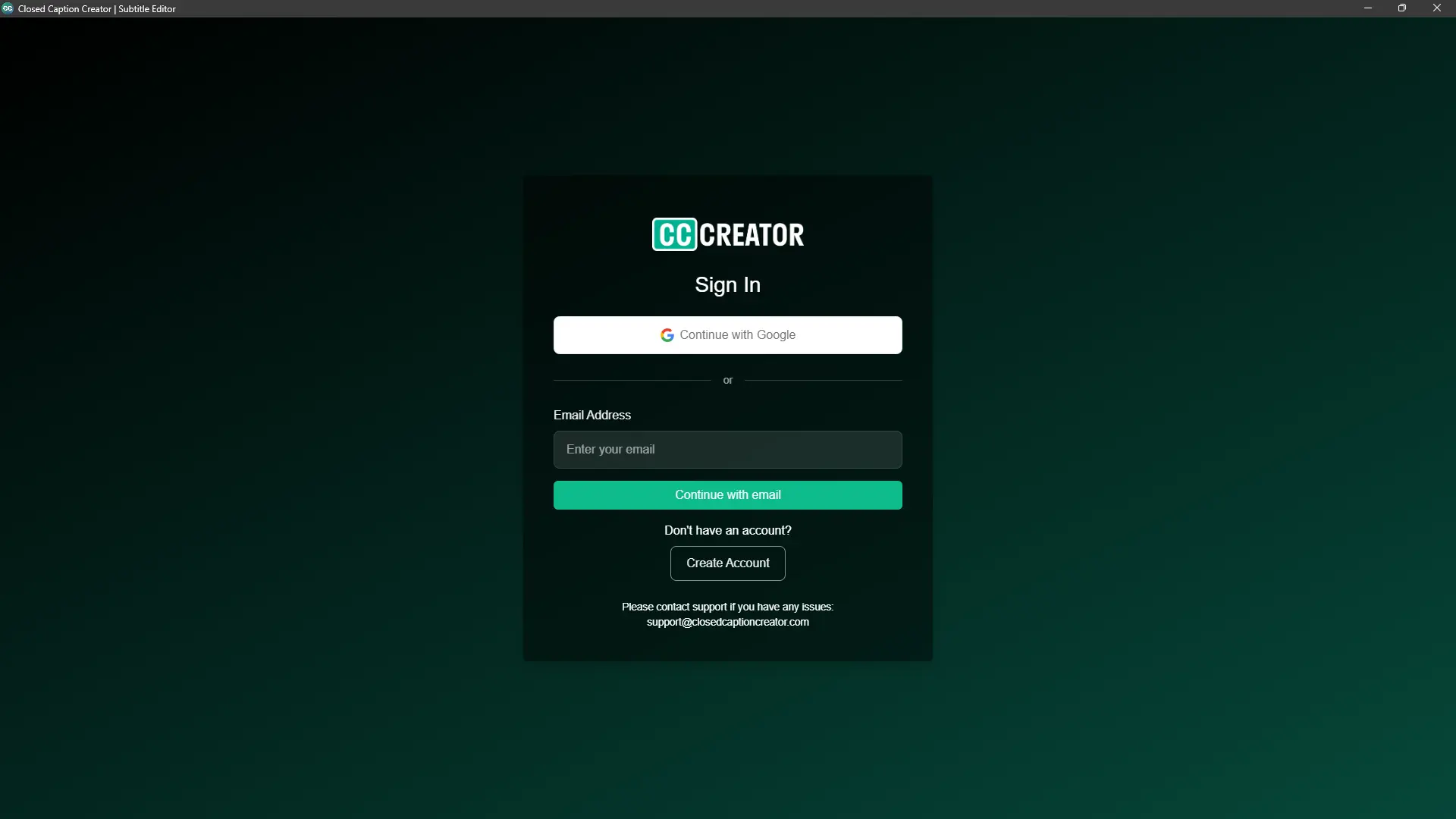
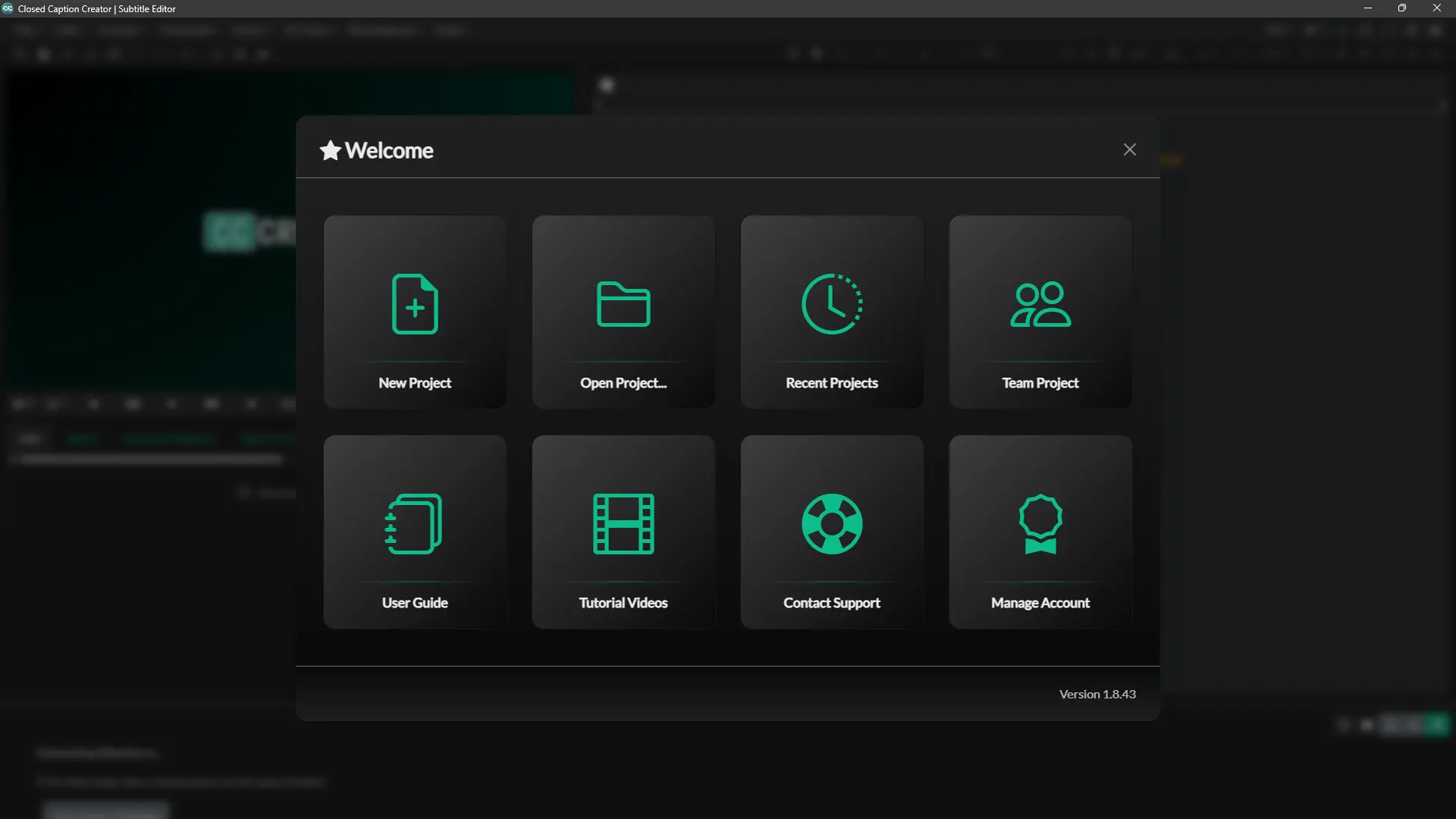
Once you have logged in, you will be greeted by the Welcome Screen.
If your subscription has not been registered you will receive an error message. Please contact our support team to correct this issue.
Next Steps
Congratulations! You have successfully installed and logged into Closed Caption Creator. What is next? We strongly recommend watching the following videos to learn more about Closed Caption Creator.
| Video |
Link |
Difficulty |
|---|---|---|
| Intro Video |
https://www.youtube.com/watch?v=dWQuJuzvvzg |
Easy |
| Project Management |
https://www.youtube.com/watch?v=x-_imF8BNe0 |
Easy |
| Automatic Transcription |
https://www.youtube.com/watch?v=TQl8FkLnsM8 |
Easy |
| Automatic Translation |
https://www.youtube.com/watch?v=wuiODnXAGZs |
Easy |
| Keyboard Shortcuts | https://www.youtube.com/watch?v=9hfDUk_dok0 |
Intermediate |
| Locks & Toggles |
https://youtu.be/LXW62WEthE0 |
Intermediate |
| Realtime Error Detection | https://www.youtube.com/watch?v=TWoCc581_pc |
Easy |
| Team Projects | https://youtu.be/Tcczc8z4k88 |
Advanced |
Ready to start captioning?
Try Closed Caption Creator free for 7 days, or download the desktop app for Windows, Mac, or Linux.