Feature Highlight
Video Export
Export video with burnt-in subtitles for social media and the web. Style them your way, preview any frame, and save presets for every deliverable.
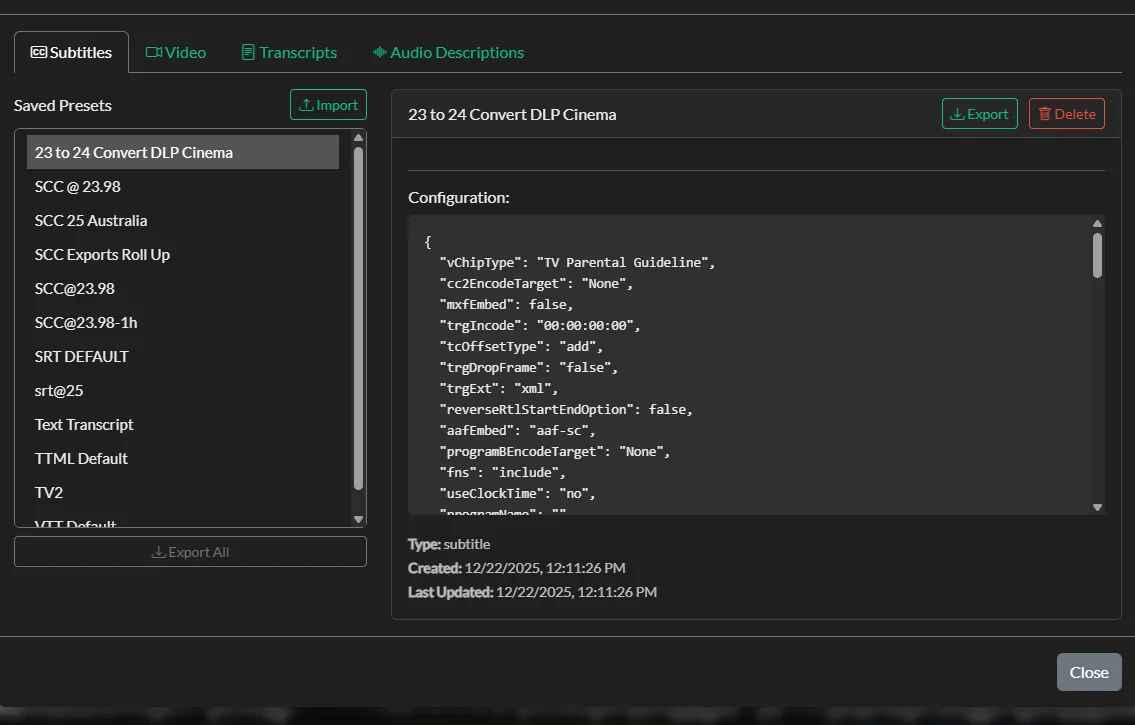
Open Captions & Subtitles
Make your videos accessible with subtitles
If you are creating video for social media or the web, you'll want to include subtitles (a.k.a. Open Captions)
Over 85% of all videos on Facebook are watched with the sound turned off. Adding subtitles helps engage with viewers, and hold their attention.
Our video exporter allows users to:
- Control subtitle position
- Use custom fonts, colors, and styling
- Create and store preset styles
- Automatically crop for 1:1 aspect ratios
- 85%of Facebook videos are watched with the sound off
- 20+Languages and dialects supported by AI transcription
- MP4 & MOVExport formats with burnt-in subtitles
How do I add burnt-in subtitles to a video?
In Closed Caption Creator, the process takes three steps: automatically transcribe the audio with AI, edit and style the subtitles in a WYSIWYG editor with custom fonts, colors, and positioning, then export the video with burnt-in subtitles using presets for Instagram, YouTube, LinkedIn, Facebook, and more.
How To Add Subtitles To Your Video
Automatically create subtitles you can edit and style however you like
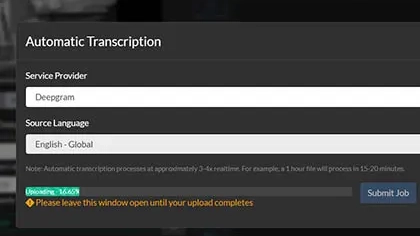
STEP 1
Transcribe Audio
Automatically transcribe your audio and video files using the power of AI. Closed Caption Creator supports over 20 different languages and dialects. There is no limitation on file size or duration.
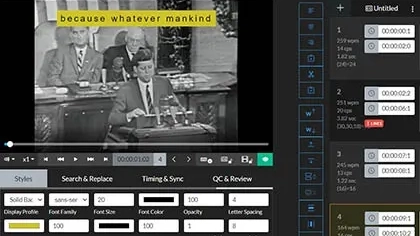
STEP 2
Edit & Style
Change the look of your subtitles to match your brand. Adjust the position, font, size, color, spacing, and format using our simple WYSIWYG editor. You can even import your own custom fonts.
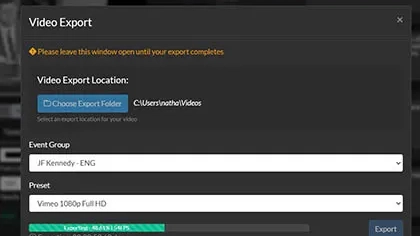
STEP 3
Publish & Share
Export your video with burnt-in subtitles (open captions) using presets for Instagram, YouTube, LinkedIn, Facebook, and more. Automatically crop your video for Instagram without sacrificing quality.
Style Presets
Style once, reuse everywhere
Design subtitles that match your brand, then save the look for next time.
Adjust the position, font, size, color, spacing, and format of your subtitles using a simple WYSIWYG editor. You can even import your own custom fonts to match your brand exactly.
- Custom fonts from the Font Manager, 8–72pt, with colour, outline and shadow control
- Switch between outline-and-shadow or a solid background box
- Preview panel: render any event over the video and download the frame to send a client a sample before export
- Style presets for the look and export presets for folder and encoding settings, so every episode matches
Social Media & Web
Made for every platform
Export presets take the guesswork out of publishing subtitled video — each one is formatted for the platform you're posting to.
Export square videos using the 1:1 crop preset — formatted for feed posts without sacrificing quality.
YouTube
Publish 16:9 videos with open captions baked in, ready to upload with no separate caption file required.
Use the LinkedIn export preset to deliver subtitled video formatted for professional feeds.
Reach the 85% of viewers who watch with the sound off using burnt-in subtitles made for the feed.
Working with vertical video? Read our guide to captioning 9:16 video.
Burnt-in subtitles vs. embedded closed captions
Closed Caption Creator supports both. Choose burnt-in subtitles for social media and the web, or embedded 608/708 closed captions for broadcast delivery.
| Burnt-In Subtitles (Open Captions) | Embedded Closed Captions | |
|---|---|---|
| How they're delivered | Rendered permanently into the video image | Stored as 608/708 data inside the video file |
| Viewer can turn them off | No — always visible | Yes — toggled in the player |
| Best for | Social media and the web | Broadcast delivery |
| Styling | Full control: fonts, colors, position, presets | Follows the 608/708 caption standard |
| How to export | Video Export (MP4, MOV) | CC Embed export option |
More features
Explore more of Closed Caption Creator
Automatic Transcription
Caption media with nine AI speech engines, batch transcription and KNP guides for names and terms.
Learn more about Automatic TranscriptionMachine Translation
Prompt-based translation that follows your terminology guide and style instructions.
Learn more about Machine TranslationTeam Projects
Share projects, sync changes and assign work with due dates, priority and workflow states.
Learn more about Team ProjectsQC & Review
Real-time error detection, style guides, pre-export checks and reviewer approvals.
Learn more about QC & ReviewFormat Support
Import and export 30+ caption, subtitle, transcript and dialogue list formats.
Learn more about Format SupportAll features
See every feature, including the AI Assistant and 608/708 embedding, and what each plan includes.
View all featuresReady to get started?
Sign up for a free 7-day trial of Closed Caption Creator and receive access to our video tutorials and courses.
Create closed captioning, subtitles, transcripts, and audio descriptions all in one application. Closed Caption Creator is made for broadcast and captioning teams who are committed to delivering high-quality, accessible video. Sign up now, or contact us for a live demo.
Video export questions
Answers to common questions about exporting videos with burnt-in subtitles, custom styling, and social media presets in Closed Caption Creator.
Closed Caption Creator's video exporter supports multiple target formats, including MP4 and MOV. Videos are exported with the subtitles permanently rendered into the picture as open captions, producing a finished file that is ready for uploading to social media platforms and websites without a separate caption file.
Yes. The WYSIWYG style editor controls subtitle position, font, size, color, spacing, and format. Custom fonts can be imported to match a brand's look, and finished styles can be saved as reusable presets, so the same subtitle design can be applied across future video exports.
Yes. The video exporter can automatically crop video to a 1:1 aspect ratio without sacrificing quality. Export presets are included for Instagram, YouTube, LinkedIn, Facebook, and more, making it straightforward to publish subtitled videos correctly formatted for each social media platform.
Subtitles are generated by automatic AI transcription, which supports over 20 languages and dialects with no limitation on file size or duration. The resulting subtitles can then be edited, timed, and styled before the video is exported with the text burnt in.
Burnt-in subtitles, also called open captions, are rendered permanently into the video image and are ideal for social media and the web. Embedded closed captions are stored as 608/708 data inside the video file for broadcast delivery. Closed Caption Creator supports both, with 608/708 embedding handled by a separate export option.
Over 85% of videos on Facebook are watched with the sound turned off, so on-screen text is often the only way viewers can follow the content. Adding burnt-in subtitles helps engage viewers and hold their attention even when the audio never plays.