Solution · Audio Description Plugin
Audio Description & Dubbing
Write and voice audio description, then turn the same program into many languages with AI dubbing. One editor, 100+ lifelike voices, and mixdowns ready for broadcast and streaming.
Voices powered by:







What is the Audio Description Plugin for Closed Caption Creator?
The Audio Description Plugin adds two voice workflows to Closed Caption Creator. Audio description lets you author AD scripts and voice them with your own recording or synthetic voices in over 30 languages. Audio dubbing turns a translated script into a timed voice-over in each target language. Both export broadcast-ready mixdowns with loudness normalization, for $50 per month per team plus usage.
Audio description
Describe on-screen action for blind and low-vision audiences. Generate a first-draft script with AI, voice it with a synthetic voice or your own recording, and export a mix with standard or Extended AD.
See the AD workflowMultilingual dubbing
Transcribe, translate and voice each language with lifelike AI voices or your ElevenLabs clones. Every line is timed to the original dialogue and mixed over your music-and-effects stem.
See the dubbing workflowCreate lifelike descriptive audio using the power of virtual voice.
...by combining the ability to work with closed captioning, and described video in the same project, we're able to unlock new workflows and efficiencies for our entire team.

Workflow 1
Audio description
Write, voice and mix described video for broadcast and streaming, with Extended AD when the program needs more room.
How It Works
From AD script to described audio
Three steps to produce lifelike audio description without booking a voice studio.
STEP 1
Write the Script
Create AD events alongside your captions, or generate a first-draft script with automatic scene descriptions.
STEP 2
Preview Voices
Choose from lifelike synthetic voices from ElevenLabs, Microsoft Azure, Google Cloud, and Amazon Polly — preview before you commit.
STEP 3
Export & Mix
Export a mixed audio track, or package a broadcast-ready described video deliverable from the same project.
100+ lifelike virtual voices
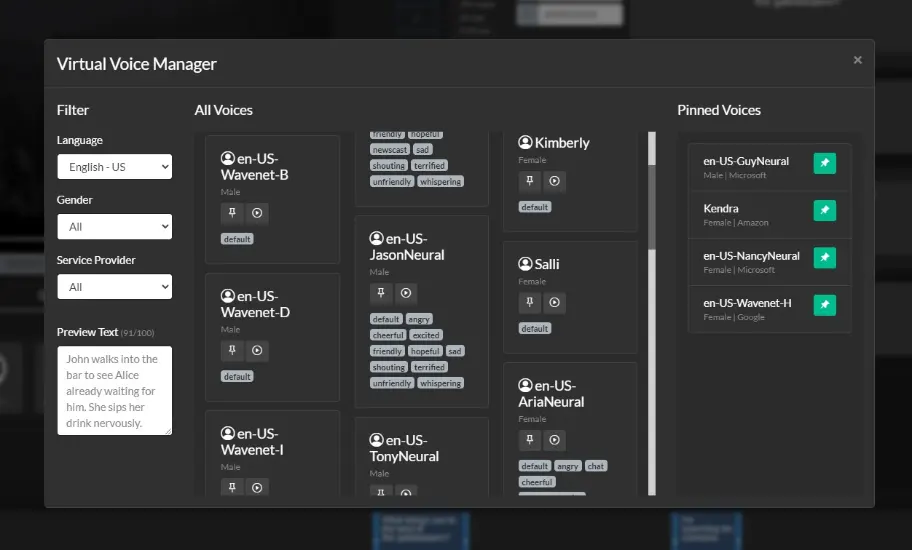
Closed Caption Creator includes access to over 100 lifelike virtual voices from Amazon, Google, Gemini, Microsoft and AssemblyAI, plus your own ElevenLabs library. The Virtual Voice Manager allows users to preview, and favorite different voices they wish to use in their project. Read how our Microsoft-powered voices work. The same voices also power multilingual audio dubbing, included with the plugin.
Automatic AD Scripting
Generate AD Scripts using the power of AI. Our AD Scripting tool is able to scan media and generate audio description Events automatically. Users can then review the scripts and make changes as required.
Please visit our pricing page for more information on rates related to Automatic AD/DV Scripting.
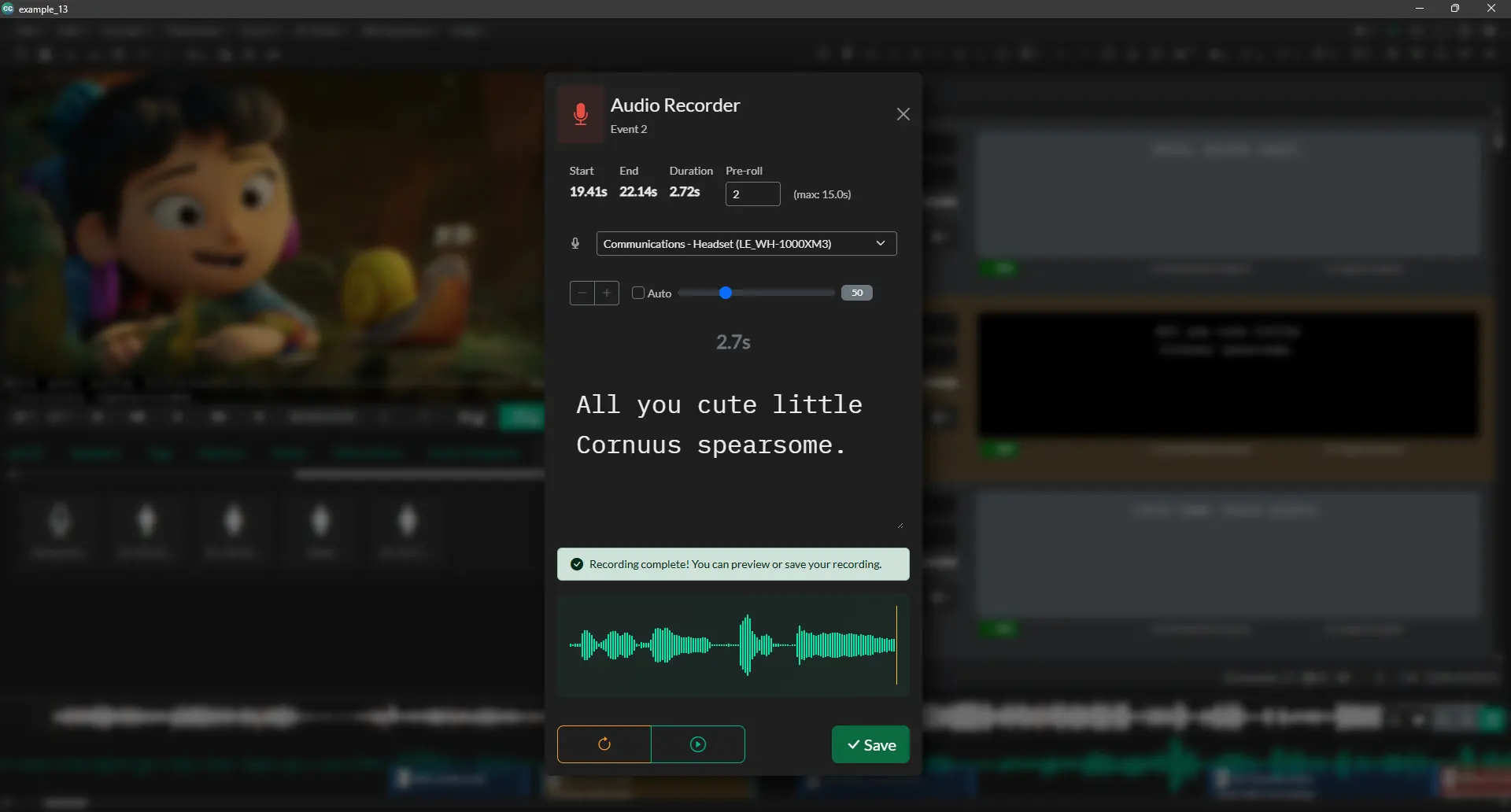
Audio Recorder
Record audio descriptions directly in Closed Caption Creator with the built-in audio recorder—no external software needed. Write your scripts and capture professional voiceovers all in one place.
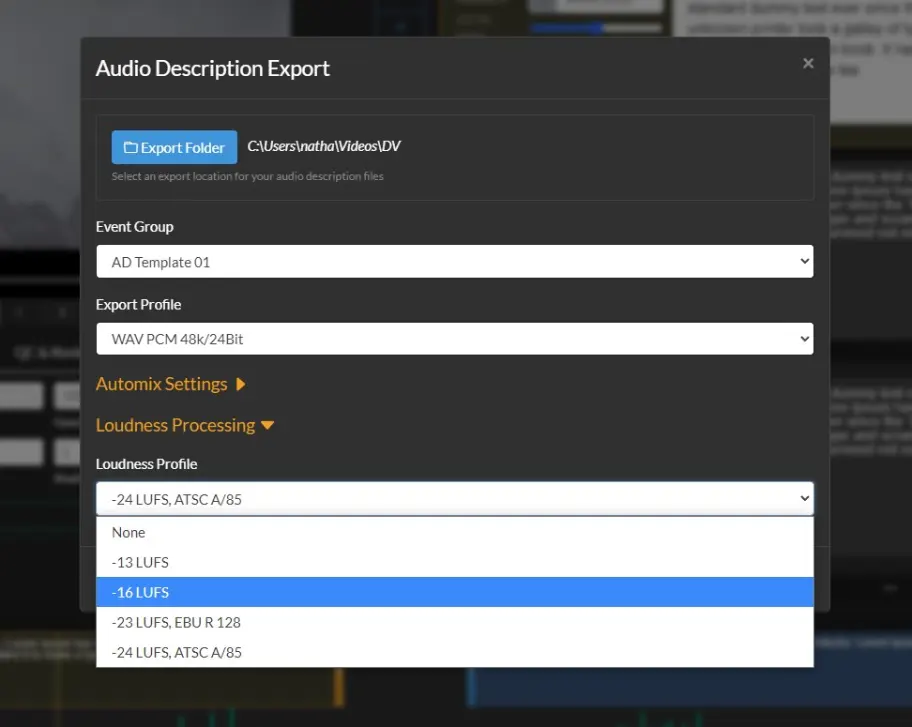
Audio Description Export
Export your work as a transcript, or audio file. Closed Caption Creator supports FLAC, WAV and MP3 audio exports. Create realistic VO tracks ready for broadcast using text-to-speech powered by Google, Amazon, and Microsoft. Loudness normalization, and AutoMix can be applied to the output in order to comply with broadcast specifications.
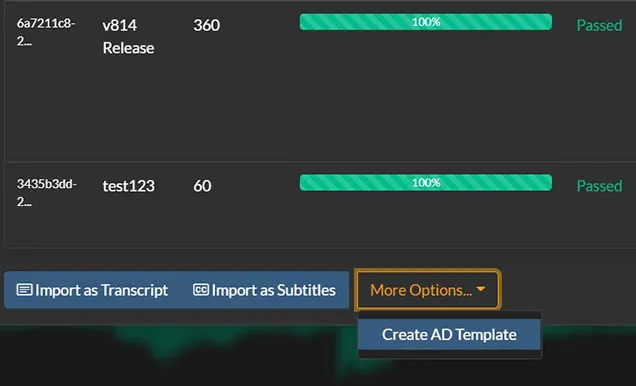
Automatic Dialogue Detection & AD Templates
Automatically detect the dialogue in your video file and generate AD templates in just a few clicks. AD templates create events in your project starting at the correct timecode so all you have to do is describe the scene and bring it to life.
How to Create Audio Descriptions For Broadcast
Watch our free course to learn how to create audio descriptions using Closed Caption Creator + AD Plugin
Watch NowWorkflow 2
Multilingual audio dubbing
Transcribe, translate and voice every target language with lifelike AI voices, timed to the original lines and mixed over your music-and-effects stem.
How It Works
How do you dub a video with AI voices?
Six steps take you from the original program to a finished dubbed track. The video walkthrough covers each one in under five minutes.
STEP 1
Transcribe or import
Generate subtitles with Automatic Transcription, or import an existing subtitle or transcript file. Speaker IDs come in with the AI transcript.
STEP 2
Translate
Run Automatic Translation into one or more target languages, or import your own translated subtitle file for each language.
STEP 3
Create the dub
Create an Audio Dubbing Event Group linked to the translation. Source text sits on the left, the dubbed script on the right.
STEP 4
Assign voices
Pin voices in the Virtual Voice Manager, filter events by speaker, and click a voice. Repeat until every speaker has one.
STEP 5
Render and fit
Run Force Render ALL Audio with Fit to Event duration for a timed first pass, then fine-tune speed per line.
STEP 6
Export
Export the voice-over, a mixdown over your music-and-effects stem, SRT files, and video from one window.
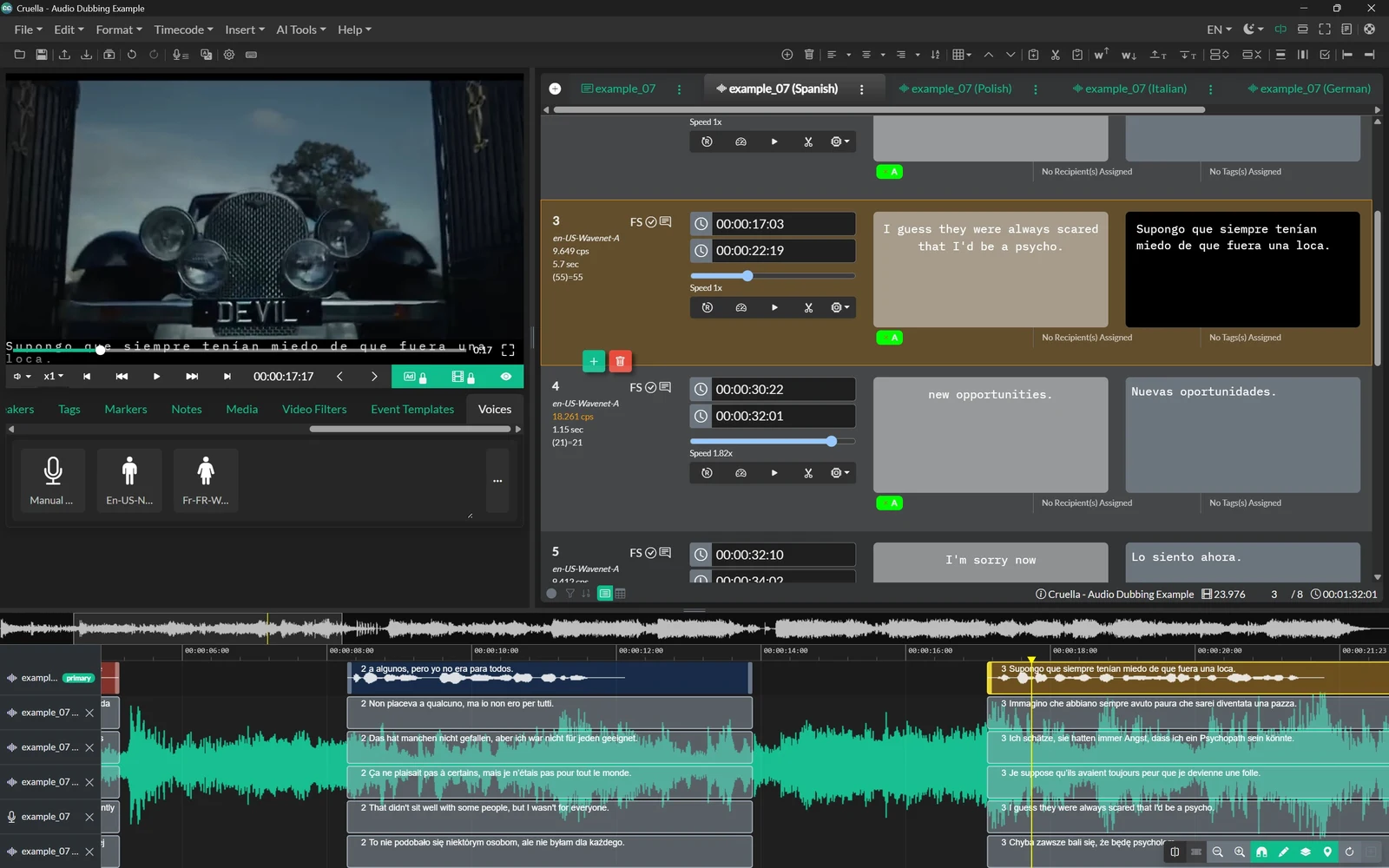
Source and Dubbed Script, Side by Side
Every Audio Dubbing Event shows the original language on the left and the dubbed script on the right, with in and out times, reading speed and voice controls on the same row.
Each language gets its own tab and its own track on the timeline, so you can check the Spanish, Polish, Italian and German dubs against the program audio in one project.
Hundreds of Voices, Plus Your ElevenLabs Library
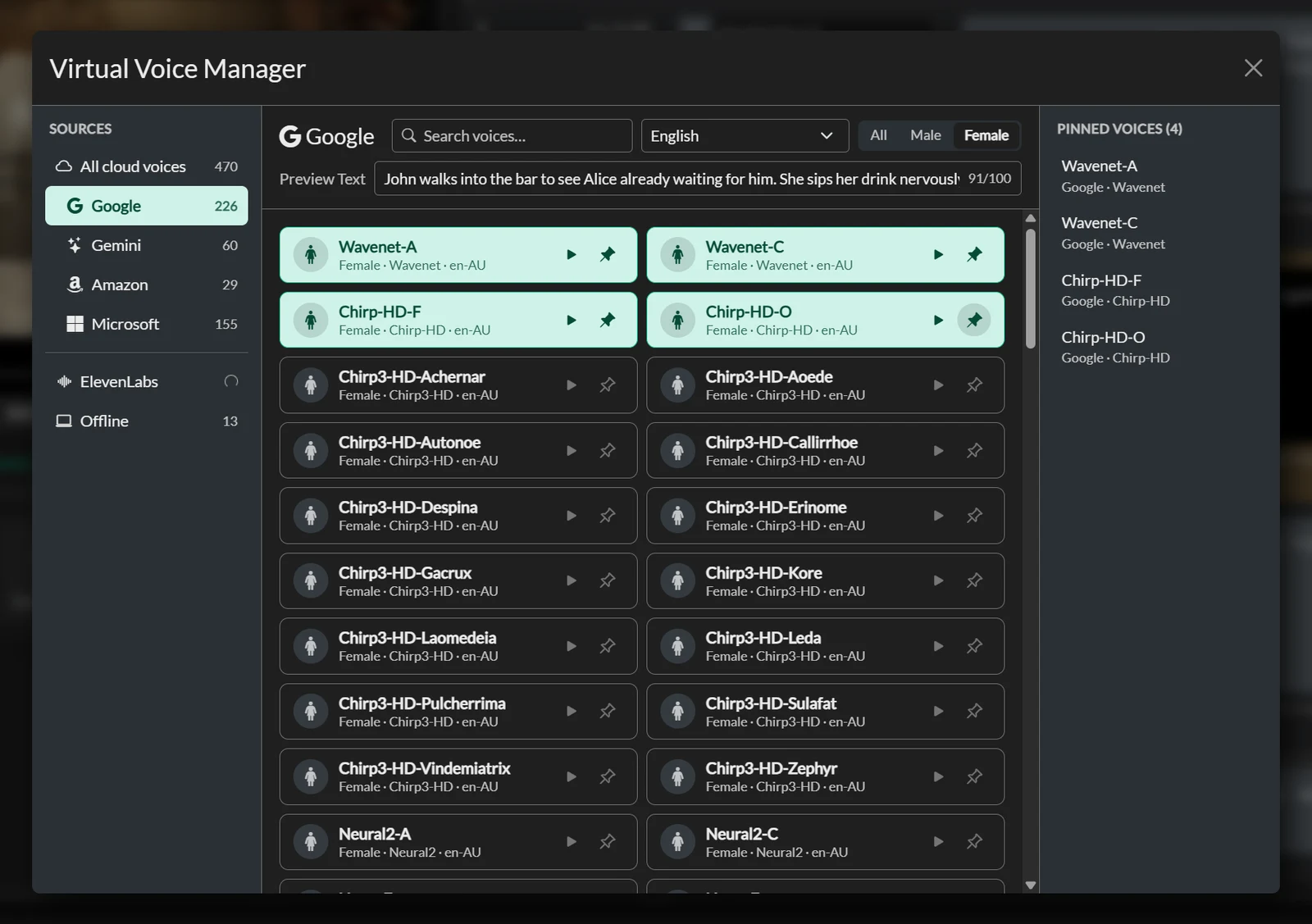
The updated Virtual Voice Manager organizes voices by provider, including Google, Gemini, Amazon and Microsoft. Filter by language and gender, type your own preview text, and pin the voices you want in the Voices panel.
Connect your ElevenLabs account to add Voice Library voices, generated voices and your own voice clones. ElevenLabs voices are multilingual, so one voice can carry a character across every target language.
Dubbed Lines That Fit the Original Timing
Translated dialogue rarely matches the length of the source. Closed Caption Creator gives you per-line control so the dub lands where the original actor speaks.
- Fit to Event duration sets each line’s speed so the speech fits its slot
- Speed slider per Event for fine-tuning, no re-render needed
- RENDER and DURATION badges flag lines that still need work
- Trim or extend an Event to match the rendered audio
- AI Authoring Tools rephrase a long line so it reads naturally
- Manual Record to voice any line yourself
Preview With Audio Stems
Load a background (music and effects) stem and a foreground (dialogue) stem from the Media tab to hear the dub the way your audience will. Set each level independently, and use the isolated dialogue to check that every dubbed line lands on time.
Supply an M&E stem for a clean dub. The export mixes the voice-over over the background stem. Without one, the mixdown uses the project media, which still contains the original dialogue.
Audio Dubbing Export
A dedicated export window, separate from Audio Description export, writes everything a dubbed deliverable needs to one folder. Choose a background stem, apply automatic ducking with a mix preset, and normalize loudness on the voice-over, program audio or mixdown.
Read the Audio Dubbing Export guide for every setting.
- Voice-over track with every dubbed Event
- Mixdown over the background stem
- SRT files for the dubbed language
- Video with the mixdown muxed in
- WAV (48k/24-bit, 44.1k/16-bit), FLAC or MP3 up to 320 kbps
- Loudness profiles: -23 LUFS EBU R 128, -24 LUFS ATSC A/85, -16 and -13 LUFS
- BWF metadata on WAV exports
Audio Dubbing at a Glance
What each stage of the workflow uses inside Closed Caption Creator.
| Stage | What you use |
|---|---|
| Source script | Automatic Transcription with speaker IDs, or an imported subtitle or transcript file |
| Translation | Automatic Translation into 70+ languages, or your own translated files |
| Dub script | Audio Dubbing Event Group with source and dubbed text side by side |
| Voices | Google, Gemini, Amazon, Microsoft, ElevenLabs, or your own recording |
| Timing | Force Render with Fit to Event duration, per-line speed, trim and extend |
| Preview | Background and foreground audio stems with separate levels |
| Delivery | Voice-over, mixdown, SRT and video; WAV, FLAC or MP3 with loudness normalization |
| Requirement | Audio Description Plugin; export runs in the desktop app while online |
Walkthrough
Watch a dub come together
The full dubbing workflow, from transcription to export, in under five minutes.
Audio Description Plugin vs. Descriptive Video Transcript
Both workflows start from the same audio description events in your project. Choose finished audio for broadcast delivery, or a text transcript for web accessibility.
| Audio Description Plugin | Descriptive Video Transcript (DVT) | |
|---|---|---|
| Final output | Broadcast-ready audio files (WAV, MP3, FLAC) | Text transcript (TXT, DOCX, CSV) or screen-reader friendly HTML |
| Voice | 100+ synthetic voices, or record your own | No audio — the reader uses their own screen reader |
| Mixing and loudness | AutoMix with loudness normalization (ATSC A/85, EBU R 128) | Not applicable |
| Best for | Broadcast and streaming audio description delivery | Web publishing, review, and translation handoff |
Described video and dubbing, one subscription
The same voices, rendering and export stack power both workflows. Add the plugin to any Closed Caption Creator plan.
$50 per month for your whole team plus usage, with 750,000 text-to-speech characters included each month. See full pricing.
Start a Free TrialMore solutions
Related workflows
Descriptive Video Transcripts
Merge audio description and subtitle events into screen-reader friendly text for the web.
Learn moreMedia Localization
Translate subtitles with prompt-based machine translation before you dub.
Learn moreClosed Captioning & Subtitles
Caption the same program in the same project, from automatic transcription to broadcast delivery.
Learn moreAudio description & dubbing questions
Answers about voices, recording, scripting, timing, exports and pricing for the Audio Description Plugin.
Audio description and audio dubbing are both included in the Audio Description Plugin, which costs $50 per month for your whole team plus usage. It includes up to 750,000 characters of text-to-speech per month (9,000,000 per year), and additional usage is $0.00005 per character, or $50 per million characters. ElevenLabs voices run on your own ElevenLabs API key, so that usage appears in your ElevenLabs account.
Closed Caption Creator includes access to over 100 lifelike virtual voices from Amazon, Google, Gemini, Microsoft and AssemblyAI, plus ElevenLabs, covering more than 30 languages. The built-in Virtual Voice Manager lets users preview voices, filter them, and favorite the ones they want to use in a project.
Yes. Closed Caption Creator has a built-in audio recorder, so descriptions can be captured directly inside the application without external recording software. Users write their scripts and record professional voiceovers in one place, then export the results as FLAC, WAV, or MP3 files.
Audio descriptions can be exported as FLAC, WAV, or MP3 files, or as a transcript. Loudness normalization and AutoMix can be applied during export so the voice track complies with broadcast loudness specifications. Closed Caption Creator also supports Extended AD and combined Video Export plus AD.
Yes. The Automatic AD Scripting tool uses AI to scan the media and generate audio description events automatically, which users then review and edit. A separate dialogue detection feature finds the dialogue in a video and builds AD templates with events already placed at the correct timecode.
Extended AD is supported alongside standard audio description. Closed Caption Creator can produce Extended AD projects and offers a Video Export plus AD option, so the finished described video and its audio track can be delivered together as broadcast-ready output from the same application.
Yes. Audio Dubbing is part of the Audio Description Plugin, so your Closed Caption Creator subscription must include that plugin. The plugin unlocks the Audio Dubbing Event Group type, the Virtual Voice Manager, Force Render, and the Audio Dubbing Export window. Exporting the finished dub uses the desktop application while you are online.
Yes, as a separate step before you dub. Run AI Tools, then Automatic Translation, to translate the transcript into one or more target languages, and import each result as a Translation group. An Audio Dubbing group linked to that translation copies the source text into the left column and the translated script into the right, ready to voice.
Yes. Paste your ElevenLabs API key under Edit, Options, Integrations, and your ElevenLabs voices appear as a source in the Virtual Voice Manager. That includes Voice Library voices, generated voices, and your own Instant or Professional Voice Clones. ElevenLabs voices are multilingual, so one voice can speak each target language.
You can dub into any language that has a voice available, and Automatic Translation covers more than 70 target languages. Google, Gemini, Amazon and Microsoft voices are filtered by language in the Virtual Voice Manager, while ElevenLabs voices are multilingual and speak whatever language the dubbed script is written in.
No. Audio Dubbing renders text-to-speech from the dubbed script, so it does not convert or clone the original performance automatically. The original dialogue is only removed from the mix when you supply a background music-and-effects stem. To keep a recognizable voice, use an ElevenLabs voice clone you have the rights to, or record the lines yourself.
Each dubbed line lives in an Event timed to the original dialogue, and Force Render ALL Audio with Fit to Event duration adjusts every Event's speed so the speech fits its slot. You can then fine-tune the speed slider, trim or extend an Event, or rephrase long lines with the AI Authoring Tools.
The Audio Dubbing export produces a voice-over track, an optional mixdown over your background stem, optional SRT files, and an optional video with the mixdown muxed in. Audio can be written as WAV, FLAC or MP3, with loudness normalization to EBU R 128 or ATSC A/85 and BWF metadata on WAV files.