Audio Dubbing Export
Audio Dubbing has its own export window, separate from AD Export. Use it when an Audio Dubbing Event Group is ready to deliver dubbed voice-over mixed over a music-and-effects stem, optional SRT files, and optional video.
Export requires the desktop application, the Audio Description plugin, and an online session.
Opening Audio Dubbing Export
Confirm that the Audio Dubbing Event Group you want to export is selected, then go to File → Export…. In the File Export window, choose the Audio Dubbing card (Export dubbed audio mixed over the background stem).
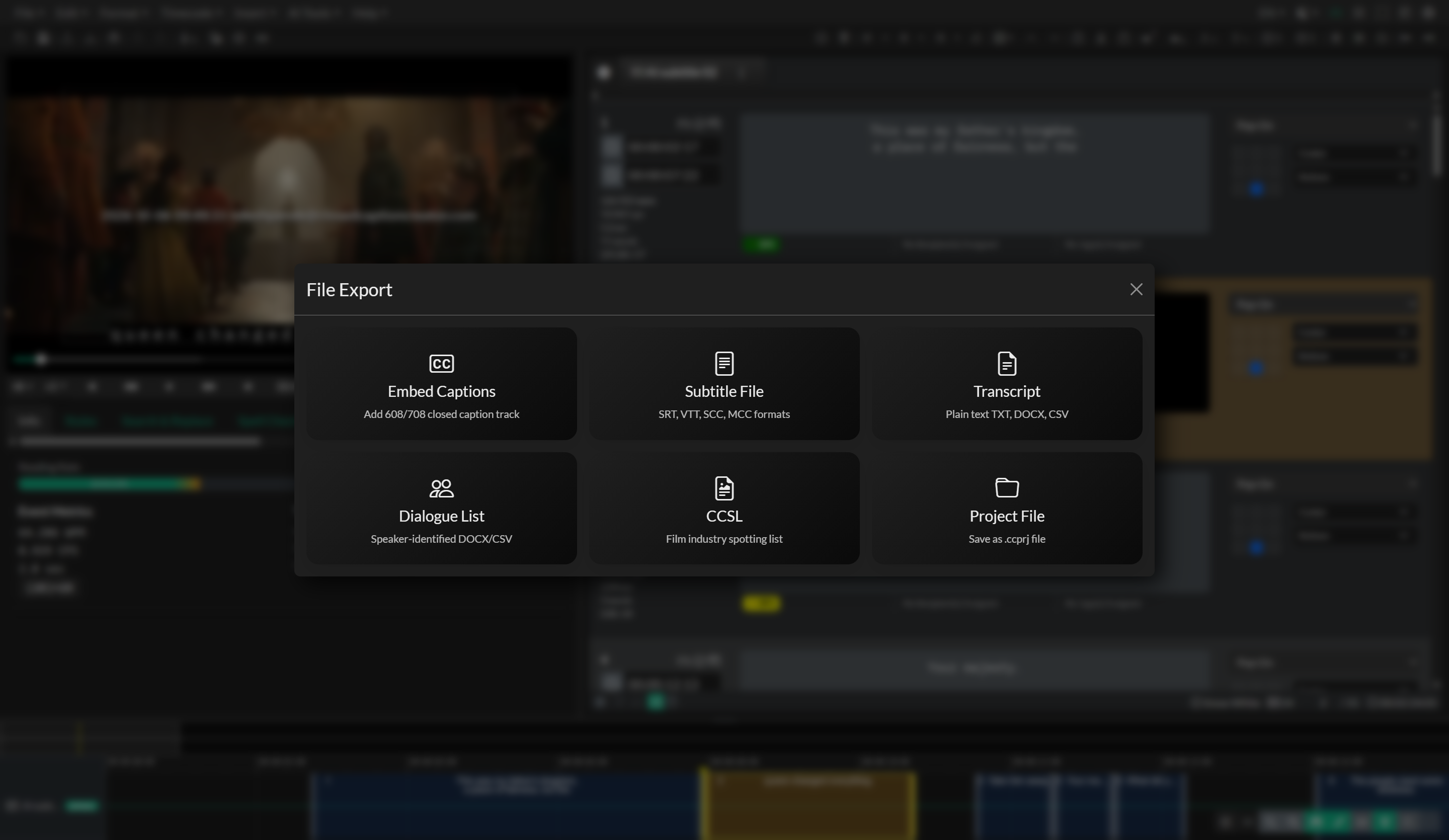
The window title is Audio Dubbing Export. This card is shown next to Audio Description; the two exporters do not share saved settings or presets.
Leave the window open until the export finishes. Footer buttons are Load, Save, and Export Audio.
Export Settings
Export Folder. Choose a destination with Select Folder. The placeholder is No folder selected until a folder is chosen.
Event Group. The dropdown lists Audio Dubbing groups only. The active group is pre-selected. If the selected group is not an Audio Dubbing group, the first Audio Dubbing group in the project is used.
Audio Format. Supported formats:
- FLAC
- MP3 128kbs, MP3 192kbs, MP3 256kbs, MP3 320kbs
- WAV PCM 48k/24Bit
- WAV PCM 44.1k/16Bit
The exporter writes a combined voice-over track (all dubbed events, without program audio) and, when mixdown is on, a mixdown that combines voice-over with the background stem or project media.
Output Options
- Export VO Track(s) — keep the combined voice-over file.
- Export Mixdown — mix voice-over over the background stem (or project media if no stem is selected).
- Export SRT File(s) — write timed text for the dubbed events. Subtitle Settings then include Maximum Lines and Maximum Characters.
- Export Video — mux the mixdown onto a video file. Mixdown must be on (Requires Mixdown). The label is Export Video, not the Audio Description Export Video with AD.
Background Stem
When mixdown is on, Background Stem appears. It defaults to the Background (music and effects) stem already loaded in the project, if one is loaded. Help text: Defaults to the loaded background stem. If none is selected, the project media is used.
A loaded stem is labeled Background stem: plus the filename. You can replace the file or clear it. Audio stems in the player are for preview and playback only; they are used at export only when this field still points at that file (or you pick it here).
If you clear the field, mixdown uses project media, which still contains original dialogue unless you have already replaced that media.
Video File
When Export Video is on, Video File is Required. If the project media is video (not audio-only), the field defaults to that file and is labeled Project video: plus the filename. You can choose a different video or clear the selection and pick another file.
Audio Processing
Shown when mixdown is on.
Automix Settings → Mix Preset defaults to None on a first Audio Dubbing export (None mixes program audio and voice-over at their original levels, with no ducking). Later exports restore the last dubbing settings. Other presets:
- Default, Default - High Ratio, High Ratio, Medium Ratio, Low Ratio
- Medium Ratio - Fast Attack, Medium Ratio - Slow Attack, Medium Ratio - Slow Release
- Custom
- Fixed Gain -3dB (Fixed Gain), Fixed Gain -6dB (Fixed Gain), Fixed Gain -12dB (Fixed Gain), Fixed Gain -16dB (Fixed Gain)
Audio Description export still defaults Mix Preset to Default ducking.
Loudness Normalization → Loudness Profile defaults to None. Other profiles are -13 LUFS, -16 LUFS, -23 LUFS, EBU R 128, and -24 LUFS, ATSC A/85. You can apply loudness to Voice Over, Program Audio, and/or Mixdown.
Advanced Options
Export Event Selection limits the range with First Event and Last Event.
Extended AD is not shown for Audio Dubbing and is always off, even if a saved setting or preset would turn it on in Audio Description export.
BWF Metadata (WAV Only)
When the format is WAV, BWF Metadata (WAV Only) can embed Title, Description, and Reference Time. See AD Export for how those fields are written.
How Audio Dubbing Export differs from AD Export
| Topic | Audio Dubbing Export | Audio Description Export |
|---|---|---|
| File Export card | Audio Dubbing | Audio Description |
| Event Group list | Audio Dubbing groups only | Audio Description groups only |
| Mix background | Background Stem (defaults to loaded M&E stem) | Program Audio (Optional) (empty until you pick a file) |
| Mix Preset default | None | Default |
| Loudness Profile default | None | First loudness profile with a target (not None) |
| Video export label | Export Video | Export Video with AD |
| Video file default | Loaded project video | Empty until you pick a file |
| Extended AD | Hidden | Available |
Saved settings and presets are stored separately (cc-dub-export vs cc-ad-export). Voices, Force Render, and stem preview are shared. Player volume for the rendered track stays labeled Audio description volume.