Subtitle Export
Subtitle Export is the primary method for generating sidecar caption and subtitle files from your Closed Caption Creator project. It supports a wide range of broadcast and web formats and provides extensive control over formatting, timecode handling, and channel mapping.
Opening the Export Window
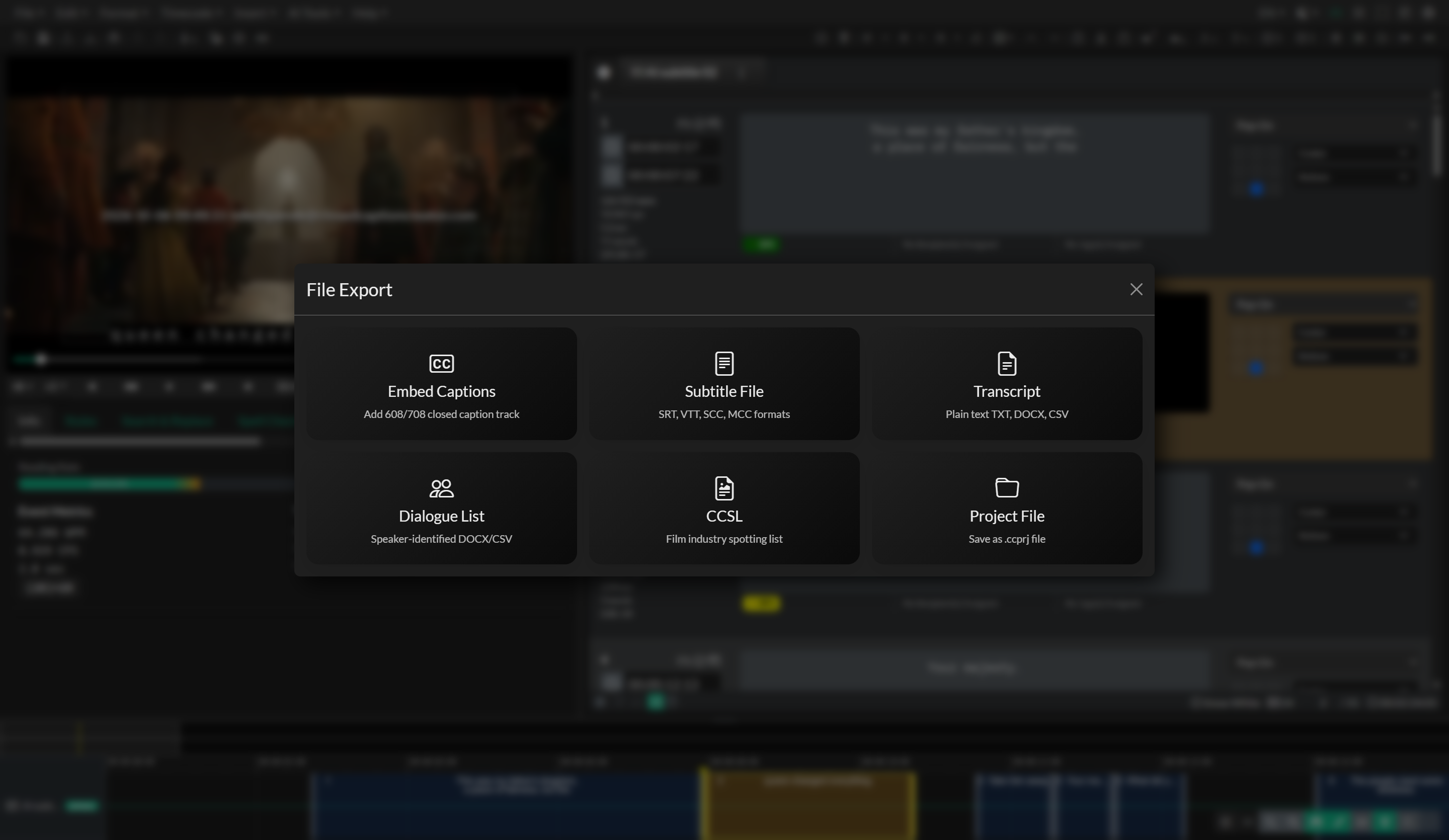
To begin, open the Primary Toolbar and go to File > Export, then select Subtitle File and click Next. The Subtitle Export window will appear. Start by selecting the Event Group you wish to export from the dropdown at the top of the form. The list is filtered to show subtitle, translation, audio description, and transcription groups.
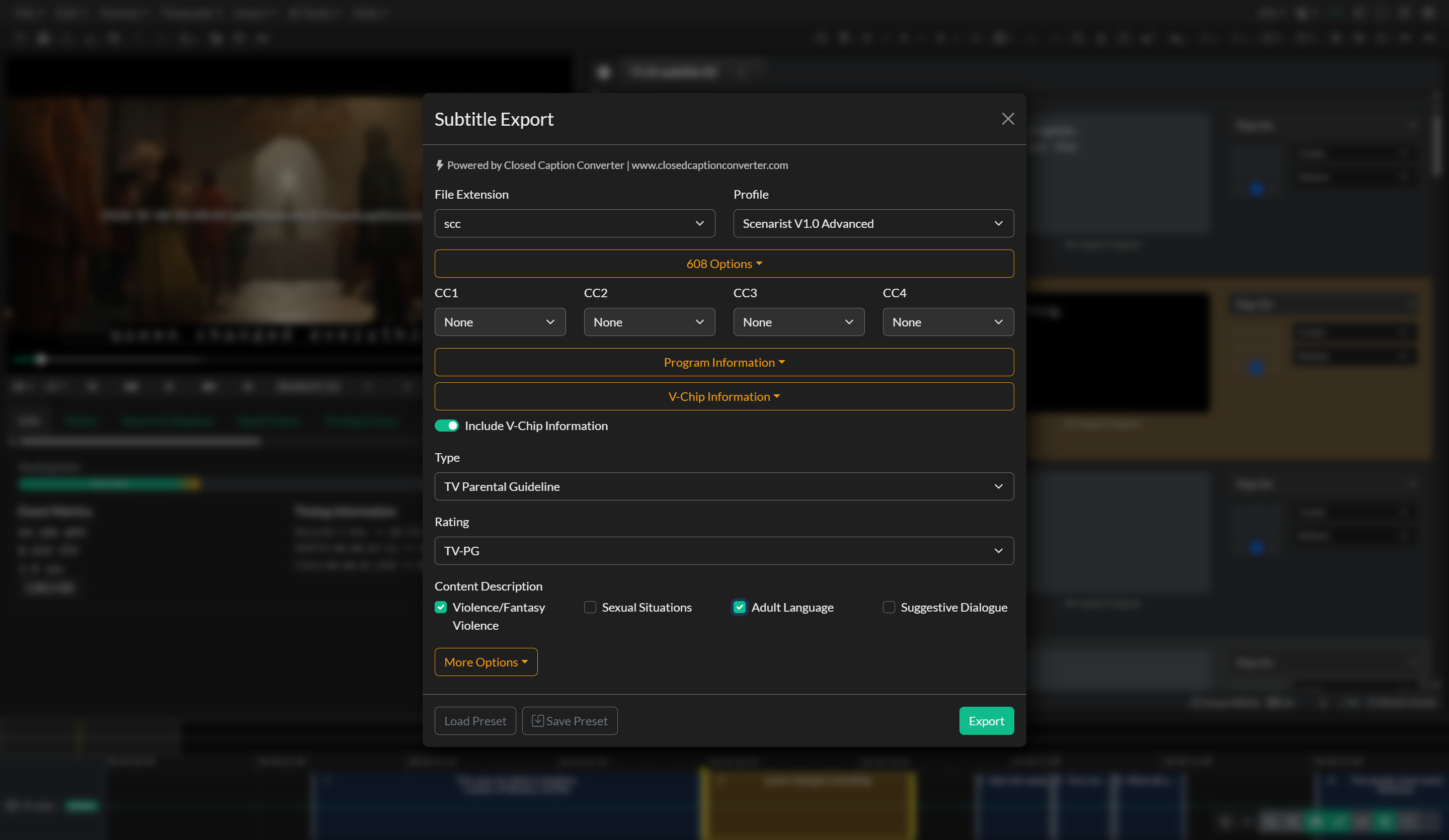
Next, choose a File Extension from the available options. Common web formats such as SRT, VTT, and SBV are available on all plans. Broadcast formats including SCC (Scenarist), MCC (MacCaption), STL (EBU-N19), and RAW require a Pro or Enterprise subscription. Once an extension is selected, the Profile dropdown will populate with the options available for that format — for example, a VTT file may offer standard or timed-text profiles, while SCC offers Scenarist V1.0 with optional advanced settings.
608/708 Channel Mapping
When the 608/708 VANC Data profile or MacCaption 608/708 Advanced profile is selected, additional panels become available for mapping your Event Groups to specific broadcast channels. The 708 Options panel allows you to assign an Event Group (or "None") to each of the six programs: Program A through Program F. The 608 Options panel similarly allows mapping to CC1, CC2, CC3, and CC4.
For the 608/708 VANC Data profile specifically, you can also choose an embed container format. The AAF Embed (Linked) option creates an AAF file that references your source media externally. AAF Embed (Self-Contained) packages the caption data into a self-contained AAF file, which is the format required by Avid Media Composer. The MXF Embed option wraps the captions in an MXF container. Selecting None exports a raw caption data file without any container.
Program and V-Chip Information
When exporting VANC data or broadcast formats that support it, the Program Info panel allows you to embed metadata about the program. You can enable this section and provide the program name, program length, and a basic keyword group (Education, Entertainment, Movie, News, Religion, Sports, or Other), along with optional detail keywords from the content advisory dictionary.
The V-Chip Information panel lets you embed a content rating directly into the file. Supported rating systems include TV Parental Guidelines, MPAA, and Canadian ratings for both English and French. The available rating values update automatically based on the selected system. For TV Parental Guidelines, you can also flag specific content descriptors such as Violence, Sexual Content, Language, and Dialogue.
Advanced Timing and Encoding Options
The More Options panel provides fine-grained control over timecode and output encoding. The Incode field sets the start timecode for the export in SMPTE format. Use Clock Time switches between SMPTE and wall-clock-based timecode. Frame Rate and Drop Frame let you specify output timing independently of the project's native frame rate, which is essential when delivering to a client whose technical spec differs from your working format.
The TC Offset field adds or subtracts a fixed timecode value from every event, useful for adjusting a programme's start time without editing events individually. The TC Multiplier field applies a rate-conversion multiplier, which is typically used when converting between 23.976 and 24fps timelines. File Encoding controls the character encoding of the output file, with options covering UTF-8, UTF-16, ISO-8859, and other encodings required by specific formats or regions.
For XML and TTML-based profiles, the MXF Wrap option packages the TTML output inside an MXF container. The Reverse RTL Start/End option corrects the directional ordering of right-to-left text in formats that do not natively handle bidirectionality. The Forced Subtitles control lets you choose to include all events, exclude events flagged as forced, or export only forced events.
Export Tracks filters the output by Event Group track. The list includes No Track plus tracks A–D. All tracks are selected by default. Hold Ctrl (Windows) or Cmd (Mac) to select a subset. See Event Group Tracks.
Some profiles expose additional format-specific encoding options below these settings, such as custom namespace values, profile identifiers, or encoding variants defined in the format specification.
Using Export Presets
Export settings can be saved and reused as named presets. Click Save Preset in the footer to store the current configuration — including extension, profile, timing options, and all advanced settings — under a name of your choosing. Click Load Preset to retrieve a previously saved configuration. Presets are stored under the Subtitle preset type and are also available in the Batch Subtitle Export workflow. The last-used file extension and profile are automatically remembered between sessions via local storage.
Troubleshooting
If the exported file appears empty, confirm that the correct Event Group is selected and that it contains events within the project's timecode range. If timecode values in the output file appear offset, check the Incode and TC Offset fields in the More Options panel. If special characters or non-Latin scripts are not rendering correctly in the output, verify that the File Encoding setting matches what is expected by the receiving application. For broadcast formats that require Pro access, ensure your account is on an eligible plan before attempting to export.