Export Presets & Batch Export
Export presets and batch export are two complementary features that help production teams standardise their deliverables and reduce repetitive manual work across multi-episode or multi-language projects.
Export Presets
Presets are available in the Subtitle Export, Video Export, and Transcript Export windows. A preset captures all of the configured settings in that window — including the file extension, profile, timing options, and any advanced parameters — and stores them under a user-defined name. For Transcript Export, that includes layout mode, file format, timecode options, and the full Field Layout (field order, includes, line breaks, and DOCX bold/italic). Once saved, a preset can be reloaded at any time by clicking Load Preset in the export footer, ensuring that identical settings are applied across every episode or language variant in a package.
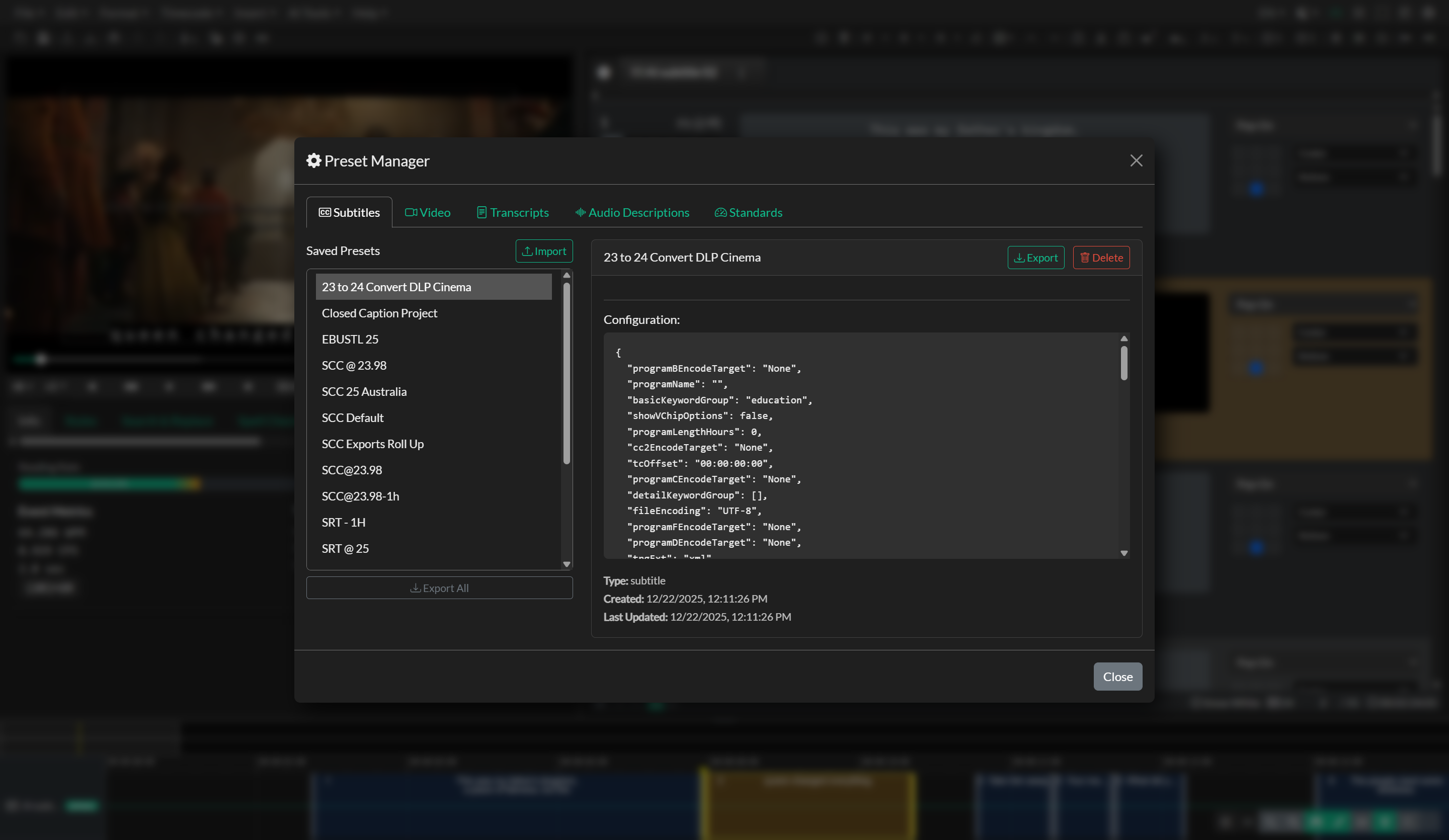
To save a preset, configure your export settings as required and click Save Preset in the footer of any supported export window. You will be prompted to enter a name for the preset. To update an existing preset, load it, make your changes, and save it again under the same name. Presets are stored per export type — subtitle presets, video presets, and transcript presets are managed independently.
Subtitle presets are also used by the Batch Subtitle Export workflow described below, which means that maintaining a well-named library of subtitle presets directly enables automated multi-format batch delivery.
The same Preset Manager (Edit → Export Presets) also includes a Standards tab for named Event Group error-detection presets (reading rate, line length, duration, overlap, and illegal-character checks). Those presets are applied from the New Project, New Event Group, and Event Group Settings forms, not from export windows. See Realtime Error Detection.
Batch Subtitle Export
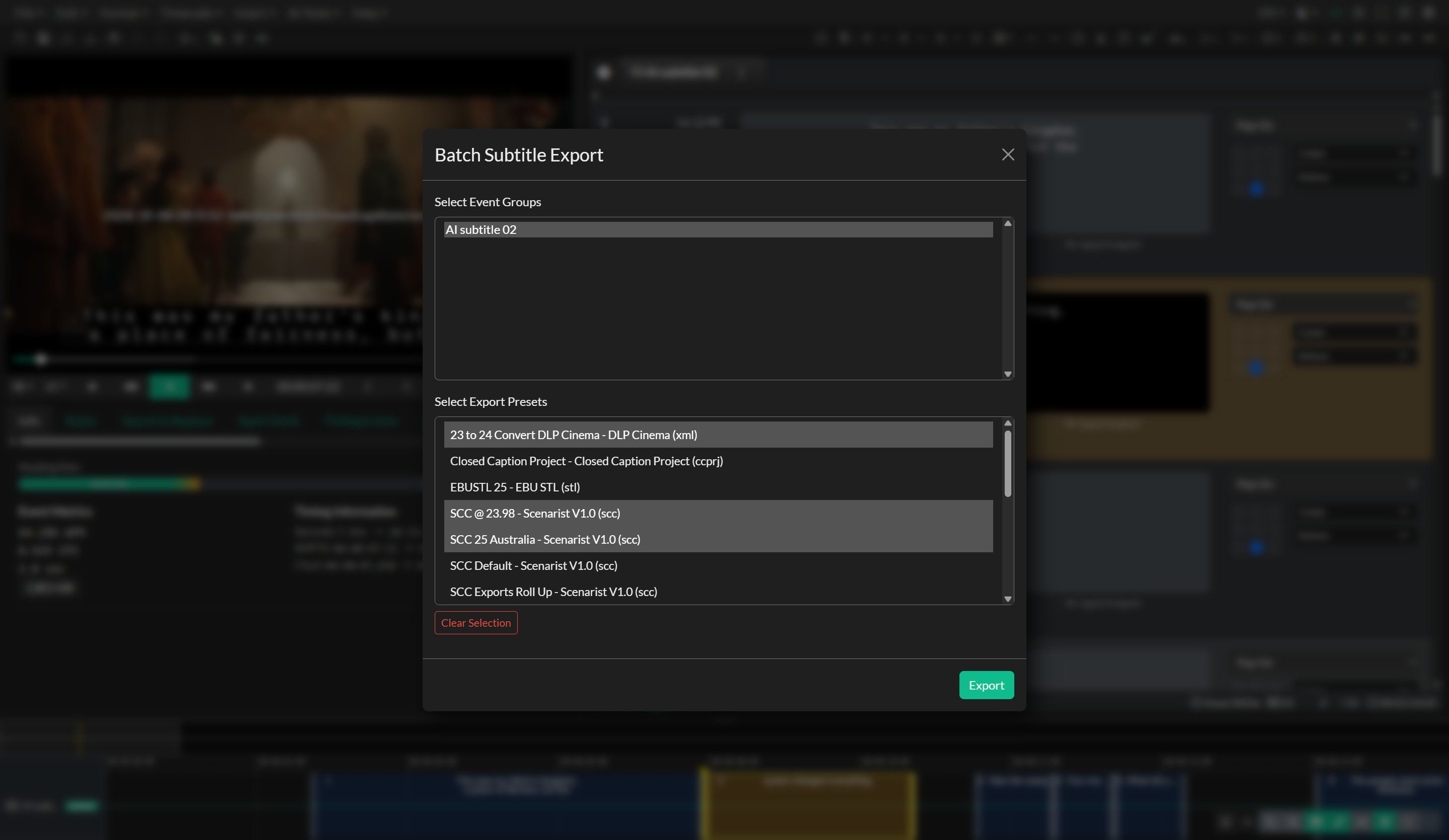
Batch Subtitle Export allows you to run the subtitle export process across multiple Event Groups and multiple export presets in a single operation. Rather than opening the Subtitle Export window once for each format and group combination, you select all the groups and all the presets you need simultaneously, and the application exports every combination automatically.
To use Batch Subtitle Export, go to File > Batch Export. The Batch Subtitle Export window will open. In the Event Groups list, hold Ctrl (Windows) or Cmd (macOS) and click to select every group you want to include. In the Export Presets list, do the same to select all the formats you want to generate. If no presets are available, you will first need to create them using the Subtitle Export window — see the Export Presets section above.
In the desktop application, you will also be prompted to select a Target Folder where all output files will be saved. In the web application, each file is downloaded to your browser's default download location. Click Export to begin. A progress bar at the bottom of the window will update as each combination is processed, showing the name of the file currently being generated. The total number of exports equals the number of selected Event Groups multiplied by the number of selected presets.
If individual exports fail during the batch run, an error notification will be shown but the operation will continue with the remaining combinations rather than stopping entirely. At the end of the batch run, a success notification confirms completion.
Troubleshooting
If Batch Export produces no output files, confirm that at least one Event Group and at least one preset are selected before clicking Export. In the desktop application, also verify that a valid target folder has been chosen. If a specific format within the batch consistently fails, open the Subtitle Export window and test that format individually, as the error detail shown in a single export can help identify the cause. If presets do not appear in the Batch Export list, they may have been created in a different session or cleared from local storage — re-create them using the Subtitle Export window.