Transcript
Transcript Export produces readable, text-based script files from your Event Group data. It is designed for editorial review, compliance archiving, accessibility documentation, and delivery to vendors who require a human-readable version of the caption, transcription, translation, or audio description content alongside timecode and optional event metadata.
Opening the Export Window
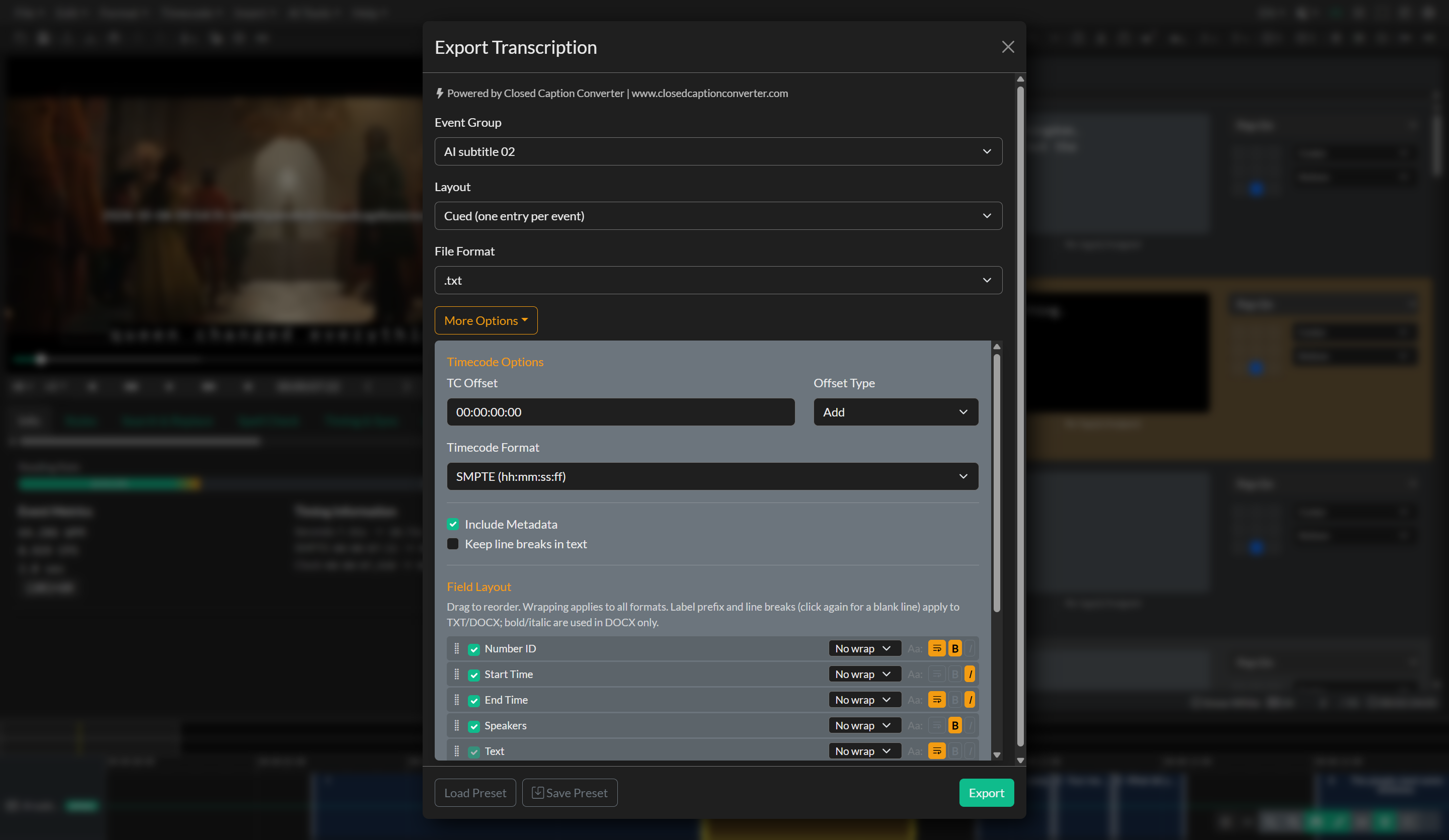
To begin, go to File > Export, select Transcript, and click Next. The Transcript Export window will appear.
- Select the Event Group you wish to export (subtitle, translation, audio description, or transcription groups are supported).
- Choose a Layout (
CuedorProse). - Choose a File Format (
.docx,.txt, or.csv). - Optionally open More Options to configure timecode handling and the Field Layout.
Layout
Two layout modes control how events are structured in TXT and DOCX output. Layout is disabled when exporting CSV (CSV always writes one row per event).
| Layout | Behaviour |
|---|---|
| Cued (one entry per event) | Each event becomes its own block. You control which fields appear, their order, line breaks, and (for DOCX) bold/italic styling. |
| Prose (grouped by silence) | Events are grouped into paragraphs when the gap between them exceeds a configurable duration. Prose supports Number ID, Start Time, End Time, Speakers, and Text only. |
When Prose is selected, More Options also exposes Group Events by Timecode and a Duration slider. If the silence between two events exceeds that duration, a new paragraph group is started.
File Formats
| Format | Description |
|---|---|
| TXT | Plain text. Uses your field order and line-break settings. Bold/italic are ignored. |
| DOCX | Microsoft Word document. Same structure as TXT, with bold and italic applied per field. |
| CSV | Spreadsheet-friendly export. Column set and column order follow the enabled fields in Field Layout. Line breaks and text styles are ignored. |
More Options
Timecode Options
- TC Offset — Apply a fixed SMPTE offset to all exported times.
- Offset Type — Add or subtract the offset.
- Timecode Format — SMPTE (
hh:mm:ss:ff), millisecond TC (hh:mm:ss.mmm), or seconds. Shown when Start Time and/or End Time are enabled in the Field Layout.
Project Metadata Header
For TXT and DOCX, Include Metadata adds a document header with project ID, name, author, and project-level metadata entries. This option is hidden for CSV.
Field Layout
The Field Layout list replaces the older fixed include checkboxes. Each row is a property that can appear in the export:
| Control | Purpose |
|---|---|
| Drag handle | Reorder fields in the output |
| Checkbox | Include or exclude the field (Text is always included) |
| Line-break button | Start a new line after this field (TXT/DOCX) |
| B / I | Bold / italic for DOCX only (saved in presets even when exporting other formats) |
Available fields:
- Number ID — 1-based index (
1),2), …) - Start Time / End Time
- Speakers — Speaker names (when Speakers is followed inline by Text, a colon is inserted automatically)
- Text — Event text (required)
- Original — Original-language text (shown for translation Event Groups)
- Tags, Notes, Notes Checked, Reply, Reply Checked, Approved, Forced
Fields that do not apply to the current layout or Event Group type appear muted (for example, metadata fields in Prose layout, or Original when the group is not a translation).
How line breaks work
Consecutive fields with line break off share one line and are joined with a tab (the same pattern used historically for start/end timecodes). A field with line break on ends the current line.
Example (Cued defaults):
1)
00:00:01:00	00:00:03:00
ALICE: Hello there.
With Notes enabled and bold in DOCX:
1)
00:00:01:00	00:00:03:00
ALICE: Hello there.
	Notes: check pronunciation
Format-specific behaviour
- TXT — Order and line breaks only.
- DOCX — Order, line breaks, bold, and italic.
- CSV — Enabled fields become columns in list order. Styles and line breaks are ignored.
Export Presets
Use Save Preset / Load Preset in the footer to store or restore the full Transcript Export configuration, including layout, file format, timecode options, project metadata toggle, and the complete Field Layout (order, includes, breaks, and styles).
Older presets that used the previous Subtitle / Paragraph template names are mapped automatically to Cued / Prose, and legacy include checkboxes are converted into an equivalent Field Layout.
Descriptive Video Transcript (DVT) Workflow
A Descriptive Video Transcript combines dialogue from a closed caption Event Group with video descriptions from an Audio Description Event Group into a single unified document. This type of document, often referred to as a DVT, is used in accessibility compliance and educational contexts.
To create a DVT, start by ensuring you have both a Subtitle Event Group (containing your dialogue captions) and an Audio Description Event Group (containing your description scripts). Using speaker tags on your events to identify each line as dialogue or description will carry through to the final output, improving comprehension for the reader.
Once both groups are ready, open the Event Group options on either group and select Merge Event Groups. In the Merge tool, provide a name for the new group and set the Group Type to Transcription. Select both Event Groups while holding the Control key, set the Order By option to Start Time to ensure events appear in chronological order, and click Merge Group. A new Event Group will be created containing events from both source groups, interleaved by timecode.
With the merged group created, you can export the DVT using the Dialogue List Export (for a Word document in tabular format) or the Transcript Export (for plain text, Word, or CSV). Use Field Layout to include Speakers, Notes, and other review fields as needed for the delivery.
Troubleshooting
- If the exported file looks empty, confirm the selected Event Group has events with text and that Text remains enabled in Field Layout.
- If timecodes look wrong, check TC Offset, Offset Type, and Timecode Format.
- If DOCX styling does not appear, confirm bold/italic toggles are enabled on the relevant Field Layout rows and that the file format is
.docx(TXT and CSV never apply style). - If CSV columns are missing or out of order, review which Field Layout rows are enabled and their drag order.
- If Original language is missing from a translation export, enable Original in Field Layout and confirm the Event Group type is translation.