Keyboard Shortcuts
Closed Caption Creator supports fully customizable keyboard shortcuts organized into feature groups. A well-configured shortcut set significantly reduces the time spent on repetitive actions during transcription, caption spotting, and formatting passes. To open the Shortcut Keys panel, go to Edit > Shortcut Keys.
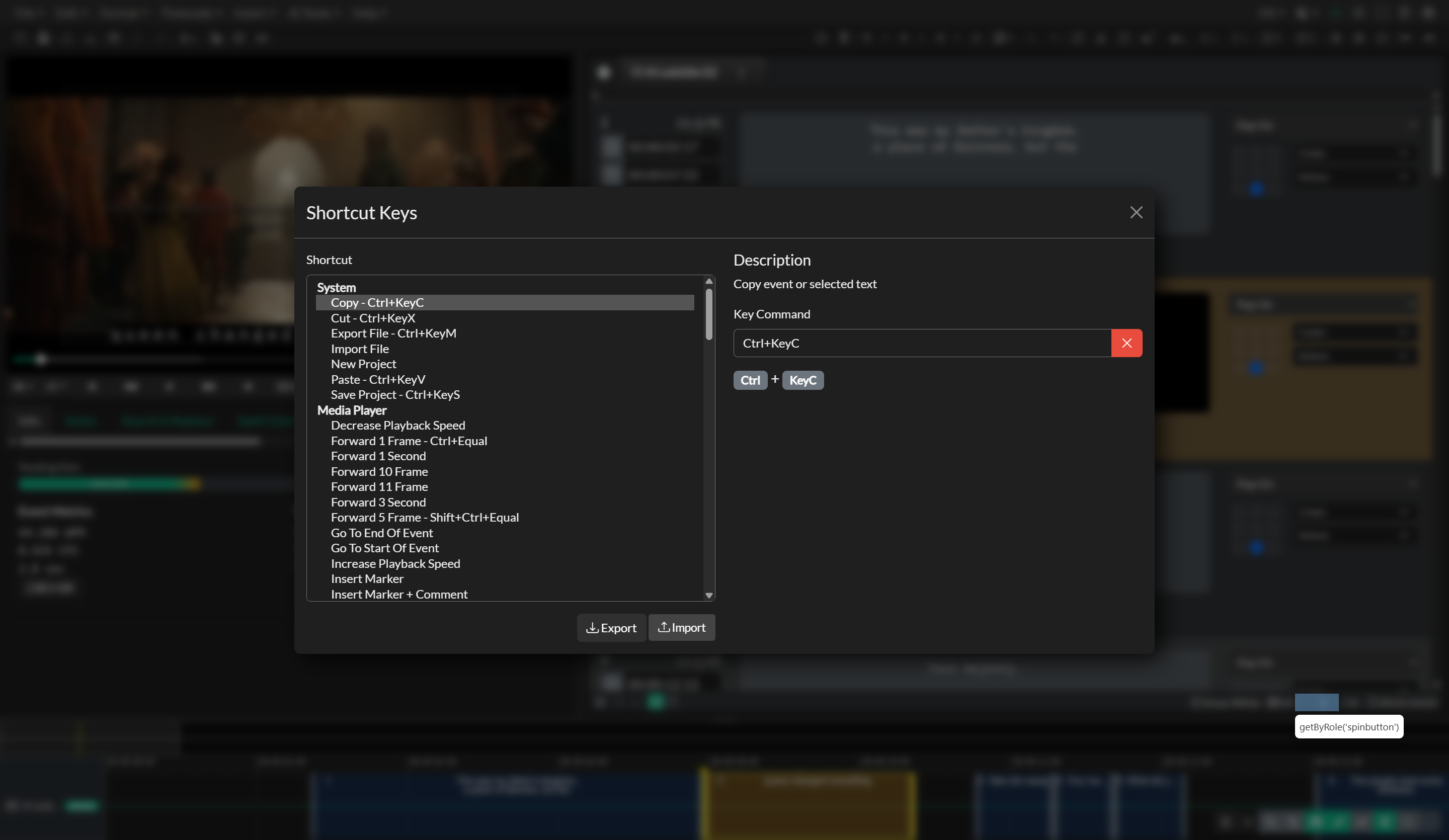
Configuring a Shortcut
Select a shortcut function from the list on the left side of the panel. The key command input will automatically receive focus. Press the key combination you want to assign and it will appear in the input field. If two shortcuts share the same key command, the first shortcut function in the list will take priority. To remove an assigned key command, click the red X button next to the input field.
Default vs. Global Shortcuts
Some shortcuts operate in two modes: a default shortcut and a custom global shortcut. Default shortcuts are only active when no event text is being edited — for example, pressing the Spacebar or K key to toggle playback. Global shortcuts fire at all times, including while you are typing inside an event. You can assign a global shortcut independently from the default binding. For instance, assigning the Backquote key as the global shortcut for Toggle Playback means you can start and stop playback without leaving the text editor.
Import and Export
Shortcut configurations can be exported to a file and imported on another machine or shared with team members. Use the export button to save your current configuration, and the import button to load a previously saved set. This is useful for standardizing shortcut layouts across a production team.
Foot Pedal Support
Closed Caption Creator supports foot pedals in several ways:
- Options → Foot Pedal Setup — first-class sources for WebHID devices, vPedal Browser API, and Gamepad / Joystick mode (hold-to-play transport).
- Shortcut Keys — any pedal that emits configurable hotkeys (tested with Philips ACC2310 / ACC2320). Bind Toggle Playback, Toggle Fast Forward, and Toggle Rewind. When configuring a Philips pedal, enable both Pressed and Released in the pedal software.
See Foot Pedal Setup for vPedal tray-app prerequisites and chord mapping.
Shortcut Reference
System
System shortcuts handle project-level operations such as creating, saving, importing, and exporting projects, as well as clipboard operations.
| Shortcut | Description |
|---|---|
| New Project | Open the New Project window |
| Export File | Open the file export menu |
| Import File | Open the file import menu |
| Save Project | Save the project, or open the Save As dialogue if no save location is set |
| Copy | Copy the selected event(s) or highlighted text |
| Cut | Cut the selected event(s) or highlighted text |
| Paste | Paste the copied event(s) or text |
Media Player
Media Player shortcuts control all playback and navigation functions. Frame-step and second-step shortcuts are useful during fine timing work, while the toggle shortcuts for Caption Lock, Video Lock, and Play Preview control how the editor and player interact during review.
| Shortcut | Description |
|---|---|
| Toggle Playback (Play/Pause) | Play or pause video playback |
| Toggle Fast Forward | Toggle 8× fast-forward playback (foot pedal recommended) |
| Toggle Rewind | Toggle rewind through the video (foot pedal recommended) |
| Reverse 1 Frame | Move the playhead back one frame |
| Forward 1 Frame | Move the playhead forward one frame |
| Reverse 5 Frames | Move the playhead back five frames |
| Forward 5 Frames | Move the playhead forward five frames |
| Reverse 10 Frames | Move the playhead back ten frames |
| Forward 10 Frames | Move the playhead forward ten frames |
| Reverse 11 Frames | Move the playhead back eleven frames |
| Forward 11 Frames | Move the playhead forward eleven frames |
| Reverse 1 Second | Move the playhead back one second |
| Forward 1 Second | Move the playhead forward one second |
| Reverse 3 Seconds | Move the playhead back three seconds |
| Forward 3 Seconds | Move the playhead forward three seconds |
| Go To Start Of Event | Move the playhead to the start of the selected event |
| Go To End Of Event | Move the playhead to the end of the selected event |
| Increase Playback Speed | Step up the playback speed (available rates: 0.25× to 16×) |
| Decrease Playback Speed | Step down the playback speed (available rates: 0.25× to 16×) |
| Insert Marker | Insert a marker into the selected marker list at the current playhead time |
| Insert Marker + Comment | Insert a marker at the current playhead time and prompt for a comment |
| Next Marker | Jump the playhead to the next marker in the timeline |
| Previous Marker | Jump the playhead to the previous marker in the timeline |
| Toggle Caption Lock | Enable or disable caption lock, which keeps the selected event in sync with playback |
| Toggle Video Lock | Enable or disable video lock, which moves the playhead to the selected event on navigation |
| Toggle Play Preview | Enable or disable play preview mode |
Editor
Editor shortcuts cover event selection, insertion, deletion, timecode operations, text manipulation, and structural utilities. These are the most frequently used shortcuts during both transcription and spotting workflows.
| Shortcut | Description |
|---|---|
| Select Next Event | Move the selection to the next event in the list |
| Select Previous Event | Move the selection to the previous event in the list |
| Highlight Next Event | Add the next event to the current multi-selection |
| Highlight Previous Event | Add the previous event to the current multi-selection |
| Select All Events | Select all events in the active Event Group |
| Select All Events From Current | Select all events from the currently selected event onward |
| Delete Event | Delete the selected event(s) |
| Insert Event (Above) | Insert a new event above the currently selected event |
| Insert Event (Below) | Insert a new event below the currently selected event |
| Go To Event | Open the Go To Event window to navigate to a specific event by number |
| Insert Speaker | Open the Insert Speaker Name window |
| Toggle Edit Mode | Focus the text editor on the selected event, or return focus to the Event List |
| Set Incode (Start) | Set the start time of the selected event to the current playhead position |
| Set Outcode (End) | Set the end time of the selected event to the current playhead position |
| Add 1 Frame To Start | Increase the event start time by one frame |
| Add 1 Frame To End | Increase the event end time by one frame |
| Subtract 1 Frame From Start | Decrease the event start time by one frame |
| Subtract 1 Frame From End | Decrease the event end time by one frame |
| Shift Event Backward | Shift the selected event(s) earlier by one frame, preserving duration |
| Shift Event Forward | Shift the selected event(s) later by one frame, preserving duration |
| Offset Timecode | Offset the timecodes of selected event(s) so the start aligns with the current playhead position |
| Toggle Forced Narrative Subtitles | Mark or unmark the selected event(s) as Forced Narrative Subtitles |
| Insert Ellipsis | Insert an ellipsis character (…) at the cursor position |
| Insert ♪ | Insert a single music note character at the cursor position |
| Insert Surround ♪ | Wrap the selected event(s) with single music note characters |
| Insert Surround ♪♪ | Wrap the selected event(s) with double music note characters |
| Move Word Up | Move the word at the cursor up to the end of the previous line within the same event |
| Move Word Down | Move the word at the cursor down to the beginning of the next line within the same event |
| Move Word To Previous Event | Shift the last word of the current event to the end of the previous event |
| Move Word To Next Event | Shift the first word of the current event to the beginning of the next event |
| Move Line Up | Shift the bottom line of the current event to the end of the previous event |
| Move Line Down | Shift the bottom line of the current event to the beginning of the next event |
| Split Event | Split the selected event at the cursor position, dividing text and duration equally |
| Merge Up | Merge the selected event with the previous event |
| Merge Down | Merge the selected event with the next event |
| Chain To Next Event | Snap the outcode of the selected event to the incode of the nearest following event |
| Chain To Previous Event | Snap the incode of the selected event to the outcode of the nearest preceding event |
| Expand | Reflow the event text to use more lines (expand vertically) |
| Compress | Reflow the event text to use fewer lines (compress vertically) |
| Auto Format | Auto-format the selected event based on the Event Group line and character settings |
| Order Events by Time | Sort all events in the Event Group by start time |
| Clear Event Text | Remove the text content from the selected event(s) |
| Clear Timecodes | Remove the timecodes from the selected event(s) |
| Adjust Duration to Reading Speed | Automatically set the event duration based on the Event Group's characters-per-second (CPS) setting |
| Assign Track None | Clear the track assignment of the selected event(s) |
| Assign Track A | Assign the selected event(s) to track A |
| Assign Track B | Assign the selected event(s) to track B |
| Assign Track C | Assign the selected event(s) to track C |
| Assign Track D | Assign the selected event(s) to track D |
Timeline
Timeline shortcuts allow you to zoom the timeline and navigate between events relative to the current playhead position. See Using the Timeline for full details on timeline navigation and editing.
| Shortcut | Description |
|---|---|
| Zoom In | Zoom in on the Timeline |
| Zoom Out | Zoom out on the Timeline |
| Select Previous Event On Timeline | Select the event closest to and before the current playhead position |
| Select Next Event On Timeline | Select the event closest to and after the current playhead position |
Audio Description
Audio Description shortcuts are available when the Audio Description plugin is activated on the account.
| Shortcut | Description |
|---|---|
| Render Text-to-Speech | Open the Render Audio Description window to generate audio from event text |
| Trim To Audio Duration | Set the outcode of selected events to match the duration of their rendered audio file |
Closed Captioning
Closed Captioning shortcuts provide quick access to the nine-point position grid and single-line vertical nudging, which are useful for closed caption placement workflows.
| Shortcut | Description |
|---|---|
| Position Top Left | Position selected event(s) to the top-left of the frame |
| Position Top Center | Position selected event(s) to the top-center of the frame |
| Position Top Right | Position selected event(s) to the top-right of the frame |
| Position Center Left | Position selected event(s) to the center-left of the frame |
| Position Center | Position selected event(s) to the center of the frame |
| Position Center Right | Position selected event(s) to the center-right of the frame |
| Position Bottom Left | Position selected event(s) to the bottom-left of the frame |
| Position Bottom Center | Position selected event(s) to the bottom-center of the frame |
| Position Bottom Right | Position selected event(s) to the bottom-right of the frame |
| Move Up 1 Line | Move the selected event(s) up by one line in the display grid |
| Move Down 1 Line | Move the selected event(s) down by one line in the display grid |