Auto Replacement
Auto Replacement is a productivity feature that automatically substitutes predefined shortforms with their full-text equivalents as you edit caption events. It is designed to reduce repetitive typing during transcription and to standardize recurring phrases across a project. Replacement lists are stored per user and are available across all projects. To access Auto Replacement, open it from the application menu.
Managing Lists
Auto Replacement uses a list-based structure, allowing you to maintain multiple independent sets of replacements — for example, one list for a specific client's preferred terminology and another for general transcription shortcuts. The panel displays all available lists in a left-hand column. Use the New List button to create a list and the Remove button to permanently delete the currently selected list.
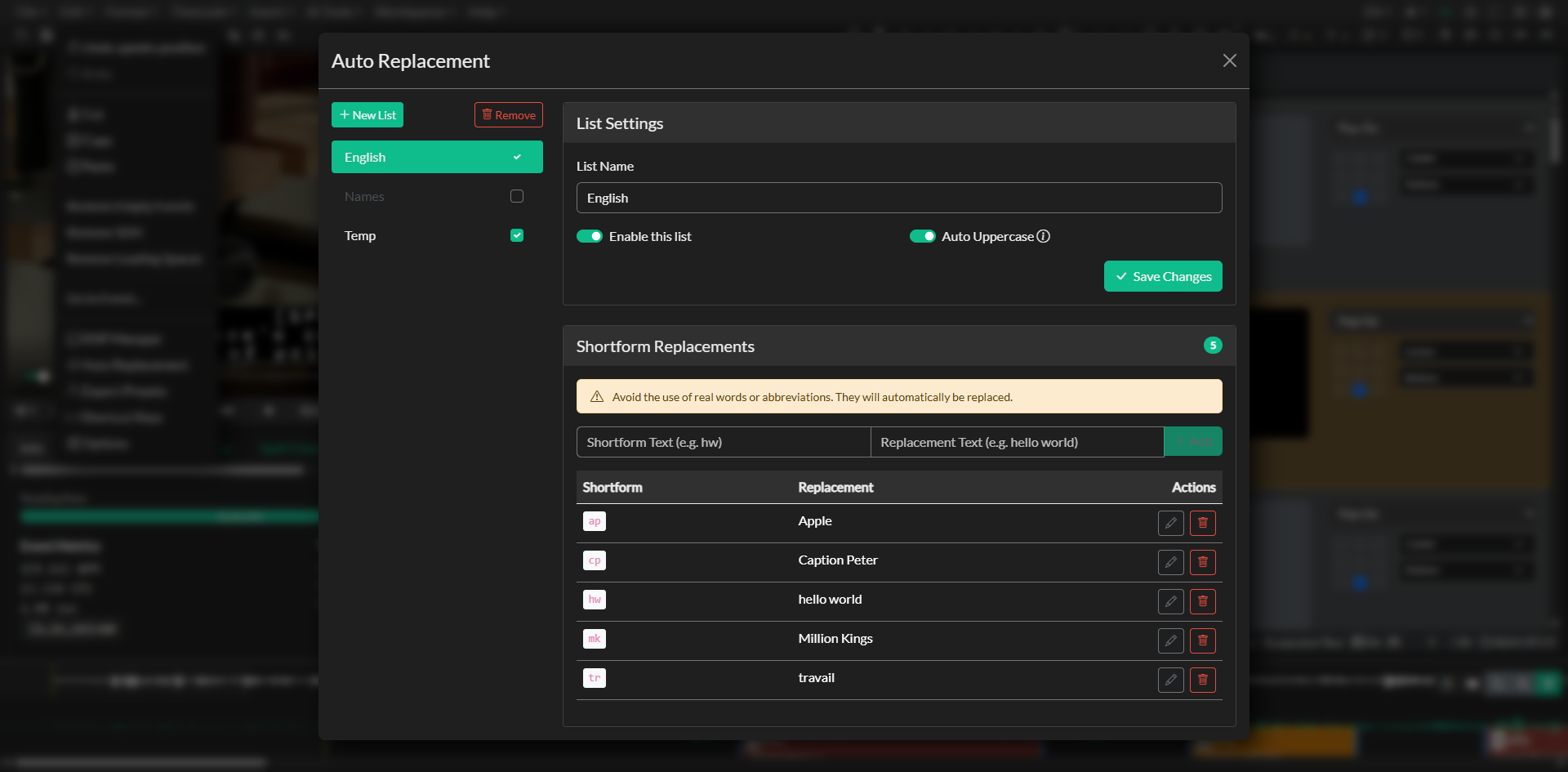
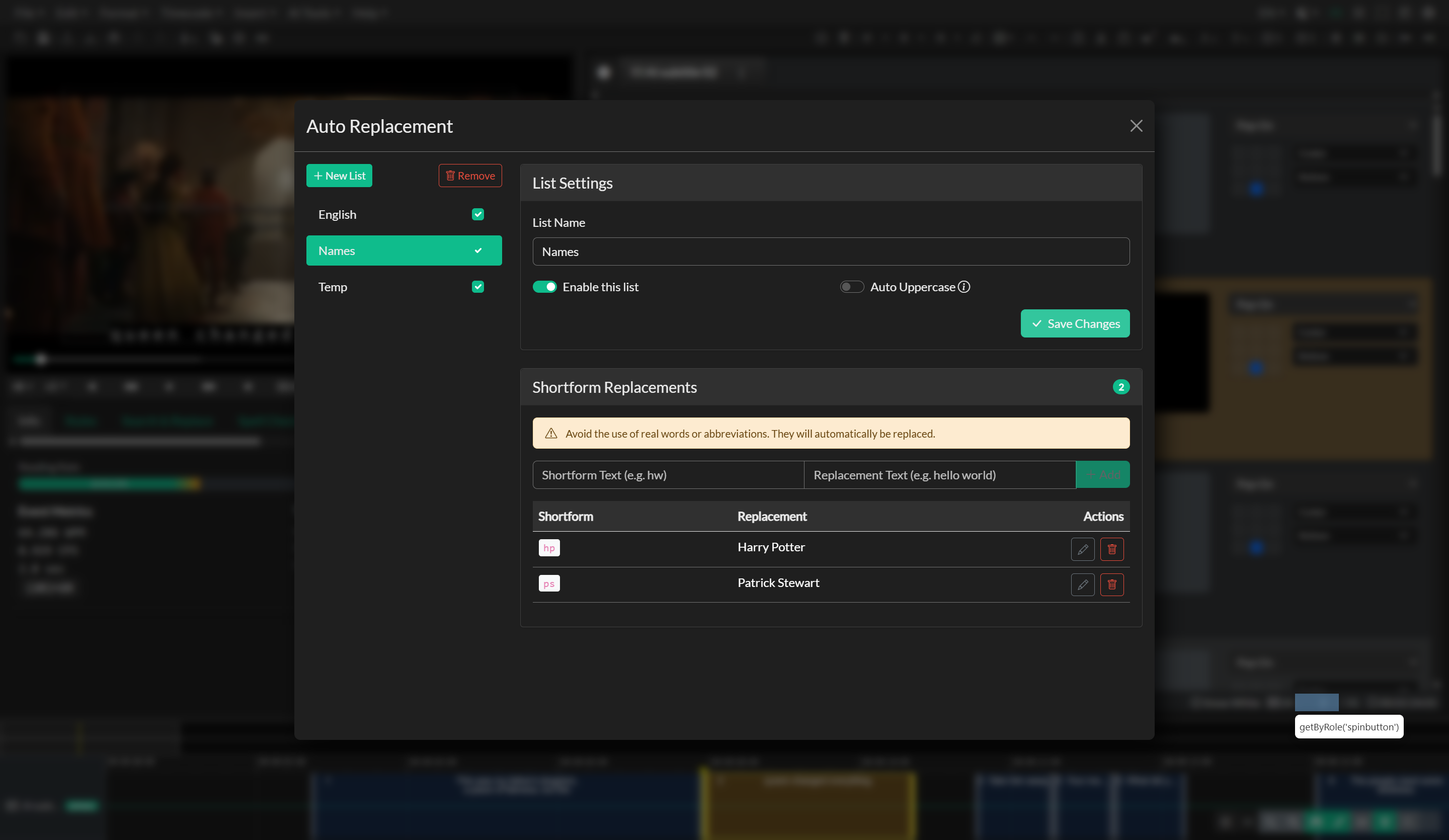
Each list has three properties you can configure: a Name to identify its purpose, an Enabled toggle that activates or deactivates the list's replacements during editing, and an Uppercase toggle that applies case-insensitive matching to shortforms while always outputting the replacement text exactly as entered. Multiple lists can exist simultaneously, but only those marked as enabled will apply substitutions during editing.
Adding and Editing Replacements
With a list selected, use the input fields at the top of the replacements panel to define a new substitution. Enter the shortform text — the string you will type in the editor — in the first field, and the full replacement text in the second field. Confirm the entry to add it to the list. The badge in the list header updates to reflect the current count of configured replacements.
To edit an existing replacement, click any row in the replacements table to load its values back into the input fields. Modify the shortform or replacement text as needed and confirm to save. To remove a replacement entirely, use the delete action on the corresponding row. Changes take effect immediately and do not require saving at the list level.
How Replacements Are Applied
Substitutions are evaluated in real time as you type within a caption event. When the editor detects that a completed word matches a configured shortform, the shortform is replaced with the corresponding text. Words are considered complete when followed by a space, line break, or punctuation boundary. The substitution preserves the position of the cursor so editing can continue without interruption.
If the Uppercase option is enabled for a list, the shortform is matched regardless of the case used during typing, but the stored replacement text is always inserted as written. This makes it possible to use consistent replacement output even when typing habits vary.
Sync Behavior
For users with an online account, Auto Replacement lists are stored in the cloud and synchronized automatically across devices. Lists created on one machine are immediately available when signing in from another. For offline and desktop users, lists are stored in local browser storage on the current machine and are not shared across devices.