Editor Options
Editor Options control the default behavior of event insertion, timing, timeline actions, and List View layout throughout the application. These settings allow you to tailor the editor to your workflow, whether you are performing rapid manual transcription, precise caption spotting, or subtitle authoring that does not need per-event style and position controls. To access Editor Options, go to Edit > Options and select Editor from the left navigation.
Transcription
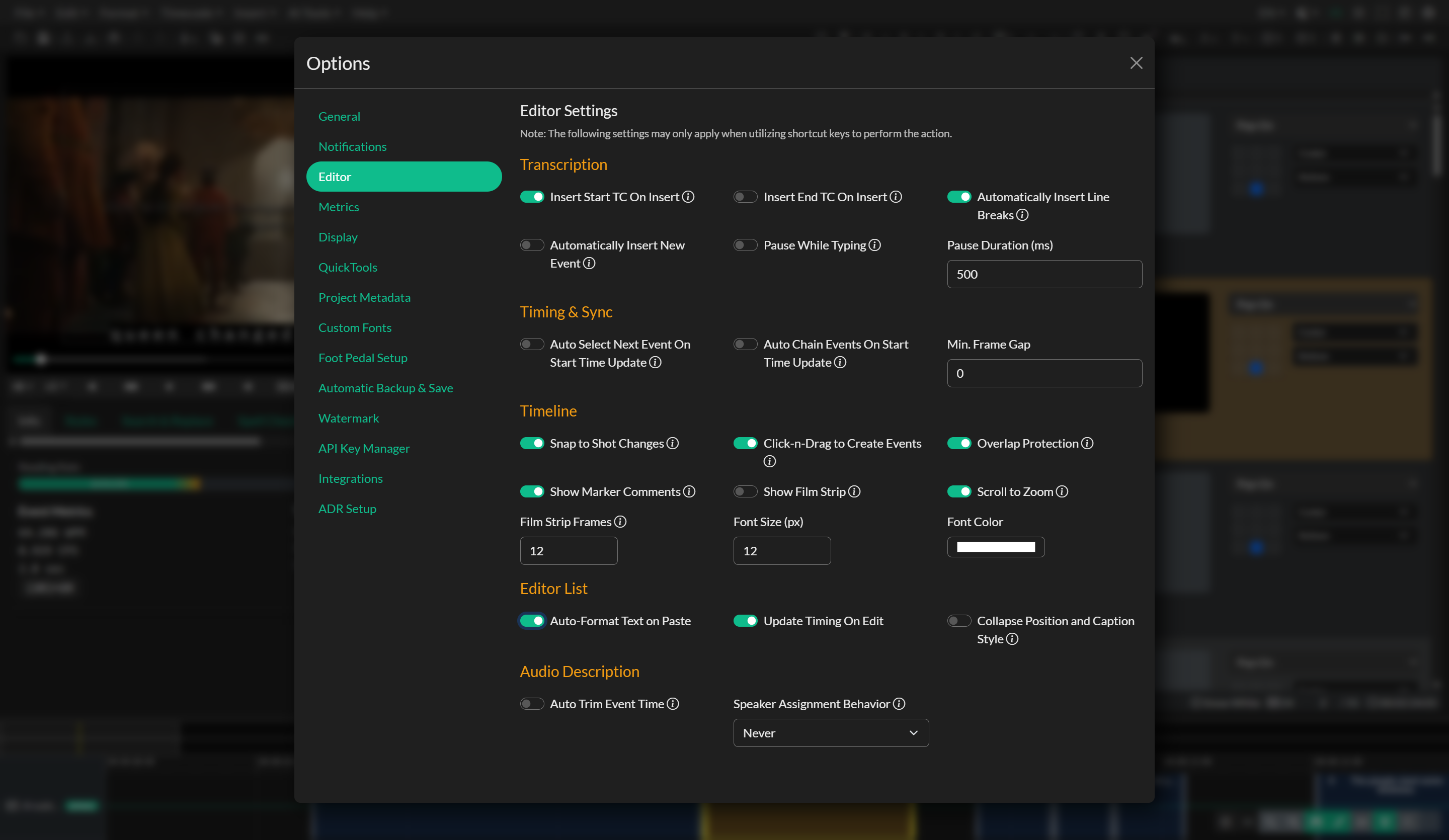
The Transcription section contains settings that affect how new events are created and how text is handled as you type. Enabling Insert Start TC On Insert will automatically set the start time of any newly inserted event to the current playhead position, which is helpful for rough-timing a transcription in a single pass. The related Insert End TC On Insert option updates the end time of the previously selected event when a new event is inserted, effectively chaining events together as you work through the content.
Auto Line Break instructs the editor to automatically insert line breaks based on the maximum character limit configured in the Event Group's Real Time Error Detection settings. As you type, lines will break at the appropriate point without requiring manual intervention. Auto Insert Event automatically creates a new event when the current event reaches capacity, allowing uninterrupted transcription flow.
Pause While Typing pauses video playback while you are actively editing event text. This is disabled by default. When enabled, the Pause Duration setting controls how many milliseconds the player waits after you stop typing before resuming playback. The default value is 500 ms.
Timing & Sync
The Timing & Sync section governs the behavior of spotting shortcuts — in particular, how events are selected and linked when you set timecodes during a spotting pass.
Enabling Auto Select Next Event On Start Time Update causes the editor to automatically advance to the next event in the list whenever you use the Set Incode shortcut. This allows you to spot an entire Event Group in a single continuous pass without manually navigating between events. Auto Chain Events on Start Time Update complements this by automatically setting the end time of the previous event to match the start time you just assigned, ensuring that consecutive events are seamlessly connected in time.
The Minimum Frame Gap value enforces a minimum separation between events during timeline operations and spotting. When set above zero, this gap is applied whenever a timecode operation would otherwise cause events to overlap. This is particularly useful for broadcast delivery requirements that mandate a specific minimum gap between caption events.
Timeline
Timeline settings affect how events are displayed and behave on the Timeline.
Snap to Shot Changes is enabled by default and causes event start and end handles to snap to detected shot change markers when dragging on the timeline, making it faster to align captions to cuts. Click-n-Drag to Create Events enables draw-to-create mode — when active, dragging on empty space in the primary timeline track creates a new event spanning the dragged region. Overlap Protection is enabled by default and prevents events from being dragged on top of one another, which helps avoid accidental timing errors.
Show Marker Comments toggles the display of marker comment text on the timeline. Show Marker Thumbnails displays a thumbnail strip for the selected marker list on the timeline. This option is available on the desktop application only.
Show Film Strip displays a strip of video frame thumbnails around the selected event’s start time on the timeline. This option is available on the desktop application with local video media only. Film Strip Frames controls how many frames are shown before and after the start (1–30; the default of 12 produces 25 thumbnails total). Frames are generated the first time you select an event and cached for later use. On slower machines, run AI Tools > Pre-Render Frame Cache once so the strip loads instantly while you work — see Pre-Render Frame Cache and Using the Timeline.
Scroll to Zoom is enabled by default and zooms the timeline when you scroll the mouse wheel or trackpad over it. Turn this off if accidental touches on a Magic Mouse or trackpad keep changing your zoom level — scrolling then pans the timeline horizontally instead. Keyboard zoom shortcuts continue to work either way. See Using the Timeline.
Font Size (px) and Font Color control the appearance of event text rendered within timeline blocks. The default font size is 12px and the default color is white.
Editor List
The Editor List section controls how subtitle events behave and appear in List View.
Auto-Format Text on Paste runs automatic formatting after you paste caption text, applying the current Event Group's line length and line count limits. This is disabled by default. See Automatic Formatting.
Update Timing On Edit is enabled by default. When you shift words or lines between adjacent events, the shared timecode boundary is adjusted in proportion to the amount of text moved. Turn this off if you prefer to keep existing in and out times and retime manually after a text shift. See Shift Words and Shift Lines.
Collapse Position and Caption Style is disabled by default. When enabled, each subtitle event in List View replaces the caption style dropdown and position grid with a slim column of informational icons, giving more width to event text, speakers, recipients, and tags. The style icon indicates Pop-On, Paint-On, or Roll-Up. The position icon indicates vertical placement: top, middle, bottom, or a custom line. Hover an icon to see the exact value. The icons are display-only — to change style or position, turn the option off, switch to Table View, or use the Format menu bulk Caption Style and position controls. Compact multi-track rows already omit this column and are unaffected.
Audio Description
The Audio Description section contains settings specific to audio descriptions (AD) workflows.
Auto Trim Event is enabled by default. When active, it automatically adjusts the outcode of an AD event to match the duration of its rendered text-to-speech audio, preventing events from running longer than their audio content requires. The Speaker Assignment Behavior setting controls when a speaker voice is automatically assigned to newly inserted AD events. The default value is Never, meaning the voice assigned to each event must be set manually or inherited from a template.
Saving Settings
All Editor Options are saved automatically to local storage whenever a setting is changed. There is no explicit Save button — your configuration is preserved immediately and will persist across sessions on the same device.
Related docs
- Keyboard Shortcuts
- Formatting & Position
- Caption Styles
- Table View
- Using the Timeline
- Pre-Render Frame Cache
- Timing and Synchronization
- Quality Control (QC) and Review
- Video Watermarking