Running a Review
Once your event group is in a reviewable state and at least one style guide is configured and enabled, you can run a full automated review to identify any events that violate your project's requirements. Closed Caption Creator provides two complementary tools for this: the QC & Review panel, which scans an entire event group simultaneously and can apply Automatic Fixes, and the Error Nav panel, which lets you step through errors one at a time using category filters.
Running a Style Guide Review
Open QuickTools and select the QC & Review tab. The panel displays a dropdown containing all of your currently enabled style guides. Select the guide that matches your delivery specification and click Start.
The application scans every event in the current event group against the rules in the selected style guide. When the scan is complete, failed events appear as expandable cards. Clicking a card selects that event in the editor, scrolls it into view, and seeks the player if video is locked to the editor. Expanding a card lists each individual error with a category badge and the message describing the issue.
If no events fail, the panel shows a success state confirming that the event group meets the selected style guide.
Error Categories
Each issue is assigned to one of four categories. After a review, clickable chips above the list show a count per category and filter the cards:
Technical issues can block export. These include a missing start or end timecode, empty event text, overlapping events, and illegal characters for 608 or Netflix glyph sets.
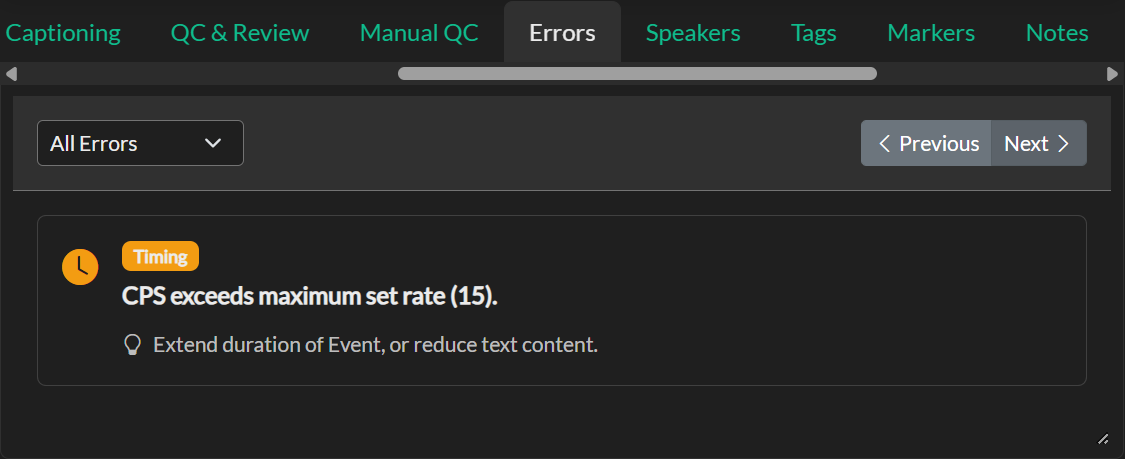
Timing issues cover reading rate (characters per second and words per minute), minimum and maximum duration, and frame gaps that are too small, too large, or inside a configured tolerance range.
Content issues relate to the caption text itself: too many lines, lines that exceed the character limit, total character count, text that could fit on one line, leading or trailing spaces, extra whitespace, blank lines, and formatting flags such as italics, bold, or underline.
Review issues are informational flags rather than structural defects. These include event position, missing speaker assignment, approval state, notes and replies, tags, and forced-narrative events. Review issues are not auto-fixed.
The Error List
Each card shows the event index, a short text snippet, and a badge with the number of issues on that event. Use the chevron to expand or collapse the card. The list is vertically resizable: drag the handle in the bottom-right corner to shorten or lengthen it so it stays clear of the timeline below QuickTools.
Automatic Fixes
Many timing and content issues can be corrected without leaving the QC & Review tab. Fixes reuse the same engines as Format > Auto Format, Timecode > Auto Correct Reading Speed, and Insert > Blank Frames. Menu items for those tools are unchanged.
You can apply fixes at three scopes:
A single error. Expand an event card and click Fix on a fixable issue. Issues that cannot be corrected automatically show a Manual label instead.
All fixable errors on an event. Use the wand button on the card header (Fix event). This applies every non-destructive automatic fix for that event.
The whole event group. Click Fix All to open a checkbox panel grouped by category. Each row lists an issue type and how many times it occurred. All types are pre-checked except Remove blank events, which deletes events and is left off by default. Click Apply Fixes to run the selected types across the group.
After any automatic fix, the application records a single undo step, re-runs the review, and reports how many changes were applied. Events that could not be corrected automatically remain in the list for manual editing.
What can be fixed automatically
| Issue | What the fix does |
|---|---|
| Reading rate too high, WPM out of range, duration too short or too long | Auto Correct Reading Speed (may extend, borrow, or merge events) |
| Too many lines, line too long, too many characters, fit on one line | Auto Format |
| Frame gap too small, too large, or in tolerance | Adjust the earlier event's end (or the next start if needed) |
| Overlapping events | Trim the shorter remaining duration so the pair no longer overlaps |
| Leading/trailing spaces, extra whitespace, blank lines | Clean the event HTML |
| Empty text | Optionally remove blank events (off by default in Fix All) |
Missing timecodes, illegal characters, spelled-number rules, repeat words, and all Review flags must be corrected manually.
Correcting Errors and Re-Running
Manual edits in the editor do not update the error list on their own. After you correct events by hand, click Start again to re-scan. Automatic Fixes re-run the review for you.
Once all issues have been resolved, a re-run produces the success state, confirming that the event group meets the requirements of the selected style guide.
Ignoring an Event
Not every flagged item requires a correction. In some cases, the production context legitimately justifies an exception — for example, a brief on-screen quote may need to exceed the normal reading speed by a small margin to preserve the meaning of the original dialogue. Click the X on an event card to dismiss that event from the current list without modifying it. Ignored events are not permanent: re-running the review will re-scan all events, and the same issues will reappear if they are not corrected.
Exporting a QC Report
When you need to share QC findings with a client, director, or delivery partner, click Report. This generates a CSV file containing all current errors, including the event timecodes, category, and the specific message describing the issue. The CSV can be opened in Microsoft Excel, Google Sheets, or any spreadsheet application for review and distribution.
Using Error Nav for Event-by-Event Navigation
The Error Nav panel in QuickTools provides a different navigation approach that is useful when you want to step through all violations in sequence rather than reviewing the full list at once. Open QuickTools and select Error Nav.
Error Nav inspects the currently selected event group against Event Group standards (not the style guide) and categorises errors into three groups that you can filter independently:
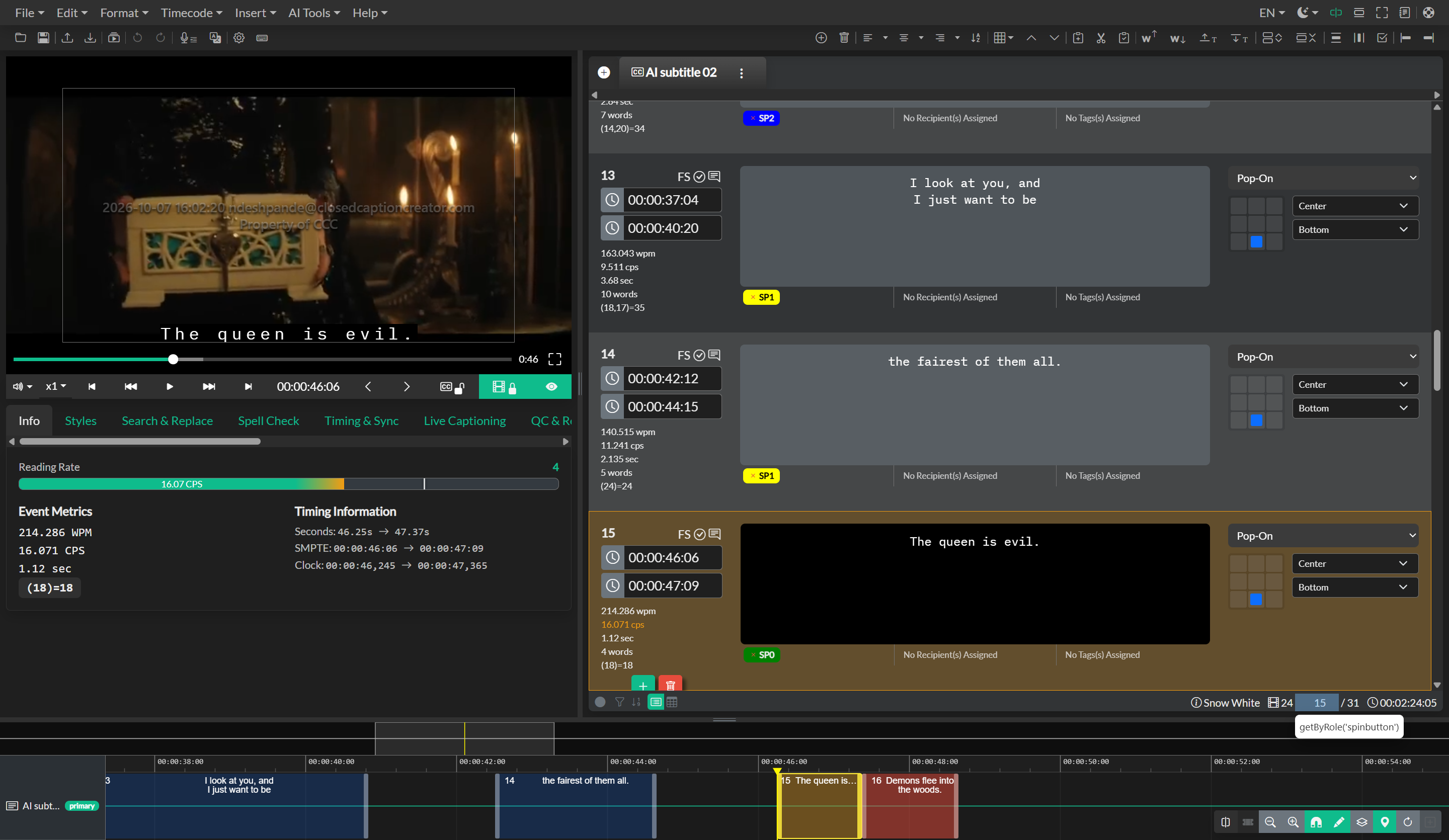
Timing errors include events where the reading speed exceeds the configured WPM or CPS maximum, where the event duration falls outside the configured min/max range, or where the event overlaps with an adjacent event.
Content errors cover events where the text exceeds the configured character count per line, where the number of lines exceeds the maximum, or where the text contains characters that are illegal in the target format.
Review errors identify events that have been explicitly marked as disapproved using the approval checkbox, events that have open notes that have not been marked as complete, and events that have a reply that has not been marked as resolved.
Use the previous and next navigation controls to step through each failing event in the selected category. Error Nav will scroll the editor to each event and select it automatically, so you can immediately inspect, correct, or acknowledge the problem and then move on to the next one.
QC for Audio Description Projects
The same style-guide review and Error Nav workflow applies to Audio Description event groups. The following video demonstrates the QC and review process specifically in the context of an Audio Description project. The tools and navigation steps shown are identical to those used for closed captions and subtitles.
Video Tutorial
Related
- Style Guide Manager — create and configure style guides
- Realtime Error Detection — catch errors earlier, during authoring
- Automatic Correction Tools — menu-based batch-fix for reading speed and formatting
- Event Approval and Notes — understand how approval and notes feed into the review error category