Formatting & Position
Text formatting in Closed Caption Creator operates at two levels. The Quill editor allows you to apply character-level styling — bold, italic, underline, and color — to any highlighted portion of an event's text while you are editing it. The Format menu provides batch operations that apply formatting changes to all currently selected events at once, without requiring you to open each event individually. Understanding both levels and knowing when to use each one is key to working efficiently across large caption files.
Prerequisites
- A project is open with at least one Event Group containing events.
- For inline Quill formatting: the event is selected and the editor is in focus.
- For batch Format menu operations: one or more events are selected in the editor list (List View or Table View).
- You are familiar with your target format's style support — not all export formats preserve all styling properties.
Navigation paths
- Inline text formatting: click into an event to focus the Quill editor, then highlight text to reveal the inline toolbar. In Table View, double-click the Text cell (or press Enter / F2) to open the same Quill editor.
- Batch formatting:
Formatmenu in the primary toolbar. - Caption display style (Pop-On, Roll-Up, etc.): the style dropdown on each subtitle event in List View,
Formatmenu → Caption Style, or the Style column in Table View. - Position controls: the position grid on each subtitle event in List View, secondary toolbar alignment and position buttons, or the Align / H / V columns in Table View.
- Collapse the List View style and position column: Edit > Options > Editor → Editor List → Collapse Position and Caption Style.
Inline editing with the Quill editor
When you click into an event, the Quill rich text editor becomes active. Clicking inside the text and highlighting a word, phrase, or span of characters reveals a floating toolbar above the selection. This toolbar provides the following controls:
Bold wraps the selected text in strong emphasis. In broadcast delivery this is most commonly used for titles, speaker names where bold is part of the house style, or emphasis that is meaningful to a deaf or hard-of-hearing viewer.
Underline applies underline styling to the selected text. Underline should be used sparingly — it is not supported by all caption formats, and in some broadcast contexts it carries specific meaning (such as indicating a website address). Confirm that your target format and delivery specification permit underline before relying on it.
Italic applies italic emphasis to the selected text. Italics are a standard convention in closed captioning for off-screen narration, song lyrics, foreign-language words, and titles of works. They are widely supported across SRT, VTT, SCC, and MCC formats, though the encoding method differs between formats.
Text Color applies a foreground color to the selected characters. The color picker offers a defined palette of delivery-safe colors. Text color is most commonly used in multi-speaker SDH captions where different speakers are distinguished by color. Note that color is not supported in all export formats — it is ignored in plain SCC output and must be tested in your target player.
Background Color applies a highlight or background color behind the selected characters. This is used in specific accessibility workflows and is similarly subject to format support limitations.
Clean (the eraser icon) removes all inline formatting from the selected text, stripping bold, italic, underline, and color attributes while leaving the text content intact.
All inline changes made through the Quill editor are reflected immediately in the event preview and are saved to the undo history.
Auto Line Break and Auto Insert Event
Two editor behaviors affect how the Quill editor responds while you type. When Auto Line Break is enabled, the editor automatically wraps text to a new line when it approaches the maximum characters-per-line limit configured for the Event Group. When Auto Insert Event is enabled, pressing Enter when the maximum line count is reached will automatically create a new event and move the overflow text into it. Both behaviors can be toggled in the editor options.
Batch formatting with the Format menu
The Format menu contains operations that apply to all currently selected events in one action. These are most useful during cleanup and conforming passes where the same change needs to be made across many events at once.
Text styling
Bold, Underline, and Italic in the Format menu work as toggles on the full text of every selected event. If the event already contains the corresponding inline tag, the operation removes it; if it does not, the tag is applied to the entire event text. This is a fast way to apply or remove a style consistently across a batch of events — for example, italicizing an entire song sequence in one action rather than editing each event.
Clear Formatting removes all bold, italic, and underline tags from the selected events without affecting the text content. Use this before exporting to a format with limited style support, or when conforming a formatted file to a plain-text delivery requirement. To strip speaker colors (and background color) while keeping bold, italic, and underline, use Edit → Remove SDH → Remove color formatting instead. See Removing SDH Elements.
Text transformations (Format > Text submenu)
The Text submenu contains a set of text-normalization utilities that apply to all events in the current Event Group:
Spell Numbers replaces single-digit numerals (0–9) with their written-out equivalents — for example, 3 becomes three. This is a common requirement in closed captioning style guides that specify numbers below ten should be spelled out.
Remove Repeat Words scans every event for consecutive duplicate words and removes the first occurrence of each pair. This is useful after transcript imports where recognition errors have introduced repeated words.
Replace with Ellipses scans all events and replaces any sequence of two or more consecutive periods (.. or more) with the single Unicode ellipsis character (…). This is a normalization step that ensures consistent encoding, particularly for SCC and MCC exports. See Inserting Symbols: Ellipsis for more on why the Unicode character is preferred.
Split on Dash divides the text of selected events at dash characters that are surrounded by a space, producing one paragraph per speaker turn. For example, -First speaker -Second speaker would become two separate lines within the event. This is useful when a transcript has been imported with multiple speaker turns concatenated into a single event.
Fix RTL Text corrects the directionality of right-to-left text in selected events. This is used when Arabic, Hebrew, or other RTL language text has been imported or pasted with incorrect character ordering.
Reverse RTL Start/End swaps the start and end timecodes of selected events. Some RTL workflows require this when the source timing was generated with reversed in/out points.
Case conversion
The Text submenu includes four case conversion operations that operate on the text of all selected events:
Uppercase converts all text to capital letters. This is sometimes required for specific broadcast caption styles.
Lowercase converts all text to lowercase.
Title Case capitalizes the first letter of each word.
Sentence Case capitalizes only the first letter of each sentence, treating periods, exclamation marks, and question marks as sentence boundaries. This is the most natural case style for standard subtitle delivery.
Event-level operations
Caption Style opens a dialog that allows you to change the display style of selected events — for example, switching between Pop-On, Roll-Up, and Paint-On. The available styles depend on the type of the current Event Group.
Fix Event Overlap resolves timing conflicts across the entire Event Group by trimming event end times to ensure a minimum gap between adjacent events. The gap size is determined by the minimum frame gap setting in the editor options. This is equivalent to the overlap-fix pass that runs automatically after Automatic Formatting.
Order by Time sorts all events in the Event Group by their start timecode. This is useful after manual editing has created events that are out of chronological order, or after pasting events from a different sequence.
Snap to Event Ends adjusts the start time of each event so that it immediately follows the end of the previous event, if the two events are within 0.5 seconds of each other. This closes small unintentional gaps without affecting events that have larger intentional spaces between them.
Snap to Event Starts adjusts the end time of each event so that it ends exactly at the start of the next event, if the two events are within 0.5 seconds of each other. This trims small overlaps and ensures clean boundaries before export.
Snap to Shot Changes opens a dialog that aligns event boundaries to detected shot change frames in the video, which is useful for ensuring that caption events do not straddle cuts.
Position controls
Caption position is controlled through the secondary toolbar and the caption position panel on each subtitle event in List View. The position grid allows you to set the general screen region (top-left, center, bottom-right, etc.) and the individual event's horizontal alignment within that region. Individual events can also be given pixel-level position offsets.
If you do not need to edit position or caption style on every event — a common subtitle (as opposed to closed-caption) workflow — enable Collapse Position and Caption Style under Edit > Options > Editor. List View then shows compact informational icons for vertical position (top, middle, bottom, or a custom line) and caption style instead of the full controls, which frees width for event text, speakers, recipients, and tags. Hover an icon to read the current value. To change position or style while the column is collapsed, use the toolbar and Format menu controls, switch to Table View, or turn the option off. See Editor Options.
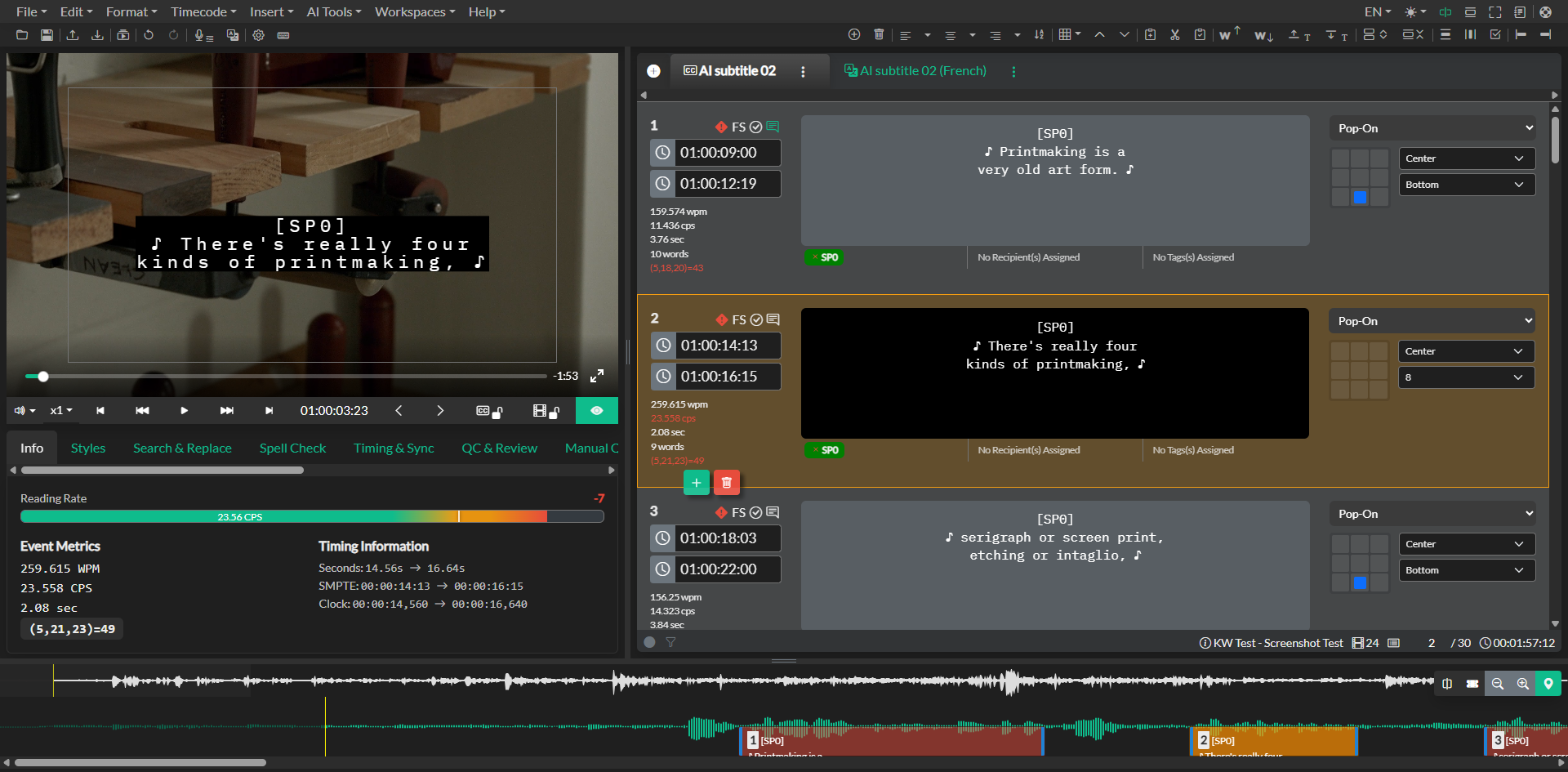
When changing position across multiple events, select all relevant events and use the toolbar position controls — they apply to the entire selection. Changing position on a single event while others are selected will only affect the selected event if the control is in single-event mode.
Practical guidance
The most efficient workflow for styling is to leave inline character styling until after the text content and timing have been finalized. Reformatting or splitting events after inline styles have been applied can sometimes leave orphan formatting tags, which must be cleaned up before export. Running Clear Formatting before a re-format pass, and then re-applying styling afterward, avoids this problem.
For delivery formats with limited style support — particularly SCC — test a sample export early in the project to confirm which styles survive encoding. Bold and italic are generally supported in SCC through the EIA-608 midrow codes, but color and background color are not. Relying on color to convey meaning in a format that does not support it will produce incorrect output.
Troubleshooting
Styling appears in the editor but disappears in the export
Check the export format's style support. For SCC and SCC-derived formats, only bold and italic are reliably encoded. Reduce styling to the minimum required and re-export.
Bold or italic is being applied to the entire event instead of just the selection
The Format menu Bold, Italic, and Underline controls always operate on the full text of an event, not on a character selection. For character-level styling, use the Quill editor's inline toolbar by highlighting the specific text and applying the style there.
Case conversion produced unexpected results
Sentence Case determines sentence boundaries using punctuation characters. Events that end without a period, question mark, or exclamation mark — for example, events that are intentionally incomplete sentences — may not be capitalized correctly. Review and manually correct these after running the conversion.
Fix Event Overlap changed timecodes unexpectedly
Fix Event Overlap trims end times across the entire Event Group. If specific event durations were set intentionally and should not be shortened, avoid running Fix Event Overlap or undo it immediately and address individual overlaps manually using the timecode inputs.
Related docs
- Editor Options
- Event Operations: Shift Words
- Event Operations: Expand & Compress
- Automatic Formatting
- Removing SDH Elements
- Inserting Symbols: Ellipsis
- Style Settings
- QC Review
- Subtitle Export
Source notes
- Components:
src/components/editor/events/QuillEditor.svelte,src/components/toolbar/menus/FormatMenu.svelte,src/components/toolbar/controls/AutoFormatButton.svelte