Style Settings
Video Tutorial
Overview
The Styles tab in the QuickTools Panel controls the visual appearance of the subtitle preview and any video or image-based outputs that include burnt-in text. Style changes made in this panel apply globally to all events in the project. The panel is accessible at all times via the QuickTools Drawer on the right-hand side of the interface.
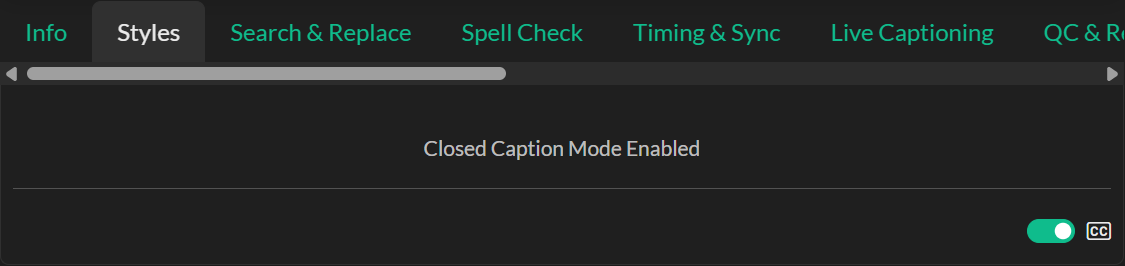
When Closed Caption mode is active, the Styles tab displays only the mode toggle and a notice indicating that the display is managed by your Display Settings. All manual style controls are hidden because closed caption rendering is driven by the character grid rather than free-form typography. Switch to Subtitle mode using the toggle in the bottom-right corner of the Styles tab to reveal the full set of controls described below.
Closed Caption mode background behaviour is configured in Edit → Options → Display, where the default caption background can be set to black or transparent. Subtitle mode background boxes and outlines are controlled by the style settings on this page.
Display Profile
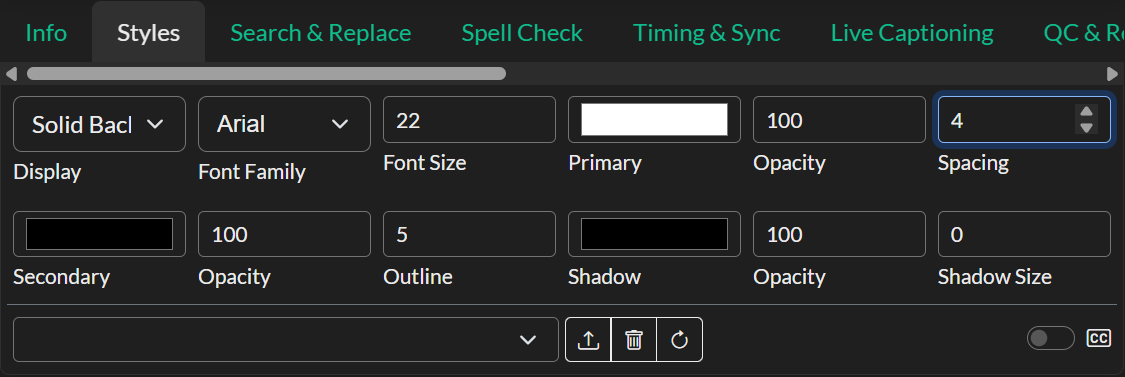
The first control in Subtitle mode is the Display selector, which offers two display profiles. Solid Background renders caption text against an opaque coloured box — ideal for high legibility in variable lighting conditions or on complex visual backgrounds. Text Outline renders caption text with an outline and optional drop shadow, without any background box, giving a cleaner appearance for branded or cinematic content.
Typography
The Font Family selector lists all available typefaces, including standard system fonts such as Arial, Verdana, Helvetica, Tahoma, Times New Roman, and Courier New, as well as any custom fonts you have imported through the Fonts Manager. The Font Size field accepts a numeric point value and sets the base size of all caption text in the preview and export.
Letter Spacing adjusts the horizontal space between individual characters. Increasing this value can improve legibility at smaller font sizes or give a more polished appearance to display-style subtitles.
Colour and Opacity
Primary colour sets the colour of the caption text itself, and its accompanying Opacity control allows you to make the text semi-transparent. For most use cases the text opacity should remain at 100%, but reducing it can create a softer integration with the underlying video in certain styles.
Secondary colour controls either the background box colour (in Solid Background mode) or the outline colour (in Text Outline mode), depending on the active display profile. Its own Opacity control is independent of the text opacity. The Outline field sets the thickness of either the background box padding or the text outline stroke, expressed as a decimal value.
Shadow
The Shadow colour, opacity, and size fields add a drop shadow to the caption text. Shadow is available in both display profiles and can be layered on top of the outline or background for additional depth. Setting the shadow size to zero effectively disables the shadow without needing to set opacity to zero.
Style Presets
Once you have configured a look you want to reuse, you can save it as a named Style Preset. Click the save icon (upload arrow) next to the preset selector to open a prompt where you can enter a name for the preset. If you enter the name of an existing preset, it will be overwritten with the current settings. To switch between saved presets, use the dropdown selector — selecting a preset immediately applies all of its stored values to the current session.
To remove a preset, select it from the dropdown and click the delete icon (trash icon). A confirmation prompt will appear before the preset is permanently deleted.
For users signed in to a Closed Caption Creator account, presets are synchronised to your user profile and are available across devices and sessions. For offline users, presets are stored locally in the browser. In both cases, the refresh icon next to the preset selector reloads the preset list from its source.
Use in Video Export
Style settings are also accessible directly within the Video Export modal, where a dedicated style panel allows you to preview how the burnt-in captions will appear for a specific event before committing to a full export. Any changes made in the export modal are reflected in the same shared style state, so they persist back to the Styles tab after the modal is closed.