Event Group Font Settings
Overview
In addition to the global style controls available in the Styles tab, Closed Caption Creator allows you to configure typography at the Event Group level. This means that different groups within the same project can use different fonts and sizes — which is especially important when working on multilingual projects or combining caption tracks that need to be visually distinct from one another.
To access Event Group font settings, open the Edit Event Group modal. You can do this by right-clicking on the group in the event group panel, or by using the group's action menu and selecting Edit.
Font Family and Font Size
Within the Edit Event Group modal, the Font Family selector and Font Size (px) field allow you to set the typeface and point size for all events within that group. The font size accepts values between 8 and 72 pixels. These settings work independently of the global Styles panel and take precedence for the associated group when previewing or exporting.
The Font Family selector includes the same list of typefaces available in the Styles panel — standard system fonts as well as any custom fonts you have added through the Fonts Manager. When a custom font is added to the application, it appears at the top of the font selection menu in all relevant controls, including the Event Group font selector.
Translation Options and Original Font Family
When an Event Group's type is set to Translation, an additional section of settings becomes available. Translation groups are linked to a source Event Group, and the editor displays source-language text alongside the translation for reference. Because the source language and the target language may require different typefaces — particularly when one uses a Latin script and the other uses a non-Latin script such as Arabic, Hebrew, Japanese, or Hindi — you can specify an Original Font Family independently of the group's primary font.
The Original Font Family field sets the typeface used to display the source-language text in the translation editor. This ensures that both the source and translated text render correctly regardless of the character sets involved. A separate Right-to-Left toggle for the original language is also available here, allowing the source text to be rendered with correct directionality when the original language reads from right to left.
Enable Allow Original Text Editing when translators need to correct the source-language text in List View or Table View. The Linked Group selector can be changed after the group is created so you can attach a source group that was not linked initially.
Custom Fonts
Closed Caption Creator supports custom fonts that are installed on the local machine. To add a custom font, navigate to Edit → Options and select Fonts from the left-hand navigation menu. In the Fonts Manager, enter the font name in the text field at the top and click Insert Font. Once added, the font will appear near the top of the Font Family selector in the Styles panel, the Event Group editor, and any other font selection control within the application.
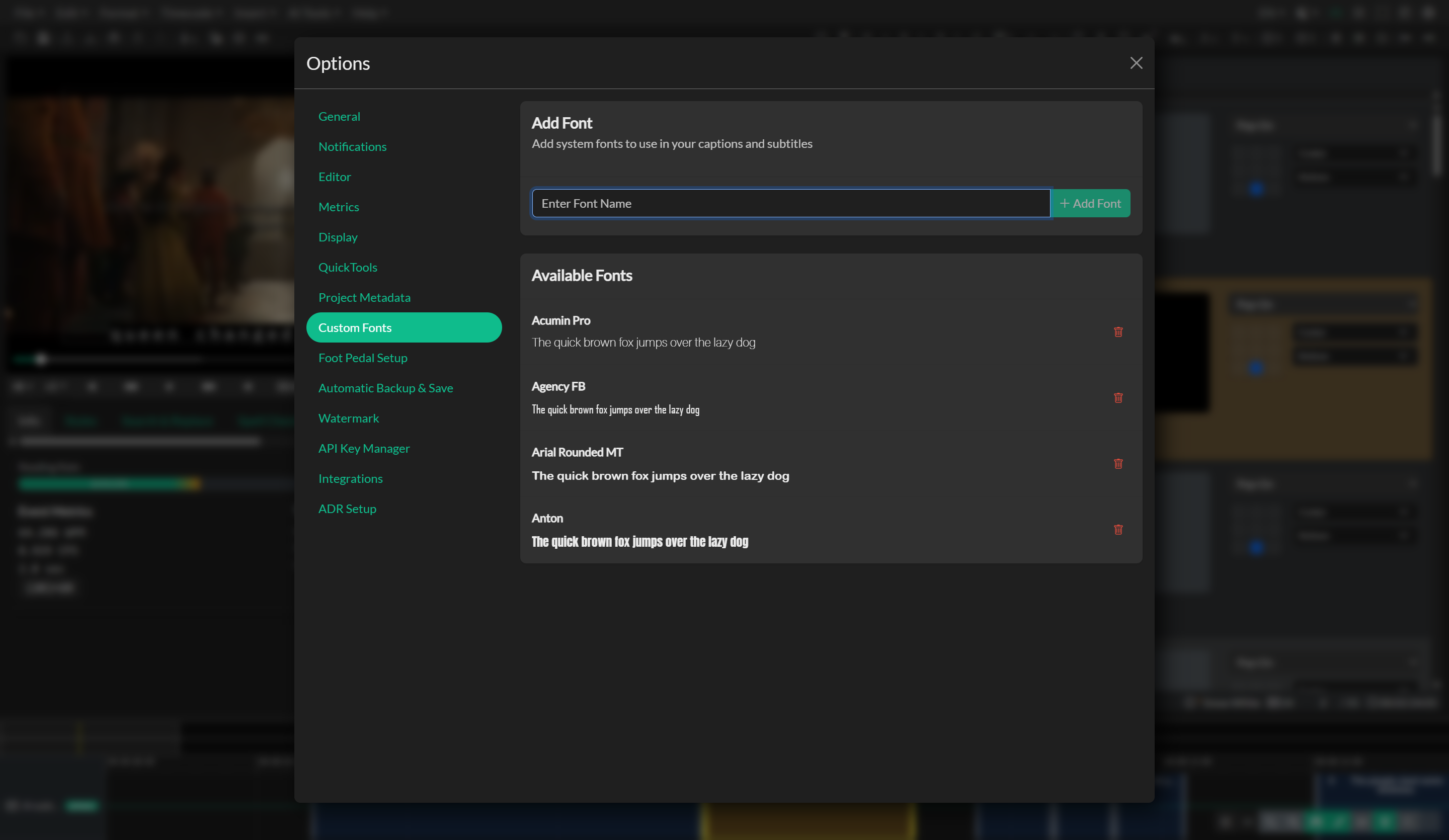
Custom fonts must be installed on the operating system before they can be used. If a project file is opened on a machine where a referenced font is not installed, the preview will fall back to a default typeface.