Display Settings
Video Tutorial
Overview
Display Settings define the character and line grid that the subtitle preview uses when working in Closed Caption mode. Rather than positioning text using pixel-based offsets, Closed Caption Creator uses a grid system based on characters across and lines down. This approach ensures that subtitle positioning remains consistent regardless of the screen size or aspect ratio being targeted.
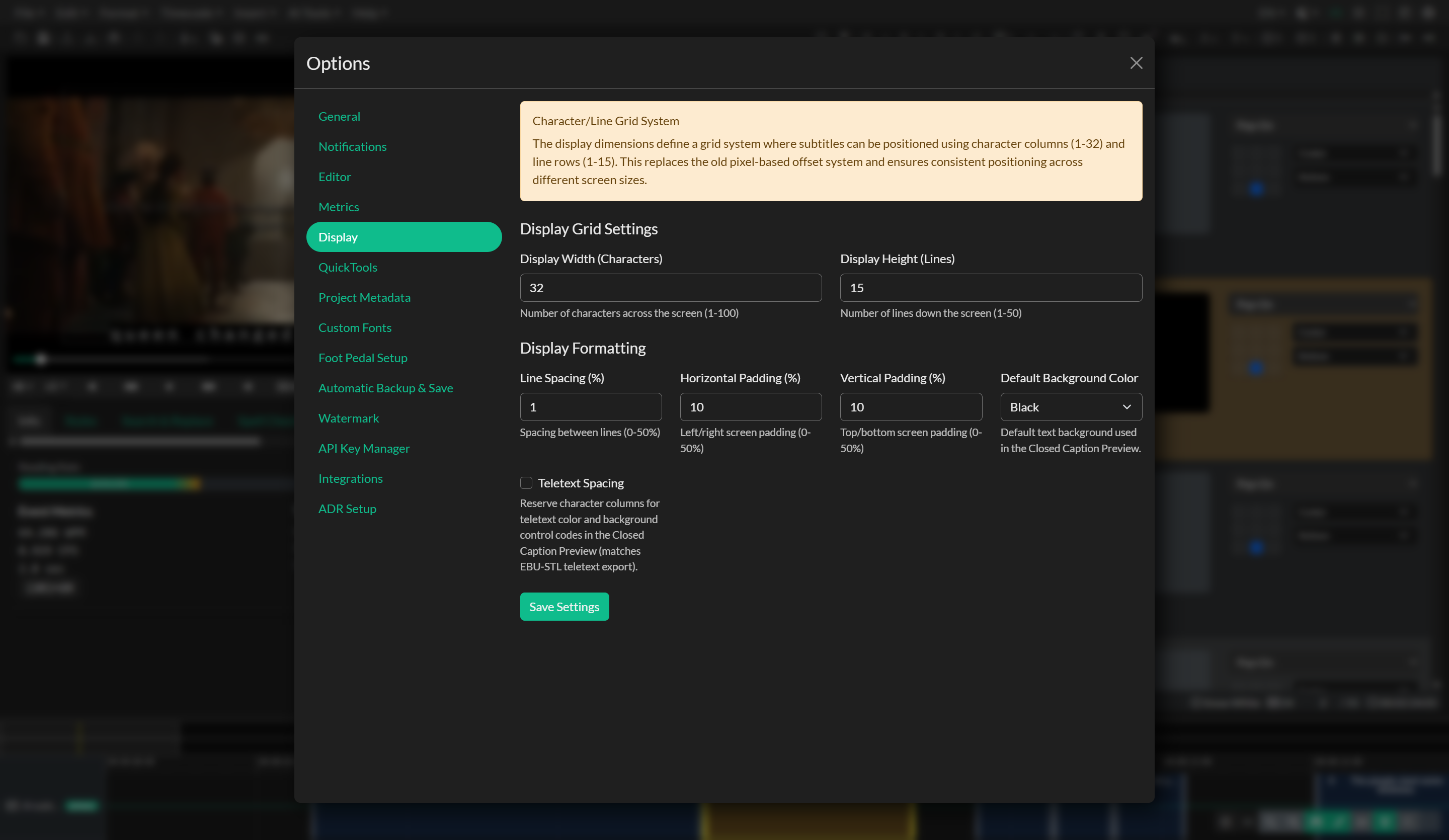
To access Display Settings, go to Edit → Options and select Display from the left-hand navigation menu.
The Character and Line Grid
The two foundational settings in this panel are Display Width and Display Height. The display width defines how many characters fit across the full width of the screen and can be set to any value between 1 and 100, with a default of 32 characters. The display height defines how many text lines are available vertically, with a default of 15 lines and a maximum of 50.
Together, these two values create a grid. When a caption event is assigned a row and column position, it is interpreted within this grid — for example, a caption placed at row 15 in a 15-line grid will appear at the bottom of the screen. This replaces older pixel-based positioning methods and ensures predictable, format-agnostic rendering across different output resolutions.
The subtitle preview component uses the display width and height to calculate the exact pixel position of each event at render time. The available preview area is divided evenly by the number of character columns and line rows, and each event's stored position is then multiplied by its respective cell size to determine where it should appear on screen. Changing the display width or height therefore affects not just the safe area boundaries but also the precise placement of every positioned event in the preview.
Padding and Line Spacing
Three additional settings control how text is inset from the screen edges and how lines within a multi-line caption are spaced relative to one another.
Horizontal Padding sets the percentage of the screen width reserved as a left and right margin. The default is 10% and can range from 0% to 50%. This prevents caption text from running to the very edge of the frame, which is important for broadcast safe-area compliance.
Vertical Padding works identically but applies to the top and bottom of the screen. It also defaults to 10% with the same 0–50% range. Together, the horizontal and vertical padding values define the safe area within which captions are rendered.
Line Spacing controls the additional gap between lines within a single caption event. It defaults to 1 and can be adjusted between 0 and 10. Increasing this value adds breathing room between lines, which can be particularly useful when working with larger grid configurations.
Default Caption Background
The Default Background Colour setting controls the background used behind Closed Caption mode text in the subtitle preview. Closed Caption Creator supports two choices:
- Black displays captions against a solid black background, which is common for North American closed caption workflows.
- Transparent displays caption text without a filled background box, which is useful for workflows that follow European presentation conventions or require the video image to remain visible behind the caption area.
This setting is saved with the rest of your local display defaults. If an older or invalid value is found, Closed Caption Creator falls back to black.
Teletext Spacing
Teletext Spacing is an optional Closed Caption preview mode for teletext and EBU-STL workflows (for example UK Level-1 or Level-2 teletext). When enabled, the preview reserves monospace character columns for teletext color and background control codes, matching how those codes consume space on air and in EBU-STL teletext export.
In teletext, formatting codes for text colour, background colour, flashing, and similar attributes are spacing attributes: each control byte occupies one character cell and shifts the following visible text. Without this option, the Closed Caption preview paints styled HTML only, so left-aligned captions with colour or background colour can appear flush against the safe-area padding even though broadcast will show the text slightly indented.
When Teletext Spacing is on:
- Spacing is applied only to events that are left-aligned with a horizontal position of start. Centered events (and other placements) are rendered without control-code spacing, because centered teletext rows are not pushed over by their leading colour codes.
- Only the leading colour or background span at the start of each line reserves cells. The number of cells matches the control codes EBU-STL teletext encode would emit (for example, background-only styling typically reserves three columns: colour code, New Background, and a default foreground).
- Colour or background changes mid-line do not reserve cells — on a teletext row those codes overwrite existing character positions rather than pushing the rest of the line over, so the preview leaves mid-line styled words unshifted.
- Universal codes such as start box are not simulated, because they apply to every teletext line the same way; the option focuses on the variable indent introduced by leading colour and background styling.
- The setting affects preview only. It does not change export, character-count validation, or the editor layout.
Enable the checkbox under Display Formatting, then click Save Settings. Use it together with a display grid that matches your teletext canvas (commonly up to 40 characters wide). For delivery, continue to set Display Standard Code to Level-1 or Level-2 teletext when exporting EBU-STL.
Display Settings vs. Event Group Validation
Display Settings control how the preview is rendered, but they are entirely independent of the error-detection limits configured at the Event Group level. An Event Group can be set to flag any line that exceeds 28 characters while the display grid itself is 32 characters wide. This separation is intentional — it allows you to define a visual canvas that reflects your broadcast or delivery specification while enforcing tighter authoring constraints within that canvas. For example, a broadcaster may require a 32-character grid for positioning purposes but mandate that no individual line exceeds 28 characters for readability. Both values can be configured independently: the grid width is set here in Display Settings, while character-per-line, lines-per-event, and other validation thresholds are configured in the Edit Event Group modal.
Saving Your Settings
After adjusting the values in this panel, click the Save Settings button to apply them. Your settings are stored locally and will be loaded automatically the next time you open the application.
Aspect Ratio
Display settings work in combination with the project's Aspect Ratio, which can be configured in the General options panel. Closed Caption Creator supports 16:9, 4:3, and mobile portrait formats including 9:16. The aspect ratio affects how the preview canvas is scaled, while the display grid settings control how text is mapped onto that canvas.