Automatic Transcription and Batch Transcription
Automatic transcription converts spoken audio into timed text using speech recognition services. Closed Caption Creator extracts audio from your media, sends it to the provider you choose, and imports the completed transcript as a subtitle Event Group so you can review, time, and deliver captions faster than typing from scratch.
The fastest path is two clicks after import: confirm that you want to transcribe, then submit the job. The same dialog stays open, tracks progress, and loads the transcript into your project when the job finishes.
Understanding AI transcription
When you submit a job, Closed Caption Creator extracts the audio track and uploads it to your selected provider. The provider identifies speech, produces a time-stamped transcript, and returns the result to your account. Accuracy depends on audio quality, speaking clarity, background noise, overlapping speakers, and specialized vocabulary. Clear dialogue with limited background noise produces the best results.
AI transcripts are a starting point, not a finished delivery. Always review text, speaker labels, and timing before export.
Supported service providers
Closed Caption Creator integrates with AssemblyAI, Deepgram, Rev.ai, Google Speech-to-Text, Speechmatics, VoiceGain, ElevenLabs Scribe, GPT Transcribe (OpenAI), and Gemini 3.5 Transcribe (Google). Each provider differs in language coverage, pricing, and specialized features. Gemini 3.5 Transcribe is the default; your last provider, language, and (for team accounts) KNP guide are remembered for the next job.
Choosing a provider
- Gemini 3.5 Transcribe (Google) is the default. It covers 78 languages and returns word-level timing, which is a strong starting point for caption spotting.
- GPT Transcribe (OpenAI) includes speaker diarization, so it is a better first choice when you need speaker labels without a separate identification pass.
Choose either provider from AI Tools → Automatic Transcription. You can still switch providers for later jobs; the last selection is remembered.
Transcribe after you import media
After you create a new project with media, or import media into an existing project, Closed Caption Creator asks whether you want to transcribe that file. Choose Yes to open the Automatic Transcription dialog. Choose No to go straight to the editor.
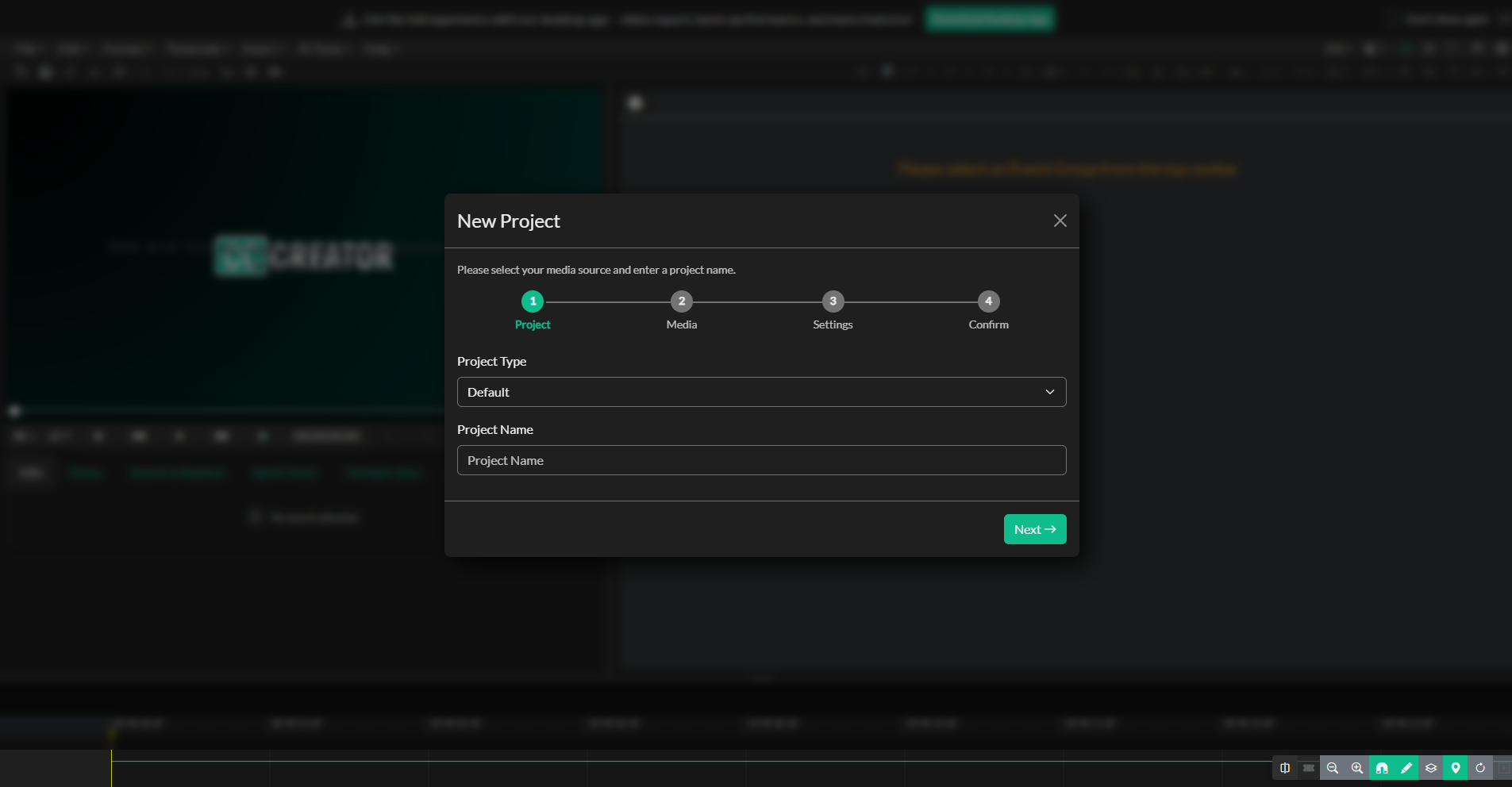
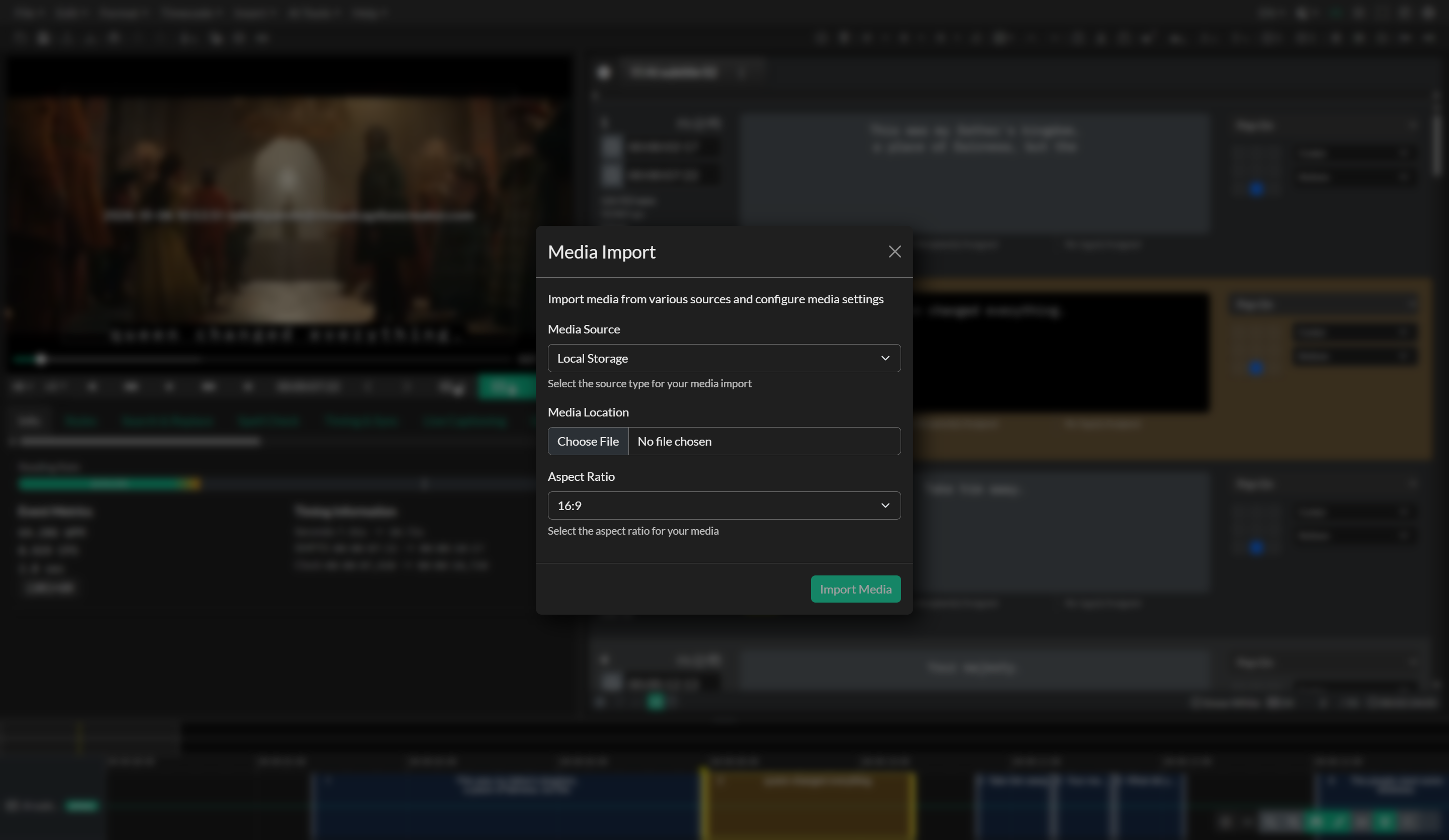
The prompt appears only when the media can be transcribed and you are online. Live projects, projects created without media, and non-transcribable streams (HLS, Vimeo, Mux, DASH, and Cloudflare Stream) do not show the prompt. Replacing media on an existing project does prompt; importing the transcript adds a new Event Group and does not overwrite captions you already have.
Submit the job and wait in the dialog
In the Automatic Transcription dialog, choose a service provider, an optional KNP terminology guide (team accounts), and the source language of the audio. Some providers expose extra options such as locale, domain, or Speechmatics translation.
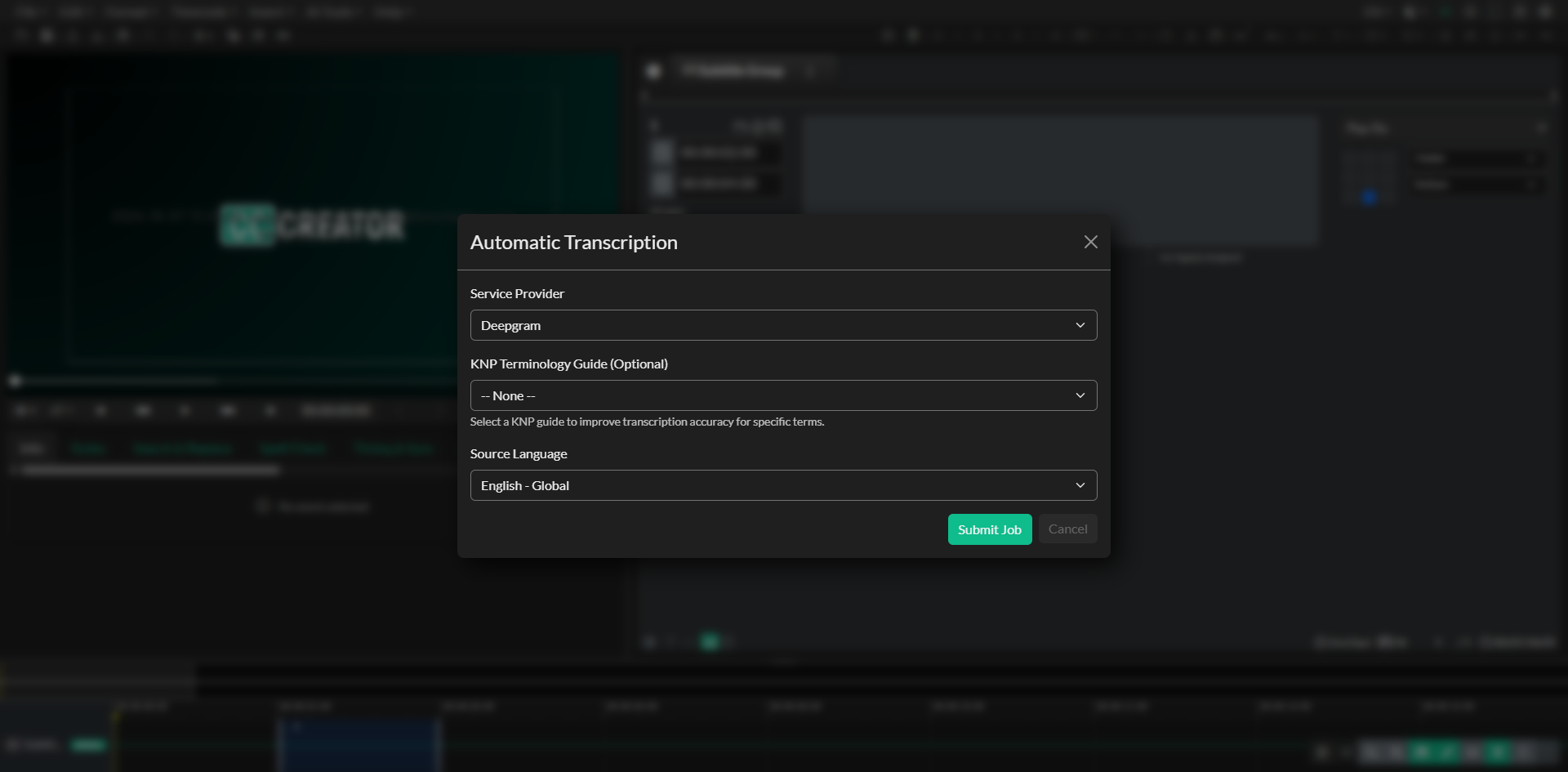
Click Submit Job. The dialog stays open:
- Desktop users with local or Proxy RT files extract audio first, then upload it.
- Cloud Storage and YouTube jobs are handed off without a local extract step.
- A progress bar and status message track upload and transcription.
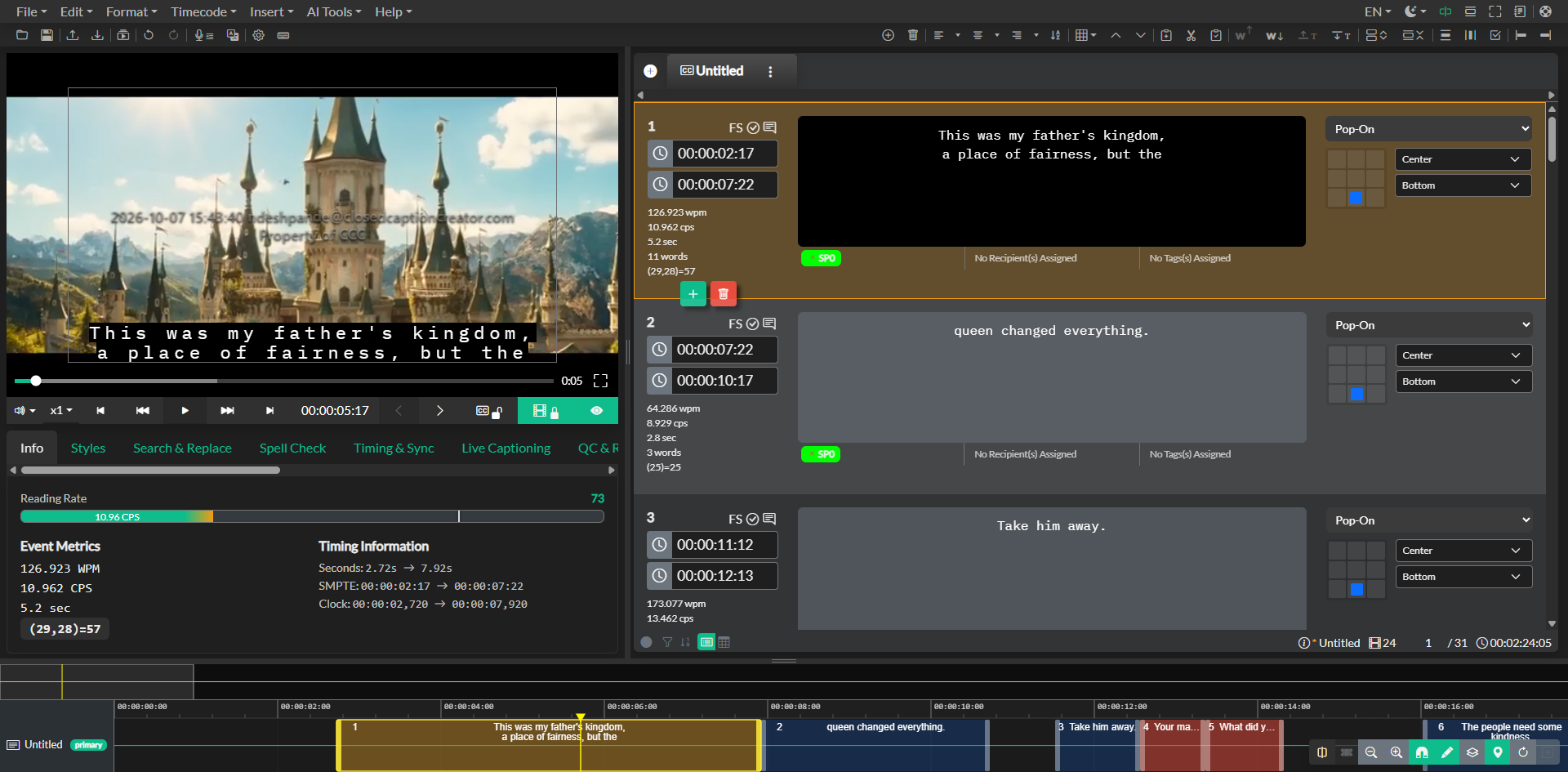
- When the job passes, Closed Caption Creator imports the transcript into the project automatically and closes the dialog.
If the project still has only the empty placeholder Event created with a new project, that group is replaced by the transcript. Otherwise the transcript is added as a new Event Group.
You can close the dialog while the job is still running. The cloud job continues. Closing does not auto-import; open AI Tools > Transcription Import later to bring the result in. Cancel during upload stops the file transfer. After the job is submitted, Cancel or the close button only dismisses the dialog.
Start from AI Tools
You can still open Automatic Transcription at any time from AI Tools > Automatic Transcription, or from the microphone button on the secondary toolbar. The same submit-and-wait flow applies: the dialog monitors the job and imports the transcript when it completes. Media must already be loaded from a compatible source.
Supported media sources
| Source | Can transcribe? |
|---|---|
| Local Storage | Yes |
| Proxy RT | Yes |
| Cloud Storage | Yes |
| YouTube | Yes |
| HLS, Vimeo, Mux, DASH, Cloudflare Stream | No |
Google Speech-to-Text is available for local, Proxy RT, and YouTube jobs. It is not offered for Cloud Storage.
Batch transcription
Batch Transcription queues several source files with one set of provider settings. It is available from AI Tools > Batch Transcription to Pro and Enterprise subscribers who are not on a trial plan. Each file is processed independently. Batch jobs still complete in the AI Transcript Import dashboard; they do not use the single-file auto-import dialog.
AI Transcript Import dashboard
The dashboard remains the place to import jobs you did not auto-import, manage batch transcription, download files, and work with past jobs. Open AI Tools > Transcription Import.
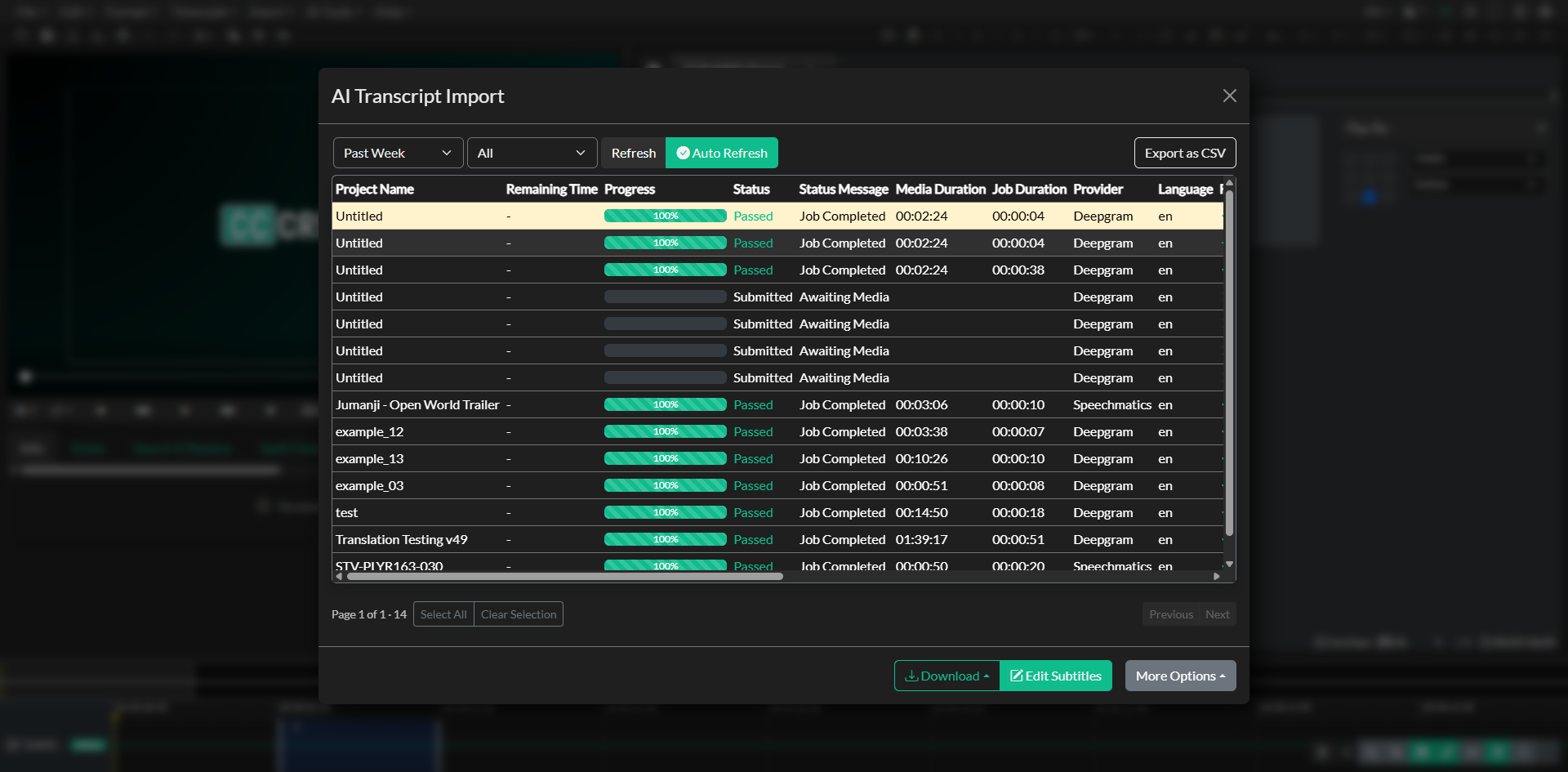
The list shows project name, submission date, provider, language, status, progress, and estimated cost. Filter by date range and status to find a job. When a job is Passed, select it and import it as subtitles. Import settings (maximum characters and lines) can be confirmed in that dashboard; the post-import auto-import path uses your saved import defaults without an extra prompt.
From the dashboard you can also download transcripts, run automatic sync, identify speakers, create an audio description template, export job data as CSV, archive jobs, or delete them.
Improving accuracy with KNP guides
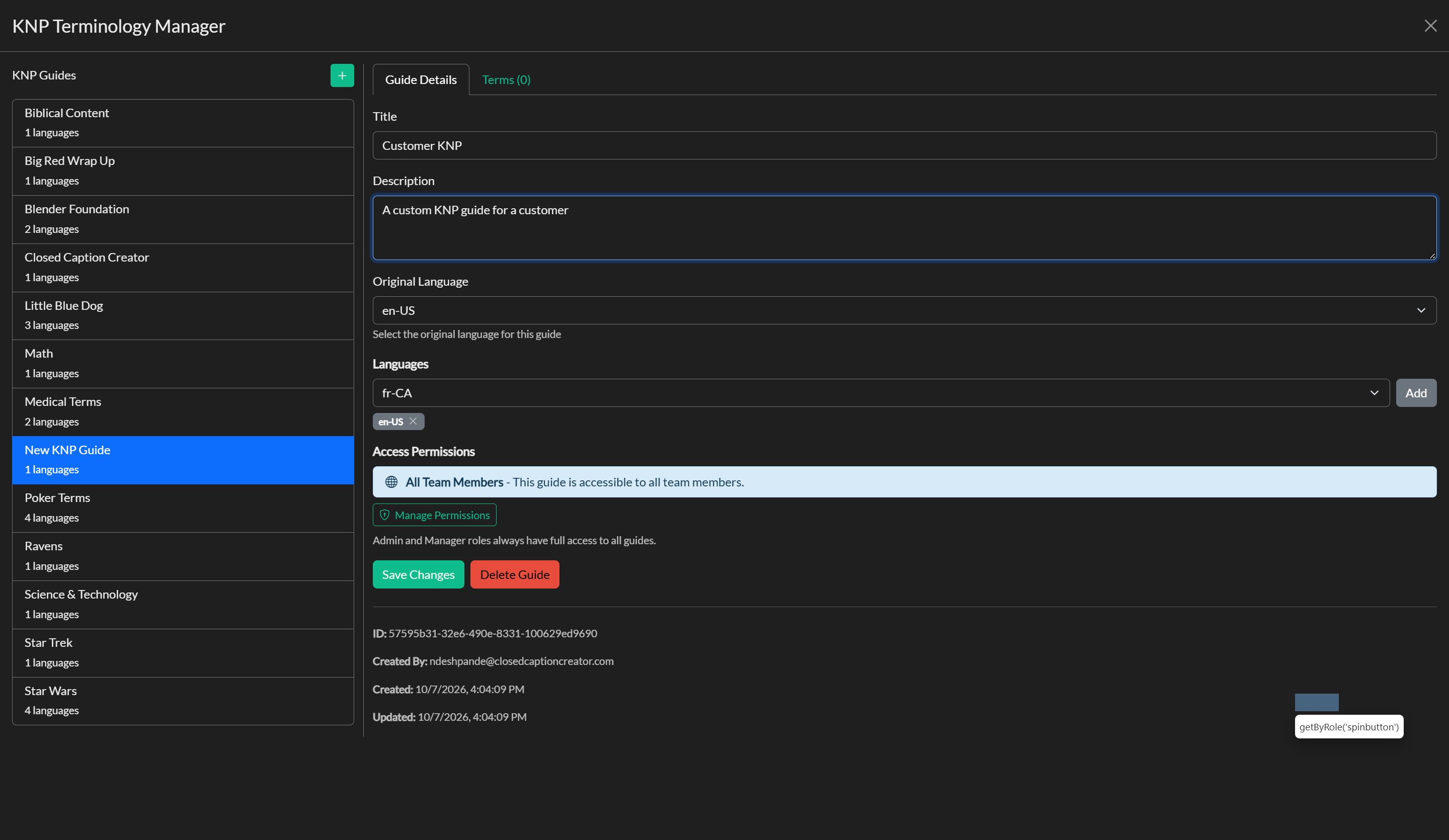
Team users can attach a Key Names and Phrases (KNP) guide when submitting a job. Compatible providers treat that list as custom vocabulary for names, brands, and specialist terms. See KNP and Automatic Transcription and KNP Management.
Quality control and review
Review every AI transcript before delivery. Check misheard words, overlapping speech, speaker labels, and timing against the waveform. Use Realtime Error Detection, Automatic Reading Speed Correction, and Automatic Sync where they help, then run a QC review.
Technical requirements and limitations
- An active internet connection is required.
- Transcription is not available in offline mode.
- Trial accounts have a limited number of transcription jobs.
- Processing time depends on media duration and provider load; most jobs finish within minutes.
- Cost estimates appear in the import dashboard based on duration and provider pricing.
- Desktop users extract audio locally before upload. The web app uploads media for cloud-side extraction.
Troubleshooting
If you closed the dialog before the job finished, open AI Tools > Transcription Import and refresh the list. Enable job completion mail under Edit > Options > Notifications if you want an email when a long job finishes.
If a job fails in the Automatic Transcription dialog, the error stays on that screen so you can retry or close. If a job never appears in the dashboard, confirm that submit completed (look for the success toast) and that you are signed in to the same user or team account.
If quality is poor, confirm the source language, try a different provider, or attach a KNP guide for names and terminology. Plan for manual cleanup where audio is noisy or speakers overlap.