Automatic Translation
Automatic Translation creates professionally translated Event Groups from a source subtitle or transcript group using machine translation services. This powerful feature enables you to translate your content into multiple languages simultaneously while preserving formatting, speaker tags, timing, and other rich metadata from the original Event Group.
Overview
The Automatic Translation workflow is designed for professional subtitling and captioning projects that require multilingual output. Unlike manual translation processes, the automated system leverages industry-leading machine translation providers to deliver rapid translations while maintaining the structural integrity of your captions. The system intelligently handles text formatting such as bold, italics, and underline, ensuring that emphasis and stylistic choices carry over to the translated versions. Additionally, speaker identification, display positioning, and other metadata elements are preserved, creating translation Event Groups that maintain the same professional quality and structure as your source material.
This feature is particularly valuable for content creators, broadcasters, and media professionals who need to deliver the same video content to audiences across different language markets. By processing multiple target languages in a single submission, you can significantly reduce the time required to prepare multilingual content while maintaining consistency across all language versions.
Prerequisites
To use Automatic Translation, your project must be in online mode with an active internet connection to the Closed Caption Creator cloud services. Your subscription plan must include automatic translation workflows, as this feature utilizes cloud-based translation APIs that incur processing costs. You should have at least one Event Group prepared in your project that contains the source captions or subtitles you wish to translate. Understanding the source language of your content and the target languages you want to translate into will help you configure the translation settings appropriately.
Accessing Automatic Translation
The Automatic Translation modal can be accessed through the main application menu under AI Tools, where you will find the Automatic Translation option. Once opened, the modal presents a comprehensive interface for configuring your translation job, including provider selection, language settings, and formatting options. After submitting translation jobs, you can monitor their progress and import completed translations through AI Tools → Translation Import. That dashboard is for cloud translation jobs. To import an existing source subtitle file and a translated subtitle file as a linked pair, use Translation File Import instead (File → Import → Translation).
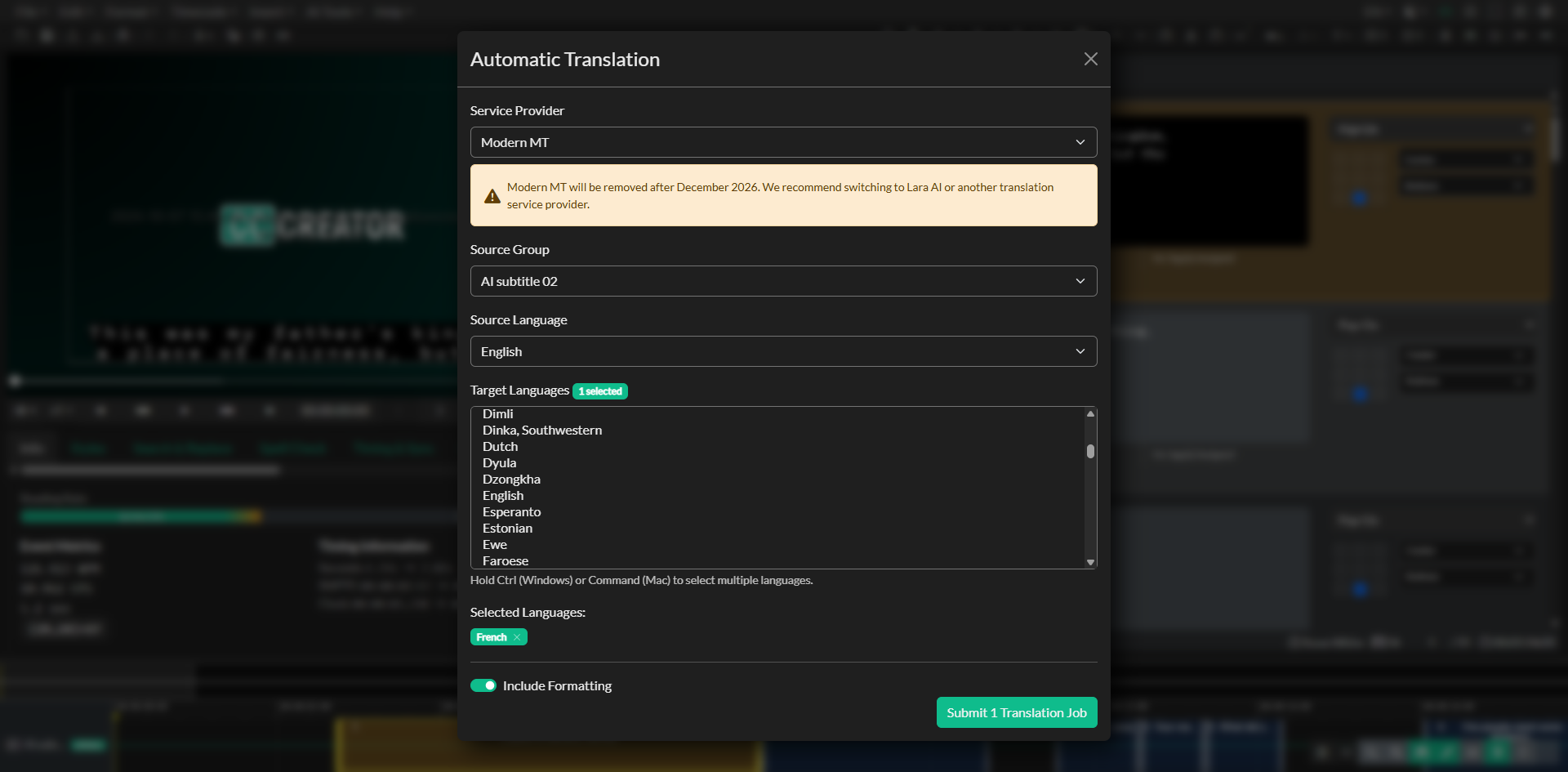
Selecting a Translation Provider
Closed Caption Creator supports integration with nine major translation service providers, each offering different language coverage, translation quality characteristics, and pricing structures. The available providers include Amazon Translate, Anthropic, Azure AI Translator, DeepL, Gemini Pro, Google Translate, Lara AI, Modern MT, and OpenAI. Azure AI Translator is the default provider. Each provider has its own strengths and specializations, with some excelling at particular language pairs or technical domains.
When you select a provider from the dropdown menu, the system automatically updates the available source and target language options to reflect that provider's supported languages. This ensures that you only see language combinations that are actually available through your chosen service. Some providers offer broader language coverage while others may provide higher quality translations for specific language pairs. Your choice of provider may also be influenced by your organization's existing relationships with cloud service vendors or specific compliance requirements for your content.
Modern MT will be removed after December 2026. When you select Modern MT, the Automatic Translation modal displays a warning recommending that you switch to Lara AI or another remaining translation service provider. Existing Modern MT jobs continue to work until that date. Lara AI uses locale-specific language codes (for example, en-US and fr-FR) rather than two-letter codes.
Configuring the Source Event Group
The source Event Group selection determines which set of captions or subtitles will be used as the basis for translation. You can select any Event Group that exists in your current project from the dropdown menu. The system creates a copy of the selected Event Group and removes any events that do not contain text before sending the content for translation. This preprocessing step ensures that empty timing gaps or non-verbal cues are not sent to the translation service, optimizing both processing efficiency and cost.
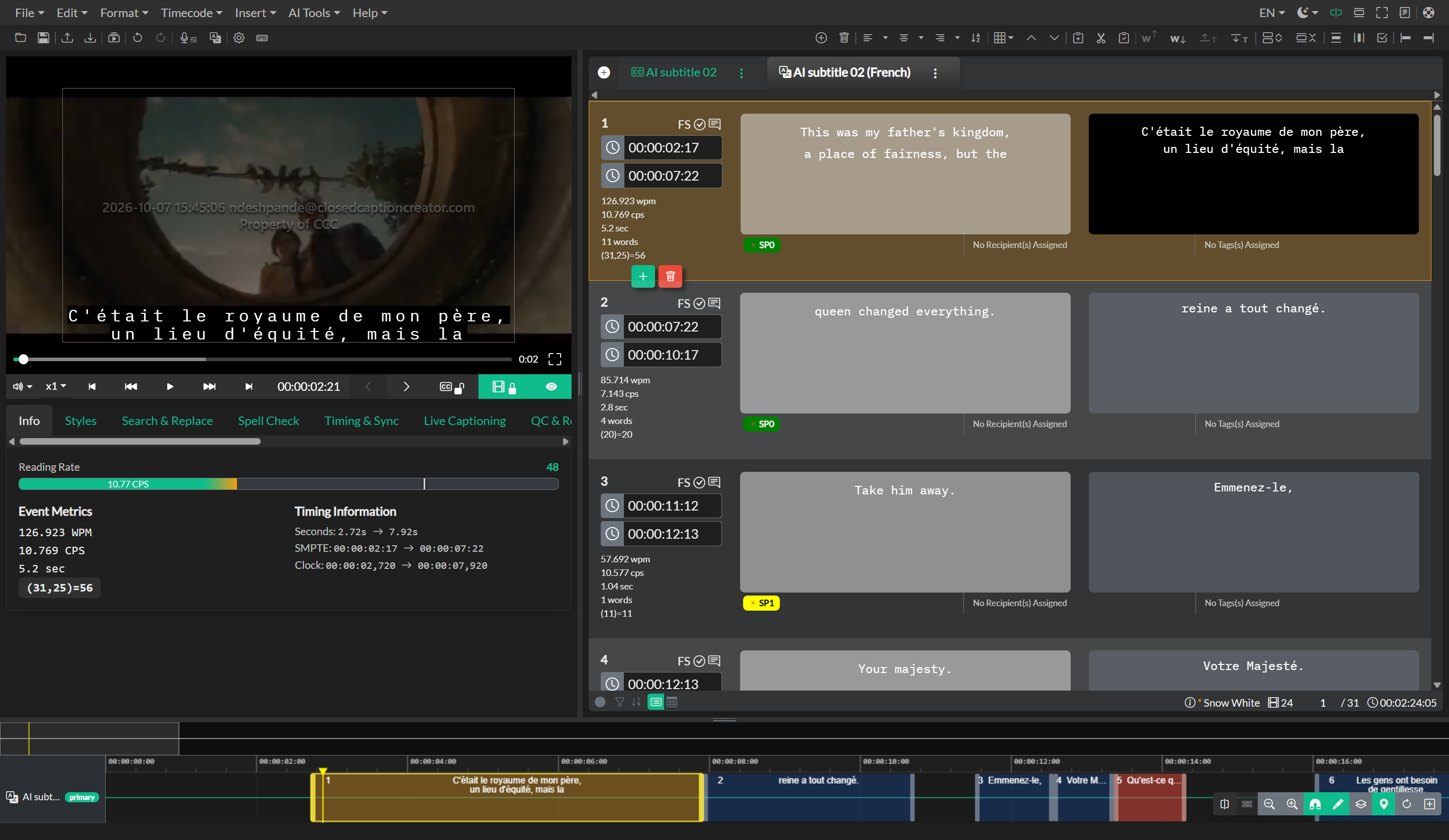
The source Event Group remains unchanged throughout the translation process. All timing information, formatting codes, speaker tags, and display positioning data from the source are preserved and carried over to the translated versions, ensuring that the translated Event Groups maintain perfect synchronization with the original content.
Language Configuration
After selecting your source Event Group, you must specify the source language that accurately represents the language of your existing captions. The source language dropdown presents all languages supported by your selected translation provider, displayed in their native script along with English language names for easy identification.
The target language selection interface allows you to choose multiple destination languages in a single operation, which is one of the most powerful features of the Automatic Translation system. Rather than submitting separate translation jobs for each language, you can select all desired target languages at once using the multi-select list. To select multiple languages, hold the Ctrl key on Windows or Command key on macOS while clicking each language you want to include. The interface displays a badge showing how many languages you have currently selected, and a summary section below the language list shows the names of all selected target languages for easy verification.
The system automatically detects right-to-left (RTL) languages such as Arabic, Hebrew, Urdu, and Persian, marking them with an RTL indicator in the language list. When translations are imported for RTL languages, the appropriate text direction settings are applied to ensure proper display in the editor and during playback.
Formatting Options
The Include Formatting toggle allows you to control whether text styling elements from the source Event Group should be preserved in the translated output. When enabled, the translation process maintains bold, italic, and underline formatting codes, ensuring that emphasis and stylistic choices in the original captions are reflected in the translated versions. This is particularly important for content where specific words or phrases are emphasized for clarity, branding purposes, or to indicate foreign words and terminology.
Disabling formatting preservation may be appropriate if you plan to apply different styling rules to the translated versions, or if the translation provider occasionally produces unexpected results when processing formatted text. Your choice of this setting is remembered across sessions, allowing you to establish a consistent workflow based on your typical project requirements.
Submitting Translation Jobs
When you have configured all settings and selected your target languages, the Submit Translation Jobs button becomes active. The button label dynamically updates to show how many jobs will be created based on your target language selections. Clicking this button initiates the translation process by first preparing the source Event Group, removing textless events, and uploading it to cloud storage.
The system then registers individual translation jobs for each target language you selected. Each job references the same uploaded source file but targets a different destination language, allowing all translations to be processed in parallel. This approach significantly reduces the total processing time compared to sequential translation workflows. As jobs are registered, you will see progress indicators showing the preparation, upload, and job submission phases.
Once all jobs have been successfully submitted, the system displays a confirmation message and automatically transitions to the Translation Import modal, where you can monitor the progress of your translation jobs in real-time.
Monitoring Translation Progress
The Translation Import modal provides a comprehensive dashboard for tracking all translation jobs associated with your account. Jobs are displayed in a sortable, filterable table that shows project name, progress percentage, current status, provider, source and target languages, character count, and timestamps for creation and completion.
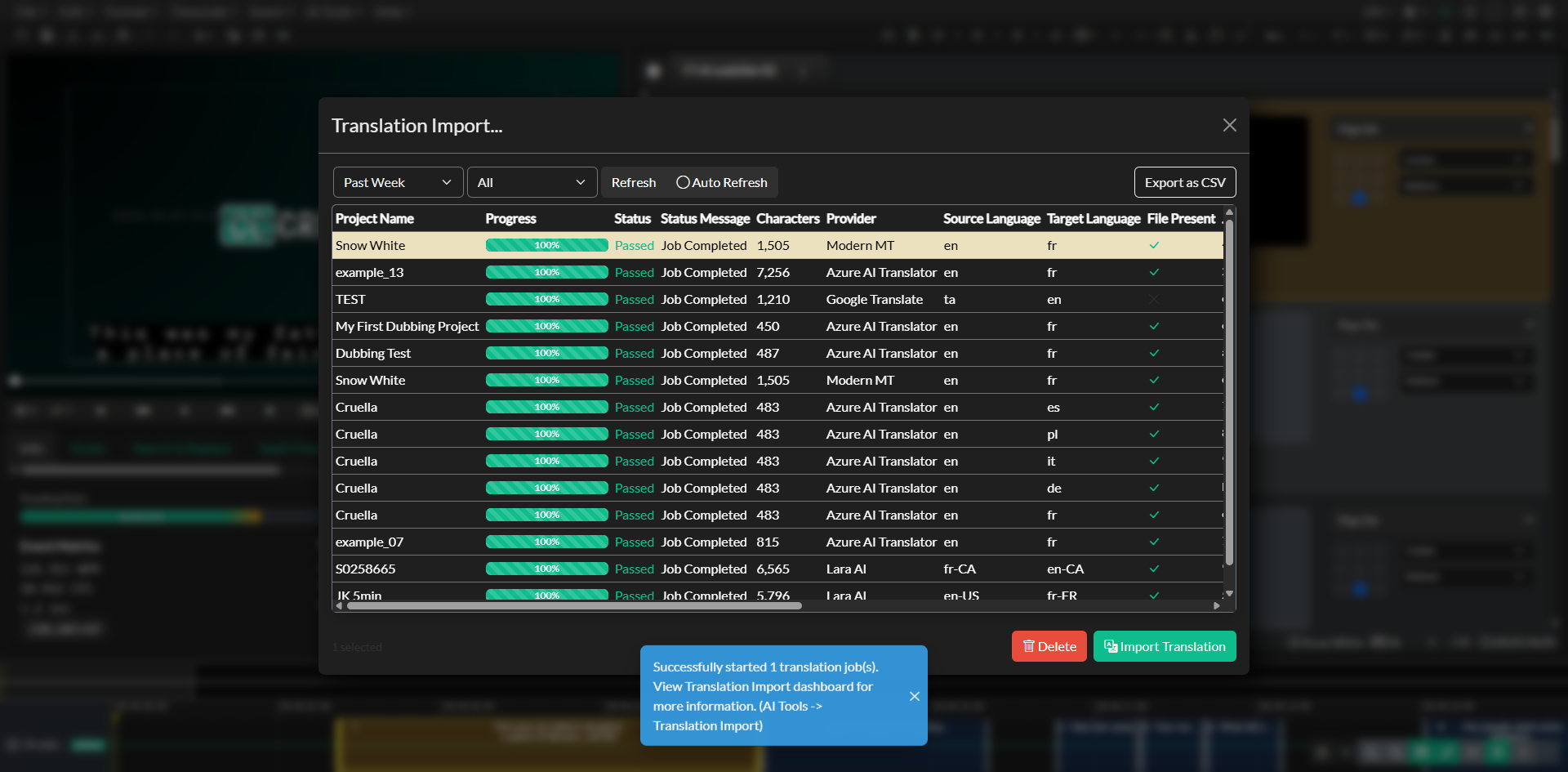
The interface includes date range filtering options allowing you to view jobs from the past 24 hours, past week, past month, past year, or a custom date range. Status filtering enables you to focus on jobs that are currently in progress, have completed successfully, have failed, or show all jobs regardless of status. An auto-refresh feature updates the job list every ten seconds, providing near real-time visibility into job progress without requiring manual page refreshes.
As translation jobs process, you will see the progress indicator advance and status messages update to reflect the current processing stage. Translation jobs typically complete within minutes for standard caption files, though processing time varies based on content length, provider response times, and current system load.
Importing Completed Translations
When a translation job reaches 100% completion and shows a Passed status, you can import it into your project by selecting the job from the table and clicking the Import Translation button. The import process downloads the translated Event Group from cloud storage and adds it to your current project as a new Event Group.
During import, the system automatically applies formatting rules to the translated content, running the auto-format function twice to optimize line breaks, reading speed, and character distribution. Overlap detection and correction is also applied to ensure that translated events maintain appropriate timing gaps. These automated quality control steps help ensure that imported translations meet professional broadcast standards without requiring extensive manual adjustment.
The imported Event Group is added to your project with a name that identifies it as a translation and indicates the target language. All timing, formatting, speaker tags, and metadata from the source Event Group are preserved, with only the text content replaced with the translated equivalents. The new Event Group becomes the active selection, allowing you to immediately review and refine the translation as needed.
Managing Translation Jobs
The Translation Import interface provides tools for managing your translation job history. Completed translation jobs can be deleted if you no longer need to access the translated files, freeing up cloud storage space associated with your account. The deletion process removes both the job record and the associated translation files from cloud storage, though it does not affect any translations you have already imported into your projects.
Jobs that have failed or are no longer needed can be archived to remove them from the main job list while preserving the job records for historical reference. The Export as CSV button allows you to download a complete report of all displayed jobs, including detailed information about processing times, character counts, costs, and status information. This export functionality is valuable for project tracking, billing verification, and workflow analysis.
Best Practices
To achieve optimal results with automatic translation, it is recommended to keep all source and translated Event Groups within the same project file. This organization strategy makes it easier to maintain consistency across language versions and simplifies quality control workflows. Before submitting content for translation, ensure that your source Event Group has been thoroughly reviewed and finalized, as corrections made to the source after translation will not automatically propagate to the translated versions.
When working with translations, consider applying language-specific quality control profiles that account for differences in reading speed and line length requirements across languages. Some languages require more characters to express the same concepts, while others may require less space. Reviewing reading speed and character-per-second metrics for each language version helps ensure that all versions meet the same quality standards for viewer comprehension.
While machine translation has improved dramatically and produces highly accurate results for many language pairs, it is still recommended to have translations reviewed by native speakers or professional linguists before final delivery, particularly for content with specialized terminology, cultural references, or critical messaging. The automatic translation feature provides an excellent foundation that can significantly reduce translation time and cost, but human review remains an important quality assurance step for professional content delivery.
Troubleshooting
If you encounter inconsistent translation quality, first verify that you have selected the correct source language, as source language misidentification is a common cause of poor translation results. Different providers may produce varying results for the same content, so experimenting with alternative providers may yield better outcomes for specific language pairs or content types. Some providers specialize in particular domains or language combinations and may be more suitable for your specific content.
If an imported translation does not maintain the expected event grouping or timing relationships, confirm that you selected the correct source Event Group before submitting the translation job. The system maintains a linked relationship between source and translated Event Groups, but this linkage depends on proper configuration at job submission time. Reviewing the job configuration details in the Translation Import table can help identify configuration issues that may have affected the translation process.
Translation jobs that remain in progress for extended periods or show failed status may indicate temporary connectivity issues with the translation provider or problems with the source content format. Checking the status message displayed for the job can provide specific information about the cause of delays or failures. If jobs consistently fail with a particular provider, trying an alternative provider or contacting support for assistance can help resolve persistent issues.
Related Documentation
For additional information about working with multilingual content, see the Translation and Localization guide, which covers terminology management and localization workflows. To import an existing source file and translated file as a linked pair, see Translation File Import. The Automatic Transcription and Batch Transcription documentation explains how to create source transcripts that can then be translated using the automatic translation workflow. Export and Presets documentation provides guidance on configuring export settings for different language versions and delivery requirements.