Project and Workspace Management
The Storage Explorer is the central hub for managing all of your projects in Closed Caption Creator. It functions as a virtual file system that allows you to organise projects into custom folder structures, track workflow state, assign work to team members, set due dates and priority, and control access — all without leaving the application. Understanding the Storage Explorer is the foundation for efficient project management, whether you are working independently or as part of a larger captioning team.
Opening the Storage Explorer
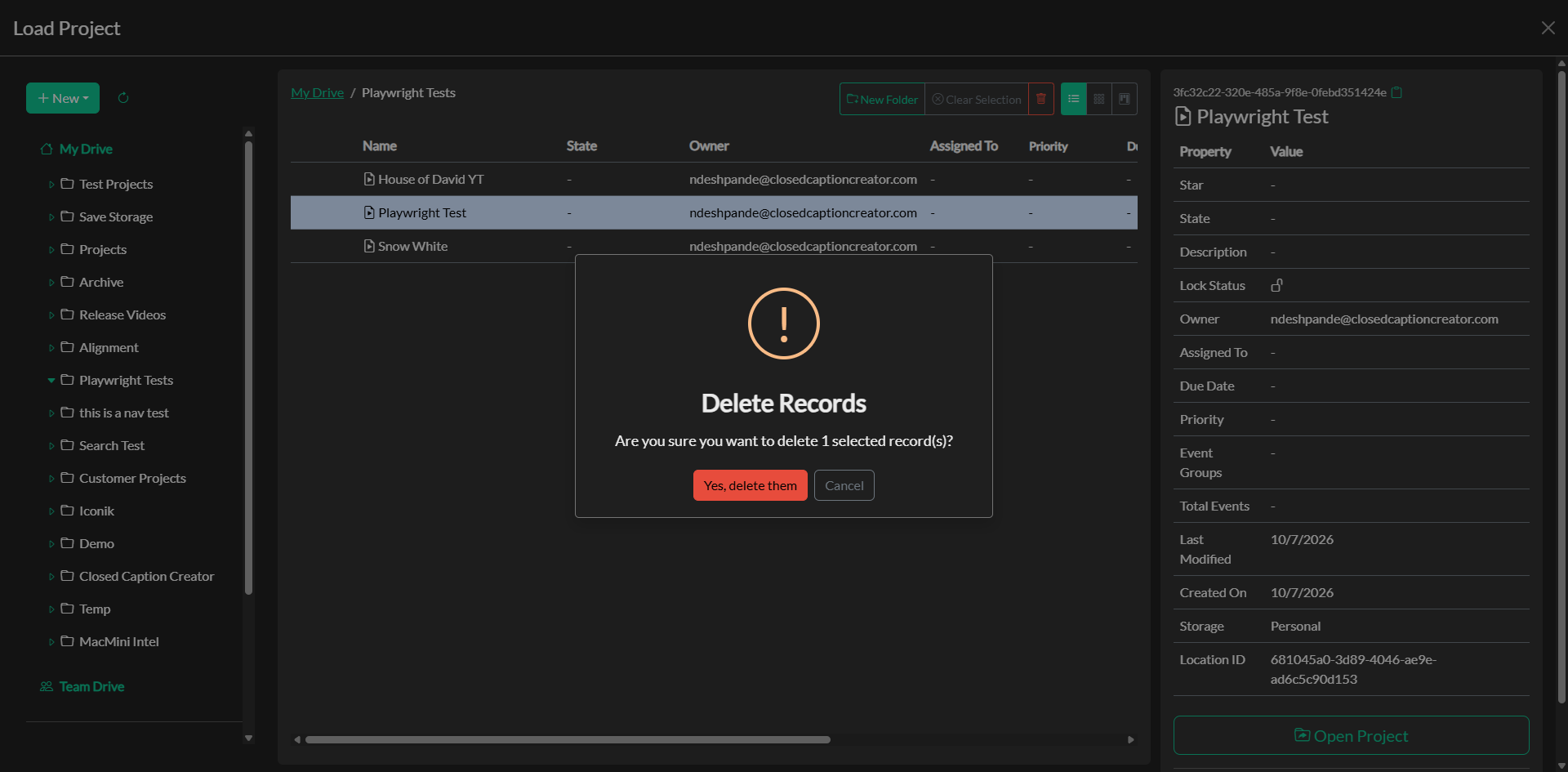
The Storage Explorer can be opened from the main toolbar by clicking the Load icon, or by navigating to File > Open Project. Once open, the interface is divided into three columns that work together to provide a complete view of your storage environment.
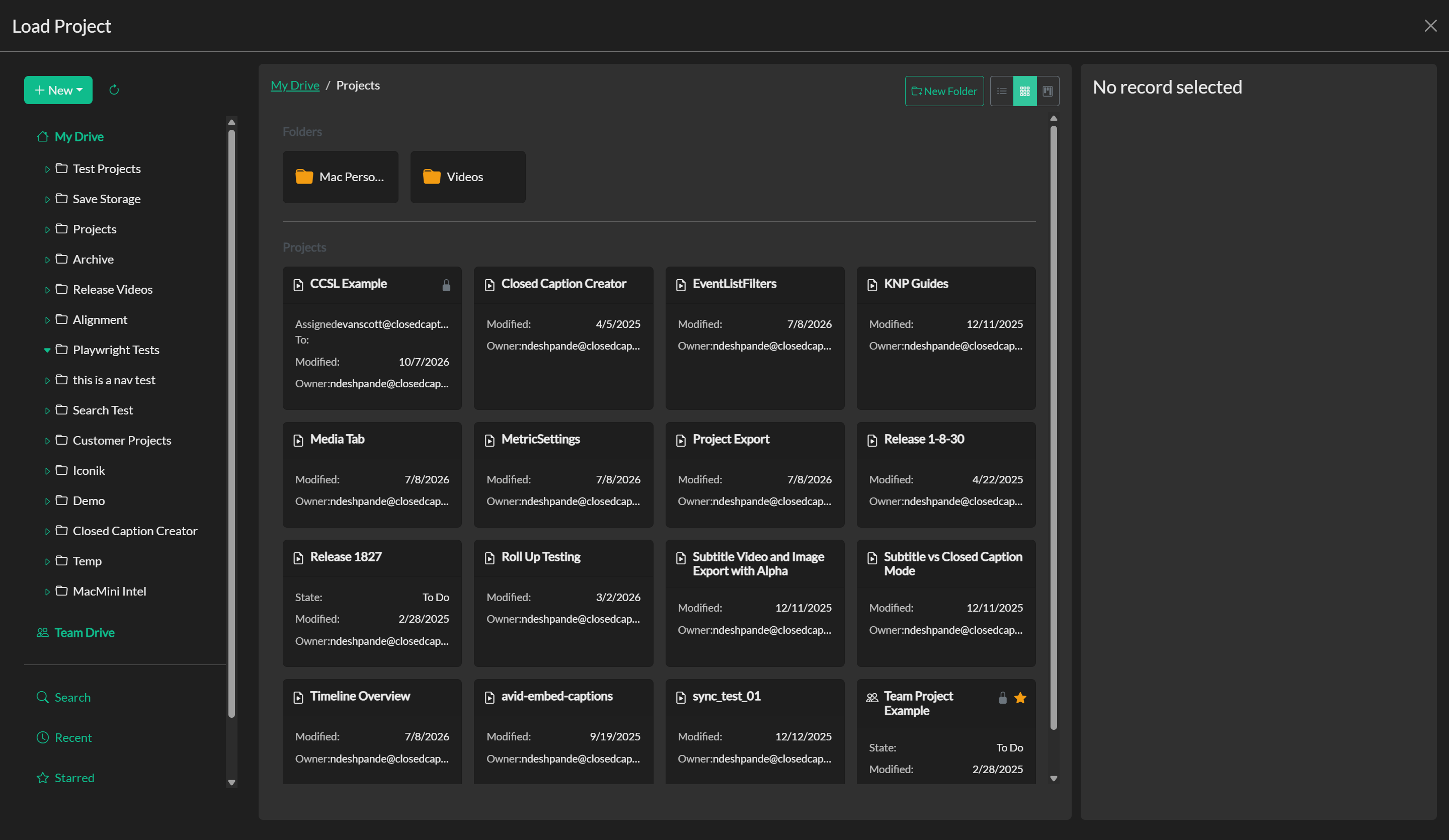
The left column is the Storage Navigation panel. From here you can switch between your Personal Storage and your Team Drive, search across storage, open your assigned tasks, and quickly access your Recent records or any projects you have starred for fast retrieval. The center column is the Storage Workspace, where you interact directly with project records and folders. The right column is the Information panel, which displays metadata and available actions for whichever record is currently selected in the Workspace.
Storage Contexts: Personal and Team Drive
Closed Caption Creator provides two separate storage contexts. Personal Storage holds projects that belong to you alone and are not visible to other members of your team. Team Drive, which is available to Pro and Enterprise subscribers, contains projects and folders that are accessible to every member of your team. When working in a professional production environment, the Team Drive is typically where shared deliverables are saved so that all team members can locate and open projects without needing files to be shared manually.
It is not possible to move projects or folders directly between storage contexts. If you need to transfer a project from your Team Drive to your Personal Storage, or vice versa, the recommended approach is to open the project and re-save it as a new copy in the target context.
Workspace Views
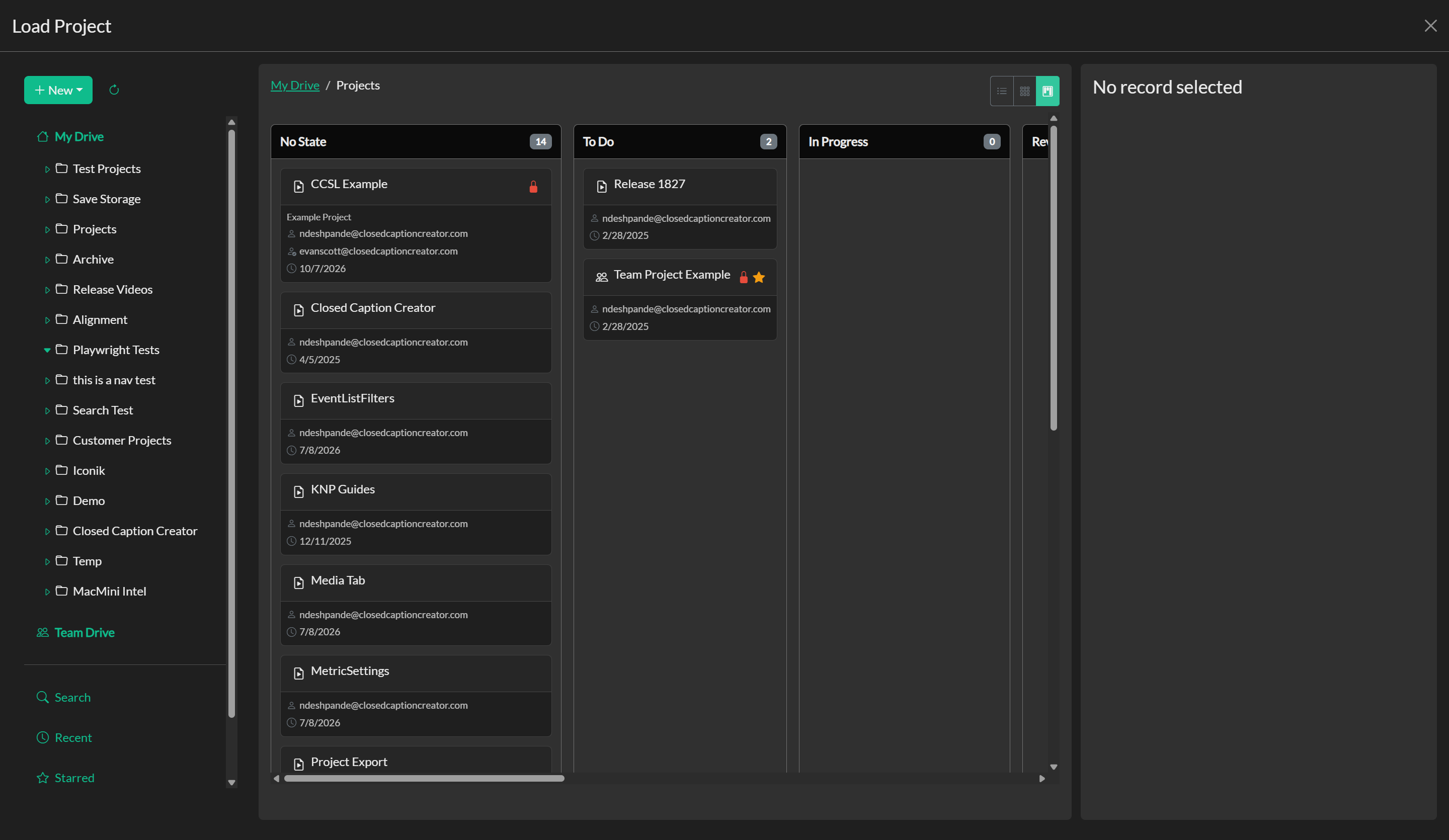
The Storage Workspace offers three different view types to suit different management tasks. The Table view presents records in a structured list with columns for key metadata — including name, workflow state, owner, assignee, Priority, Due Date, event counts, and timestamps — making it easy to scan large numbers of projects. In Table view, you can click the Priority or Due Date column headers to sort the list ascending or descending; click the same header again to reverse the order. Records without a value for the sorted field appear at the end of the list. The Grid view places folders at the top of the workspace and displays project records as cards, which can be helpful when you need to identify projects at a glance. The Kanban view organises project records into columns based on their current workflow state, providing a visual pipeline that is well-suited to tracking production progress across a team.
You can switch between views at any time using the toggle controls at the top of the Workspace area.
Search Workspace
The Search item in the Navigation panel opens a dedicated workspace for finding project records and folders across storage. You can search by keyword, then refine the results by storage scope, record type, starred status, created date, and updated date.
The storage scope can include all available storage, Personal Storage only, or Team Drive only. Type filters include folders, projects, team projects, and work orders. Search results can be opened directly from the results list, and long result sets can be loaded in pages.
Search respects team folder permissions. If a team project is inside a restricted folder, it only appears when your user account has access to that folder.
My Tasks Workspace
The My Tasks workspace shows records assigned to your account. It includes projects, team projects, and work orders from Personal Storage and Team Drive, excluding archived records. Team records still respect folder permissions, so you only see assigned work that you are allowed to access.
By default, tasks are sorted with the most recently updated records first. In Table view, Priority and Due Date values are shown as columns so you can prioritise your queue at a glance, and you can re-sort the list by clicking those column headers. This view is designed for operators who need a quick list of their current assignments without browsing through multiple folders.
Organising Projects with Folders
To create a folder, click the New Folder button at the top of the Workspace view, provide a name, and click Create. Folders can be opened by double-clicking them, and you can navigate back to a parent folder using the breadcrumbs bar at the top of the Workspace. The Navigation panel on the left also displays a hierarchical folder tree that you can use to jump directly to any folder in your storage.
Projects can be moved into folders by clicking and dragging a project record over the target folder. To move multiple records at once, hold the Shift key while clicking to extend your selection, then drag the group into the destination folder. Records can also be moved using the folder tree in the Navigation panel as the drop target.
Record Metadata and the Information Panel
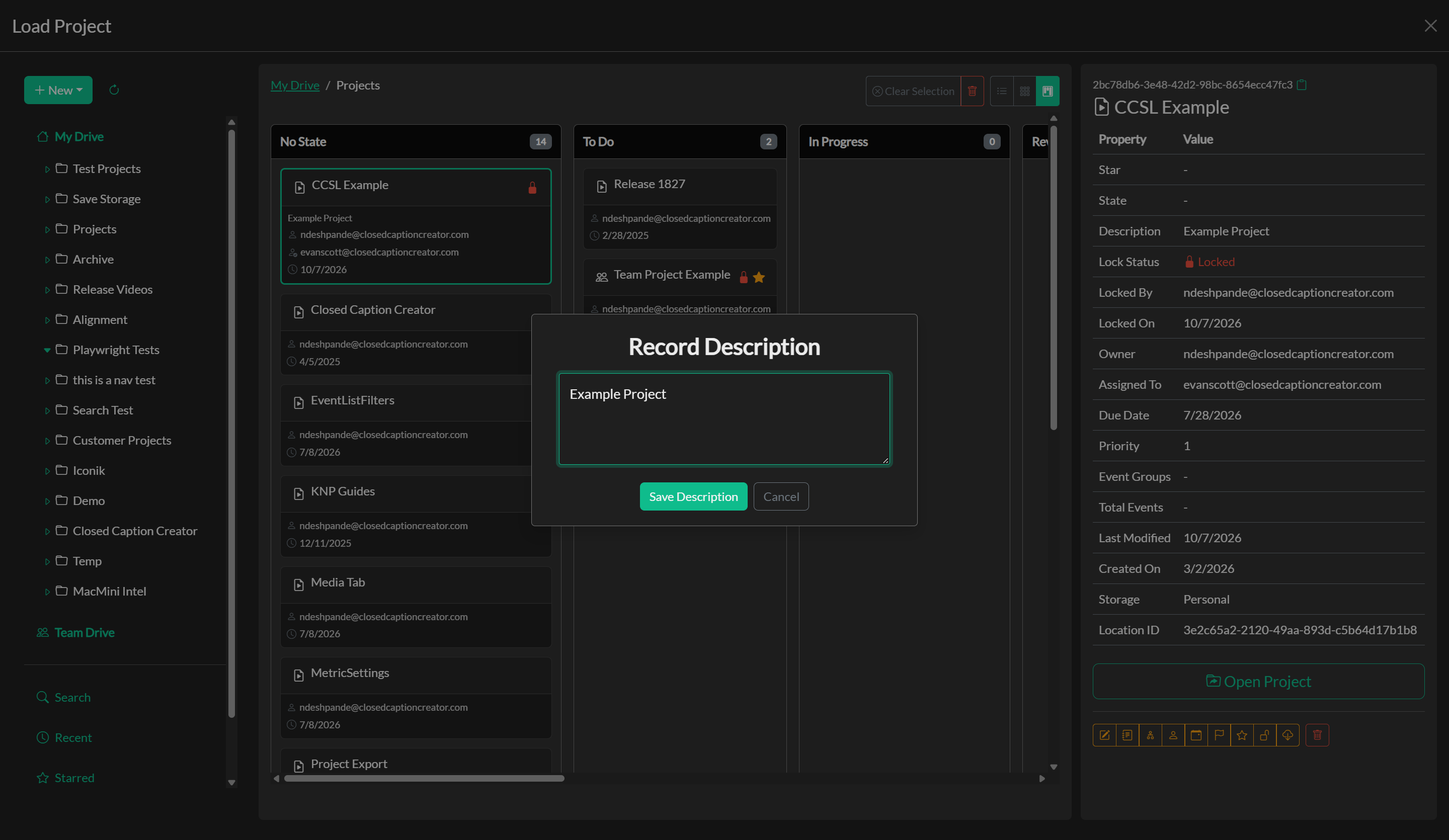
Selecting any record in the Workspace causes the Information panel to populate with details about that record, including the date it was created, when it was last modified, its parent folder location, its description, assignee, due date, priority, and its current workflow state. From the Information panel you can take a range of actions: opening or overwriting the project, renaming the record, editing its description, starring it for quick access, updating its workflow state, assigning it to a team member, setting a due date or priority, and managing lock status to control concurrent editing. For folders, administrators and managers also have access to folder-level permission controls that restrict visibility to specific user groups.
Project descriptions provide a short free-text summary of the record. They can be edited from the Information panel and are preserved with the storage record, making them useful for project notes, delivery context, or handoff details that should be visible before opening the project.
Due Date and Priority
Non-folder project records can also carry an optional Due Date and Priority (a rating from 1 to 10, where a higher number means higher priority). Both fields are edited from the Information panel action toolbar — the calendar icon opens the due date dialog, and the flag icon opens the priority dialog. Either field can be cleared when it no longer applies. Values are stored on the storage record alongside assignment and description, so they remain visible in the Information panel and in Table view without opening the project file.
For a full walkthrough of assignment, due dates, priority, and My Tasks, see Assigning Projects.
Locking Records for Team-Safe Editing
When working in a team environment, you can lock a project record from the Information panel to signal that the project is actively being edited. If another team member opens a locked project, they will be prompted to save their changes as a new copy rather than overwriting the original. This mechanism prevents conflicting edits from being saved over each other and is particularly important for high-value projects where multiple operators might otherwise attempt to save simultaneously.
Troubleshooting
If a team member cannot locate a project, the most common cause is that the project was saved in a different storage context. Confirm whether the project is in Personal Storage or Team Drive, and verify the folder path within that context. If changes appear to have been overwritten unexpectedly, review whether the record was locked before editing began and consider enabling the lock workflow for the affected projects going forward. Because cross-context moves are not supported directly, any project that needs to exist in both contexts must be re-saved as a separate copy.
Related Pages
- Saving Projects
- Loading Projects
- Assigning Projects
- Email Notifications
- Automatic Saving and Snapshots
- Export and Presets