Loading Projects
Opening an existing project in Closed Caption Creator is done through the Storage Explorer or, for frequently accessed work, through the Recent Projects list. Both entry points ultimately load the project file from storage and restore the full project state — including all Event Groups, events, styles, speakers, markers, and metadata — into the editor.
Opening a Project via the Storage Explorer
To open the Storage Explorer, click the Load icon in the main toolbar or navigate to File > Open Project. Once the Storage Explorer is open, browse to the folder containing the project you wish to open. You can navigate through your folder structure using the Workspace area or jump directly to a folder using the Navigation panel on the left.
When you locate the project record, you can open it by double-clicking the record in the Workspace, or by selecting it and clicking the Open Project button in the Information panel on the right. The application will retrieve the project data from storage, load it into the editor, and close the Storage Explorer automatically.
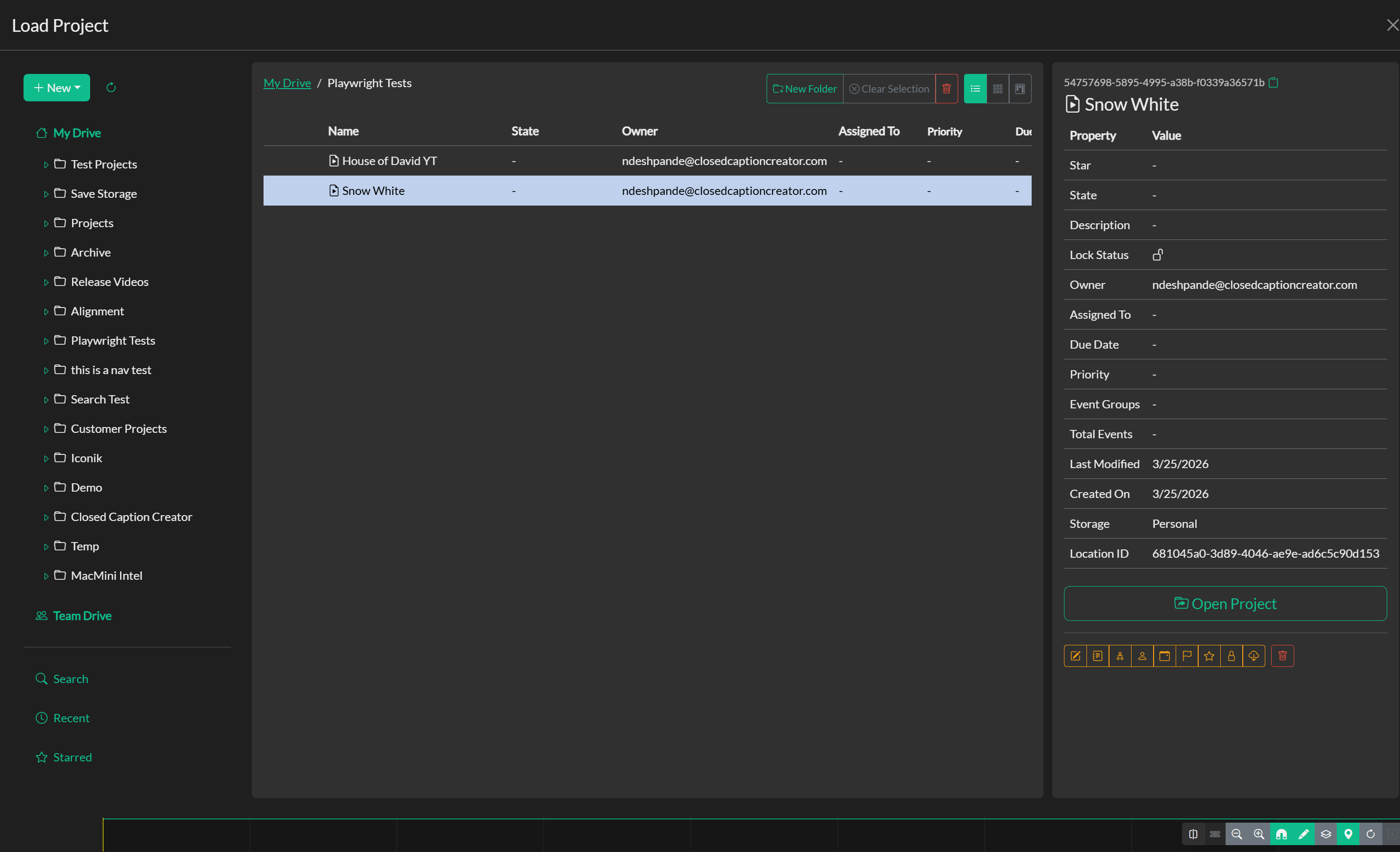
If you are working in online mode and the project record is locked by another team member, you will be notified before the project opens. In this situation the application will offer you the option to open the project and save your subsequent edits as a new copy, preserving the locked original.
Recent Projects
For quick access to work you have opened recently, navigate to File > Recent Projects. This view displays a list of recently accessed project records, allowing you to reopen a project without needing to navigate through the full folder structure in the Storage Explorer. Selecting a record from the Recent view opens it in the same way as opening directly from the Storage Explorer.
Opening Offline Project Files
If you are working with projects saved to your local file system, you can open a .ccprj file by navigating to File > Open Project and selecting the file through the system file dialog (in the Electron desktop app), or by importing the file through the Load Project File dialog in the web version. The project will be reconstructed from the file contents and loaded into the editor.
Troubleshooting
If a project does not appear in the Storage Explorer, confirm that you are browsing the correct storage context — projects saved to Personal Storage are not visible in the Team Drive and vice versa. Also verify that you are looking in the correct folder, as projects are stored at their saved location and do not appear at the root of the drive unless that is where they were explicitly saved. If you receive an error when attempting to open a project, check that the project file in storage has not been deleted or moved outside of the application.