Automatic Saving & Snapshots
Closed Caption Creator includes two background safety systems that work independently of your manual saves: automatic saving, which periodically writes the full project to storage, and automatic backups, which create timestamped Event Group snapshots that can be used to restore work after an accidental change or data loss event. These systems run silently in the background while you work and can be configured to match your preferred intervals and storage destination.
Configuring Automatic Saving and Backups
Both systems are configured from Edit > Options > Automatic Backup. The settings panel is divided into two sections: one for automatic backups (which capture Event Group snapshots on a timed interval) and one for automatic saving (which writes the full project file at a separate interval).
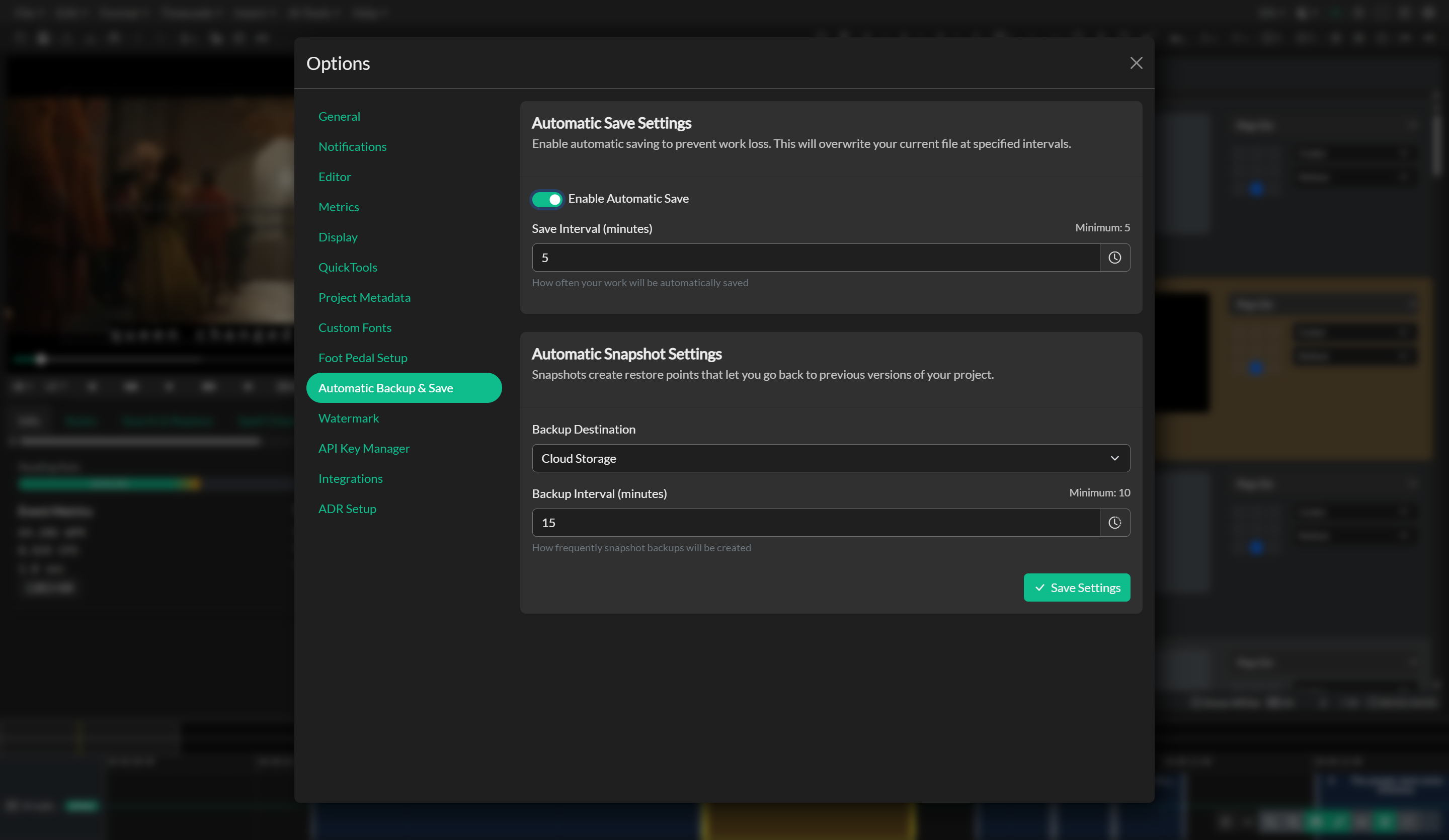
For automatic backups, you can set the backup interval in minutes (the default is 15 minutes), choose between Cloud storage and Local storage as the backup destination, and specify how many backups to retain before the oldest is overwritten. When Local storage is selected, you must also specify a target folder on your machine where the backup files will be written. For online users, backups are stored in a dedicated autosave collection in Firebase Storage and are accessible for up to two weeks.
Automatic saving can be enabled separately from backups. When enabled, you can set the save interval down to a minimum of five minutes. This feature writes the complete project file — not just the Event Groups — to the project's current save location at each interval.
Note that a restart of the application is required after changing these settings for them to take effect.
How Automatic Backups Work
At each backup interval, the application captures a snapshot of all Event Groups and their events in the current project. For online users, this snapshot is uploaded to Firebase Storage and a corresponding record is written to your autosave history, including the project name, the number of Event Groups, the total event count, and the time of capture. For offline (desktop) users, the application writes a .ccprj file to the designated backup folder with a name in the format PROJECTNAME_BACKUP_N.ccprj, where N increments from 1 up to the configured maximum before cycling back to 1.
Automatic backups require the project to contain at least five events before a snapshot will be taken, to avoid generating backups of empty or near-empty projects.
When working in a team context, automatic saving will skip a cycle if the project record is currently locked by another user, displaying a warning notification rather than overwriting the locked record.
Restoring from a Snapshot
To restore Event Groups from an automatic backup, navigate to Help > Restore Event Groups. This opens the Automatic Save panel, which lists all available snapshots for the current project ordered by the most recent capture date. Each entry shows the project name, the capture time, the number of Event Groups, and the total event count, giving you enough information to identify the state you want to restore.
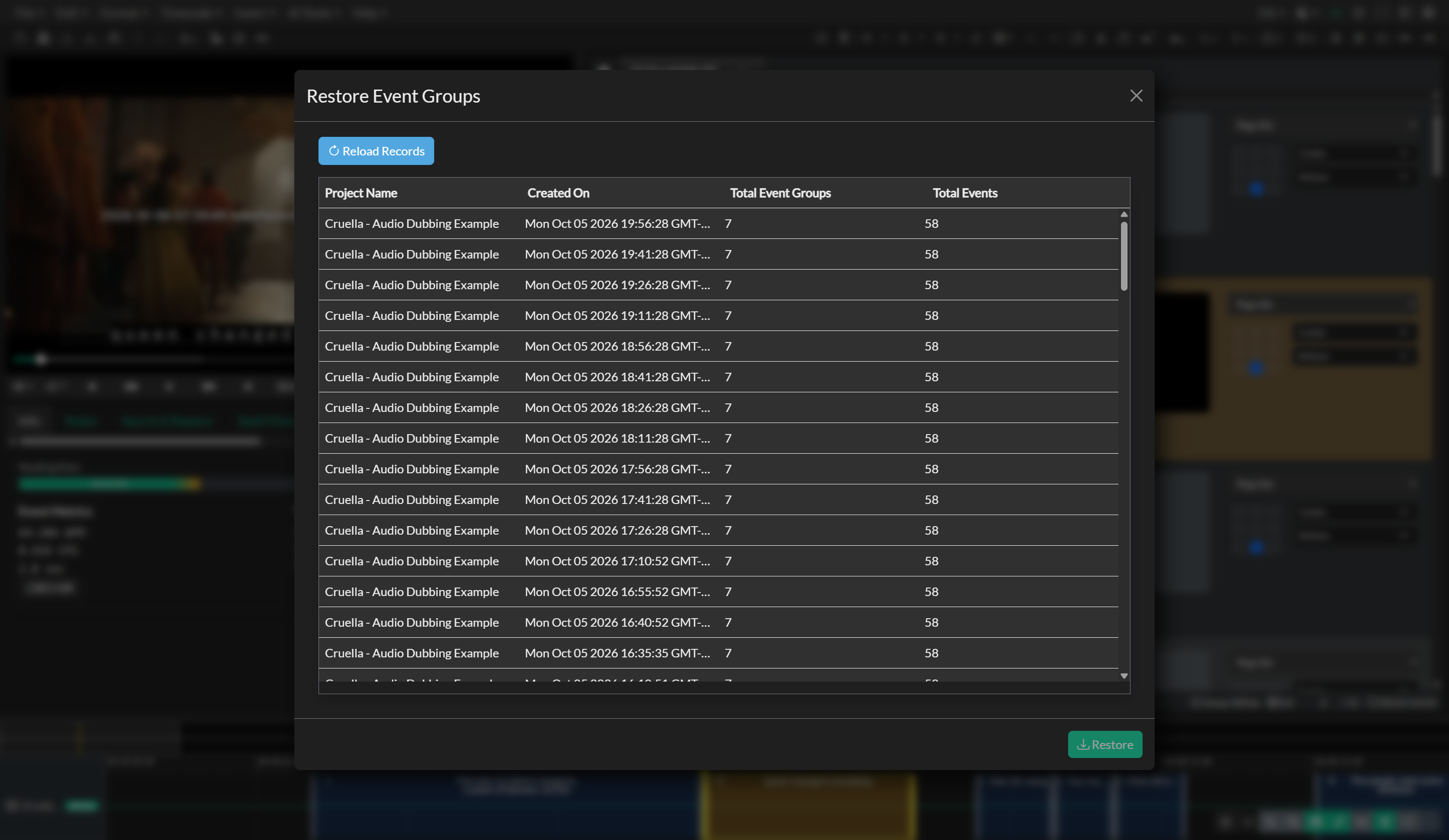
To restore, select the snapshot you wish to recover and click the Restore button, or double-click the record directly. The Event Groups from the selected snapshot will be appended to your current project as new Event Groups, allowing you to review and compare the restored content alongside your existing work before deciding whether to replace or merge it. The restore operation does not delete any current Event Groups.
Troubleshooting
If no snapshots appear in the Restore Event Groups panel, confirm that automatic backups are enabled and that the current project has been open long enough for at least one backup interval to have elapsed. For online backups, verify that you are signed in and that your connection was active at the time the backup would have run. For local backups, check that the configured target folder exists and that the application has write access to it. If the backup interval setting does not appear to be respected, ensure the application was restarted after saving the configuration change.