AI Assistant
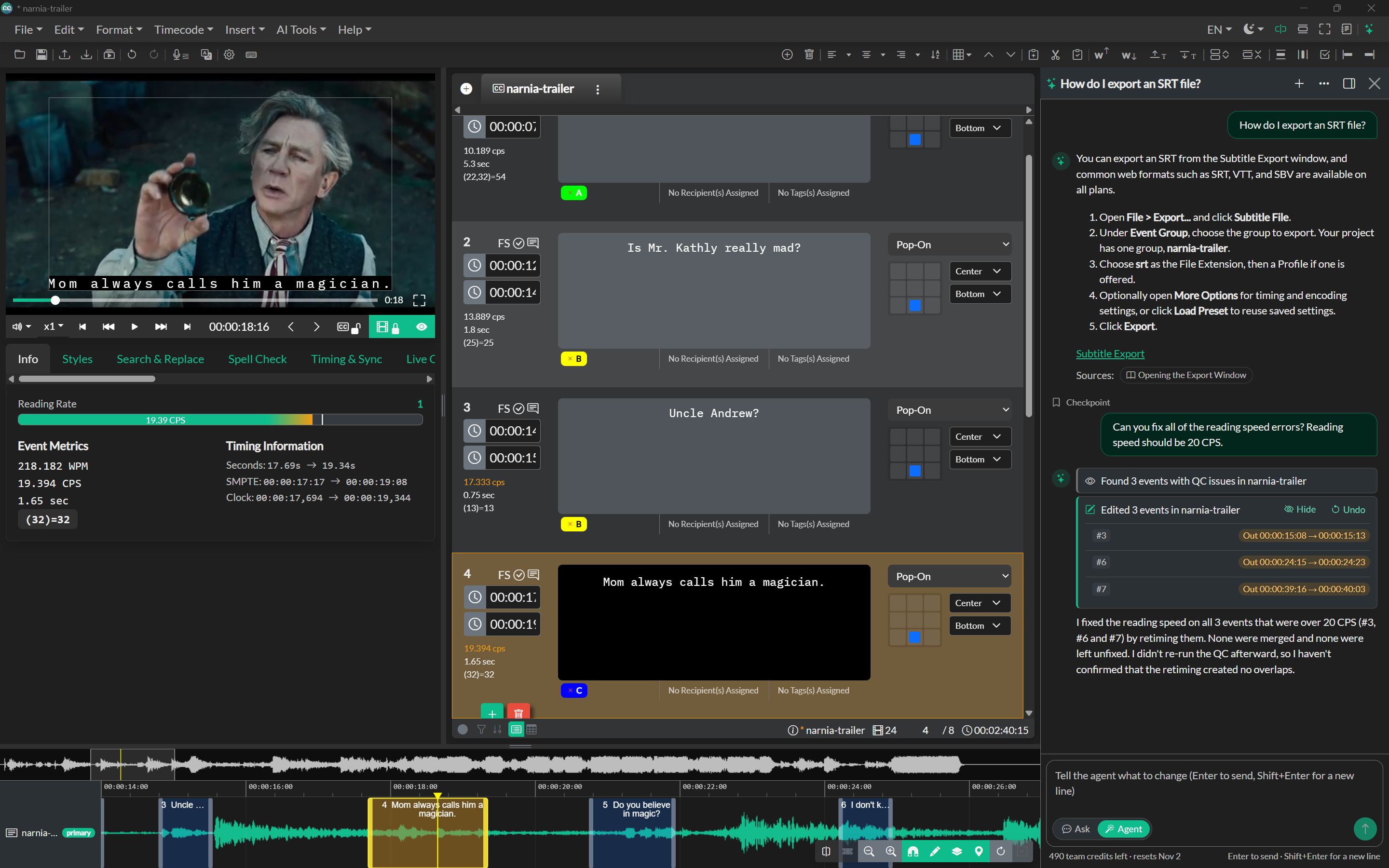
The AI Assistant is a chat panel inside the editor. In Ask mode it answers questions about Closed Caption Creator using this user guide and a read-only summary of your project. In Agent mode it edits the open project for you: fixing QC issues, adjusting timing, cleaning up text, and creating translations.
Quick steps
- Click the AI Assistant button (sparkle icon) at the right end of the toolbar, or press
Ctrl+L(Cmd+Lon Mac). - Choose Ask or Agent under the message box.
- Type your question or instruction and press
Enter. UseShift+Enterfor a new line. - In Agent mode, review the changes in the chat. Click Undo on a change card, or press
Ctrl+Z, to reverse everything the agent did for that prompt.
Availability
The AI Assistant needs an internet connection. The toolbar button is hidden in offline mode.
| Free | Starter | Pro | Enterprise | |
|---|---|---|---|---|
| Ask mode | 10 questions/day | 50 questions/day | 50 questions/day | 50 questions/day |
| Agent mode | No | No | 500 credits/month | Included |
- During a Starter or Pro trial, Ask mode allows 15 questions a day and Agent mode includes 100 trial credits.
- Daily question limits reset at 00:00 UTC. The number of questions left is shown under the message box.
- Agent mode is included with every Pro and Enterprise plan, including plans from before the current pricing. See Subscription Management.
Ask mode
Ask mode is for how-to questions, for example "How do I fix overlapping subtitles?" or "How do I export an SRT file?". The assistant searches this user guide, reads a summary of your project (Event Groups, event counts, settings), and answers with step-by-step instructions. Links to the pages it used are listed under Sources.
Ask mode cannot change your project.
Agent mode
Agent mode makes changes to the open project. Describe the result you want, for example:
- "Fix all reading rate issues."
- "Make sure there is at least a 2 frame gap between subtitles."
- "Translate the subtitles to French in a new Event Group."
- "QC my project and flag problems with event notes."
The agent can:
- Read events, search for text, speakers or tags, and run QC checks on a group.
- Edit event text, timing, notes, tags, approval and forced flags.
- Create and delete events, search and replace, shift timing, auto-format line breaks, and correct reading speed.
- Create a new Event Group (for example a translation linked to its source group) and change a group's settings.
- Move the player, select events, and switch the active Event Group.
The agent replies in the language you write in.
Standard and Deep
In Agent mode, choose Standard or Deep next to the Ask / Agent switch.
- Standard (the default) handles most tasks quickly.
- Deep uses a more capable model for harder tasks, such as large clean-ups or tricky translations. It uses credits about twice as fast.
The choice applies from your next prompt and is remembered on this device. Replies made in Deep mode are tagged Deep in the chat.
Reviewing changes
Each step appears in the chat as an activity card, such as Found 3 events with QC issues or Edited 3 events. Click Review on a card to see before and after text and timing for each changed event, and Hide to collapse it.
While the agent is working on a group, a banner reads Agent is editing group — Stop to edit, and manual edits to that group are paused. Click Stop to end the agent's turn.
Approvals
The agent asks before it:
- Deletes events.
- Changes more than 25 events in one step.
Click Approve to apply the change or Cancel to skip it. Creating a new Event Group never needs approval, because nothing existing is changed.
The agent cannot change locked Event Groups, and it follows your team role: if your role can't edit notes, approvals or tags, neither can the agent.
Undoing agent changes
Everything the agent changes for one prompt is saved as a single undo step. Press Ctrl+Z (Cmd+Z on Mac), or click Undo on the change card. If you edited the same group while the agent was running, the changes may be saved as several undo steps, and the chat tells you so.
If newer changes exist, the Undo button is unavailable. Use Edit > Undo to step back to it.
Limits
- The agent stops after 20 steps for one prompt. Ask it to continue if there is more to do.
- Very long chats can't be continued in Agent mode. Click New chat to start a fresh one.
Agent credits
Agent mode uses credits. Each step uses a small amount based on how much work the AI did. Your remaining credits are shown under the message box, for example 490 team credits left · resets Nov 2.
- Pro includes 500 credits each billing period, shared by everyone on the team.
- Deep mode uses credits about twice as fast as Standard.
- When the included credits run out, extra credits cost $10 per 250 and are billed with your plan, up to a monthly spending limit.
- The account owner sets the limit in
Help > Manage Subscriptionunder AI Agent. Set it to 0 to stop at the included credits.
Chats and checkpoints
Chats are saved on this device and listed per project. Click the history button in the panel header to show past chats, search them, rename them (double-click a title), or delete them. Click New chat (+) to start over.
Before each message, the assistant saves a Checkpoint of the project, shown as a Checkpoint line above the message. Hover the line to see its actions:
- Restore returns the project to how it was before that message.
- Edit & restore restores the project and the chat, then lets you rewrite the message.
- Redo restore reverses a restore. You can also press
Ctrl+Z.
The restore dialog lists which groups and how many events will change. A restore also rewinds edits you made yourself since that checkpoint. Locked groups keep their current content. If the project was changed outside the chat (team sync, an import, or another device), click Download copy to save the checkpoint as a separate project and compare it first.
Checkpoints are kept for 30 days on the device where the chat ran.
Saved prompts
Save prompts you use often so you don't have to type them again. A specific prompt often gets a better result. For example, "Fix all reading rate issues but don't change subtitle text" stops the agent from rewording subtitles to meet the reading rate.
- Save: type the prompt, click the bookmark button next to Send, then click Save current prompt. The prompt is saved with the current mode (Ask or Agent).
- Use: click the bookmark button and pick a prompt, or pick one under Saved prompts on a new chat. The prompt goes into the message box in the mode it was saved in, ready to change or send. It isn't sent until you click Send.
- Remove: click × next to the prompt. Click Undo in the notification to bring it back.
Saved prompts can't be edited. To change one, put it in the message box, change the text, then save it as a new prompt and remove the old one.
Saved prompts are stored with your account and are available in every project. Agent prompts open in Ask mode on plans without Agent mode.
Troubleshooting
"You have reached today's limit"
You have used your Ask questions for the day. The limit resets at 00:00 UTC. Upgrade your plan for a higher limit.
Agent mode asks you to upgrade
Agent mode is included with Pro and Enterprise. On Free or Starter, open Help > Manage Subscription and click Upgrade to Pro in the AI Agent section.
"The AI Agent credits for this billing period are used up"
Your team's included credits are used. They reset at the start of the next billing period. The account owner can allow extra credits in Help > Manage Subscription.
The agent says a group is locked
Unlock the Event Group, then ask the agent to try again.