OCR Media
OCR Media is a built-in feature that uses optical character recognition to extract burnt-in subtitles and on-screen text directly from your video. Instead of retyping captions that have already been baked into a video file, you can let the application scan each frame, recognize the text, and produce a timed list of events ready for editing and export. This is particularly useful when you receive a video deliverable with hard-coded subtitles and need to produce a separate caption file or clean subtitle track.
How It Works
When you start OCR, Closed Caption Creator uses FFmpeg to extract frames from your video at a configurable sampling rate. Each frame (or pair of frames when dual-pass is enabled) is then analysed by the Tesseract OCR engine running entirely on your machine — no cloud upload is required. Consecutive frames that contain identical or near-identical text are automatically merged into a single timed event, and the final results can be imported directly into your project.
Because the process runs locally on your hardware, performance depends on video duration and the sampling rate you choose. Most videos complete processing within a few minutes.
Configuring the OCR Job
To access OCR Media, go to AI Tools > OCR Media.
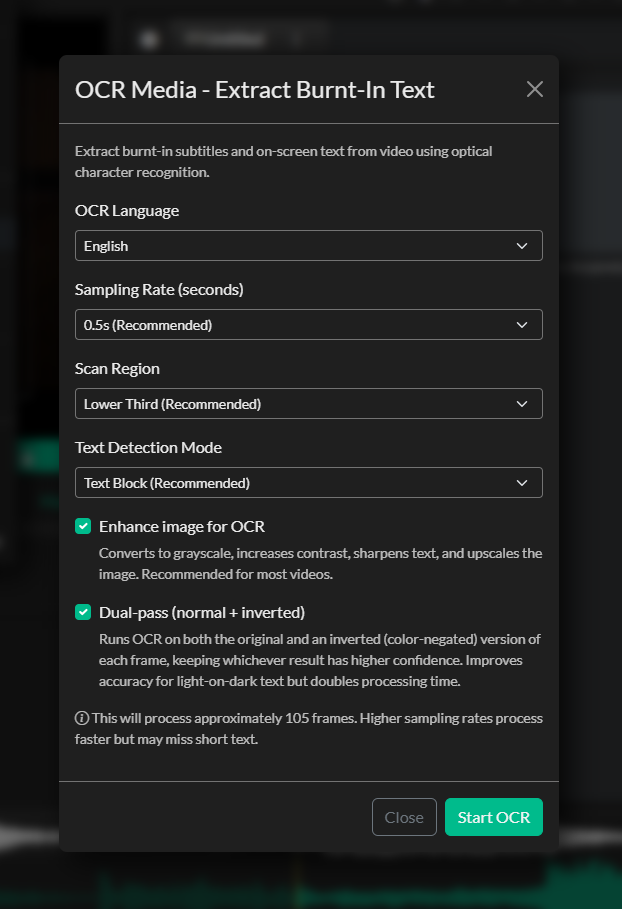
Language
Select the language of the on-screen text. Closed Caption Creator supports 18 languages including English, French, German, Spanish, Portuguese, Italian, Dutch, Russian, Japanese, Korean, Chinese (Simplified and Traditional), Arabic, Hindi, Turkish, Polish, Vietnamese, and Thai. Choosing the correct language improves recognition accuracy for language-specific characters and diacritics.
Sampling Rate
The sampling rate controls how many frames per second are extracted for analysis.
| Setting | Interval | Best for |
|---|---|---|
| High Detail | 1 frame per 0.25 s | Short clips where accuracy is critical |
| Recommended | 1 frame per 0.5 s | Most subtitle extraction work |
| Balanced | 1 frame per second | Longer videos where speed matters |
| Fast | 1 frame per 2 s | Very long content with slow-moving text |
The Recommended rate (1 frame per 0.5 s) is the default and works well for the majority of content. Increase the rate if you find the timing of short events is being missed; decrease it to speed up processing on long-form content.
Crop Region
Restricting OCR to the area of the screen where subtitles actually appear dramatically improves accuracy and reduces false positives from logos, lower thirds, and other on-screen graphics.
| Option | Area analysed |
|---|---|
| Full Frame | Entire frame |
| Lower Third | Bottom ~33 % of frame |
| Lower Half | Bottom 50 % of frame |
| Upper Third | Top ~33 % of frame |
| Center Strip | Horizontal band through the middle |
| Custom | User-defined percentage crop (top, bottom, left, right) |
Lower Third is the default and is appropriate for most traditionally positioned broadcast subtitles. Select Custom if your subtitles are in an unusual position and enter top, bottom, left, and right crop values as percentages of the frame.
PSM Mode (Page Segmentation Mode)
The PSM setting tells Tesseract how to interpret the layout of text within each cropped frame.
| Mode | Description |
|---|---|
| Auto | Fully automatic layout analysis (good general default) |
| Block | Treat the crop as a uniform block of text — recommended for most subtitles |
| Sparse | Find individual text items anywhere in the crop |
| Single Line | Treat the entire crop as a single line of text |
Block mode is the default and produces the most consistent results for horizontal subtitle text.
Dual-Pass OCR
When Dual-Pass is enabled, each frame is processed twice: once with the original image and once with the colours inverted. This helps recover text that would be missed by a single pass — for example, white text on a very bright background, or dark text on a dark background. The results from both passes are combined and deduplicated before import. Dual-pass is enabled by default and recommended unless you need to minimise processing time.
Image Preprocessing
Enabling Image Preprocessing applies a sharpening and contrast enhancement filter to each frame before it is sent to Tesseract. This improves accuracy on blurry, compressed, or low-contrast video. The preprocessing step adds a small amount of time to each frame but consistently improves recognition quality and is enabled by default.
Running OCR
Click Start OCR to begin processing. A progress bar and status message update in real time as the application works through three phases:
- Extracting Frames — FFmpeg writes individual frame images to a temporary folder.
- Running OCR — Tesseract analyses each frame and outputs recognised text with confidence scores.
- Aggregating Results — Consecutive frames with matching text are merged into single timed events.
You can click Cancel at any time to stop processing. The temporary files created during extraction are cleaned up automatically when the modal is closed or when a new OCR job is started.
When processing completes, the recognised events are displayed in the results list. Each entry shows the start time, end time, recognised text, and position on screen.
Reviewing and Importing Results
After OCR completes, review the results list to verify accuracy before importing. You have two import options:
Import as Markers
Imports each recognised text event as a named marker in a new marker list. Use this option when you want a visual reference on the timeline without creating an editable caption track — for example, to guide manual captioning or to check synchronisation against existing events.
Import as Event Group
Creates a new subtitle Event Group containing all recognised events. This is the most common workflow: the Event Group is added to your project, where you can review timing, correct OCR errors, apply formatting, and export the captions in any supported format.
After importing as an Event Group, use the editor to spot-check the recognised text, correct any misread characters, and adjust timing where needed before export.
Tips for Best Results
- Crop aggressively. The smaller the area Tesseract analyses, the less noise it has to work through. If your subtitles are always in the lower third, use the Lower Third crop rather than Full Frame.
- Use the correct language. OCR accuracy drops significantly when the selected language does not match the on-screen text.
- Enable dual-pass for stylised text. White text with a black drop-shadow, coloured karaoke text, or titles with complex backgrounds all benefit from dual-pass processing.
- Check high-motion sections manually. Fast camera movement or animation can blur frames enough that OCR misses or garbles text. Always review the imported Event Group and fix any events that fall in these sections.
- Review low-confidence frames. Events with short or unusual text may be OCR artifacts from non-subtitle graphics. Delete any events that do not represent genuine subtitle text before exporting.