Users & Groups
The Team Management Dashboard is the central administration area where account owners configure their team, manage user accounts, define roles, and organize members into groups. It is accessible to administrators via Help → Team Management and is only available to users with an admin role on an active Pro or Enterprise plan.
Creating Your Team
When you open Team Management for the first time, you will be prompted to create your team before any other configuration is possible. Clicking Create Team provisions a new team workspace associated with your account. This is a one-time action — once your team exists, the full management interface becomes available immediately.
Managing Users
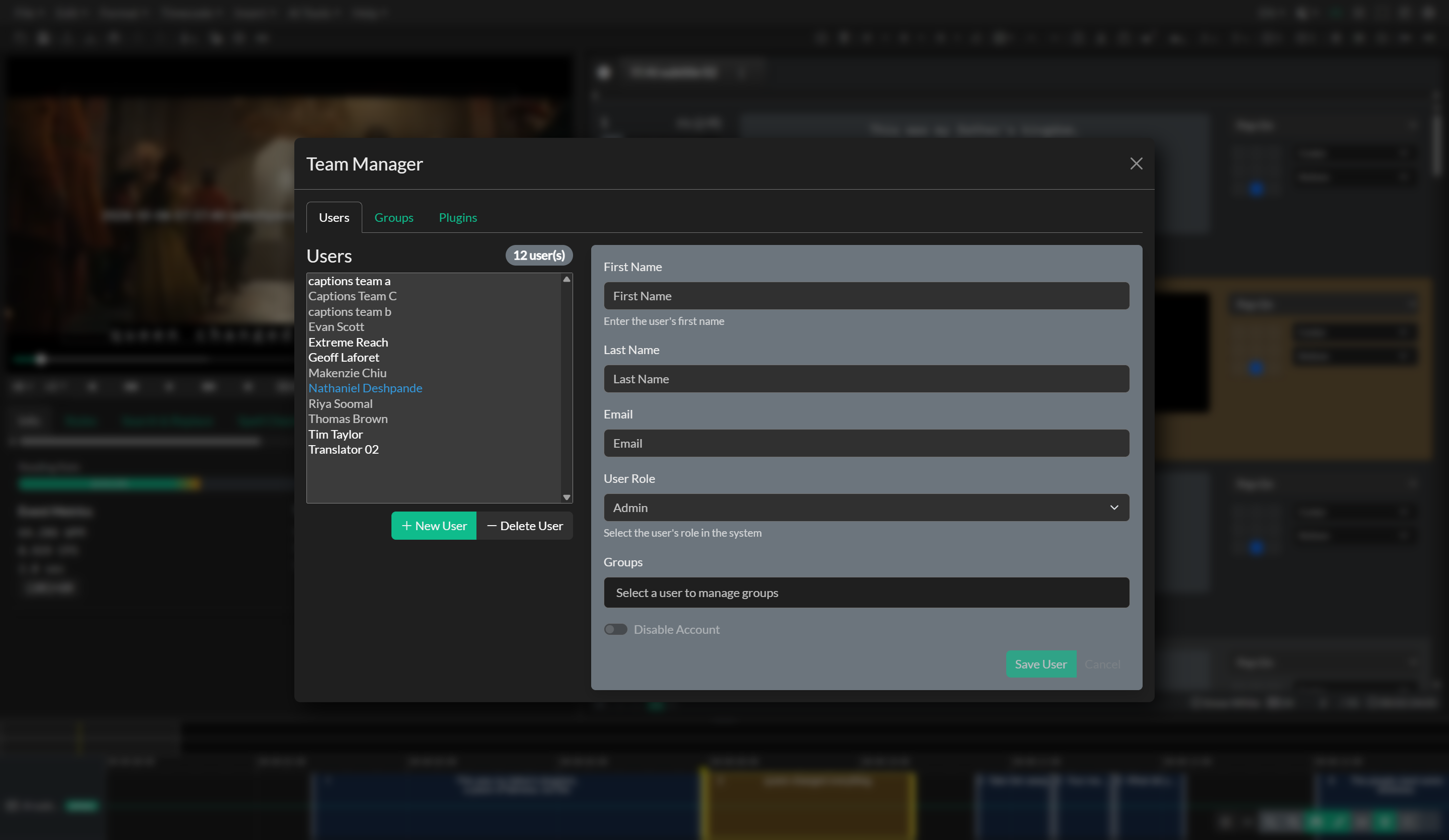
The Users tab is divided into two panels. The left panel displays a scrollable list of all current team members. Administrators are highlighted in the list to make them easy to identify at a glance, and any accounts that have been disabled appear in a muted style. The right panel shows the detail form for the selected user.
To add a new team member, click New User and fill in their first name, last name, and email address. The email address can only be set when creating a new user and cannot be changed afterwards. Once you click Save User, the new member will receive a welcome email with instructions for getting started, and you will receive a confirmation that the account has been created.
To remove a team member, select them from the list and click Delete User. Note that the account owner cannot be removed. If you need to prevent a user from accessing the application without permanently deleting their account — for example, a contractor whose engagement has ended — you can use the Disable Account toggle on their profile. Disabled accounts remain in the team list but cannot be used to sign in.
User Roles
Every team member is assigned one of four roles, which determines what they can access and configure within the application. The role is set in the user detail form under the Role dropdown.
Admin is the highest-privilege role. Admins have unrestricted access to all team features, including Team Management, all storage contexts, and all project records regardless of folder-level group restrictions. There can be multiple admins on a team. Team admins also configure the player watermark for every member of the team in Edit → Options → Watermark. See Video Watermarking.
Manager shares the same elevated storage access as the Admin role — managers can view and interact with all team folders and records even when those folders are restricted to specific groups. Managers cannot access the Team Management Dashboard itself.
Editor is the standard working role for captioners, translators, and other production staff. Editors can access the full editor and all project features, but their visibility into the team storage is limited by the group memberships assigned to their account.
Viewer is a read-only role intended for reviewers, clients, or QC personnel who need to inspect projects without making direct edits.
Groups
Groups allow you to organize team members by function, language, department, or any other criteria relevant to your production workflow. They are managed in the Groups tab of the Team Management Dashboard.
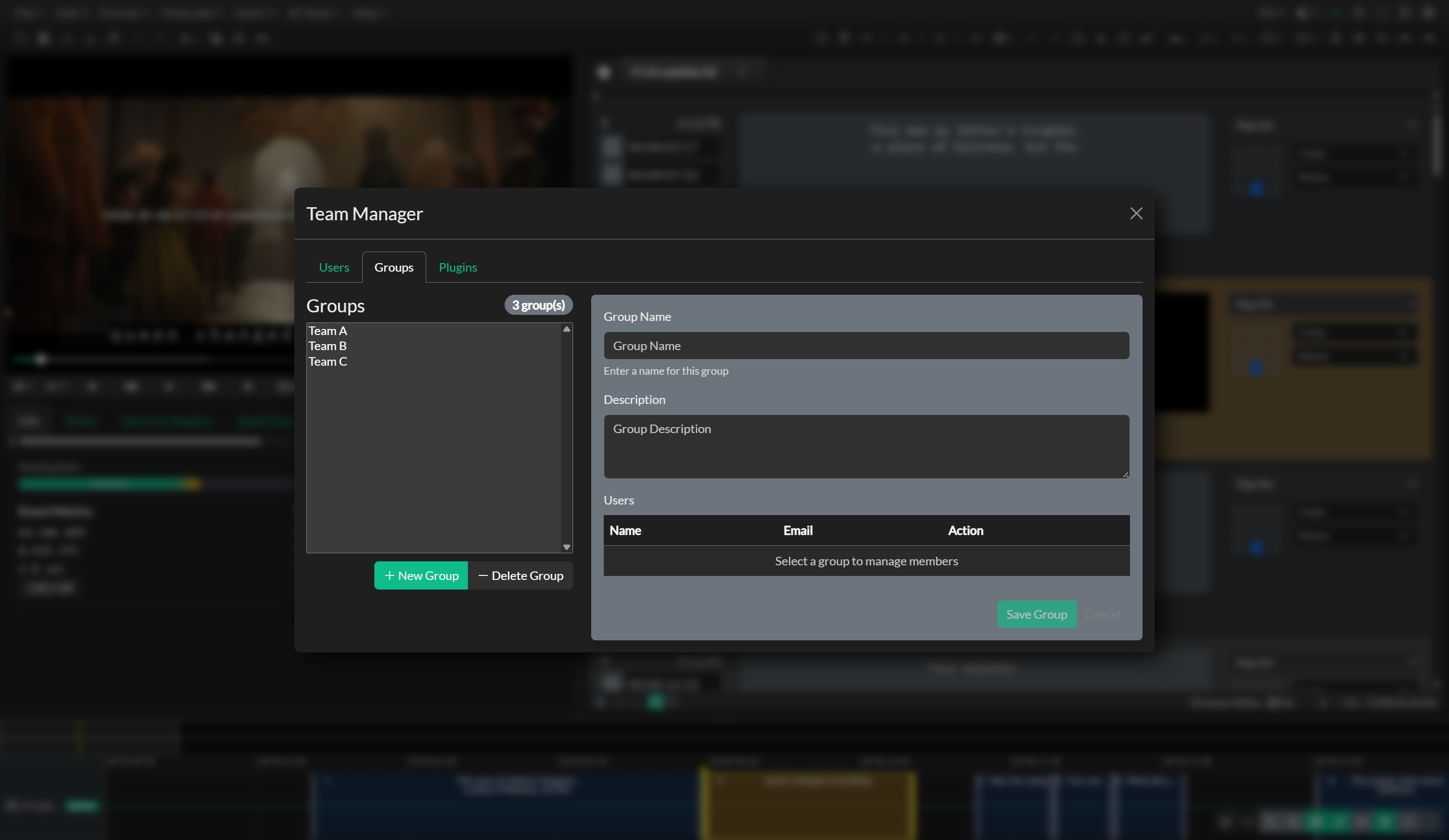
To create a group, click New Group, provide a name and an optional description, and click Save. Once the group is saved, you can add and remove members from within the group detail panel. Member assignments are bidirectional — when you add a user to a group, that group is also reflected on the user's own profile, so you can manage membership from either direction.
When a group is deleted, all member references are automatically cleaned up across every user profile, so there is no need to manually reassign members beforehand.
Groups have a direct effect on what content team members can see in the Storage Explorer. Team folders can be configured to restrict access to one or more specific groups, meaning only members of those groups — along with admins and managers — will be able to see those folders and the projects inside them. See the Permissions page for a full explanation of how folder-level group access works.
Audio Description Plugin Assignments
If your team has Audio Description Plugin licenses, an additional Plugins tab will appear in the Team Management Dashboard. This tab displays a list of all team members alongside a toggle that controls whether each user has access to the AD Plugin features. A license usage badge at the top of the tab shows how many of your available seats are currently in use, and the system will prevent you from enabling more users than your license count allows.