Subscription Management
Subscription and licensing control feature access, online workflows, and account billing operations. You can sign up, start a trial, activate a license, download invoices, and cancel from the in-app portal.
If you do not have an account yet, start with Sign Up & Installation.
Prerequisites
- You can sign in to the account tied to your subscription.
- For cloud features, use online mode with valid account credentials.
Navigation paths
- Manage billing/subscription portal:
Help > Manage Subscription - Offline licensing workflows:
Help > Offline Activation - Usage/reporting workflows:
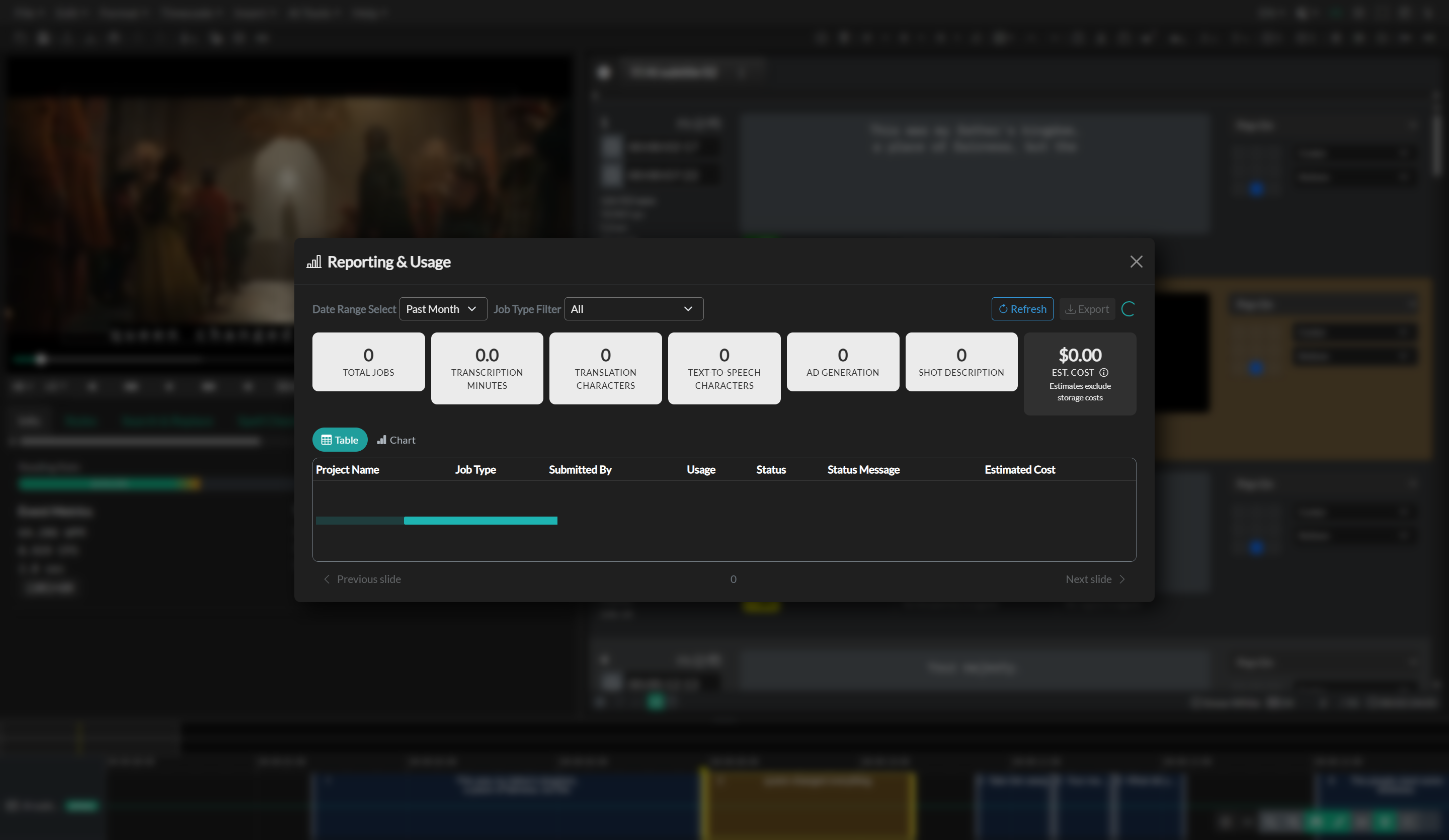
Help > Reporting Usage
Plans
| Free | Starter | Pro | Enterprise | |
|---|---|---|---|---|
| Price | $0 | $35/month or $350/year | $75/month or $750/year | Custom |
| Users | 1 | 1 | 3 included, then $10/month per user | Unlimited |
| Caption editor, timeline, automatic QC | Yes | Yes | Yes | Yes |
| Subtitle file import | All formats | All formats | All formats | All formats |
| SRT, VTT and TXT export | Yes | Yes | Yes | Yes |
| All other exports (SCC, MCC, EBU-STL, burnt-in video, transcripts, dialogue lists…) | No | Yes | Yes | Yes |
| Automatic transcription | No | 300 min/month | 600 min/month | Custom |
| Machine translation | No | No | 500,000 characters/month | Custom |
| 608/708 embedding, team projects, iconik, Work Order API | No | No | Yes | Yes |
| AI Assistant (Ask) | 10 questions/day | 50 questions/day | 50 questions/day | 50 questions/day |
| AI Agent | No | No | Included: 500 credits/month, extra credits available | Included |
The Audio Description Plugin is a $50/month add-on that covers every user on a Starter or Pro plan.
Enterprise is provided through Closed Caption Unity.
Lifetime licences are a one-time alternative to a subscription: Starter Lifetime ($2,000) and Pro Lifetime ($3,000) cover the desktop editor for one user on up to 2 computers, with 12 months of updates and optional yearly renewal. They don't include automatic transcription, translation, AI tools, team projects, the web app or the Audio Description Plugin. See Offline Activation.
If you subscribed before the current pricing, you keep your price and the features of your plan for as long as the subscription stays active.
When you open a tool your plan does not include, the app explains that it needs an upgrade and links to the plans.
Trial, activation, and export
Starter and Pro start with a 7-day Trial. During the trial:
- SRT, VTT and TXT files and burnt-in video export normally.
- Other exports (SCC, MCC, EBU-STL, image sequences, transcripts, dialogue lists, embedded captions, and more) replace part of the text with TRIAL VERSION until you activate.
- Automatic transcription, translation and embedding are limited to a few jobs each.
- Promotional codes from a course or university program do not begin. For example, a promo that grants one month of access starts only after you activate. Activating ends the unpaid trial and starts the promo or paid term.
Open Help > Manage Subscription and choose Activate Subscription to end the trial early and remove these limits.
If a trial ends without being activated, your account moves to the Free plan. You keep access to the app and your projects, can import any subtitle format, and can export SRT, VTT and TXT files. Upgrade at any time for the other exports.
Once a license is active, you can view and download invoices from the same portal.
Workflow 1: Verify plan access
- Sign in with the subscribed account.
- Open your project and verify required feature availability (plan-gated tools and workflows).
- If features are unavailable, refresh session and re-check account context.
Validation checks
- Expected plan-level features are enabled.
- Team/owner context appears correctly for shared accounts.
Workflow 2: Manage billing and account changes
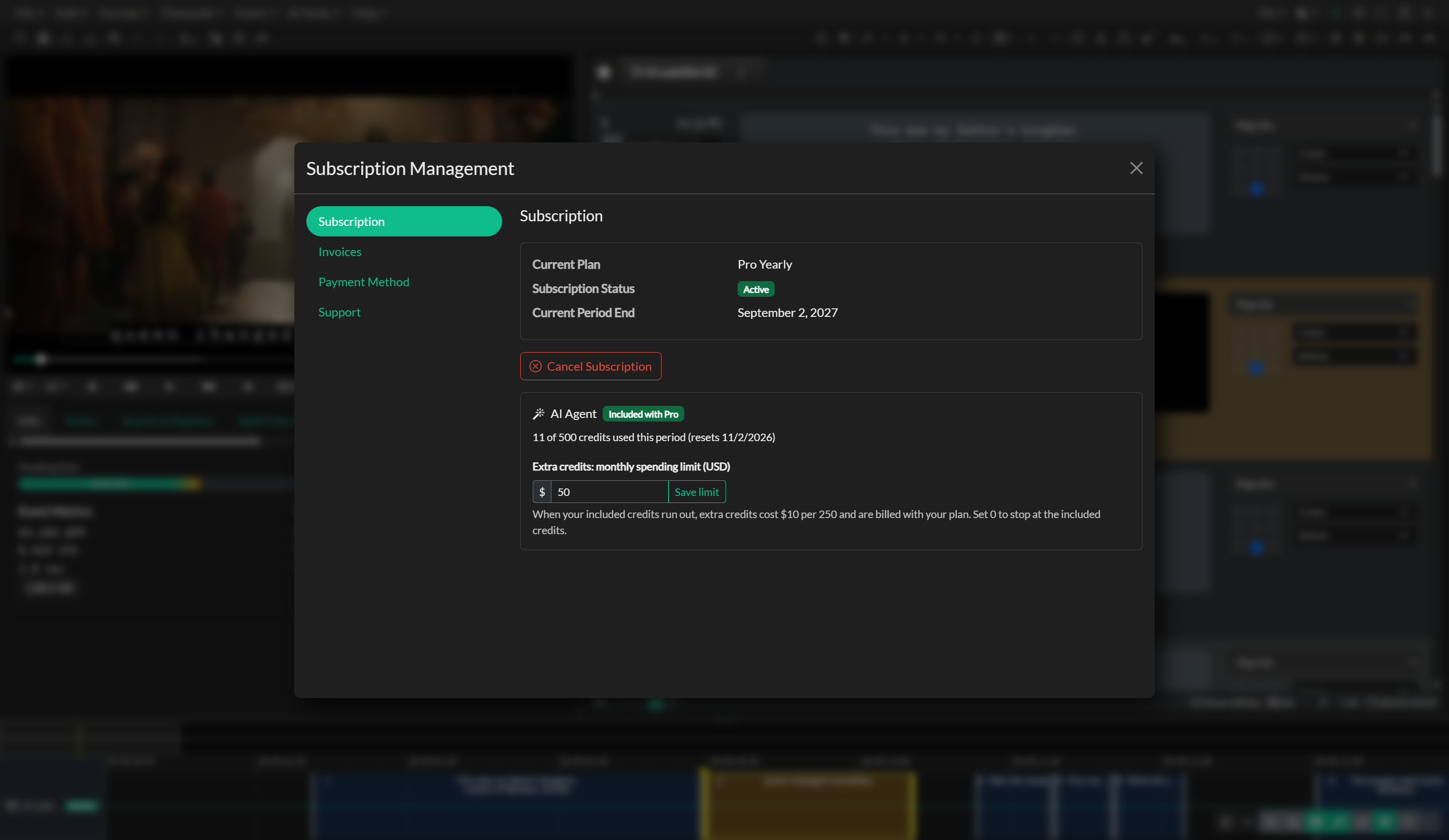
- Open
Help > Manage Subscription. - Complete billing updates in the self-serve portal, including activating a trial, adding plugins, or applying a promotional code.
- Return to the app and refresh session state.
Validation checks
- Billing portal actions complete successfully.
- Updated subscription status is reflected in app access.
- Export becomes available after activation.
Canceling a subscription
If you do not want to continue after the trial or a paid term, open Help > Manage Subscription and choose Cancel Subscription. You will not be charged for the next term.
Licenses are canceled at the end of the current term. You can continue to use Closed Caption Creator until the license expires. There is no immediate cutoff when you cancel.
The Free plan has nothing to cancel. Use View plans in Help > Manage Subscription to upgrade instead.
Workflow 3: Offline and support-assisted activation paths
- Open
Help > Offline Activationfor desktop/offline licensing workflows. - Follow activation prompts and provide requested identifiers.
- If activation issues persist, use support channels for manual review.
See Offline Activation for the full Machine ID workflow.
Validation checks
- Offline activation status updates correctly.
- Required workflows are available in the intended deployment mode.
Troubleshooting
Feature access does not match your plan
- Confirm you are logged into the correct account.
- Re-open app/session and retry.
- Use
Help > Manage Subscriptionand verify active status in portal.
Activation prompt keeps appearing
- Complete subscription activation in the self-serve portal.
- If unresolved, contact support with account/subscription context.
Exports contain the word TRIAL
- During a trial, formats other than SRT, VTT, TXT and burnt-in video carry the trial text. Open
Help > Manage Subscriptionand activate the subscription. - The Free plan exports SRT, VTT and TXT only. Other exports ask you to upgrade.
- If you signed up with a promo code, activate first so the promo term can start.
Cannot add another team member
- Pro includes 3 users. The account owner can add more in
Help > Team Managementwith Add users ($10/month or $100/year each, prorated), then invite them. Teams on a plan from before the current pricing have no user limit. - Free and Starter are single-user plans. Upgrade to Pro for a team.
Team account shows incorrect ownership context
- Re-authenticate and confirm owner/team assignment with admins.
Billing support
If you need help managing your subscription, email billing@closedcaptioncreator.com or use the contact form on the Closed Caption Creator website.