Events, Event Groups, and Project Settings
Understanding Events and Event Groups is essential to working efficiently in Closed Caption Creator. This organizational structure allows you to manage multiple deliverables within a single project while maintaining clear separation between different workflow types, languages, or delivery formats.
What are Events and Event Groups?
Events are the fundamental building blocks of your project. Each Event represents an individual timed entry that includes text content, start and end timecodes, style information, and metadata such as reading speed metrics. Events can represent subtitles, captions, audio description narration, transcript segments, or translated text depending on your workflow.
Event Groups are collections of Events organized by workflow type and purpose. A single project can contain multiple Event Groups, and each Event Group can contain multiple Events. This structure provides powerful flexibility for managing complex projects with multiple deliverables, allowing you to keep everything organized within a single project file rather than managing separate files for each language or delivery format.
Event Group types
Closed Caption Creator supports five primary Event Group types, each designed for a specific workflow and deliverable.
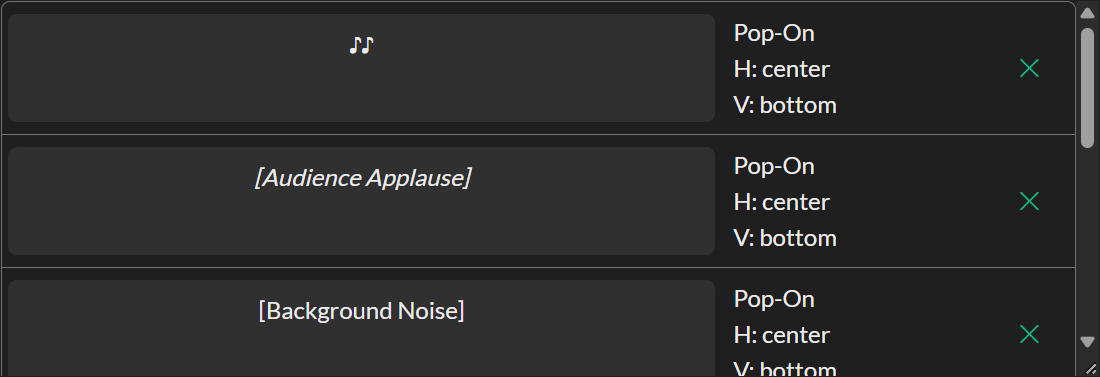
Subtitle Event Groups are used for creating subtitles and closed captions for broadcast and digital distribution. Events in a Subtitle group display four columns: metadata including Event ID and reading speed metrics, start and end timecodes, the text content with formatting support, and caption style and position controls. The caption style options support pop-on, roll-up, and paint-on captioning modes, which are essential for broadcast formats such as SCC and MCC. If you rarely change style or on-screen position, enable Collapse Position and Caption Style under Edit > Options > Editor (Editor List) to replace that fourth column with compact icons and give more room to the text, speakers, recipients, and tags. See Editor Options.
Transcription Event Groups are optimized for creating transcripts with speaker identification. Events in a Transcription group display two columns: the first shows the Event ID, speaker assignment with color coding, and timecodes, while the second provides a larger text input area. You can add and manage speakers, assign colors to each speaker for easy visual identification, and create detailed transcripts that track dialogue across multiple speakers.
Translation Event Groups are designed specifically for translation workflows. These Events look nearly identical to Subtitle Events but include an additional reference display showing the text from a linked source Event Group. This side-by-side display makes it easier to create and review translations while maintaining context from the original language.
You can create a linked pair by importing a source file and a translated file together with Translation File Import (File → Import → Translation), by running Automatic Translation on an existing group, or by creating a Translation Event Group and choosing a Linked Group.
Original (source) text is read-only by default. Enable Allow Original Text Editing in Event Group Settings when translators need to correct the source language alongside the translation. The same setting makes the Original column editable in Table View after you show that column.
You can set or change the Linked Group in Event Group Settings at any time. Linking stores the relationship only; use Event Group Sync from Event Group Options to copy timing, source text, and other selected properties between groups.
Audio Description Event Groups support audio description authoring with virtual voice preview capabilities. Events in an Audio Description group display the Event ID, duration, start time, and a Speed slider in the first column, with the text input in the second column. When you enter text and set a timecode, Closed Caption Creator will render the audio using your selected virtual voice and automatically calculate the duration. You can adjust Speed (0.5–2) to fit the audio within available gaps in the program.
Audio Dubbing Event Groups hold source text and dubbed text in two columns. You create one from File → New → Event Group… with Group Type set to Audio Dubbing and a required Linked Group (captions or a translation). Voices render the dubbed (target) column as text-to-speech, which you can mix over a music-and-effects stem and export from File → Export → Audio Dubbing. See Audio Dubbing. This type is available when the Audio Description plugin is enabled, or when you are offline.
Creating and configuring Event Groups
When you create a new project, you can configure the default Event Group that will be created along with your project. Under the Event Group step in the New Project wizard, you can select the Event Group type, assign a display name, set the language, and choose the text direction for right-to-left or left-to-right languages. The same step includes a Standards section for Realtime Error Detection thresholds (reading rate, characters per line, duration limits, overlap, and illegal-character checks). You can fill those fields by choosing a built-in or saved standards preset — North American Broadcast and European Teletext are always available — or enter values manually. Your last-used settings are remembered the next time you create a project or Event Group.
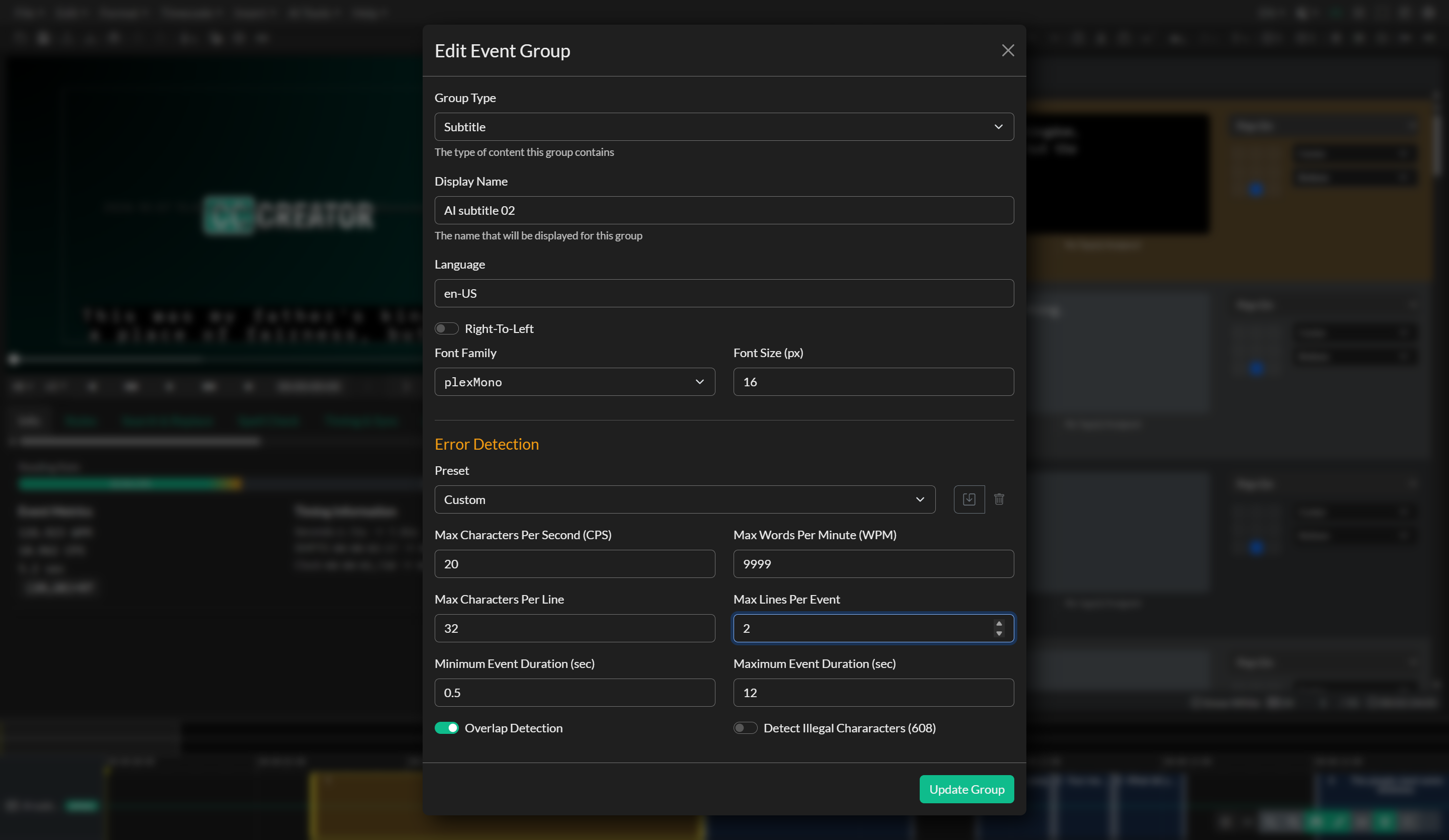
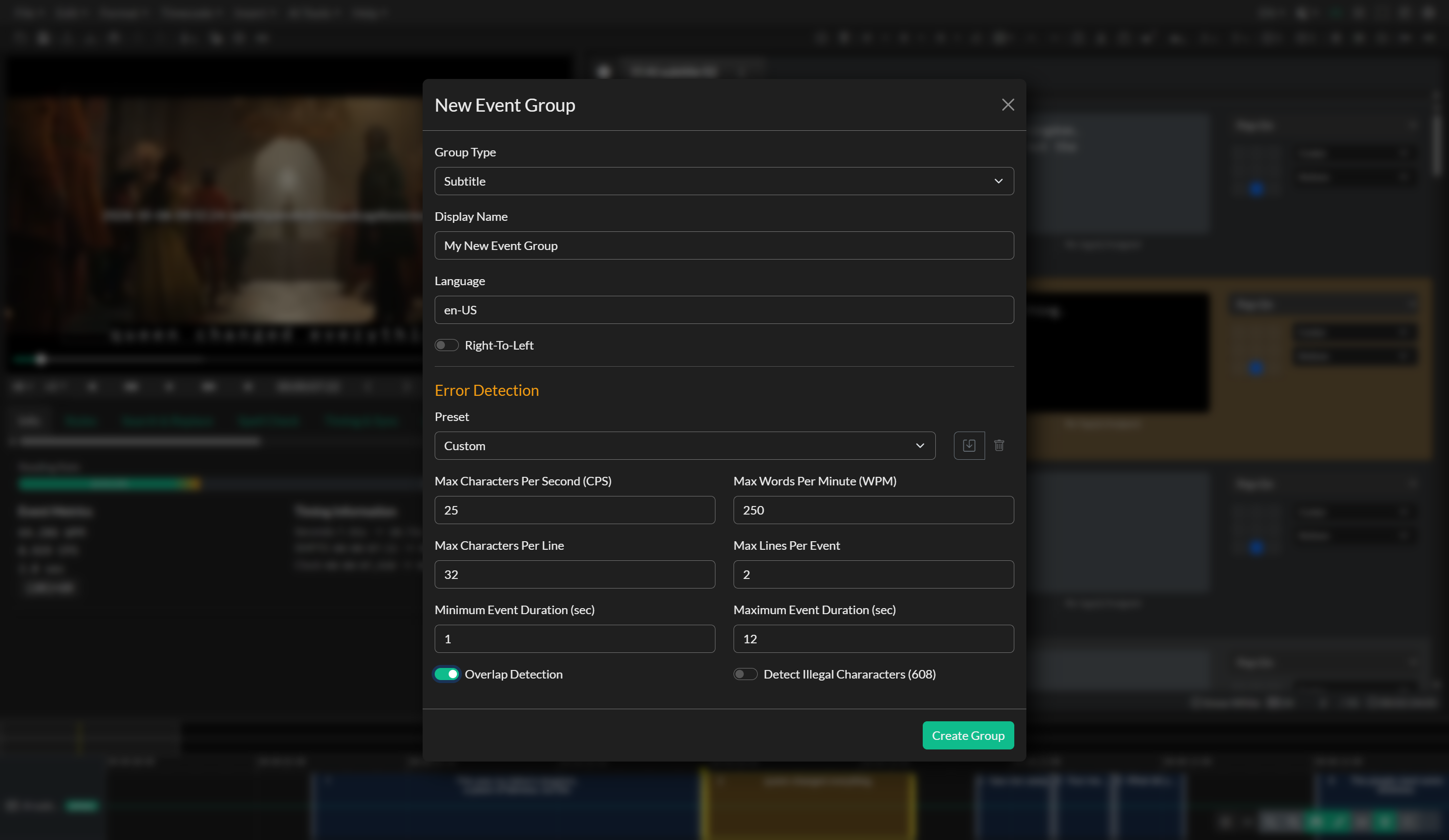
After your project is created, you can add additional Event Groups at any time by navigating to File and selecting New Event Group, or by clicking the plus icon at the top of the Event editor. This allows you to build out multilingual projects, maintain multiple versions for different delivery platforms, or separate your workflow into distinct phases such as transcription, translation, and final subtitle formatting.
Each Event Group appears as a tab in the Event editor, with an icon indicating the Event Group type and a display name you assign. You can easily switch between Event Groups to view and edit different sets of Events without leaving your project.
Within the Event editor you can switch between List View (per-Event cards) and Table View (a spreadsheet-style grid of the same Events). Use the List / Table toggle in the project info bar above the Event List. Both modes share the same Event Group data, selection, filters, and undo history. See Table View for columns, customization, and inline editing.
Events inside a group can also be assigned to tracks A–D so mixed subtitle types (for example forced narrative and dialogue) appear in separate columns. See Event Group Tracks.
Managing Event Groups
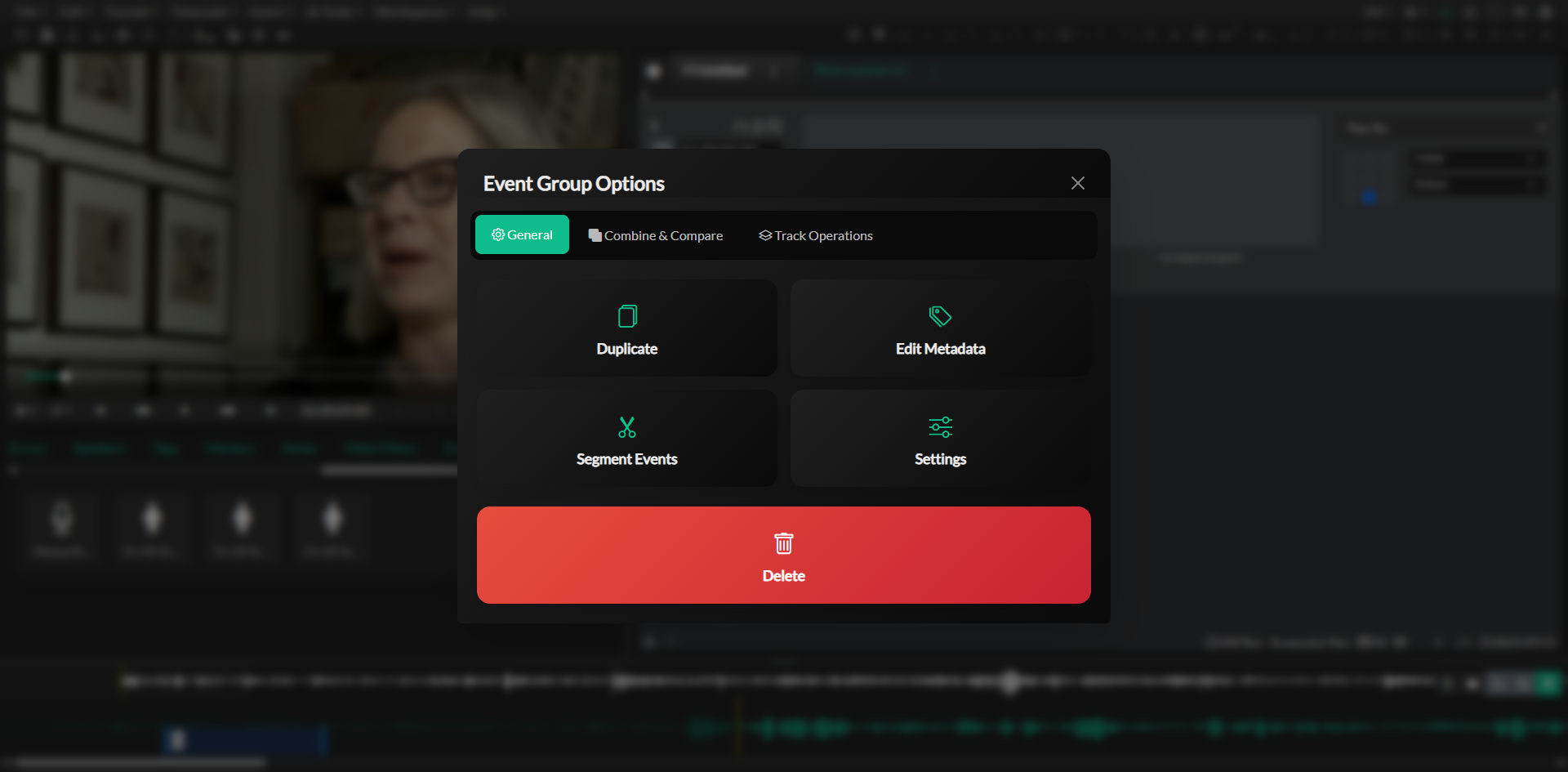
Closed Caption Creator provides several tools for managing Event Groups throughout your project lifecycle. You can delete Event Groups by clicking the menu icon beside each Event Group tab and selecting Delete. This is useful when removing outdated versions or consolidating your project structure.
Event Groups can also be duplicated, which creates an exact copy of all Events within the group. This is particularly useful when you need to create variations of the same content or when starting a translation workflow based on an existing subtitle group.
The merge function allows you to combine Events from two Event Groups into a new Event Group. This is helpful when multiple team members have worked on different segments of the same deliverable and you need to consolidate their work.
You can also copy and paste Events between Event Groups. Select one or more Events within an Event Group, copy them using the context menu, and paste them into any other Event Group regardless of type. This flexibility makes it easy to repurpose content across different deliverables and workflow types.
Locking Event Groups
Event Group lock freezes caption content and timing so a reviewer can annotate Events without accidentally changing the deliverable. Lock applies per Event Group — other groups in the same project remain editable.
How to lock or unlock
- Click the menu icon (three dots) on the Event Group tab you want to protect.
- Open the General tab in Event Group Options.
- Click Lock (above Delete).
When the group is locked, the same control becomes Unlock and is highlighted with a warning style so the locked state is obvious. A lock icon also appears next to the Event Group name on its tab.
Unlock the same way: Event Group Options → General → Unlock.
What stays editable when locked
Review tools remain available so QC and feedback can continue:
- Event notes and replies, including their Mark Complete toggles
- Event approval (approved / disapproved / unset)
See Event Approval and Notes for the review workflow.
What is blocked when locked
While locked, Closed Caption Creator prevents changes to authoring content and structure for that group, including:
- Event text and original (source) text, formatting, speakers, tags, recipients, position, caption style, and forced-subtitle flags
- Start and end timecodes, including Timeline drag, resize handles, and draw-to-create
- Add, remove, split, merge, and similar structure tools
- Event Group Settings and other options such as Delete, Merge, and Segment (Settings and transforms stay unavailable until you unlock)
- Undo / redo and other mutating shortcuts for that group
Playback, selection, navigation, export, and copy remain available. Notes and approval can still be updated as described above.
Typical review use
A common pattern is to lock the Event Group after drafting, then hand the project to a reviewer. The reviewer can approve or disapprove Events and leave notes without shifting timings or rewriting text. After unlock, the author addresses feedback and re-locks if another review pass is needed.
Project settings and Event Group settings
Project-level settings define fundamental parameters such as frame rate, media behavior, and export expectations that apply across your entire project. These settings ensure that all Event Groups maintain consistent technical specifications aligned with your delivery requirements.
Every Event Group carries its own type, language, font, and quality-control rules. Those settings drive how the group is displayed and how its Events are checked. If you work on projects with more than one group — a subtitle group alongside an audio description group, or one group per language — this is where you keep them straight.
Opening Event Group Settings
- Click the menu icon on the Event Group tab you want to change.
- In Event Group Options, open the General tab and choose Settings.
- The Edit Event Group window opens with the fields below.
A locked Event Group must be unlocked before Settings can be opened.
Group Type
Group Type tells Closed Caption Creator what kind of content the group holds: subtitle, audio description, audio dubbing, transcription, or translation. Set it correctly before you start writing, because it determines how the group behaves elsewhere in the project.
Display Name, Language, and Right-To-Left
Display Name is the label shown on the Event Group tab, so give each group a name you will recognize at a glance in a multi-language project. Language takes a standard language code such as en-US. Right-To-Left flips the display for languages such as Arabic and Hebrew.
Font Family and Font Size
Font Family and Font Size only affect how Events are rendered in the Event List. They are a readability preference while you work, not a styling choice that carries into your exported file.
Error Detection
The Error Detection section holds the quality-control limits the Event List checks against: maximum characters per second, maximum words per minute, maximum characters per line, maximum lines per Event, minimum and maximum Event duration, overlap detection, and illegal character detection for 608. Start from a preset such as North American Broadcast and adjust from there. Changing any individual value switches the preset to Custom, which is expected — the preset is a starting point, not a lock. See Realtime Error Detection for the full list of checks and how to save custom presets.
Translation and Audio Dubbing groups also include Linked Group and Allow Original Text Editing. For translation groups, linking stores the relationship only; use Event Group Sync from Event Group Options to copy timing, source text, and other selected properties between groups. Creating an Audio Dubbing group copies events from the linked group immediately. See Audio Dubbing.
Saving your changes
Click Update Group at the bottom of the window to commit the settings. They apply to the whole group immediately, and the Event List refreshes to match.
Why Event Groups matter
The Event Group structure is one of the defining features of Closed Caption Creator because it allows you to manage complex, multi-deliverable projects without the overhead of maintaining separate project files. You can keep multiple languages, workflow stages, and delivery formats inside a single project, making it easier to maintain consistency, track changes, and collaborate with team members.
Event Groups also allow you to split work by language, segment, or team member while maintaining a unified project structure. This is invaluable for broadcast workflows where a single program may require subtitles in multiple languages, separate audio description tracks, and archival transcripts all synced to the same source media.