Offline Activation
Offline Activation allows you to use the desktop version of Closed Caption Creator without an internet connection. This is essential for facilities with restricted internet access, air-gapped workflows, or secure studio environments where online connectivity is not permitted or available.
The offline activation process uses a secure machine-based licensing system. You will generate a unique activation code using the web version of Closed Caption Creator, then apply that code to your offline desktop installation. This process ties your license to a specific machine, allowing you to work completely offline while maintaining proper license validation.
Before you begin
Before activating your offline license, you need to install the desktop version of Closed Caption Creator on the machine where you plan to work offline. Visit the Closed Caption Creator downloads page and download the installer for your operating system. Complete the installation process before proceeding with activation.
You will also need access to the web version of Closed Caption Creator from a machine with internet connectivity. This can be the same machine where you are installing the offline version, or it can be a different computer with internet access. You will use the web version to generate your activation code.
Video walkthrough
Activation process
When you first launch the offline desktop version of Closed Caption Creator, you will be presented with the offline activation screen. This screen displays your unique Machine ID, which is generated based on your computer hardware. Copy this Machine ID to your clipboard using the copy button provided.
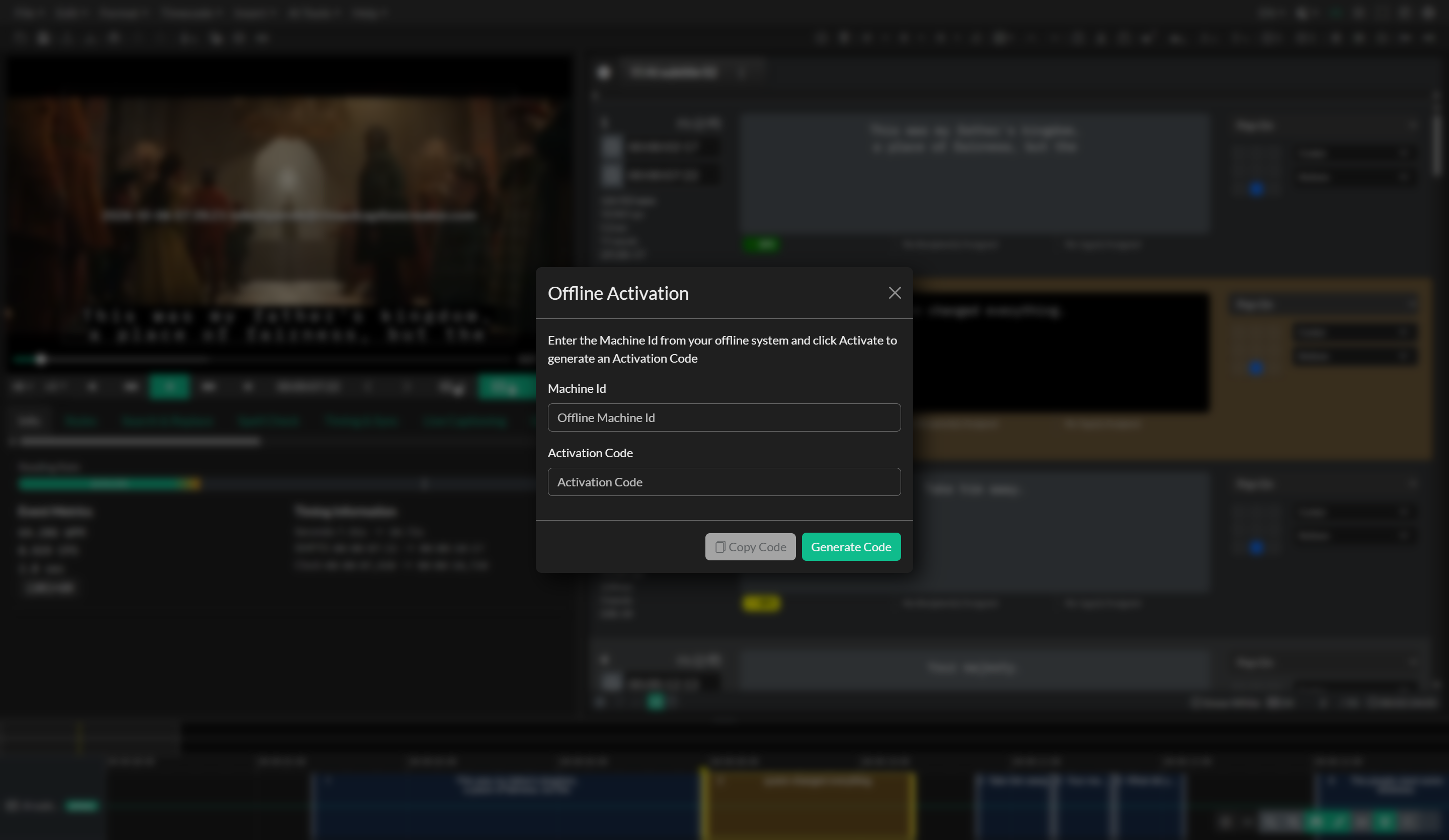
Next, open the web version of Closed Caption Creator in a Chromium-based browser and log in using your subscription credentials. Once logged in, navigate to the Help menu and select Offline Activation. This will open the Offline Activation dialog where you can generate your activation code.
Paste your Machine ID into the input field in the Offline Activation dialog and click the Generate Activation Code button. The system will verify your subscription and generate a unique activation code tied to your Machine ID. Copy this activation code to your clipboard.
Return to the offline desktop application and paste the activation code into the Activation Code field on the offline login screen. Click the Activate button to complete the activation process. If the activation is successful, you will be granted access to Closed Caption Creator and can begin working offline.
Important notes
Your activation code is tied to the specific machine where you generated the Machine ID. If you need to move your license to a different computer or if your hardware changes significantly, you will need to generate a new activation code using the updated Machine ID.
While working in offline mode, you will have access to all core editing, timing, quality control, import and export, and local media workflows. However, AI-powered features such as automatic transcription, translation, and automatic sync require an internet connection and will not be available in offline mode.
If you encounter any issues during the activation process, verify that you have an active subscription and that your Machine ID and activation code match exactly. Contact support if you continue to experience difficulties with offline activation.