Assigning Projects
Assigning a project to a team member makes it clear who is responsible for advancing the work, and keeps that information visible to everyone on the team through the Storage Explorer. You can also attach a due date and priority rating so assignees know what to work on first. Assignments, due dates, and priority are managed through the Information panel on the right side of the Storage Explorer and are available to all team members on Pro and Enterprise plans.
Assigning a Project Record
To assign a project, open the Storage Explorer and select the project record you wish to assign. In the Information panel on the right, locate the Assign To User action button (identified by the person icon in the action toolbar near the bottom of the panel). Clicking this button opens a dialog listing all members of your team by email address, along with a None option to clear any existing assignment.
Select the team member you wish to assign the project to and confirm. The Information panel will update immediately to reflect the new assignment, and the change is written to the project record in real time so that all team members see the current assignment the next time they view the record.
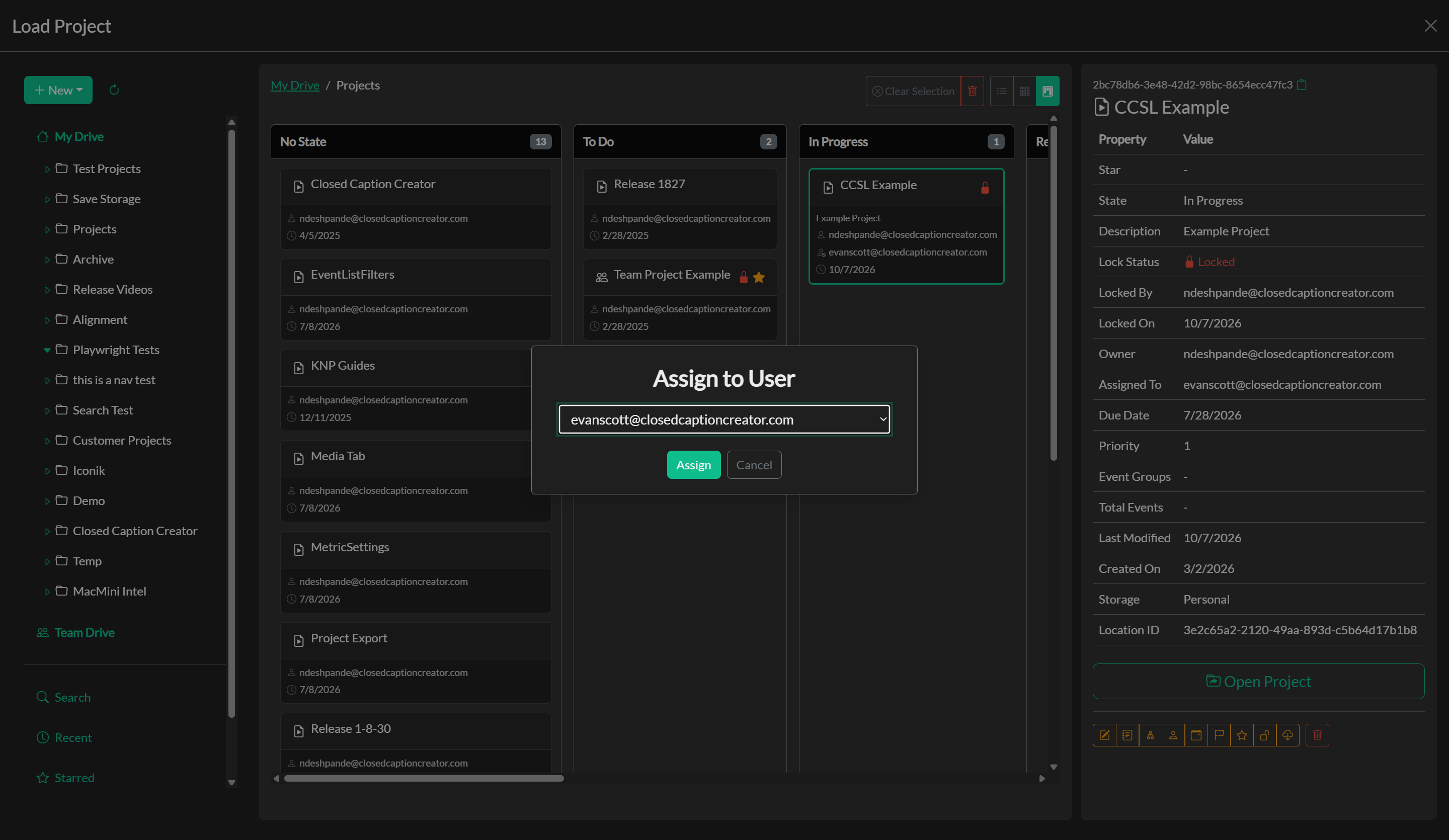
If you are not part of a team, the assignment dialog will show only your own email address, which can be useful for marking work as personally owned or in-progress within a solo workflow.
Assignment Email Notifications
When you assign a project to another user, Closed Caption Creator can offer to send that user an email notification. The prompt identifies the assignee and project name so you can decide whether the handoff requires an email in addition to the visible assignment in Storage Explorer.
If you select Don't ask me again before sending the email, future assignments use the same preference automatically. Choosing to send stores an always send preference, while skipping stores a never send preference. These preferences are saved with your user notification settings.
Assignment emails are only sent when a user is selected. Clearing an assignment does not send a notification.
Setting a Due Date
To set or change a due date, select a project, team project, or work order in the Storage Explorer, then click the due date action in the Information panel toolbar (calendar icon). Choose a date in the dialog and confirm to save it to the storage record. If a due date is already set, the dialog also offers an option to clear it.
The due date appears in the Information panel property list and as a column in Table view. Locked records can only be updated by the user who holds the lock.
Setting Priority
Priority is an optional rating from 1 to 10, where a higher number indicates higher priority. To set or change priority, select a non-folder record and click the priority action in the Information panel toolbar (flag icon). Choose a value from the list, or select None to clear the rating.
Like due date and assignment, priority is stored on the storage record and shows in the Information panel and in the Table view Priority column.
Updating Workflow State
Alongside assignment, the Information panel provides controls for updating the workflow state of a project record. Workflow states represent the current stage of production — such as In Progress, Review, or Completed — and are used to track where a project sits within your production pipeline. To update the state, click the Update State action in the Information panel and select the appropriate state from the list.
Workflow state can also be changed directly from the Kanban view by dragging a project card from one column to another, which provides a more visual overview of the full team's work distribution.
My Tasks
Assigned projects appear in the My Tasks workspace in Storage Explorer. This view collects projects, team projects, and work orders assigned to your email address. By default it lists the most recently updated records first. In Table view, each row also shows Priority and Due Date when those fields are set, so you can scan deadlines and urgency without opening each project.
You can click the Priority or Due Date column headers in Table view to sort your task list. Clicking the same header again reverses the sort direction. Records without a priority or due date are placed at the end when sorting by that column. My Tasks is the quickest way to review your current work queue without navigating through each storage folder.
Starring Records
For records that require frequent access or immediate attention, the Information panel includes a star action that marks the record as starred. Starred records appear in the Starred section of the Navigation panel on the left side of the Storage Explorer, making them easy to find without navigating through the full folder structure. Clicking the star action a second time removes the starred status.
Locking Records
The lock action in the Information panel allows you to place a lock on a project record, indicating that it is actively being worked on and should not be overwritten by another team member. When a record is locked, the Information panel displays the name of the user who applied the lock and the date it was set. If another team member attempts to save changes to a locked record, they will be directed to save their work as a new copy instead.
The lock can be released at any time by clicking the Unlock action in the Information panel. Only the user who applied the lock, or a team administrator, should release the lock once the associated editing work is complete.
Troubleshooting
If the Assign To User option does not appear in the Information panel, confirm that you are signed in and that your account is part of a team with an active Pro or Enterprise subscription. If a team member's email does not appear in the assignment list, they may not yet have been added to the team. Refer to the Users and Groups documentation for guidance on inviting members. If a state, assignment, due date, or priority update does not appear to save, check your network connection and try again, as these actions require a live connection to write the change to the project record. If the due date or priority buttons are disabled, the record may be locked by another user.