Saving Projects
Closed Caption Creator supports two distinct methods for saving projects: online saving to cloud storage via the Storage Explorer, and offline saving to a local file on your machine. The method available to you depends on whether you are signed in and working in online mode, or operating with a local offline workflow. Both approaches produce a .ccprj project file and preserve all Event Groups, events, metadata, styles, speakers, and markers associated with your project. Media files are never bundled into the saved project — only the project data is stored.
Online Saving
When working in online mode, projects are saved to cloud storage through the Storage Explorer. The first time you save a new project, navigate to File > Save Project As. This opens the Storage Explorer in save context, where you can select a destination folder within your Personal Storage or Team Drive and confirm the save. Once a project has been given a storage location, subsequent saves are performed via File > Save Project, which silently overwrites the existing record without reopening the Storage Explorer.
If you wish to save the current state as a new, separate record — for example, to create a versioned copy or to move the project to a different folder — use File > Save Project As at any time to choose a new destination.
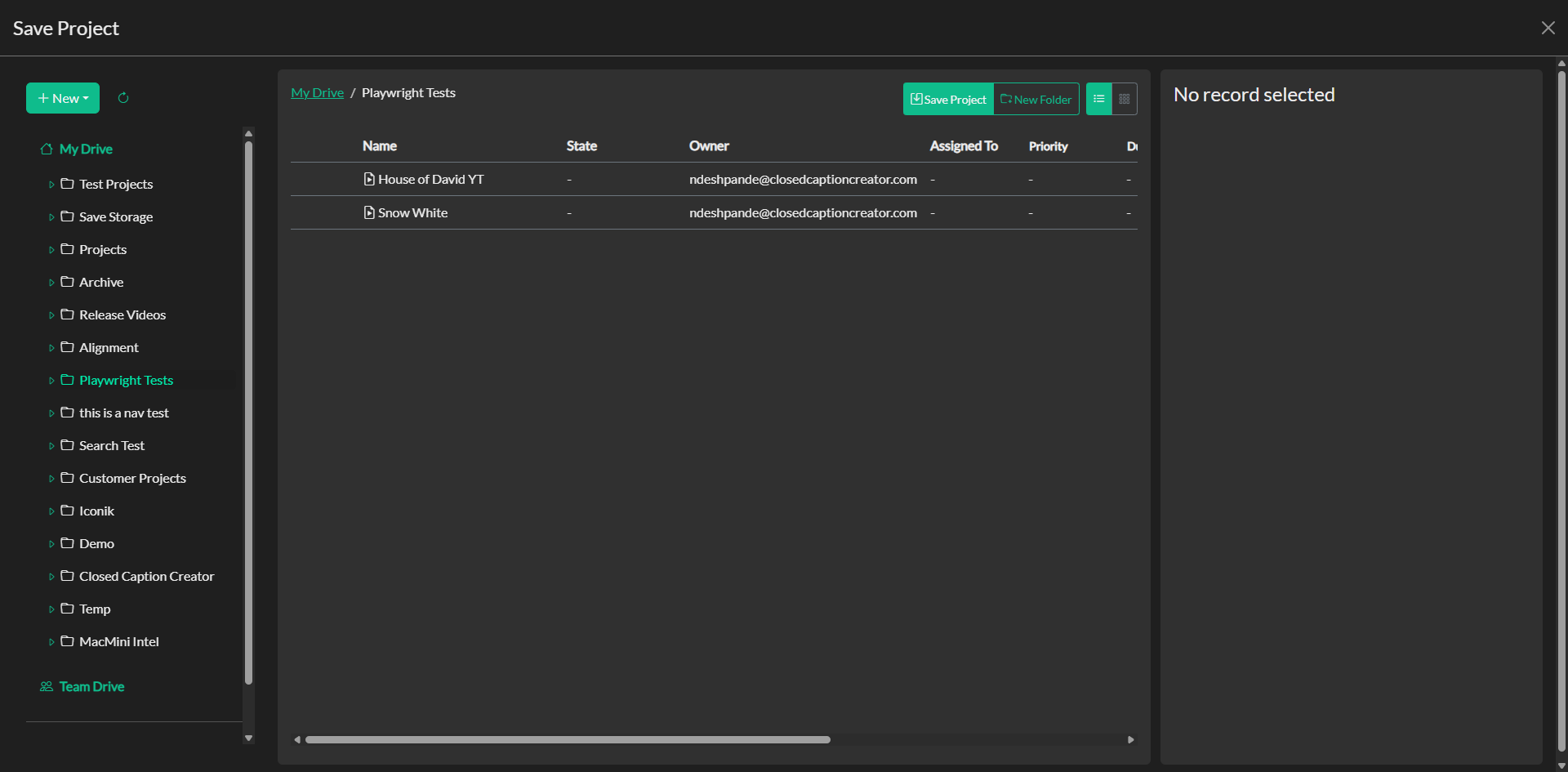
When working in a team environment, the application checks whether the project record is locked by another user before completing an online save. If the record is locked, you will be presented with a warning and offered the option to save your changes as a new copy rather than overwriting the locked original. This protects team members from inadvertently replacing each other's work.
Offline Saving
When working in offline mode, or when using the Electron desktop application with local file storage, projects are saved directly to your file system as .ccprj files. The first time you save a new project, select File > Save Project As to open a system file dialog, choose a destination folder, and provide a file name. After the initial save, File > Save Project writes your changes directly to the existing file path without prompting, making subsequent saves fast and unobtrusive.
If you need to save the project to a different file path or under a new name, use File > Save Project As to open the file dialog again and specify a new location.
Users running the web version of Closed Caption Creator in offline mode will trigger a browser download of the .ccprj file each time they save, since direct file system access is not available in a browser context. The downloaded file can then be re-imported when you are ready to continue working.
Troubleshooting
If a save operation in online mode appears to complete but the record is not visible in the Storage Explorer, confirm that you are viewing the correct storage context (Personal Storage or Team Drive) and the correct folder. If you receive a lock warning during an online save, coordinate with the team member who holds the lock or save your work as a separate copy to avoid data loss. For offline saves, if the file dialog does not appear, ensure the application has the necessary permissions to write to the target directory.