Automatic Sync
Automatic Sync, also known as forced alignment, applies precise timing to Events by synchronizing them with word-level timing data generated during automatic transcription. Unlike simple timecode copying that transfers timing wholesale from one Event Group to another, Automatic Sync uses the detailed word-by-word timing information captured by speech recognition engines to align your subtitle text with the actual spoken dialogue in your media. This approach is especially valuable when working with transcript-first workflows where text has been manually edited or formatted into subtitle blocks without corresponding timecode information.
Prerequisites
Before using Automatic Sync, you must have a completed automatic transcription job for your target media file. The transcription job generates the word-level timing references that the sync algorithm requires to calculate accurate Event boundaries. Your source Event Group text should be finalized and formatted into the desired subtitle structure, as the sync process will apply timing to the existing Events rather than creating new ones.
Verify that your project frame rate and drop-frame settings are correctly configured before applying Automatic Sync, as these settings affect how the timing calculations are converted into timecode values. The transcription job and your current project should reference the same media file or the same edit of the media. If the media has been re-edited or trimmed since the transcription was created, timing alignment may be inaccurate.
Navigation paths
- Open the AI Transcript Import dashboard:
AI Tools > Transcription Import - Select your completed transcript job from the list
- Access sync options:
More Options > Apply Automatic Sync - The sync process applies to the currently selected Event Group
Workflow
When you open the AI Transcript Import dashboard, you will see a list of your transcription jobs with their current status and progress information. Select the completed transcription job that corresponds to your media file. The job details panel will display information about the transcript, including the source language, service provider, and completion time.
Click the More Options dropdown menu and select Apply Automatic Sync. A confirmation dialog may appear asking you to verify the target Event Group. The Automatic Sync process begins by loading the word-level timing data from the transcription job. This timing data includes the start and end time for each word recognized by the speech recognition engine.
The sync algorithm then compares the text content of each Event in your Event Group with the words in the transcript timing data. It identifies matching sequences and calculates appropriate start and end times for each Event based on where those words occur in the audio timeline. The algorithm attempts to find natural boundaries between Events, typically aligning Event start times with the beginning of phrases or sentences and end times with natural pauses or the start of the next Event text.
During the sync process, the algorithm accounts for variations in text formatting, punctuation, and capitalization that may differ between your edited Events and the raw transcript data. It focuses on matching the actual word content rather than requiring exact character-by-character matches, which allows for flexibility in how you have formatted the subtitle text.
The Automatic Sync process typically completes within a few seconds for most Event Groups, though processing time increases with larger projects containing hundreds of Events. When the sync completes, your Event timeline will update to reflect the new timing, and you should review the results to ensure appropriate alignment.
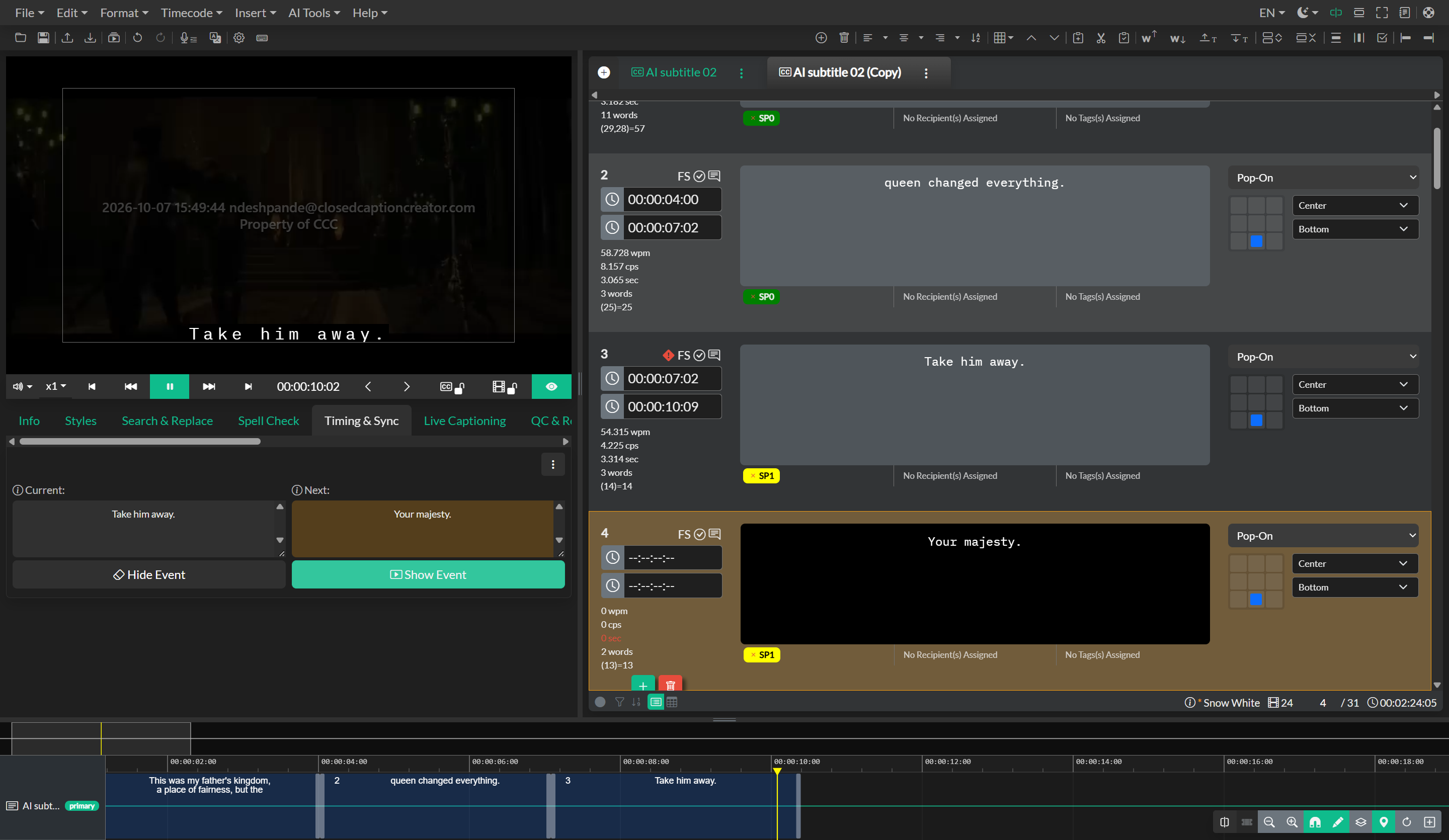
Start by reviewing the beginning, middle, and end sections of your Event Group to check for timing drift or segmentation issues. Pay particular attention to areas where multiple speakers overlap, where background noise is present, or where the dialogue contains significant pauses, as these scenarios can sometimes challenge the alignment algorithm.
Use cases
Automatic Sync excels in transcript-first workflows where you begin with a script or manually created transcript that needs to be timed to match the final video. Rather than manually spotting each Event, you can format the transcript into subtitle blocks, generate an automatic transcription for timing reference, and then use Automatic Sync to apply accurate timing in seconds.
The feature is equally valuable when retiming subtitle files after source video updates. If your client provides an updated edit of the media with minor timing changes, you can generate a new transcription for the revised edit and use Automatic Sync to reapply timing to your existing subtitle text. This approach is much faster than manually adjusting each Event to match the new edit.
When working with translated subtitle files, Automatic Sync can help reapply timing from the source language to the target language Event Group, especially when the translation has been created from a transcript export rather than a timed subtitle file. The algorithm matches the translated text segments with the timing boundaries from the original speech.
Automatic Sync also serves as a valuable first-pass spotting tool before manual refinement. You can use it to quickly establish baseline timing for all Events and then perform manual polish in the Timeline to adjust specific Events for optimal presentation, reading speed, and synchronization with visual cues.
Troubleshooting
If sync results appear misaligned throughout the Event Group, verify that the transcription job matches the exact media cut currently loaded in your project. Even small differences in media duration, edit points, or content can cause systematic alignment errors. Regenerate the transcription using the current media file and retry the sync process.
When only certain sections of the Event Group show poor alignment, the issue may stem from background music, overlapping speakers, or unclear audio in those segments. The transcription timing data quality directly affects sync accuracy, so areas where the automatic transcription struggled to recognize words will produce less reliable timing alignment. Review these sections manually in the Timeline and adjust Event boundaries as needed.
If the start times of Events appear correct but the end times create awkward gaps or overlaps, the algorithm may be having difficulty identifying natural boundaries between Events. Use the Automatic Sync output as a starting point, then manually refine Event end times using the Timeline or apply Automatic Reading Speed Correction to optimize duration and reading rates.
When Events appear to be synced to incorrect sections of the dialogue, check that your Event text matches the actual spoken content in the media. The sync algorithm relies on matching the Event text with words in the transcript timing data, so if the Event text has been heavily edited or paraphrased away from the actual dialogue, the algorithm may not find appropriate matches.
If frame rate or drop-frame settings appear incorrect after sync, re-check your project settings before running the sync process again. The algorithm converts timing data from the transcription into timecode based on your current project frame rate, so incorrect settings will produce systematically wrong timecode values even if the relative timing relationships are correct.
Related docs
- Automatic Transcription and Batch Transcription
- Automatic Reading Speed Correction
- Manual Sync and Caption Spotting
- Translation and Localization