Automatic Reading Speed Correction
Automatic Reading Speed Correction analyzes and adjusts Event timing to ensure subtitles meet specific reading-rate requirements and duration constraints. This tool uses an iterative approach to balance characters per second (CPS) calculations with minimum and maximum duration rules, automatically correcting Events that exceed reading speed limits or violate duration standards. The correction process can also enforce minimum frame gaps between consecutive Events to meet broadcast delivery specifications.
Prerequisites
Before using Automatic Reading Speed Correction, ensure your project frame rate is correctly configured and matches your delivery requirements. The tool relies on accurate frame rate settings to calculate proper timing adjustments and frame gaps. You should also verify your Event Group style guide settings to understand current CPS and duration thresholds. If you are working with broadcast deliverables, confirm the required frame gap specification between Events before proceeding.
Navigation paths
- Open the Auto Correct Timing dialog:
Timecode > Auto Correct Timing - Access from the main menu bar while an Event Group is selected
Workflow
When you open the Auto Correct Timing dialog, you will see four primary parameters that control how Events are retimed. The Maximum Characters Per Second (CPS) setting determines the fastest allowable reading rate. The tool calculates CPS by dividing the total character count of an Event by its duration in seconds. When an Event exceeds this threshold, the tool extends its duration to bring the reading rate within acceptable limits.
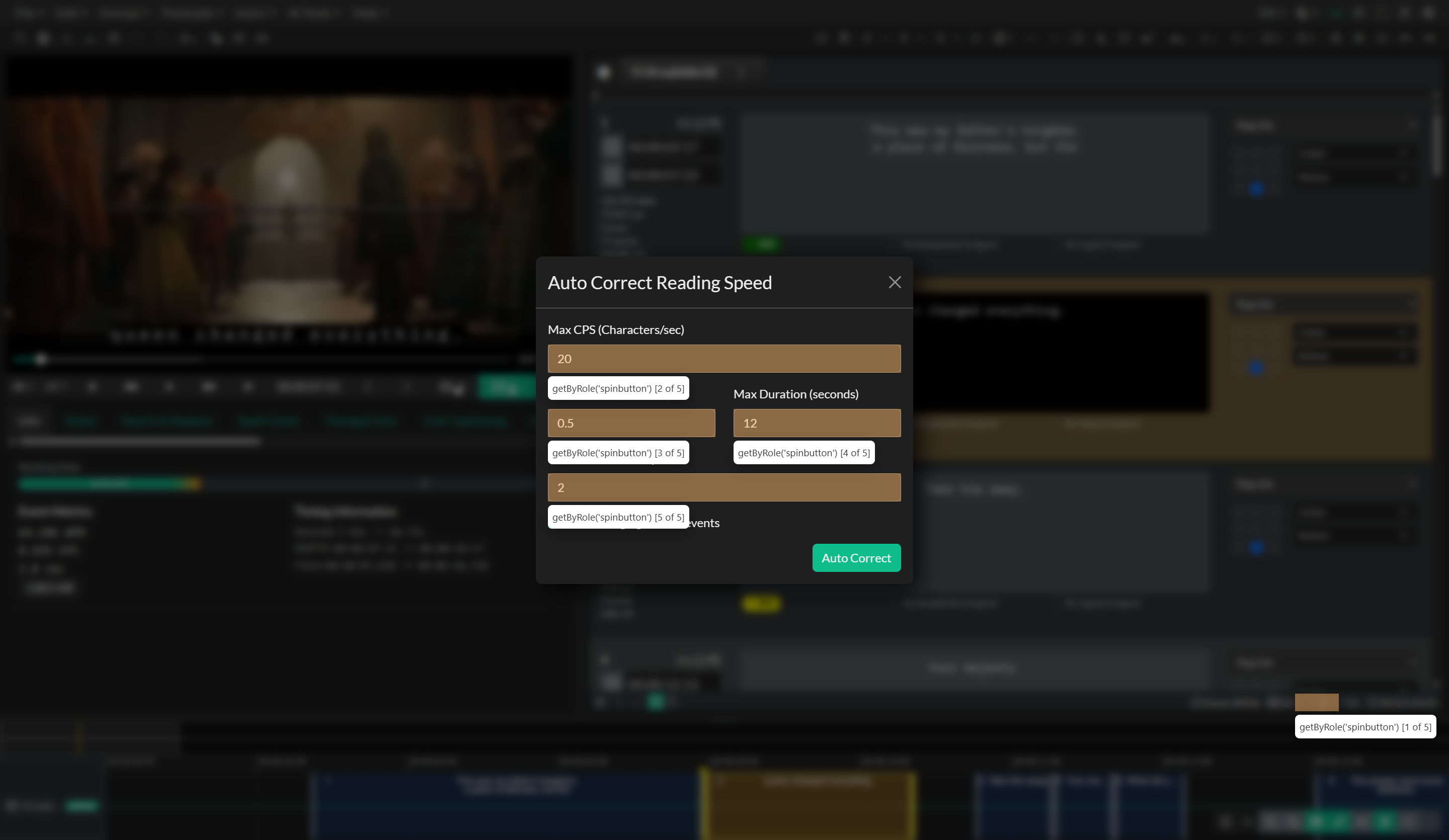
The Minimum Duration parameter ensures that no Event appears on screen for less than the specified time, regardless of how few characters it contains. This prevents Events from flashing too quickly for viewers to read comfortably. Conversely, the Maximum Duration parameter prevents Events from remaining on screen longer than necessary, which helps maintain viewer engagement and ensures captions do not linger past their relevant audio.
The Minimum Frame Gap setting controls the spacing between consecutive Events. When enabled with a value greater than zero, the tool ensures that each Event ends at least the specified number of frames before the next Event begins. This gap is critical for broadcast applications where decoder specifications require clear separation between caption blocks.
The Auto Correct process operates in an iterative loop that can run up to twenty times to resolve complex timing conflicts. During each iteration, the tool examines every Event to calculate its current CPS value by measuring total characters and duration. If an Event exceeds the maximum CPS threshold, the tool extends the Event duration while respecting available space before the next Event. The process also checks minimum and duration constraints and adjusts timing accordingly. When the Fix Overlaps option is enabled, the tool automatically resolves any timing conflicts created during the correction process by shifting Event boundaries to maintain the specified frame gap.
After applying corrections, you should review the Timeline to verify that Event timing adjustments have not shifted captions too far from their original dialogue sync points. While the tool optimizes for reading speed compliance, manual review ensures that the adjusted timing still provides an acceptable viewing experience.
Use cases
Automatic Reading Speed Correction is particularly valuable after importing automatic transcription results, where machine-generated timing may prioritize word-level accuracy over reading rate constraints. The tool quickly brings an entire Event Group into compliance with style guide requirements without manual adjustment of each Event.
The tool also serves as a final compliance check before export, especially when delivering to platforms with strict reading speed requirements such as Netflix, BBC, or broadcast television networks. By running Auto Correct with platform-specific CPS and duration values, you can ensure your deliverable meets all technical specifications.
When working with translated subtitle files where the target language may have longer text strings than the source, Auto Correct helps rebalance timing to accommodate the increased character count while maintaining synchronization with the original Event boundaries.
Troubleshooting
If Auto Correct appears to create new timing problems rather than solving them, verify that your Maximum CPS value is not set too low for the actual dialogue density in your media. Extremely conservative CPS settings may cause the tool to extend Event durations excessively, creating overlaps with subsequent dialogue or pushing Events far beyond their natural timing boundaries.
When corrections result in Events that extend too close to the next speaker change or create awkward pauses, consider adjusting the Maximum Duration parameter to prevent Events from stretching beyond reasonable limits. You may need to manually split Events with high character counts into multiple shorter Events before running Auto Correct.
If the Fix Overlaps option creates gaps where continuous captioning is required, disable this option and manually adjust Event boundaries after the CPS correction is complete. Some workflows require back-to-back Events without frame gaps, particularly for pop-on captions covering rapid dialogue.
When frame gap violations persist after correction, verify that your Minimum Frame Gap value matches the frame rate calculation. Remember that the gap is specified in frames, so a two-frame gap at 29.97 fps represents approximately 0.067 seconds, while the same two-frame gap at 24 fps represents 0.083 seconds.
Related pages
- Automatic Sync
- Fixing Overlaps
- Quality Control and Style Guide Testing
- Event Group Settings and Error Detection