Stretch & Shrink
Stretch and Shrink provides tools to retime an Event Group proportionally when subtitles progressively drift out of sync with media, or when timing needs adjustment to accommodate frame rate standard conversions. This progressive drift typically occurs when subtitle files were created for media at one frame rate or with a specific drop-frame setting, but are being used with media that has different technical specifications. Unlike simple offset adjustments that shift all timing by a fixed amount, stretch and shrink calculations apply a multiplier that compounds over time, correcting drift that gets worse as the timeline progresses.
Prerequisites
Before using Stretch and Shrink, you should identify whether your timing problem is a simple offset or progressive drift. If subtitles are consistently early or late throughout the entire timeline by the same amount, you need a timecode offset rather than stretch and shrink. If subtitles start relatively in sync but drift further out of alignment as the timeline progresses, stretch and shrink is the appropriate solution.
To use the reference Events calculation method effectively, you should identify at least two points in your timeline where you know the correct timecode for specific Events. These reference points are typically established by finding Events that align with clear visual or audio cues in the media, such as the exact frame where a door closes or where a specific word is spoken.
Navigation paths
- Open the Stretch and Shrink dialog:
Timecode > Stretch/Shrink - Access from the main menu bar while an Event Group is selected
- The tool can be applied to all Events or a specific range
Workflow
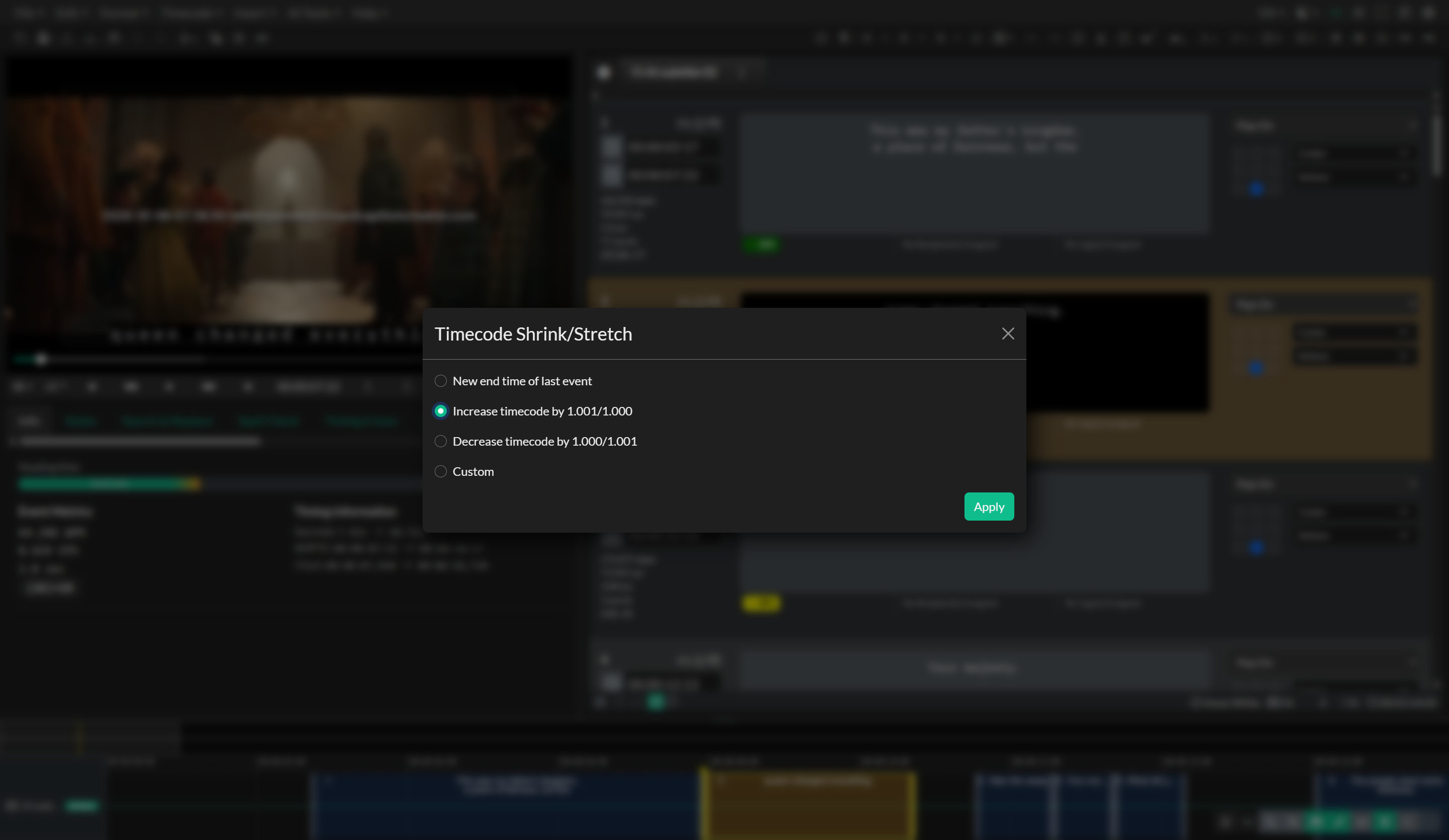
The Stretch and Shrink dialog offers four different calculation methods to determine the timing multiplier that will be applied to your Events. Each method serves specific use cases and provides different levels of control over the retiming process.
The simplest method is setting the timecode of the last Event. When you select this option, you specify what the end time of your final Event should be after correction. The tool calculates the necessary multiplier by comparing the current end time of the last Event with your specified target end time. This method works well when you know that the last Event in your timeline should end at a specific timecode, such as when matching burnt-in timecode visible in your proxy media or aligning with a specific delivery requirement.
The increase timecode option applies a fixed multiplier of 1.001 to all Event timing. This specific multiplier is used to convert timing from true frame rate standards to their pulldown equivalents. For example, when converting subtitle timing from 24 fps media to 23.976 fps media, or from 30 fps to 29.97 fps, the 1.001 multiplier accounts for the precise mathematical relationship between these frame rate pairs. The media runs slightly slower at the pulldown rate, so subtitle timing needs to be stretched by this exact ratio to maintain sync.
The decrease timecode option applies a multiplier of 1.000 divided by 1.001, which equals approximately 0.999. This multiplier performs the reverse conversion, adjusting timing from pulldown frame rates to true frame rates. Use this option when converting subtitle timing from 23.976 fps media to 24 fps media, or from 29.97 fps to 30 fps. The media runs slightly faster at the true frame rate, so subtitle timing needs to be shrunk by this ratio.
The reference Events method provides the most precise control by calculating the multiplier based on two known synchronization points in your timeline. You specify two Event numbers and their correct timecodes. The tool compares the current timing of these two Events with the timecodes you specify and calculates the multiplier needed to transform the current values into the target values. This multiplier is then applied to the entire Event range. This method is valuable when working with media that has been edited or when you have verified sync points at the beginning and end of your timeline.
For all calculation methods, you can specify an Event range using the Start Index and End Index fields. By default, the tool processes all Events in the Event Group, but you can limit the stretch and shrink operation to a specific segment by setting these range values. This capability is useful when only a portion of your subtitle file exhibits drift, or when working with multi-segment projects where different segments require different timing adjustments.
When using the reference Events mode, the dialog includes controls for quickly updating the reference timecodes based on the current timing of specific Events. You can type an Event number and the corresponding timecode field will automatically populate with that Event current start time. This feature helps you quickly set up the reference calculation by first correcting a few Events manually to establish known-good sync points, then using those Events as references to correct the rest of the timeline.
After configuring your stretch and shrink calculation method and verifying the Event range, click the Apply button to execute the timing adjustment. The tool will multiply all Event start and end times within the specified range by the calculated multiplier. A confirmation message appears when the process completes, and you should review the results in the Timeline to verify improved synchronization.
Use cases
Stretch and Shrink is essential when working with subtitle files that were created for a different version of the media than you currently have. If a client provides an updated edit where the total runtime has changed slightly due to speed adjustments, pulldown conversion, or trimming, you can use stretch and shrink to adapt existing subtitle timing to match the new media duration without recreating the entire subtitle file from scratch.
The tool excels at correcting drop-frame and non-drop-frame mismatches. When subtitles appear in sync in one playback environment but drift out of sync in another, the issue is often a drop-frame setting mismatch. Using the increase or decrease multiplier options corrects for the timing difference between drop-frame and non-drop-frame calculations at 29.97 fps.
For multi-segment projects where different reels or acts of a program have been timed separately and then concatenated, each segment may have accumulated different amounts of drift. By applying stretch and shrink to specific Event ranges corresponding to each segment, you can correct timing segment by segment without affecting Events in other parts of the timeline.
The reference Events method is particularly valuable when working with archival media or film transfers where the exact frame rate may be uncertain. By identifying two Events that definitely sync with clear audio or visual cues, you can calculate the precise timing adjustment needed without knowing the technical specifications of how the media was transferred or converted.
Troubleshooting
If applying stretch and shrink creates new sync problems rather than solving them, verify that your problem is actually progressive drift rather than a simple offset. Watch several portions of the timeline at the beginning, middle, and end to confirm that the amount of drift changes over time. If the drift is constant, use Timecode Offset instead of Stretch and Shrink.
When the reference Events calculation produces a multiplier that seems mathematically incorrect, verify that you specified the correct Event numbers and timecodes. A transposed digit in either the Event number or timecode can cause wildly inaccurate multiplier calculations. Double-check that the reference timecodes you specified represent where those Events should be, not where they currently are.
If stretch and shrink appears to work correctly in one direction but creates worse drift when trying to reverse the process, you may be encountering compound rounding errors. Each time you apply a stretch and shrink multiplier, small rounding errors in timecode calculations accumulate. If you need to experiment with different multipliers, work from a saved version of the original timing rather than repeatedly stretching and shrinking the same Event data.
When using stretch and shrink on Event Groups that have been previously adjusted with Auto Correct Reading Speed or other timing tools, be aware that the multiplier affects all timing equally. If Events have been carefully balanced for reading speed at their current durations, applying a stretch or shrink multiplier may push some Events outside acceptable CPS ranges. Plan to run Auto Correct Reading Speed again after stretch and shrink if reading rate compliance is critical for your deliverable.
If the Event range controls appear to have no effect and all Events are being adjusted regardless of the Start Index and End Index values you specify, verify that your index numbers correspond to actual Event positions in the Event List. Event indices are numbered starting from 1, not 0. Also confirm that the Start Index is less than or equal to the End Index, as reversed ranges may be interpreted as targeting all Events.
When stretch and shrink creates overlaps between Events, particularly when using shrink operations that compress the timeline, use the Fix Overlaps tool after applying the timing adjustment. The stretch and shrink tool focuses solely on proportional timing changes and does not verify whether the new timing creates Event conflicts.