Converting Frame Rates
Frame rate conversion tools help you adapt subtitle timing when moving between different video standards or when subtitle files need to match media with different frame rate specifications. The conversion process offers two distinct modes that serve different purposes. The "modify" mode performs mathematical timing adjustments to proportionally scale all Event timing based on the ratio between source and target frame rates, which is appropriate when the actual playback speed of the media has changed. The "maintain" mode preserves the absolute timing values in seconds while changing only their timecode representation, which is useful when correcting how timing is displayed without altering the actual synchronization with the media.
Prerequisites
Before converting frame rates, you should understand the frame rate of both your current subtitle file and your target delivery specification. Verify whether your project uses drop-frame or non-drop-frame timecode, as this setting affects how timecode is calculated and displayed, particularly for 29.97 fps and 59.94 fps frame rates.
You should also understand why the frame rate conversion is necessary. If you are correcting a project setting that was configured incorrectly at creation time but the timing is already accurate, you will use the "maintain" mode. If you are adapting subtitles created for one frame rate standard to work with media at a different frame rate, you will use the "modify" mode.
Navigation paths
- Open the Convert Frame Rate dialog:
Timecode > Convert Frame Rate - The dialog displays current project settings and allows configuration of source and target frame rates
- Access from the main menu bar while an Event Group is selected
Workflow
When you open the Convert Frame Rate dialog, the interface displays your current project frame rate and drop-frame settings as defaults for the source values. You will see separate controls for source frame rate, source drop-frame setting, target frame rate, and target drop-frame setting. At the top of the dialog, you can choose between "modify" and "maintain" modes using clearly labeled radio buttons.
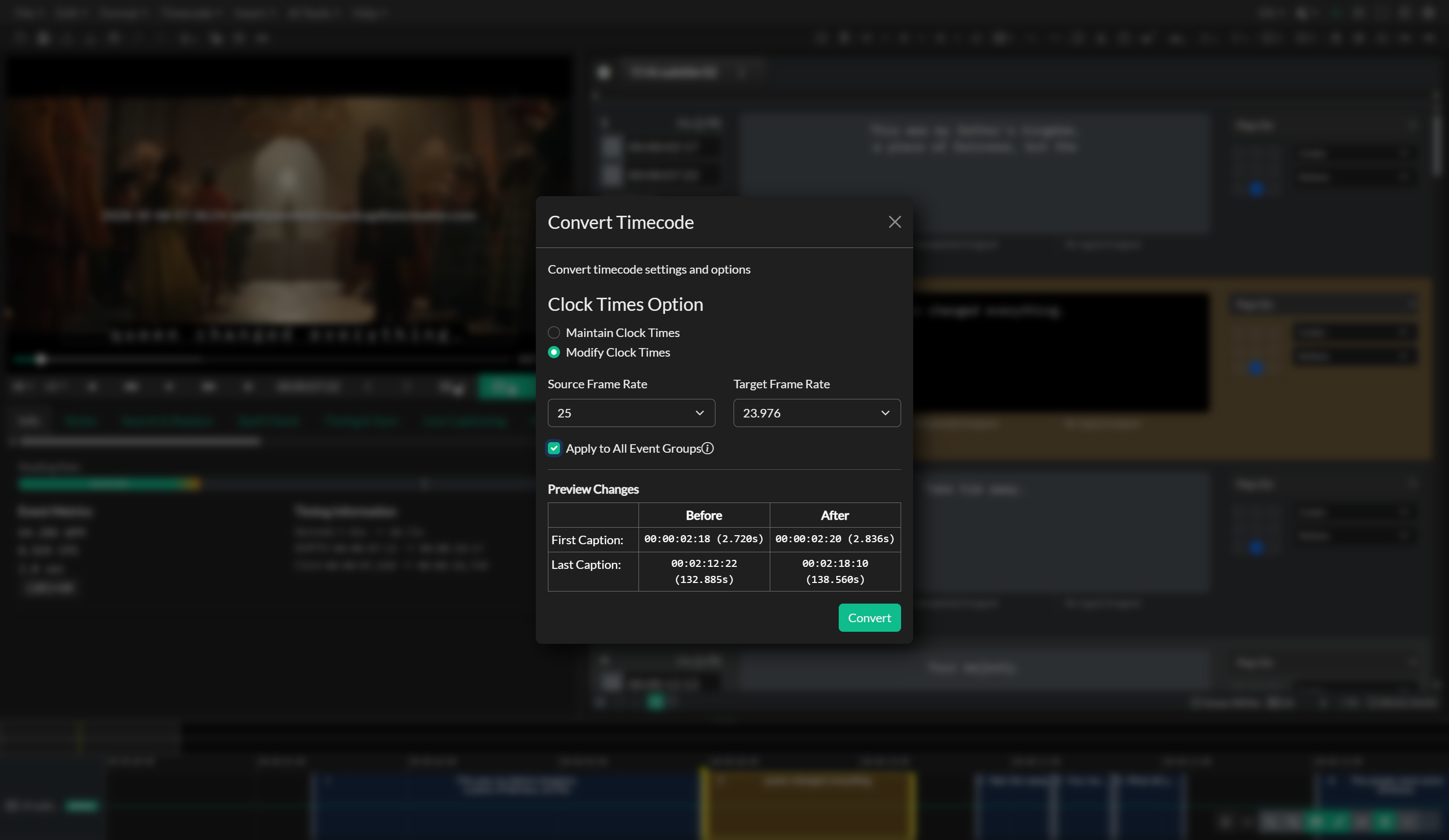
The frame rate dropdown menus include common video standards such as 23.976, 24, 25, 29.97, 30, 50, 59.94, and 60 frames per second. When you select frame rates that support drop-frame timecode, specifically 29.97 fps and 59.94 fps, the corresponding drop-frame checkbox automatically enables to reflect standard practice. For other frame rates, the drop-frame option is automatically disabled because drop-frame timecode is not applicable to those standards.
The preview panel in the dialog shows before and after timecode values for the first and last Event in your Event Group. This preview helps you verify that the conversion will produce the expected results before applying changes to your entire project. The before values display using the source frame rate and drop-frame settings, while the after values show what the timing will look like using the target settings and selected conversion mode.
When you select the "modify" mode, the tool calculates a timing multiplier based on the source and target frame rates. For this calculation, field-rate frame rates (50, 59.94, and 60 fps) are internally mapped to their corresponding frame rates (25, 29.97, and 30 fps respectively) because the timing relationship is based on frames rather than fields. The tool multiplies all Event start and end times by the ratio of source frame rate to target frame rate, effectively speeding up or slowing down the subtitle timing to match a change in playback speed.
In "maintain" mode, the tool preserves the start and end time values in seconds and only changes how those values are represented as timecode. This mode is valuable when you discover that the project frame rate setting does not match the actual media frame rate, but the subtitles are already correctly synchronized. By switching to maintain mode, you correct the frame rate setting without disrupting the accurate timing you have already established.
After configuring your source and target frame rates, selecting the appropriate conversion mode, and reviewing the preview, click the Convert button to apply the frame rate conversion. The tool updates both the Event timing and the project frame rate settings to match your target configuration. A confirmation message appears when the conversion completes, and you should review your Event Group in the Timeline to verify the results.
Key concepts
Understanding when to use "modify" versus "maintain" mode is critical for successful frame rate conversion. Use the "modify" mode when you are adapting subtitles created for media at one frame rate to work with a different version of the media that has been converted to another frame rate. For example, if subtitles were created for a 30 fps video and you need them to work with a 25 fps PAL conversion of the same content, the modify mode scales the timing proportionally to account for the speed change that occurred during the media conversion.
Use the "maintain" mode when the frame rate setting in your project is incorrect but the timing is already accurate. This scenario commonly occurs when importing subtitle files that were created in another application with different frame rate defaults, or when the project was initialized with the wrong frame rate setting but timing work was performed correctly relative to the actual media. Maintain mode updates the timecode calculations without changing the underlying synchronization.
The drop-frame checkbox behavior is automatic to help prevent common errors. Drop-frame timecode is a method of timecode calculation used with 29.97 fps and 59.94 fps video to keep timecode displays aligned with clock time despite the non-integer frame rate. When you select 29.97 or 59.94 as either the source or target frame rate, the corresponding drop-frame checkbox automatically enables because drop-frame is the standard approach for these frame rates. You can manually disable drop-frame if your specific workflow requires non-drop-frame timecode at 29.97 or 59.94 fps.
Troubleshooting
If the converted timing appears systematically wrong throughout the Event Group, verify that you selected the correct conversion mode for your use case. If you used "modify" mode when you should have used "maintain" mode, or vice versa, the timing will be incorrect but in a predictable way. You can undo the conversion and retry with the correct mode.
When drop-frame indicators in the converted timecode do not match your delivery expectations, review whether the drop-frame checkbox was configured correctly for both source and target settings. Remember that drop-frame timecode uses semicolons as separators in the timecode display, while non-drop-frame uses colons. If your delivery specification requires non-drop-frame timecode at 29.97 fps, manually disable the drop-frame checkbox before converting.
If the preview panel shows unexpected before or after values, double-check that your source frame rate matches the current project settings. The preview uses the source values you specify, so if those do not reflect the actual current state of your project, the preview may be misleading.
When frame rate conversion appears to create synchronization drift that gets progressively worse throughout the timeline, you may be experiencing an issue related to field rate versus frame rate confusion. Verify that you selected the correct frame rate, not the field rate. For example, 50 fps progressive is different from 25 fps with 50 fields per second, and using the wrong value will create progressive drift.
If you need to convert between frame rates that affect timecode by very small amounts, such as converting between 24 fps and 23.976 fps which differ by only 0.1 percent, consider whether the Stretch and Shrink tool with the increase or decrease multiplier options might be more appropriate. These tools are specifically designed for 1.001 multiplier conversions common in pulldown and frame rate standards.