Image-Based Subtitles
Image Based Subtitle Export is available in the desktop application. File > Export > Image Subtitles renders each subtitle event as a PNG still and writes two XML sidecars in the same folder:
- BDN XML for DVD and Blu-Ray authoring
- FCP XML (Final Cut Pro 7 /
xmeml) for Adobe Premiere Pro
A third option is a full-length video with an alpha channel from Video Export (Apple MOV Animation or ProRes 4444). That path places one transparent clip on the timeline instead of individual stills.
Opening the Export Window
Go to File > Export and select Image Subtitles. The Image Export window opens. Click the folder button and choose a Target Folder for the PNG files and XML scripts. The path is stored in session storage so it persists across exports in the same session.
Choose a Resolution Preset to set the dimensions of each image. Presets cover standard broadcast and streaming sizes. Script Name is the BDN XML filename (default untitled.xml). Image Prefix is prepended to each PNG (default DVD, producing DVD0001.png, DVD0002.png, and so on). Language Code is written into the BDN metadata. Description/Title is used as the BDN title and as the Premiere sequence name.
The Background options switch between a fully transparent background and a solid colour fill. With transparency enabled, each PNG keeps an alpha channel around the subtitle text, outline, and shadow. Disable transparency and pick a colour when you need a keyed or review still.
Styling and Preview
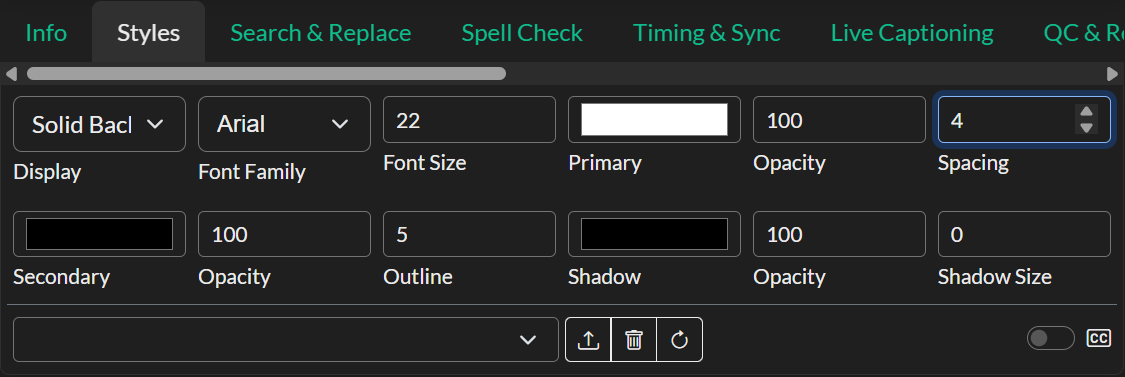
Subtitle look is controlled in two places. The Styles tab in Quick Tools sets the project-wide subtitle appearance. Image Export also has Show Subtitle Styling inside the export window, with font, colour, outline, shadow, padding, and named style presets, plus a preview of each event.
Use Generate Preview to render the current event. First, previous, next, and last move between events. Magnify opens a larger preview; Download saves that still.
Output Package
Click Export. Each subtitle event becomes a PNG, then both XML files are written to the target folder:
| File | Example | Use |
|---|---|---|
| PNG stills | DVD0001.png … DVD0012.png | One image per event, named {prefix} plus a four-digit index |
| BDN XML | untitled.xml | Blu-Ray Disc Next script: in/out timecodes and graphic filenames |
| Premiere FCP XML | untitled_fcp.xml | FCP 7 xmeml sequence of those stills for Premiere File > Import |
The FCP filename is the Script Name stem plus _fcp.xml. If Script Name is english.xml, the Premiere file is english_fcp.xml.
This Premiere FCP XML is not the FCP XML profile in Subtitle Export. That profile writes Final Cut Pro X 1.5 text titles. Image Export writes FCP 7 XML that references the PNG stills.
Importing into Premiere Pro
- Leave the
*_fcp.xmlfile and the PNG images in the same folder. The XML stores absolutefile://localhost/...paths; moving the package without updating those paths will make Premiere mark the stills offline. - In Adobe Premiere Pro, choose File > Import and select the
*_fcp.xmlfile. Do not import the BDN XML — Premiere will not treat that as a sequence. - Premiere creates a sequence named from the Description/Title field. Each PNG is a still clip at the matching subtitle in and out times. Overlapping cues are placed on extra video tracks. Transparent exports use straight alpha so the graphics composite over picture.
Video File with Alpha Channel
For NLEs that support alpha video tracks, Video Export Apple MOV Animation and ProRes 4444 presets are often simpler. One transparent video sits above the source footage; no per-still import is required. That approach works in Adobe Premiere Pro, DaVinci Resolve, Final Cut Pro, and other applications that composite alpha.
Troubleshooting
If exported images have a black background instead of transparency, enable Transparent Background (Alpha) before export.
If Blu-Ray authoring software rejects the BDN XML, remove special characters from the image prefix and script name.
If Premiere shows offline media, confirm you imported *_fcp.xml (not the BDN file) and that the PNGs are still in the folder that was used at export. Relinking is required if the folder was moved or renamed.
If the export fails partway through, check that the target folder has enough free disk space. Large projects can produce hundreds of image files.