Dialogue List
Dialogue List Export generates a tabular document containing your caption events alongside their timecodes and associated metadata. It is commonly used in broadcast post-production and localisation workflows as a structured reference for editors, QC reviewers, dubbing scripts, and programme delivery packages. Output is available in CSV format for spreadsheet applications and DOCX format for Microsoft Word.
Opening the Export Window
To begin, go to File > Export, select Dialogue List, and click Next. The Dialogue List Export window will open. Select the Event Group you wish to export from the dropdown — all Event Group types are available, including subtitle, translation, audio description, and transcription groups.
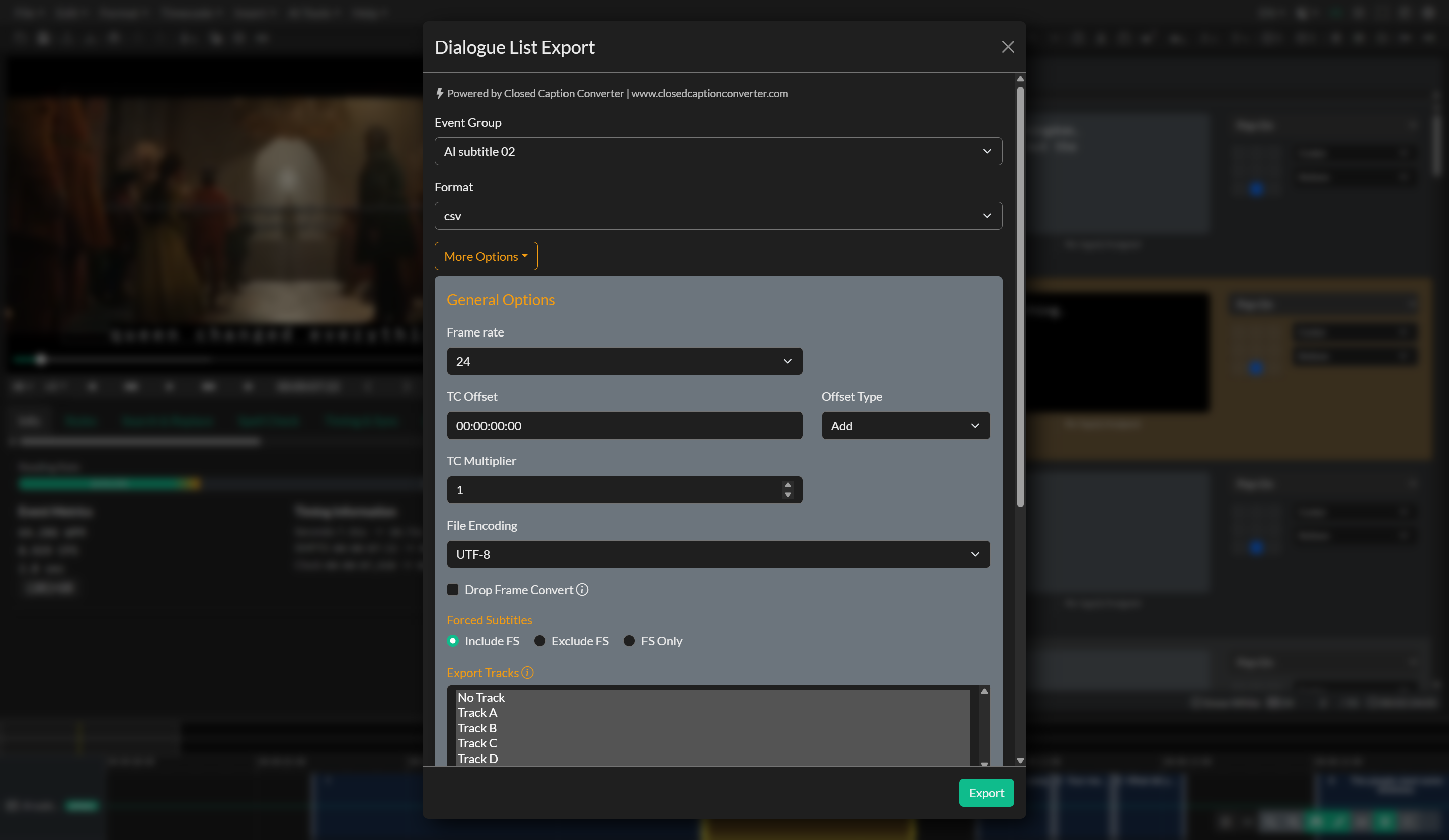
Choose a Format from the dropdown. Selecting DOCX produces a Microsoft Word document with each event in a formatted table row. Selecting CSV produces a comma-separated file suitable for opening in Microsoft Excel, Google Sheets, or other data tools.
Configuring Columns and Options
By default, all available columns are included in the export. To selectively enable or disable columns, click More Options to expand the advanced settings panel. From there, you can toggle individual columns on or off according to your delivery requirements.
The More Options panel also exposes several timing controls. Frame Rate and Drop Frame allow you to specify output timecodes independently of the project's working frame rate, which is useful when delivering to a client whose system operates at a different rate. The TC Offset field applies a fixed timecode adjustment (add or subtract) to every event in the export, and the TC Multiplier applies a fractional rate conversion — typically used between 23.976 and 24 fps timelines. File Encoding controls the character encoding of the output file.
A Drop Frame Convert checkbox is also available, which automatically converts SMPTE non-drop timecodes to drop-frame equivalents — useful when the source project uses non-drop frame but the delivery specification requires drop-frame timecodes. The Forced Subtitles control lets you choose to include all events, exclude forced-flag events, or export only those events marked as forced. Export Tracks filters by Event Group track (No Track plus A–D); all tracks are selected by default. See Event Group Tracks.
Profile-specific encoding options may appear at the bottom of the advanced panel depending on the format selected, providing additional output customisation where the format specification supports it.
Exporting
Once your settings are configured, click Export. The file will be saved to your local drive. In the desktop application, you can choose the save location via the system file dialog. The export button is disabled until a valid Event Group is selected.
DaVinci Resolve Cue Sheet Export
For audio description workflows that involve recording in DaVinci Resolve, Closed Caption Creator supports exporting cue sheets in formats compatible with Resolve's audio tools.
Troubleshooting
If the exported document is empty, confirm that the selected Event Group contains events within the project's timecode range. If timecodes in the output appear incorrect, review the Frame Rate, Drop Frame, and TC Offset settings in the More Options panel. If special characters in speaker names or event text are not rendering correctly in the output file, try adjusting the File Encoding setting to match the encoding expected by your target application.