Embed Captions for Broadcast
Embed Captions for Broadcast injects EIA-608 and CEA-708 closed caption data directly into your source video file for delivery to broadcast. Unlike subtitle sidecar files, the embedded output contains the caption data as a data stream inside the video container, which is required by broadcast standards in many territories. Critically, the video and audio tracks are not re-encoded: the original video data passes through unchanged, preserving the quality and format of your source file. This feature is available to Pro plan subscribers on the web version of Closed Caption Creator.
Preparing for Export
Before submitting an embed job, ensure your project contains a completed Event Group with the captions you wish to embed. If you do not yet have captions, you can generate them quickly using the Automatic Transcription feature available in the AI Tools menu.
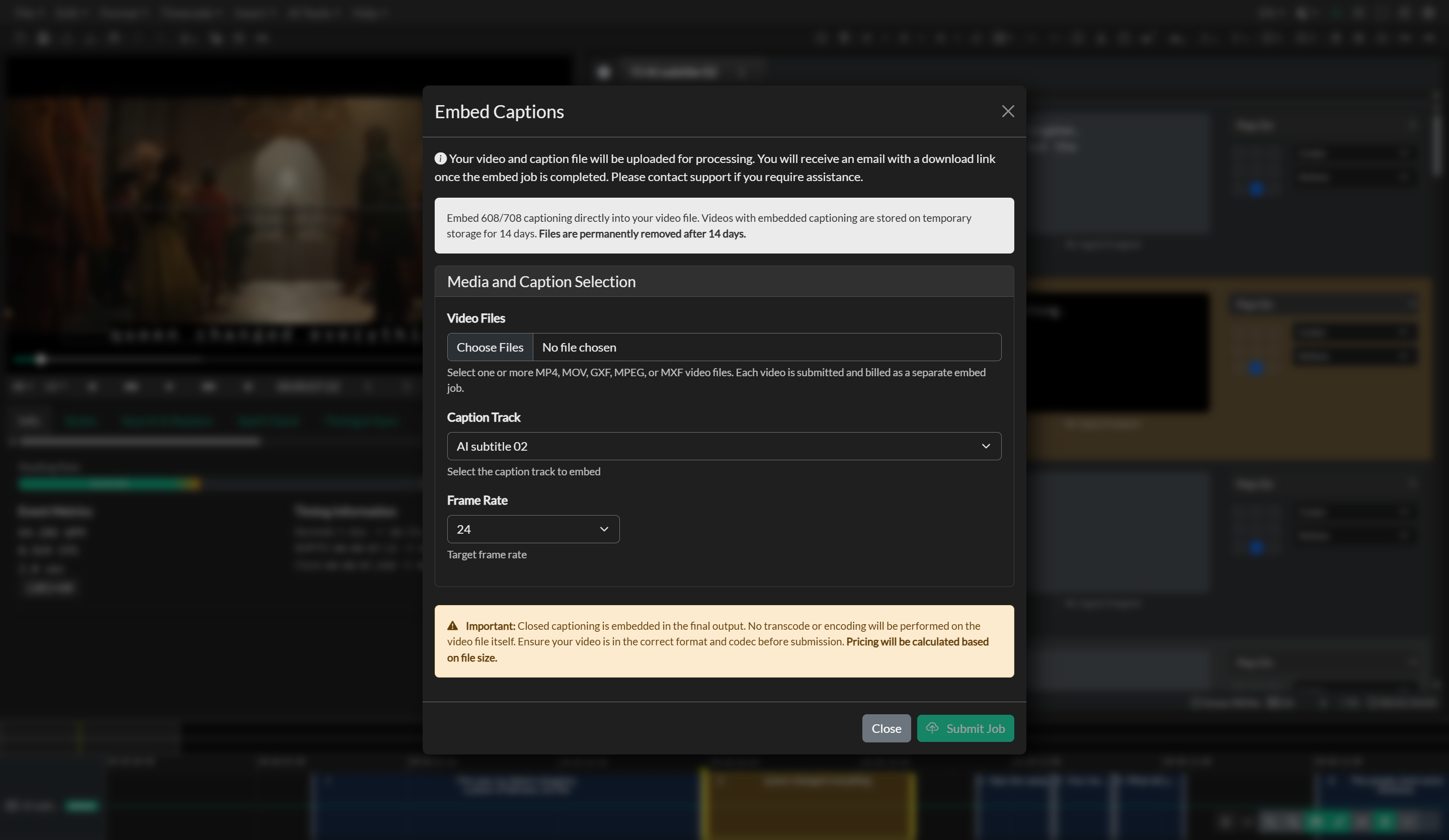
To open the Embed Captions window, go to File > Export and select Embed Captions. The Embed Captions modal opens directly. You will need to provide three pieces of information:
- Video Files — one or more source video files from your local drive (MP4, MOV, GXF, MPEG, or MXF).
- Caption Track — the Event Group containing the captions to embed.
- Frame Rate — the frame rate of the source video, plus Drop Frame for 29.97 and 59.94 fps material.
Provide your video files in the same format you intend to deliver, since the video track is not transcoded.
Embedding the Same Captions in Multiple Videos
Many deliverables share the same dialogue across several versions of a programme. A common example is an infomercial produced for several markets, where only the closing graphic or the telephone number changes from one version to the next. Instead of submitting each version separately, you can embed the same captions in all of them in a single submission.
To submit several videos at once:
- In the Video Files field, click Choose Files and select all the versions you need. Hold Ctrl (Windows) or Cmd (macOS) to select more than one file. You can click Choose Files again to add more files to the list. A file that is already in the list is not added twice.
- Review the list of selected videos. Each row shows the file name, its size, and its estimated cost.
- Optionally, edit the Custom Name for each video. It defaults to the video's file name and is used as the job name in your job history and notification emails.
- Use the trash icon to remove any video you added by mistake.
- Choose the Caption Track and Frame Rate, review the Pricing Summary, and click Submit Job.
Every selected video receives the same captions from the chosen Event Group, and the 608 compliance checks run once for the whole submission. All the versions must therefore share the same caption timing and frame rate. If a version has different dialogue or a different frame rate, submit it separately with its own Event Group or frame rate setting.
Each video is submitted as a separate embed job. It is priced and billed on its own, processed on its own, and you receive a separate email and download link for each one.
Caption Display Styles
Caption display styles are set per event in the editor, not in the Embed Captions modal. Use Format > Caption Style to assign Pop-On, Roll-Up 2, Roll-Up 3, Roll-Up 4, or Paint-On to individual events or to all events in the active event group.
When you submit an embed job, the display style assigned to each event is encoded into the embedded 608/708 data stream. Pop-On, Roll-Up, and Paint-On styles are all supported. Broadcast decoders will render each style according to the EIA-608 and CEA-708 specifications.
For guidance on authoring Roll-Up captions (including blank clear events) and Paint-On captions, see Caption Styles.
608 Compliance Checks
In addition to the standard structural pre-export checks described in Pre-Export Checks, the Embed Captions workflow enforces EIA-608 content rules that cannot be bypassed:
- Illegal Character Detected — An event contains a character that is not compliant with the 608 character set. Remove the character before exporting.
- Too Many Lines — An event exceeds the maximum of 4 lines permitted for 608 captions. Reduce the number of lines before exporting.
- Line Too Long — A line in an event exceeds the maximum of 32 characters permitted for 608 captions. Shorten the line before exporting.
These checks run before the job is submitted. Unlike structural pre-export warnings, these errors cannot be ignored — you must correct the affected events and try again.
Pricing
Embed jobs are billed per video. The base cost is $2.00 per job, with an additional $0.40 per gigabyte of source video (minimum 1 GB, rounded to the nearest whole gigabyte). The estimated cost is displayed in the window before you submit, based on the detected file size.
When you submit multiple videos, each video is priced and billed as its own job. The Pricing Summary and the confirmation dialog list the processing cost, storage cost, and subtotal for each video, followed by the combined total for the submission. For example, four versions of an infomercial at 1.2 GB each are billed as four jobs of $2.40 each, for a total of $9.60.
Trial accounts can run a limited number of embed jobs. If you select more videos than your trial has remaining, nothing is submitted and you are asked to remove some videos and try again.
Submitting and Downloading Your Files
Once you click Submit Job and confirm the cost, the source video files are uploaded to the Closed Caption Creator cloud service one at a time. The Overall Progress bar tracks the whole submission, and each video in the list shows its own upload progress. Transfers may take several minutes for large files, so keep the window open until all uploads are complete. Once a video finishes uploading, the embedding process for that video begins on the server.
If one upload fails, the remaining videos continue uploading. When the submission is finished, a summary tells you how many jobs were submitted and how many failed. The videos that failed stay in the list so you can click Submit Job again to retry only those files. The videos that uploaded successfully are not submitted, or billed, a second time.
When each job finishes, you will receive an email notification containing a download link for that completed file. When you submit several videos, you receive one email per video. Each email names the original video file, so you can tell the versions apart.
Output file names
The downloaded file keeps your original video file name with a cc_ prefix, so each output is easy to match to its source:
| Source video | Downloaded file |
|---|---|
Promo_Texas.mov | cc_Promo_Texas.mov |
Promo_Florida.mov | cc_Promo_Florida.mov |
Promo_Ohio.mxf | cc_Promo_Ohio.mxf |
The file name is based on the original video file name, not on the Custom Name. Give your source files distinct names before submitting (for example, by market or telephone number) so the outputs are just as easy to identify.
Processed files are retained for 14 days before being automatically removed. If you do not receive the email or encounter issues downloading your file, contact support with the job ID included in the email.
Avid Media Composer Workflow
For post-production workflows using Avid Media Composer, Closed Caption Creator can export a self-contained AAF file containing the 608/708 caption data for direct import into the Media Composer timeline. This workflow is available on the Pro plan.
In Closed Caption Creator, open the Export panel by clicking the Export icon in the top toolbar and selecting Subtitle File. Change the file extension to RAW and ensure the AAF Embed (Self-Contained) option is selected from the embed type dropdown. Next, map your caption track to the correct caption service — in most cases your primary language should be assigned to Program A, Channel 1. Click Export when ready.
Back in Avid Media Composer, create a new data track on your timeline for the caption data. Click and drag the exported AAF file onto that track. A progress dialog will appear confirming that the captions are being converted and loaded. Once complete, captions will appear over the programme monitor during playback.
After outputting your finished sequence, you can verify the result by opening the exported MXF file in MediaInfo, where both a 608 and a 708 text stream should be listed alongside the video and audio tracks. You can also confirm caption playback by importing the MXF into a third-party application such as Adobe Premiere Pro, which will create two separate caption tracks — one for 608 and one for 708 — that can be played back directly in the timeline.
Troubleshooting
If the upload fails or times out, check your internet connection and try again with a stable connection. For very large files, consider using a wired network connection rather than Wi-Fi. If the embed completes but the output file does not contain captions, verify that the correct Event Group was selected and that it contains events within the programme's timecode range. If the frame rate specified does not match the source video, timing errors may appear in the embedded captions.
When submitting several videos, keep in mind:
- Some uploads failed. Only the failed videos remain in the list after the submission finishes. Check your connection and click Submit Job again to retry them.
- One version has different timing. All videos in a submission share the same captions. If a version has been re-edited and its dialogue no longer lines up, sync a separate Event Group for that version and submit it on its own.
- Several emails look alike. Each email includes the original file name. Distinct source file names make each
cc_output easy to identify.