CCSL
The Combined Continuity and Spotting List (CCSL) is a specialised document format used in Hollywood post-production, international distribution, and localisation workflows. It combines two documents into one: a Continuity List, which records the dialogue and action of a programme in sequence, and a Spotting List, which records the in and out timecodes for subtitle and dubbing cues. The CCSL export in Closed Caption Creator produces a professionally formatted Microsoft Word document from your Event Group data.
Opening the CCSL Export Window
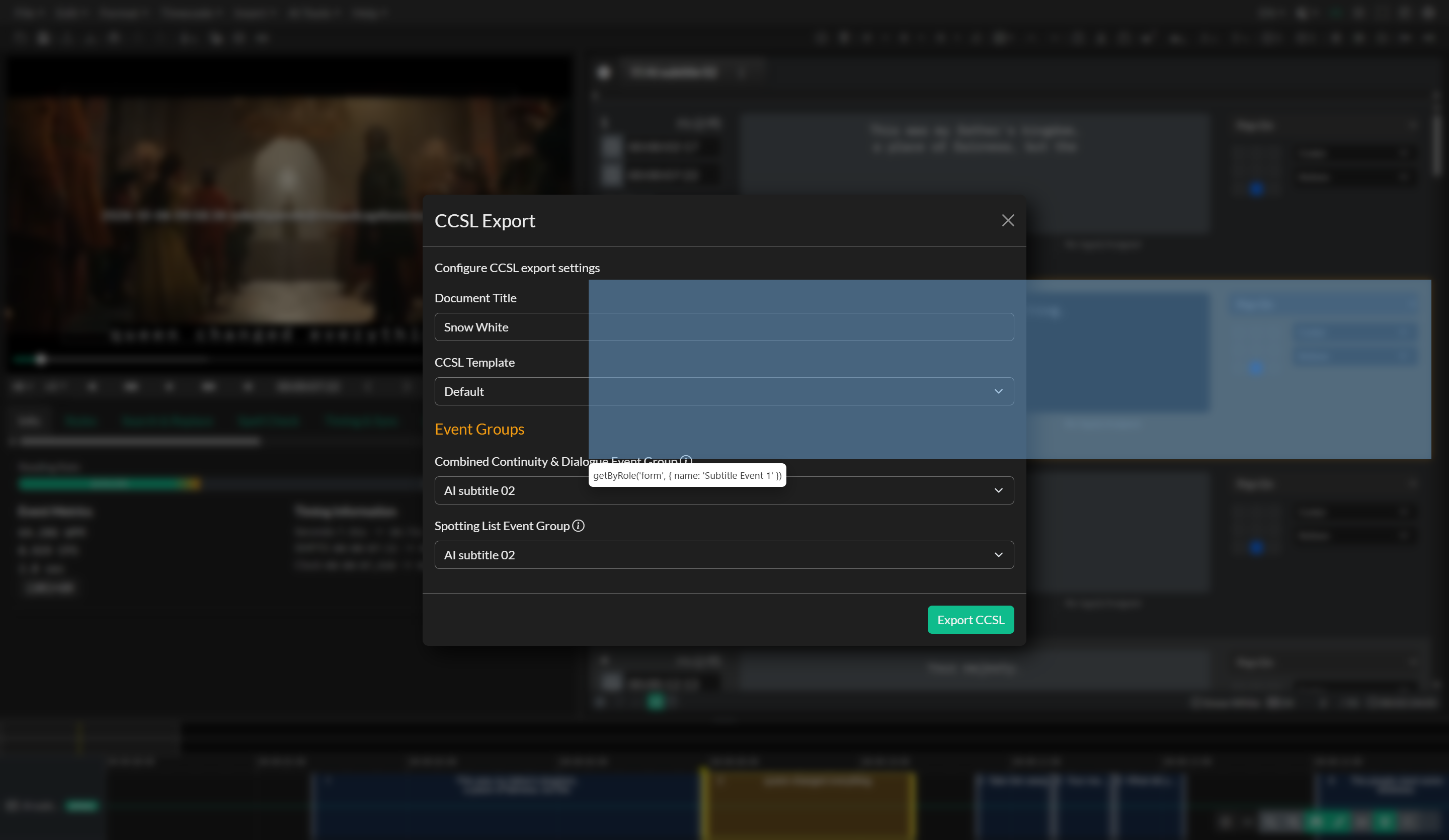
To begin, go to File > Export, select CCSL, and click Next. The CCSL Export window will open. It is a focused, minimal interface with a small number of configuration fields that determine the structure and labelling of the output document.
Configuring the Export
The Document Title field accepts the title of the programme or episode. This text appears in the header of the exported Word document and is used as a reference label for the recipient. Enter the full title as it should appear on the document cover page.
The Template dropdown controls the overall structure and styling of the output document. Five templates are available:
Default produces a standard two-column CCSL layout that is widely accepted across international distribution pipelines. Condensed uses a more compact row structure, reducing whitespace for programmes with a high density of dialogue events. Style 5A follows a specific formatting convention used by some major studios and distributors. Technicolor produces output conforming to Technicolor's CCSL specification. Starter is a simplified template suitable for independent productions or clients who do not have a house style requirement.
Selecting Event Groups
The CCSL export separates dialogue content from spotting list content, so two Event Groups must be assigned. The Dialogue Event Group should contain the primary caption or dialogue track — typically a subtitle or transcription group containing the programme's spoken content. Shot descriptions for the continuity columns are taken from that group's Notes field. The Spotting Event Group provides the timing cues and should contain the spotting list data. In many workflows both groups may be derived from the same source, but keeping them separate allows for independent editing of dialogue content and timing cues before the final CCSL is generated.
Line breaks entered in Notes are preserved in the exported Word document across all CCSL templates. Repeat a shot description from an earlier cut by copying and pasting in the Notes field; see Notes & Replies.
Exporting
Once the document title, template, and Event Groups are selected, click Export. The application generates a .docx file and saves it to your local drive. The output document is ready to send to a distributor, dubbing studio, or localisation vendor without further modification.
Troubleshooting
If the exported document does not contain the expected content, verify that the correct Event Groups are assigned to the Dialogue and Spotting fields and that both groups contain events. Shot descriptions missing from the continuity columns usually mean the Notes field on the Dialogue Event Group is empty. If formatting in the output does not match a client's specification, try a different template from the dropdown — the five available templates cover the most commonly required industry formats. If the export button is not responding, check that an Event Group is available in the project and that the application is not mid-export from another operation.