Copying & Pasting Events
Copying and pasting events is one of the most frequently used operations during caption editing. Beyond simple duplication, the application provides a dedicated Paste Attributes feature that lets you transfer specific properties — such as position, style, voice, or speaker assignments — from one event to a selection of others without overwriting their timing or text content. This is especially valuable when conforming a batch of events to match a reference event's formatting configuration.
Prerequisites
- A project is open with at least one Event Group containing events.
- For Paste Attributes, the source event must have been previously copied to the clipboard using the standard Copy operation.
Navigation paths
- Copy, Cut, Paste: secondary toolbar;
Editmenu; keyboard shortcuts. - Paste Attributes:
Editmenu → Paste Attributes, or right-click any event in the editor to access it from the context menu.
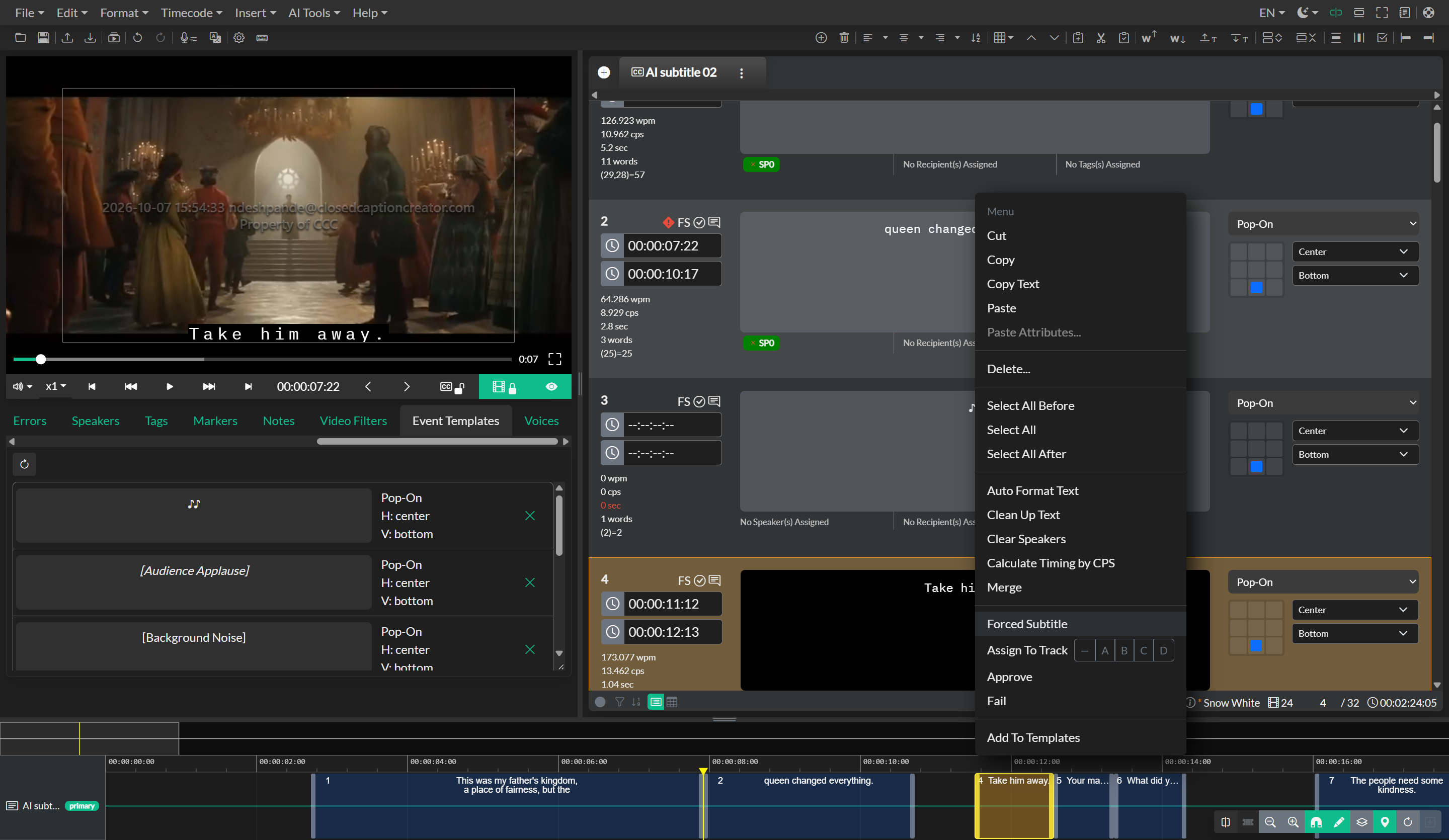
Copying and cutting events
Selecting one or more events and using the Copy control places a JSON representation of those events on the system clipboard. Cut performs the same operation and additionally removes the selected events from the Event Group. When a text cursor is active inside the Quill editor, Copy and Cut operate on the selected text within that event rather than on the event as a whole. When focus is in a Notes, Reply, or other text field, Copy, Cut, and Paste use the browser's native clipboard so you can copy shot descriptions from one Event's Notes field into another.
Copied events are stored in a standard clipboard format, which means they persist across projects within the same session and can be pasted into any Event Group.
Pasting events
The Paste operation inserts previously copied events into the current Event Group. If one or more events are selected at the time of pasting, the copied events are inserted after the first selected event. If no event is selected, the pasted events are appended to the end of the group. As with Copy, if a text cursor is focused inside the editor, Paste will insert text at the cursor position rather than adding new events. If a Notes or Reply field is focused, Paste inserts clipboard text into that field instead of creating events.
After pasting, review the inserted events for timing. Pasted events carry the timecodes from the source program, so you may need to retime or offset them if they were copied from a different sequence.
Paste Attributes
Paste Attributes is a more selective operation. Rather than duplicating entire events, it reads a previously copied event from the clipboard and applies only the attribute categories you choose to the currently selected events. This is the correct tool to use when you want to propagate a specific configuration — such as a speaker assignment, a screen position, or a voice setting — across many events at once without altering their text or timing.
To use Paste Attributes, first copy the event whose attributes you want to transfer by selecting it and using the standard Copy operation. Then select the target events — as many as needed — and open Paste Attributes from the Edit menu or the context menu.
The Paste Attributes dialog presents eight attribute categories that can be toggled independently:
Text transfers the full caption text of the source event, along with any associated original-language text and clears any attached audio file. This is useful when you want to reset the content of multiple events to a common template.
Metadata transfers the metadata array attached to the source event, which may include custom key-value pairs used for delivery tracking or workflow metadata.
Voice transfers the voice configuration used for text-to-speech generation, including the selected voice name, speaking style, extended settings, Speed, and ElevenLabs-specific parameters (stability and similarity). The rendered flag is also cleared so that affected events will be re-rendered with the new voice settings.
Style transfers the display style (for example Pop-On, Roll-Up) and the forced subtitle flag.
Position transfers the horizontal position (xPos), vertical position (yPos), text alignment, and writing mode (horizontal or vertical). Use this to snap a batch of events to the same screen position as a reference event.
Tags transfers any workflow tags attached to the source event.
Speakers transfers the speaker assignment or assignments from the source event to all selected events.
Notes transfers the notes field, reply field, and their associated review-state flags (notesCheck and replyCheck). Use this when you want to apply the same shot description to many selected Events at once. For copying part of a note, or pasting into a single Event while editing, use standard copy/paste in the Notes field instead. See Notes & Replies.
You can use the Select All button to enable every category at once, or use Invert to flip the current selection — for example, if you want to apply everything except text, enable all and then toggle text off.
The dialog remembers your last-used selection between sessions, so your preferred combination of categories will be pre-selected the next time you open it.
Once you confirm the operation, the selected attributes are applied to all targeted events and the selection is cleared. The action is added to the undo history so it can be reversed if needed.
Practical guidance
Paste Attributes is particularly useful during conforming workflows. If you have built a reference event with the correct position, font style, and speaker assignment for a particular speaker in a series, you can copy that event and then use Paste Attributes with only Position, Style, and Speakers enabled to apply those properties across an entire scene's worth of events without touching their text or timing. This eliminates repetitive manual editing and reduces the risk of inconsistency.
The Text category in Paste Attributes is a more destructive operation and should be used with care. Applying it to a multi-event selection will overwrite the text of every selected event with the same content from the source event. It is most appropriate when resetting events to a blank template or when testing a particular text configuration across multiple positions.
Troubleshooting
Paste Attributes dialog shows an error on open
The dialog reads the clipboard on open and validates that it contains a valid copied event. If the clipboard does not contain a CCC event — for example if something else was copied after the event — the dialog will display an error. Return to the editor, copy the source event again, and then re-open Paste Attributes.
Pasted events have incorrect timing
Pasted events retain the timecodes from the original source program. Use the timing offset tools or manual retiming to adjust them to the correct position in the target sequence.
Only some attributes appear to have been updated
Confirm that the correct attribute categories were enabled in the Paste Attributes dialog before confirming. The dialog defaults to the same selection used in the previous session, which may not include the categories you need this time.
Related docs
Source notes
- Components:
src/components/toolbar/controls/Copy.svelte,src/components/toolbar/controls/Cut.svelte,src/components/toolbar/controls/Paste.svelte,src/components/modals/PasteAttributes.svelte