Music Notes
Music note symbols are a standard convention in closed captioning and SDH (Subtitles for the Deaf and Hard of Hearing) to indicate that a song, background score, or musical passage is audible. Inserting these symbols correctly and consistently is important for accessibility compliance and is a requirement in many broadcast and streaming delivery specifications.
Prerequisites
- A project is open with at least one Event Group.
- One or more events are selected, or the Quill editor is active with a cursor position set.
Navigation paths
Insertmenu → Music Notes — opens the Music Notes modal where you choose the symbol style before inserting.
For high-volume work, the Edit menu provides access to the Shortcut Keys panel where you can view and customize keyboard shortcuts for music note operations. Three shortcuts are available by default: Insert ♪ places a single music note at the current cursor position without opening the modal, Insert Surround ♪ wraps all selected events with a single music note at the start and end of each event's text, and Insert Surround ♪♪ applies the same treatment using double music notes. The surround shortcuts are particularly efficient when marking a full lyric passage — select all events in the passage and apply the shortcut in a single keystroke rather than opening the dialog each time.
How music note insertion works
Selecting Music Notes from the Insert menu opens the Music Notes dialog. The dialog presents several placement options that control how the music note symbol is inserted relative to the selected event's text content. The available styles include inserting a single music note, a double music note, surrounding the existing text with music notes on both sides, and other variations.
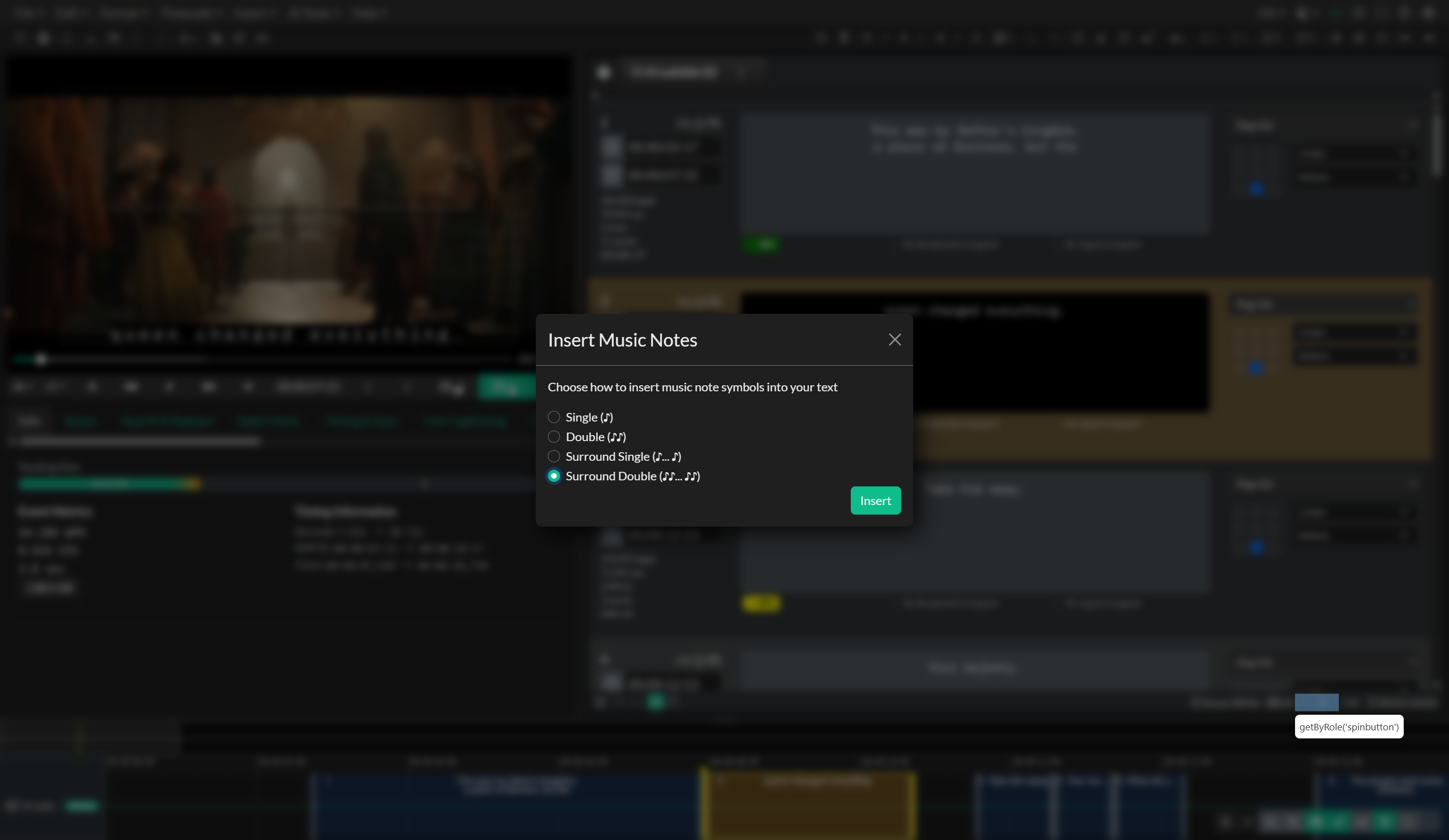
The selected style is applied to all currently selected events at once. This batch behavior is intentional — if you need to mark a sequence of events as a music passage, you can select all of them before opening the dialog and apply the symbol to the entire group in one step, rather than inserting the symbol into each event individually.
Maintaining consistency across productions
Broadcast and streaming platforms often have specific requirements for how music is indicated — for example, some specifications require a single note at the beginning and end of each lyric line, while others require a double note only at the start of a song block and a single note to close it. Before inserting music notes, confirm the convention required by your delivery specification.
For series and episodic work where the same music notation style is used throughout, consider creating an Event Template that already includes the correct music note format for common use cases (such as an end-of-song event). Applying a template is faster than opening the music notes dialog for each occurrence and reduces the risk of inconsistency across episodes.
Practical guidance
The most common workflow is to draft the lyric or instrumental passage events first with plain text, then select all events in the passage and apply the appropriate music note style in a single pass. This keeps the initial captioning flow uninterrupted and allows you to verify the text content before committing to the final symbol placement.
For events that contain only a music note with no lyric text — for example, an event that simply marks the presence of background music — the text field will contain only the music note symbol. Check that the event's duration and timing are appropriate for the passage being indicated, since there is no text-based CPS to serve as a pacing guide.
Troubleshooting
The music note is not appearing in the export
Some subtitle and caption formats have limited support for special Unicode characters. If the target format is SCC or a format with a restricted character set, the music note symbol may be encoded differently or substituted. Test the export in a target player to verify the symbol renders correctly after conversion.
The wrong events received the music note
Music note insertion applies to all selected events at the time the dialog was confirmed. Use undo to revert the change, carefully select only the intended events, and re-apply.
Related docs
- Inserting Symbols: Full Block
- Inserting Symbols: Ellipsis
- Removing SDH Elements
- Formatting & Position
Source notes
- Components:
src/components/toolbar/menus/InsertMenu.svelte,src/components/modals/MusicNotes.svelte